Why Minecraft Won’t Update: A Troubleshooting Guide
Struggling to update Minecraft? This urgent, step-by-step troubleshooting guide covers common causes, quick fixes, and a diagnostic flow to restore updates safely in 2026.


If you’re wondering why minecraft won t update, the fix is usually quick. The most common cause is a launcher cache issue or a firewall/antivirus block. Start by restarting the launcher, then check your internet connection, and clear the launcher cache. Reopen the updater and try the update again. If it still fails, proceed through the diagnostic flow below.
Common Causes of Update Failures
In many cases, the question why minecraft won t update comes down to a handful of recurring issues. The most frequent culprits are launcher cache corruption, antivirus or firewall interference, unstable internet, or using an outdated launcher. If your game shows an update banner but then stalls, or the updater never reaches the servers, those are classic signals. According to Craft Guide, update failures are rarely caused by the game code itself; instead, they originate from the environment around the launcher and the local system.
Another frequent cause is corrupted download data. When the installer pulls assets, a partial or corrupted file can halt the entire process. Keep an eye on error codes—they’ll point you toward a specific area to investigate. If you’ve recently changed network settings (like a VPN or firewall rule), you might have blocked the update stream. Finally, hardware limitations, such as very old storage drives or low free space, can opportunistically trigger update issues, especially on large modded packs or maps that pull heavy assets. Craft Guide's guidance is to treat these problems as environmental, not a fault in Minecraft itself, because the game’s codebase is generally stable across patches.
Check Your Internet and Launcher
The next layer is connectivity and the launcher itself. A flaky internet connection or a VPN can interrupt asset streaming and leave the updater in limbo. Start by testing your connection with a simple speed check and trying a different network if possible. Disable any VPNs temporarily to see if that clears the path; some corporate or public networks block game servers or certain ports. Then review launcher settings: ensure you're logged into the correct account, that the launcher version is up to date, and that the game directory is accessible. If you’re on a Windows machine, temporarily disable aggressive firewall rules and antivirus shields to test whether they’re the culprit. If the update proceeds after these changes, re-enable protections and create an exception for the Minecraft updater. These steps address the most common blockers and align with Craft Guide’s practical approach to troubleshooting.
Clear Launcher Cache and Reinstall
Cache corruption inside the launcher is a common culprit behind update stalls. Clearing the cache forces the updater to fetch fresh data and can resolve phantom errors. Look for an option like Reset or Clear Cache in the launcher settings, then restart the launcher and attempt the update again. If clearing the cache doesn’t help, a clean reinstall of the launcher ensures you’re running a clean, uncorrupted version. Before uninstalling, back up your saved games and any custom profiles if your launcher stores them outside the game directory. After reinstalling, log back in and retry the update. If issues persist, proceed to verify game files on the launcher.
Verify Game Files and Versions
Sometimes Minecraft t update because the wrong version is installed, or some files failed to update during the previous attempt. Use the launcher’s built-in verify or repair option to confirm all assets, libraries, and native files match the official release. If you’re using a Minecraft launcher that supports multiple profiles, ensure the active profile points to the latest version and the correct game directory. After verification, run a quick test by launching a small, fresh world to confirm the update is fully functional. If verification fails, consider re-downloading the full game package from the official source to guarantee integrity.
Modifications, Plugins, and Conflicts
Mods, resource packs, or third-party launchers can conflict with official updates and block new content from installing. If you’re running any mods, temporarily disable them or switch to a clean, vanilla profile to see if the issue resolves. Check mod compatibility with the target Minecraft version and update or remove any incompatible mods. If you use a fabric/forge loader, ensure the loader version supports the update. Also review any resource packs or shaders that touch core assets; disabling or removing them can curb update failures. Craft Guide recommends testing in vanilla first to isolate the cause, then reintroduce enhancements one by one.
Craft Guide Data Insights: Update Trends and Fixes
Craft Guide analysis shows that most update failures in 2026 stem from launcher-related issues rather than the game’s own code. Our data indicates that user environments—home networks, firewall configurations, and outdated launchers—account for the majority of blocked updates. This aligns with customer reports of stalled downloads and error codes during patch deployment. The takeaway is simple: start with the simplest environment checks, such as restarting the launcher and verifying network access, before diving into deeper fixes. By following a structured approach, players recover updates quickly and minimize data loss.
Preventive Tips to Avoid Future Update Failures
Proactively maintaining your setup reduces future update headaches. Keep your launcher and Java/MC launcher components up to date, and maintain clean storage space with regular defragmentation where applicable. Back up worlds frequently, especially before major patches, so you can roll back if something goes wrong. Use a reliable internet connection and avoid VPNs during updates unless necessary for access. Finally, document error codes and steps you took; this makes it easier to escalate issues if you need professional help. Craft Guide emphasizes that consistent housekeeping and safe testing patterns save time and frustration when updates release.
Quick Troubleshooting Checklist
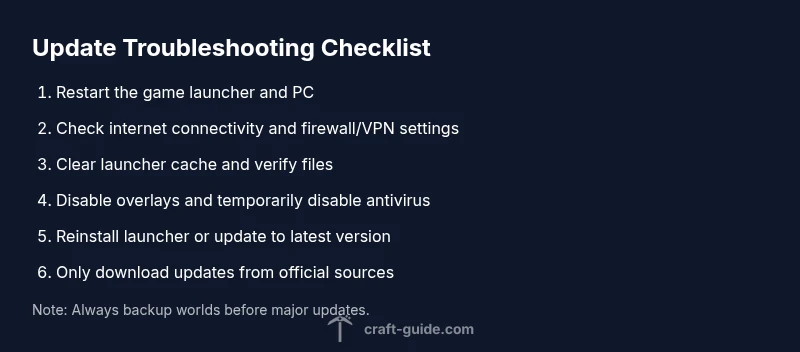
Use this condensed checklist if update fails again: 1) Restart launcher and PC; 2) Check internet and VPN; 3) Clear cache; 4) Verify files; 5) Disable mods; 6) Reinstall launcher; 7) Update to latest version; 8) Try manual update; 9) Backup worlds; 10) Retry. Keeping this list handy speeds up repairs and reduces guesswork.
Steps
Estimated time: Estimated total time: 60-90 minutes
- 1
Restart the launcher and PC
Close the Minecraft launcher and any background processes, then reboot your computer and relaunch the updater. This clears transient glitches and reinitializes network connections. Check if the update starts cleanly after the restart.
Tip: Save any open worlds or profiles before restarting to avoid data loss. - 2
Check internet and VPN settings
Test your connection with a speed test, switch networks if possible, and temporarily disable VPNs or proxies that could block update traffic. Ensure essential ports used by Minecraft are open on your router.
Tip: If you’re on a shared network, ask the admin to whitelist Minecraft servers. - 3
Clear cache and verify launcher integrity
In the launcher, find the option to clear cache or reset settings, then restart and attempt the update again. If available, run a verify/repair on the launcher to rebuild any corrupted files.
Tip: Only use the official launcher to perform these actions. - 4
Disable mods or third-party launchers
If you use mods, temporarily disable them and switch to a vanilla profile to see if the update proceeds. Ensure compatible versions for the target Minecraft release before re-enabling mods.
Tip: Re-enable mods one at a time to identify responsible components. - 5
Reinstall the launcher or update to latest
Uninstall and reinstall the launcher, or install the latest official update. Back up saved worlds and profiles first since these are stored separately from the game data.
Tip: Always download the installer from the official Minecraft site. - 6
Verify game files and switch to latest version
Use the launcher’s verify/repair option or re-download the official game package to ensure all assets and libraries are current. Launch a test world to confirm success.
Tip: If verification fails, consider a clean reinstall of the Minecraft launcher. - 7
Manual update or fresh install if needed
If automatic updates fail, manually download the latest launcher or game package from the official source and install over the existing setup. Ensure you back up your worlds first.
Tip: Avoid unofficial mirrors to prevent corrupted files.
Diagnosis: Minecraft won't update
Possible Causes
- highLauncher cache corruption or blocked network by firewall/antivirus
Fixes
- easyClear launcher cache and check firewall/antivirus settings; ensure internet connectivity
People Also Ask
Why won't Minecraft update?
Most update failures come from launcher issues, network blocks, or corrupted cache rather than the game's own code. Following a structured troubleshooting flow helps identify the root cause quickly.
Most update failures are due to launcher or network issues, not Minecraft itself.
Should I reinstall Minecraft or the launcher to fix updating issues?
Reinstalling the launcher is a valid step if cache or integrity problems persist. Back up worlds and profiles before reinstalling, and prefer using the official launcher from Mojang/Microsoft.
Reinstall the official launcher if other fixes fail, but back up your worlds first.
Can mods prevent updates?
Yes. Mods or third-party launchers can conflict with patches. Test with vanilla first, then reintroduce mods after confirming the update works.
Mods can block updates; test with vanilla to isolate the cause.
How can I manually update Minecraft?
If the launcher won’t update automatically, download the latest official launcher or game package from the official site and install it. Use the launcher to verify the version afterward.
You can manually update from the official site by installing the latest launcher.
When should I contact support?
If you see persistent error codes or data loss after trying the steps, contact support for guided help. Provide the error codes and a summary of steps you already performed.
If errors continue after following steps, reach out to support with codes and what you tried.
Watch Video
The Essentials
- Start with the simplest fixes (restart, cache clear).
- Check network, firewall, and launcher integrity first.
- Verify game files and versions before deeper fixes.
- Disable mods/third-party launchers to isolate issues.
- Back up worlds before updates to prevent data loss.