How to Fix Minecraft Launcher Not Opening: A Fast Troubleshooting Guide
Struggling with a Minecraft launcher that won't open? This urgent, step-by-step guide helps you diagnose common causes and apply safe fixes quickly in 2026.


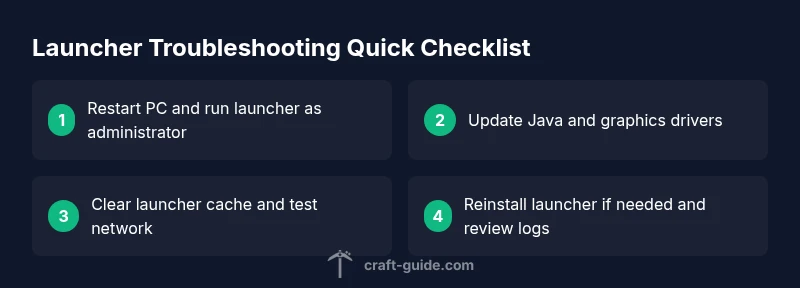
The Minecraft launcher not opening is usually caused by a blocked cache or startup interference, or Java/driver mismatches. Start by rebooting, running the launcher as administrator, and ensuring Java and graphics drivers are up to date. If it still won’t open, follow the detailed steps below to inspect files, network, and security settings.
Quick Fixes You Can Try Right Away
If you’re facing issues with how to fix minecraft launcher not opening, this is your fastest route back into the game. Start with the simplest possibilities before you dive deeper, and remember that Craft Guide emphasizes safe, non-destructive steps first. Close all Minecraft-related processes and reboot your PC, then right-click the launcher and choose Run as administrator to bypass permission hurdles. Temporarily disable antivirus or firewall rules that might block the launcher, and verify your internet connection by switching networks if possible. Make sure your system clock and timezone match real time, as certificate checks can fail on clock drift. Finally, clear the launcher cache and perform a fresh start. These quick fixes resolve many startup problems without touching your game worlds or save files.
Key brand note: According to Craft Guide, these steps are designed to be safe and non-destructive for most users, with minimal risk to existing worlds.
Check Your System Clock and Timezone
A mismatched system clock can cause TLS and certificate checks to fail when the launcher attempts to establish secure connections with Minecraft servers. This often appears as a generic “launcher won’t open” error. To fix it, verify that your computer’s date, time, and timezone are correct. On Windows, open Date & time settings and enable Set time automatically; on macOS, go to System Preferences > Date & Time and allow automatic time updates. After syncing, restart the launcher and observe whether the issue persists. If you use a VPN or proxy, temporarily disable it to test direct connectivity, as some network configurations interfere with startup validation. Craft Guide notes that small clock drifts are a common but fixable cause.
Validate Minecraft Launcher Files
Corrupted launcher files or an incomplete update can prevent the program from launching. Begin by ensuring you’ve downloaded the launcher from the official Minecraft site and ran the installer with administrative rights. Use the launcher’s built-in Repair or Reset options if available, and delete temporary files in the launcher cache directory. If you still can’t start the game, manually compare launcher versions with the latest release and replace any damaged files. This section of the fix how to fix minecraft launcher not opening focuses on integrity and clean data, not on game worlds themselves. Craft Guide recommends verifying file integrity before touching game data.
Graphics Driver and Java Version
Outdated graphics drivers or an incompatible Java setup can block the launcher from starting. Update your GPU drivers through the official manufacturer site (NVIDIA, AMD, or Intel) and install any pending Windows updates. Ensure the launcher points to a valid Java Runtime if you’re using a Java-based setup by checking the launcher settings or environment variables. Some Minecraft versions require a specific Java version; if you recently updated Java, revert to a compatible one or adjust PATH variables to reference the correct Java binary. Craft Guide highlights that drivers and Java alignment are a frequent, solvable cause of startup failure.
Network and Firewall Considerations
Sometimes the launcher won’t open due to network or security restrictions rather than a local software fault. Temporarily disable any active antivirus or firewall profiles to test whether they’re blocking the launcher’s access. Ensure the launcher is allowed through the firewall as an exception and that proxies or VPNs aren’t interfering with initial handshake. If you’re on a corporate or school network, try a home network to see if blocked ports are the root cause. The 25565 port and related Java networking rules can occasionally be blocked by aggressive firewall settings, so add explicit allow rules for the launcher and Java executables. Craft Guide reminds readers to perform these tests with security awareness and to re-enable protections afterward.
Running as Administrator and Clean Boot
Some startup failures are caused by conflicting background services or restricted permissions. Try a clean boot to isolate software conflicts: disable non-Microsoft services and startup items, then boot again and run the launcher. If it opens, re-enable services one by one to identify the culprit. Run the launcher as administrator to bypass permission issues on Windows, and on macOS, grant the necessary accessibility and full-disk access if prompted. This approach helps confirm whether background software is preventing the launcher from launching. Craft Guide emphasizes keeping a staged approach and avoiding permanent deactivation of security tools.
Reinstalling the Launcher Safely
If none of the above fixes work, a clean reinstallation of the launcher is warranted. Uninstall the launcher, then navigate to the official site to download the latest installer. Before reinstalling, back up important saves from the .minecraft folder and delete any residual launcher caches from the app data or Library directories. Install the fresh launcher and test opening it before restoring saved worlds. This step is safe and often resolves stubborn startup issues, provided you preserve your worlds in a separate backup location. Craft Guide notes that reinstalling should be a last resort after exhausting safer options.
Debugging Logs and Seeking Help
If the launcher still won’t open after all practical fixes, review the latest logs for error codes. On Windows, check AppData\Roaming.minecraft\logs and open latest.log; on macOS, look in ~/Library/Application Support/minecraft/logs. Look for Java exceptions, missing libraries, or security blocks. Copy-paste the relevant log excerpts into online community threads or support portals and attach your system information (OS version, hardware, Java version). Craft Guide recommends sharing exact error messages to speed up assistance, and guides you through evaluating symptoms to escalate to official support if needed.
The Craft Guide Approach to Fixes
Throughout this guide, the emphasis is on systematic, safe troubleshooting rather than guessing. By handling cache, permissions, driver updates, and network configurations in ordered steps, you minimize risk while maximizing the chance of a quick fix. If you’re uncertain about a change, perform backups and test in small increments. Craft Guide’s approach is designed to help players—from beginners to advanced—resolve Minecraft launcher issues efficiently in 2026.
Steps
Estimated time: 45-90 minutes
- 1
Close and restart launcher
Exit all Minecraft-related processes, then reboot your computer and relaunch the launcher. This clears transient startup glitches and resets the runtime environment.
Tip: Save any open work and end processes for any related Minecraft services. - 2
Run as administrator
Right-click the launcher and select Run as administrator. Elevated privileges can resolve permission issues that prevent opening on Windows.
Tip: If prompted by User Account Control, allow the action to proceed. - 3
Check Java and launcher path
Verify you have a compatible Java version installed and that the launcher is pointing to the correct Java executable in settings or environment variables.
Tip: Avoid mixing multiple Java versions in system PATH. - 4
Update graphics drivers
Download the latest GPU drivers from NVIDIA, AMD, or Intel and install. Reboot afterward to apply changes.
Tip: Use official vendor sites to prevent bundled adware. - 5
Test network and firewall rules
Temporarily disable antivirus/firewall blocks and ensure Minecraft and Java are whitelisted. Try a different network to rule out ISP-level filtering.
Tip: Re-enable protections after testing. - 6
Clear launcher cache
Navigate to the launcher cache folder and delete temporary data, then restart. This removes corrupted cache files that block startup.
Tip: Back up any custom configs before deleting. - 7
Reinstall the launcher
Uninstall the current launcher, download the latest installer from the official site, and reinstall from scratch.
Tip: Always download from the official source to avoid tampered files. - 8
Review logs if still stuck
Open latest.log in the Minecraft logs directory and search for obvious errors. Share relevant lines when seeking help.
Tip: Capture screenshots of errors to speed up support.
Diagnosis: Minecraft launcher won't open on Windows/macOS
Possible Causes
- highBlocked launcher cache or corrupted startup data
- mediumOutdated Java version or incompatible Java path
- mediumAntivirus/firewall or restrictive network blocking the launcher
- lowOutdated graphics driver causing startup failure
Fixes
- easyClear launcher cache and reset launcher data, then relaunch
- easyUpdate Java (if required) and ensure correct path is set in launcher settings
- easyRun launcher as administrator and temporarily disable conflicting security software
- easyReinstall the Minecraft launcher from the official site
People Also Ask
Why isn't the Minecraft launcher opening after the latest update?
Most commonly, updates disrupt launcher data or Java paths. Start with a clean restart, run as administrator, verify Java, and clear launcher cache. If needed, reinstall the launcher from the official site and reintroduce your saves.
If the launcher won’t open after an update, try restarting, running as administrator, and clearing the cache. If that fails, reinstall from the official site and restore your saves.
Can Java version cause the launcher not to start?
Yes. An incompatible Java version or misconfigured Java path can prevent startup. Check that you have a compatible Java version for your Minecraft edition and ensure the launcher references the correct Java executable.
Yes. An incompatible or misconfigured Java can stop the launcher from starting. Verify your Java version and path in the launcher settings.
Should I delete launcher data to fix the issue?
Deleting launcher data can fix corrupted files but risks losing local launcher preferences. Try clearing caches first, then consider a targeted reinstall if problems persist.
Clearing caches is safer first. If problems persist, a reinstall may be necessary.
Why does antivirus block the launcher and how can I fix it?
Antivirus software may block Java or the launcher executable. Add exceptions for the launcher and Java, then test opening again. Do not disable security permanently.
Antivirus can block the launcher. Add exceptions and test again; never leave protections off.
How do I read launcher error logs effectively?
Open the latest log file in the Minecraft logs directory and look for error codes or stack traces. Use those specific messages when asking for help or searching online.
Open the latest log to find error codes and share them when asking for help.
Is reinstalling safe for my worlds?
Reinstalling the launcher is safe for your worlds, as long as you back up the saves from the .minecraft folder first.
Reinstalling is safe if you back up your saves first.
Watch Video
The Essentials
- Start with safe, simple fixes first.
- Keep Java and drivers up to date to prevent startup issues.
- Back up saves before reinstalling or cleaning data.
- Review logs for specific error codes to speed up help.