Why Minecraft Won t Download and How to Fix It
Struggling to download Minecraft? This guide tackles why minecraft won t download with practical steps, launcher updates, network checks, and prevention tips. Learn fast fixes and long-term care from Craft Guide.


Most download failures come from an outdated launcher, blocked network ports, or insufficient storage. Start by updating the Minecraft launcher, checking your internet connection, and freeing disk space. If the issue persists, verify your game edition matches your launcher (Java vs Bedrock) and temporarily disable VPNs or proxies. These quick checks fix the majority of why minecraft won t download issues today.
Why Minecraft Won t Download: Common Causes and Quick Fixes
If you see the message why minecraft won t download, the first thing to know is that most issues fall into a few predictable culprits: launcher incompatibility, network blocks, or insufficient storage. According to Craft Guide, most players resolve this quickly by updating the launcher, verifying internet connectivity, and freeing up disk space. Start here before diving into deeper diagnostics. Other frequent causes include a mismatched game edition, VPNs or proxies interfering with connections, and corrupted launcher caches. By categorizing the problem, you can apply targeted fixes that save time and frustration. Craft Guide Analysis, 2026 notes that the top causes are outdated launchers, blocked ports, and insufficient storage, so prioritize those areas in your first round of checks.
Check System Requirements and Launcher Version
Before you search for deeper issues, confirm your computer meets Minecraft’s minimum requirements and that you’re using the correct launcher for your edition. Ensure your operating system is up to date, you have enough RAM (at least 2 GB for the simplest setup, more for larger modded profiles), and you have ample free disk space. For Java Edition, verify you have an appropriate Java runtime if the launcher requires it. Also confirm you’ve downloaded the official launcher from the right source. A simple mismatch—Java Edition on a Bedrock launcher or vice versa—will prevent downloads entirely and waste troubleshooting time.
Internet Connection and Firewall Considerations
Stable internet is essential, but an unstable or restricted network can block Minecraft downloads. Check your connection speed with a quick speed test and try a wired Ethernet connection if possible. Disable or reconfigure any active VPNs, proxies, or firewall rules that may block TLS/HTTPS traffic, especially to Mojang and Microsoft servers. If you’re on a shared network (school, workplace, or public Wi‑Fi), try a different network or consult the network administrator to whitelist the launcher domains. Restarting your router can also reset problematic ports and improve connectivity.
Storage Space and Disk Health
Download failures often happen when there isn’t enough disk space. Check that you have several gigabytes free on the drive hosting the Minecraft launcher and the game files. Run a quick disk check to identify file system errors that could interrupt downloads, and consider moving game data to a larger drive if your primary drive is nearly full. Defragmentation is generally not needed on modern SSDs, but a clean-up of temporary files and previous launcher caches can reclaim significant space.
Proxy, VPN, and Network Restrictions
Proxies and VPNs can alter routing and cause failed downloads. Disable any active VPNs and revert to your normal network settings to see if the download proceeds. If you must use a proxy, ensure it is configured correctly and supports TLS 1.2+ connections. For corporate or campus networks, DNS filtering or port restrictions can block Minecraft’s download endpoints. Switching to a direct connection or changing to a trusted DNS (like a consumer-grade resolver) can help.
Java Edition vs Bedrock Edition Differences
Two main editions exist, and using the wrong launcher for your edition will block the download altogether. If you installed Java Edition, use the Java launcher and ensure your Java Runtime Environment is compatible. If you’re on Bedrock Edition, use the Windows/Store launcher or the Bedrock-specific download. Mixing editions with the wrong installer leads to confusion and repeated errors, so double-check you’re targeting the correct edition for your device and account.
Corrupt Launcher Cache and Installations
Sometimes the launcher’s cache or an incomplete install can sabotage downloads. Clear the launcher cache or reset its data, then restart the launcher. If that doesn’t help, a clean reinstall of the Minecraft launcher often resolves stubborn issues. Before reinstalling, back up any skins, saves, or mod profiles you want to preserve. Clearing temporary files and re-downloading the official installer reduces the chance of reintroducing a corrupted file.
Diagnostic Flow: Quick Path to a Fix
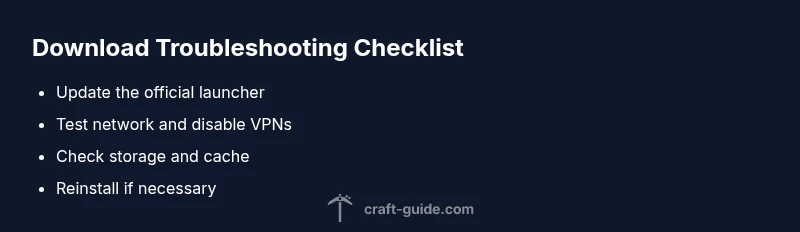
When troubleshooting, start with the simplest steps: update the launcher, test a different network, and check storage. If the problem persists, narrow down by edition compatibility, then examine firewall settings and cache integrity. Use a logical flow so you don’t repeat steps. If none of these resolve the issue, consider professional help for deeper system diagnostics or hardware checks.
Prevention Tips and Final Checks
Keep your system updated, maintain adequate free storage, and maintain a clean launcher cache. Regularly verify the launcher integrity after major Windows/macOS updates, and avoid third-party launchers that could introduce compatibility risks. If you run into issues often, create a small troubleshooting checklist and track which fixes work best for you. Consistent maintenance reduces future downtime and keeps your Minecraft experience smooth.
Steps
Estimated time: 30-60 minutes
- 1
Check for launcher updates
Open the Minecraft launcher, navigate to the profile or settings, and install any available updates. Restart the launcher after updating to ensure changes take effect.
Tip: Always download the update from the official launcher to avoid corrupt installers. - 2
Verify edition compatibility
Confirm you are using the correct launcher for your Minecraft edition (Java vs Bedrock). If you’re on Windows, ensure Bedrock is installed from the Microsoft Store for Bedrock-specific features.
Tip: A quick cross-check with your account type saves a lot of time. - 3
Test network connectivity
Run a speed test and try a wired connection. Disable VPNs/proxies temporarily to see if the download starts, then re-enable them if needed.
Tip: If you’re on Wi‑Fi, move closer to the router or switch to 5 GHz if available. - 4
Check storage space
Ensure the drive hosting the launcher has several GB of free space. Clear temporary files and remove unnecessary apps to reclaim space.
Tip: Aim for at least 10-20 GB free for smooth operation. - 5
Clear cache or reinstall launcher
Clear the launcher cache through the settings or perform a clean reinstall of the launcher from the official site.
Tip: Back up saves or mods before reinstalling. - 6
Try a fresh download
After clearing cache, download the launcher again from the official source and run through the setup wizard.
Tip: Verify the downloaded file’s integrity if your system prompts for it. - 7
If all else fails, seek help
Contact official support or seek expert help if the problem persists after all steps.
Tip: Document error messages and your system specs to speed up troubleshooting.
Diagnosis: Minecraft launcher won't download updates or game files
Possible Causes
- highOutdated or mismatched launcher version
- highBlocked network ports or restrictive firewall
- mediumInsufficient disk space or disk errors
- lowCorrupted launcher cache or partial install
Fixes
- easyUpdate the launcher to the latest version from the official source
- easyTemporarily disable firewall/antivirus or allow the launcher through
- easyFree up storage and run a disk check for errors
- easyClear launcher cache or reinstall the launcher completely
People Also Ask
Why does Minecraft refuse to download even when my internet is working?
Download failures can persist despite a working connection due to outdated launchers, edition mismatches, or blocked ports. Start with an official launcher update, check edition compatibility, and temporarily disable VPNs or proxies to test a clean connection.
If your internet is fine but the download still fails, focus on launcher updates, edition compatibility, and network blockers.
Can I download Minecraft from a different launcher?
Only use the official launcher for Minecraft downloads. Third-party launchers may not be trustworthy or compatible, which can lead to corrupted files or blocked downloads.
Stick to the official launcher to avoid security and compatibility issues.
Does antivirus software block Minecraft downloads?
Some antivirus programs may flag or block the launcher. Temporarily disable real-time protection or create an exception for the launcher during download, then re-enable protection afterward.
Temporarily adjust antivirus settings only if you trust the source, then revert.
Will changing DNS help with download issues?
Changing to a reliable DNS can improve connection stability and access to download servers, especially on restrictive networks. Try using a trusted public DNS and test the download again.
A DNS change can fix routing issues that block the download.
Should I run the launcher as administrator?
Running as administrator can help on Windows if permissions block the installer or cache access. Use this as a diagnostic step if you encounter permission errors.
Try running the launcher as administrator if you see access errors.
How often should I update the launcher?
Update the launcher whenever a new version is released or when the game prompts for updates. Regular updates reduce compatibility problems and keep downloads smooth.
Keep the launcher updated with each release for best results.
Watch Video
The Essentials
- Update the launcher first and verify edition compatibility.
- Check network access and disable blockers temporarily.
- Ensure ample storage and clean launcher cache.
- Reinstall the launcher if needed and test after each step.
- Prevent future issues with routine maintenance.