Why Minecraft Launcher Not Working? A Practical Troubleshooting Guide
Encountering a startup crash or launcher errors? This urgent guide walks you through why minecraft launcher not working and provides practical steps to diagnose, fix, and prevent future issues so you can get back to your world quickly.


If you’re asking why minecraft launcher not working, the most common culprits are an outdated launcher or Java version, a corrupted launcher cache, or blocked network access. Start with the easiest fixes: update the launcher, verify Java is current, and refresh your profile/cache. Then check firewall rules or antivirus interference. If the issue persists, proceed with the longer fixes outlined below.
Anatomy of a Minecraft Launcher Failure
When the launcher refuses to start, the problem is rarely a single missing file. More often, it’s a chain of small issues, such as an outdated launcher, a conflicting Java version, or a blocked network path. In this guide, we explain the most common failure modes and how they manifest in errors like “Java not found,” “Unable to connect,” or a simple frozen splash screen. By understanding the root causes, you can approach fixes systematically and minimize downtime. The phrase why minecraft launcher not working captures a lot of these scenarios because the root cause is usually practical, user-level maintenance rather than a mysterious bug. Craft Guide recommends starting with small, reversible steps so you can observe what works and what doesn’t, which also reduces the risk of accidentally introducing new problems.
Common Causes at a Glance
Most startup issues fall into a few predictable buckets:
- Outdated launcher or Java version, leading to compatibility errors
- Corrupted launcher cache or corrupted game assets
- Network restrictions, firewall, or antivirus blocks
- Insufficient permissions or a misconfigured profile
- Conflicting software, such as VPNs or overlays
Recognizing these categories helps you apply the right fixes quickly. For example, if the error is related to network access, you’ll focus on firewall exceptions and proxy settings first. If you see a Java error, updating Java or selecting the correct Java version for the launcher becomes your priority. Craft Guide’s analysis, 2026, shows that most issues are resolved by targeted, reversible changes rather than a full reinstall unless you’re on an older OS or a corrupt OS profile.
Gather Diagnostics Before You Fix
Before making changes, collect a few key data points: the exact error message, launcher version, Java version, OS version, and whether other programs can access the internet. Take note of when the issue started (after a recent update or install), and check for recent changes to security software or VPNs. This information helps you avoid blind fixes and enables faster escalation if you need support. A simple screenshot or log file can save you hours of back-and-forth, especially when communicating with a support channel or forum.
Step-by-Step Fixes You Can Try First
Starting with the easiest checks is essential. Update and restart, then verify your security settings. If you’re stuck, you’ll find a complete, tested sequence in the STEP-BY-STEP section below. Remember to back up your worlds before making significant changes to your launcher or game files. After each fix, launch the game to confirm whether the issue is resolved or persists. The aim is to reduce the overall downtime and minimize the risk of data loss.
Common Pitfalls and How to Avoid Them
One frequent mistake is skipping a required restart after an update. Some fixes only take effect after a fresh launch. Another pitfall is modifying multiple settings at once, which makes it hard to identify the true cause. Always document what you changed so you can revert if needed. Finally, don’t ignore minor warning messages; sometimes they point to a misconfigured path or permission. Staying methodical saves time and reduces frustration.
Advanced fixes and When to Reinstall
If basic steps fail, more advanced fixes may be required: reinstalling the launcher, ensuring correct Java arguments, or sandboxing the launcher to prevent conflicts with other software. Reinstall should be your last resort after you’ve tried updating, clearing cache, and verifying permissions. If you still cannot start, consider checking for OS-specific issues or graphics driver updates. A clean reinstall often resolves hidden file corruption or misconfigurations that linger after partial fixes.
Steps
Estimated time: 45-90 minutes
- 1
Close and Update the Launcher
Exit the launcher completely. Check for updates and install the latest version. Relaunch and sign back in to verify the fix. This often resolves minor corruptions and compatibility checks.
Tip: Keep auto-update enabled to catch future fixes automatically. - 2
Verify Java Version
Open Java settings and ensure you’re running the version recommended by the launcher. If the launcher uses a bundled Java, make sure that path is intact. Misconfigured Java paths are a common startup cause.
Tip: If you’re unsure, use the launcher’s built-in Java checker or reinstall Java. - 3
Clear Cache and Re-login
Clear the launcher cache and delete temporary files associated with the launcher. Sign out, then sign back in to refresh authentication tokens. This often clears stuck login sessions that block startup.
Tip: Backup your saved games before clearing caches. - 4
Check Permissions
Run the launcher as administrator or adjust permissions so the launcher can write to its folders. On macOS, ensure the app has the required Accessibility and Full Disk Access if prompted.
Tip: Avoid running multiple instances of the launcher simultaneously. - 5
Review Security Software
Temporarily disable antivirus or firewall rules to test if they’re blocking the launcher. If this resolves the issue, add an exception for the Minecraft launcher in your security software.
Tip: Re-enable protection after testing; do not leave security relaxed longer than necessary. - 6
Test Network Path
Ensure your internet connection is stable, and avoid VPNs or proxies that could block Minecraft servers. Try a direct connection from a different network if possible.
Tip: Ping the launcher servers to confirm reachability. - 7
Reinstall Launcher
If the issue persists, uninstall the launcher completely and reinstall the latest version. Consider a clean reinstall of the game files to remove corrupted assets.
Tip: Keep a backup of your worlds before reinstalling. - 8
Check System Drivers
Update graphics and network drivers, and verify OS updates. Compatibility issues can mimic launcher problems and affect startup.
Tip: Restart after driver updates to ensure changes take effect.
Diagnosis: Minecraft launcher fails to start or displays errors during launch
Possible Causes
- highOutdated launcher or Java version
- mediumCorrupted launcher cache or game assets
- mediumNetwork restrictions, firewall, or antivirus blocks
- lowInsufficient permissions or misconfigured profile
- lowConflicting software (VPNs, overlays)
Fixes
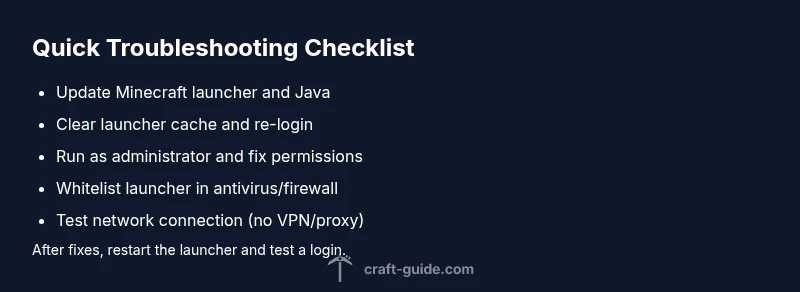
- easyUpdate Minecraft launcher and ensure Java is up to date for your setup
- easyClear launcher cache and re-login; consider a fresh profile
- mediumRun the launcher as administrator and fix file permissions if needed
- mediumTemporarily disable antivirus/firewall or whitelist the launcher
- easyCheck network settings, disable VPNs, and test a direct connection
- hardReinstall the Minecraft launcher or perform a clean reinstall of the game files
People Also Ask
What should I do first when the Minecraft launcher won't start?
Begin by updating the launcher, checking Java version, and clearing the launcher cache. Then relaunch to see if the issue is resolved before trying more advanced steps.
Start by updating the launcher and checking your Java version, then clear the cache and try again.
Why does the launcher say Java not found?
This usually means Java is not installed or the launcher cannot locate the Java path. Install the recommended Java version or configure the launcher to use the bundled JRE.
Java not found typically means Java isn’t installed or the path is wrong.
Is it safe to temporarily disable antivirus to fix startup issues?
Temporarily disabling antivirus can help diagnose if it’s blocking the launcher. If it fixes the issue, add an exception rather than leaving protection turned off.
You can test by temporarily disabling antivirus, but only briefly and with caution.
When should I reinstall the launcher?
Reinstall is recommended after verifying updates, clearing cache, and permissions. If problems persist across reinstallations, consider deeper OS or hardware checks.
Reinstall when updates and cache fixes don’t resolve the problem.
Can network issues cause launcher failures?</
Yes, blocked ports or proxies can prevent startup or login. Test on a different network and ensure the launcher can reach Minecraft servers.
Network issues can stop the launcher from starting or logging in.
What if none of the fixes work?
If nothing helps, seek support with logs and system details. The Craft Guide Team recommends submitting a detailed report to the community or official support.
If all else fails, gather logs and contact support.
Watch Video
The Essentials
- Identify the root cause before fixing to avoid unnecessary steps.
- Keep launcher and Java up to date to prevent most startup errors.
- Back up worlds and settings prior to reinstallation or major changes.
- Use step-by-step fixes and test after each change to locate the issue efficiently.