Why is Minecraft Not Opening: An Urgent Troubleshooting Guide
Struggling to launch Minecraft? This urgent, step-by-step guide helps diagnose why Minecraft won't open, fix launcher and mod issues, and prevent future startup problems.


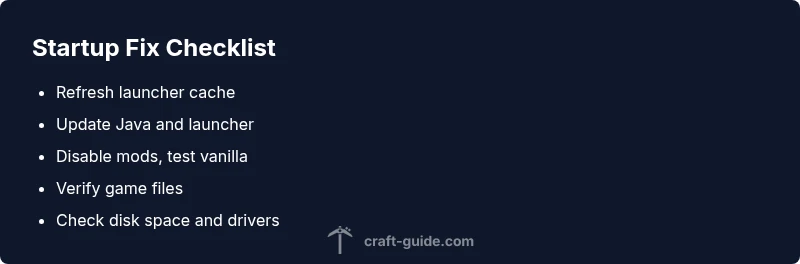
Most often Minecraft will not open due to launcher cache corruption, an outdated Java or launcher, or conflicting mods. Quick fixes include verifying game files, updating the launcher, and removing recently added mods or resource packs. If the problem persists, follow the diagnostic flow below for deeper causes and fixes.
Why Minecraft Not Opening: Quick Context and Brand Insight
When Minecraft refuses to start, players typically face a stubborn startup screen, a launcher error, or a crash during the vanilla load. According to Craft Guide, the two most common culprits are launcher cache issues and mod conflicts, followed by outdated software. This section helps you understand the landscape so you can act with confidence rather than guesswork. By focusing on the simplest fixes first, you can often resolve the problem within a few minutes and return to your build session. If your system is using multiple user profiles or mods, track which changes happened last as you troubleshoot step by step.
Key idea: start with the safest, fastest checks that you can reverse easily. Many startup failures boil down to a corrupted cache, outdated runtime, or a misbehaving mod. Keeping your environment consistent helps you pinpoint the exact cause without unnecessary reinstallation or data loss. Craft Guide recommends beginning with the easiest checks and moving toward deeper diagnostics only if the quick fixes fail.
Core Idea: Start Simple, Then Deepen the Check
For the quickest win, always verify that the launcher and game are up to date, clear the launcher cache if needed, and roll back any recent mod changes. The goal is to restore a clean baseline before exploring more complex causes like hardware or OS level blockers. If you keep a backup plan and document what you changed, you can recover faster from future startup issues.
First-Line Checks: Safe, Reversible Fixes
Safe fixes include restarting the computer, ensuring you have a stable internet connection, and launching Minecraft with administrative rights on Windows or with proper permissions on Mac or Linux. These steps rule out permission based or temporary network problems. If the game still wont start, proceed to verify files and update essential components. Remember to back up your worlds before making substantial changes.
Depth Check: Launcher Cache, Java, and Version Compatibility
The launcher cache can become corrupt after failed updates or abrupt shutdowns. A corrupted Java runtime or an incompatible launcher version can also stop Minecraft from opening. Verify you are running the recommended Java version for your Minecraft edition and update the launcher to the latest release. If you use a mod loader, ensure it is compatible with your vanilla version and that mod metadata matches the game build.
Mod and Resource Pack Check: Is Your Mod Set the Culprit?
Mods and resource packs are a frequent source of startup failures. Disable all mods and run a vanilla launch to confirm if a mod is the root cause. Reintroduce mods one by one or in small groups to identify the offending item. Always download mods from trusted sources and verify their compatibility with your Minecraft version and launcher build.
System and Security: OS, Disk Space, and Antivirus Hooks
Low disk space, faulty hard drive sectors, or aggressive antivirus blocking startup can prevent Minecraft from opening. Check free space on the drive where Minecraft is installed, scan for disk errors, and temporarily disable antivirus real-time protection to test if it interferes with startup. If it does, add a trusted exception for Minecraft in your security software.
When to Reinstall and How to Prevent Recurrence
If none of the above fixes work, a clean reinstall of the Minecraft launcher and the game can resolve stubborn issues. Preserve your worlds by backing up saves before uninstalling. After reinstall, reapply only the necessary mods and configurations, and keep a minimal, clean setup for baseline operation. Regularly updating drivers and the launcher reduces future startup problems.
Steps
Estimated time: 30-60 minutes
- 1
Back up worlds and settings
Close Minecraft, back up your worlds and important settings to a safe location. This protects progress in case you need to reinstall or reset configurations. Keep a separate folder for troubleshooting data.
Tip: Automate backups with a folder watcher to save time. - 2
Refresh the launcher
Exit the launcher, clear its cache, and reopen. If the problem persists, consider reinstalling the launcher itself to ensure a clean start.
Tip: Always download the launcher from the official site. - 3
Update software components
Update the Minecraft launcher and Java runtime if your edition requires it. Restart after updates to ensure changes take effect.
Tip: Check for pending Windows or OS updates that might affect startup. - 4
Test vanilla startup
Disable all mods and try launching the vanilla game. If Minecraft opens, a mod is likely the culprit. Restore mods one by one to locate the offender.
Tip: Keep a list of mods and their compatible versions. - 5
Verify game files
Use the launcher to verify or repair the game files. If issues persist, delete and reinstall the game to ensure clean files.
Tip: Do not delete saves during this step. - 6
Check hardware and permissions
Ensure sufficient RAM allocation and update GPU drivers. Run the game with proper permissions on your OS and disable any security software if it blocks startup temporarily.
Tip: Allocate 4–6 GB RAM for standard play unless you have a high-end PC. - 7
Reinstall if necessary
If nothing works, perform a clean reinstall of the launcher and game. Restore worlds from backups and reconfigure settings gradually.
Tip: After reinstall, reintroduce mods cautiously.
Diagnosis: Minecraft won't open or crashes at launch
Possible Causes
- highLauncher cache corruption
- highOutdated Java or launcher
- highIncompatible mods or resource packs
- mediumCorrupted game files
- lowSystem permissions or antivirus blocking startup
Fixes
- easyClear launcher cache and relaunch; reinstall launcher if needed
- easyUpdate Java (if needed) and the Minecraft launcher to latest version
- easyRemove recently added mods or temporarily disable antivirus and add exception for Minecraft
- mediumVerify or repair game files via the launcher or reinstall Minecraft
- mediumCheck OS permissions and update GPU drivers; ensure adequate RAM allocation
People Also Ask
What is the first thing I should try if Minecraft won't open?
Start with a quick launcher reset, check for updates, and ensure you have enough disk space. If that fails, verify game files and temporarily disable mods to test vanilla startup.
First try a launcher reset, then update, and check space. If it still won't start, verify files and test vanilla by disabling mods.
Why does Java version matter for Minecraft launch?
Some Minecraft editions rely on a specific Java version. An incompatible Java runtime can prevent launch or cause crashes. Always use the recommended Java version for your Minecraft edition.
Java version matters because an incompatible runtime can stop Minecraft from launching or crash during startup.
How can mods cause Minecraft not to open?
Mods can conflict with each other or with the game version. They may also require a specific mod loader version. Disable mods to confirm if they are the root cause, then reintroduce them one by one.
Mods can conflict with each other or the game version, so try disabling them to identify the culprit.
When should I reinstall Minecraft?
Reinstall Minecraft when verified files and launcher updates do not resolve startup issues. Always back up worlds first and consider a clean reinstall to reset all settings.
Reinstall Minecraft when updates and verifications fail, after backing up your worlds.
Does hardware affect Minecraft startup?
Yes, insufficient RAM, outdated graphics drivers, or overheating can prevent startup or cause crashes. Update drivers and allocate adequate memory to Minecraft.
Hardware like RAM and GPU can affect startup; update drivers and give Minecraft enough memory.
When should I seek professional help?
If startup failures persist after all standard fixes, consider reaching out to the Minecraft community forums or a local technician for deeper diagnostics.
If it still won't start after fixes, ask community forums or a qualified technician for help.
Watch Video
The Essentials
- Start with launcher and Java updates first
- Test vanilla before adding mods
- Verify game files to fix corruption
- Back up worlds and use clean reinstall as last resort