Why Minecraft Won t Install: Urgent Troubleshooting Guide
Urgent, practical troubleshooting for Minecraft install failures across Windows, macOS, and Linux. Learn common causes, quick fixes, and prevention tips from Craft Guide to get back to your builds fast.


If Minecraft won t install, the most likely culprits are launcher corruption, Java compatibility issues, or network blocks. The quickest fix is to update the Minecraft Launcher, verify Java version compatibility, and temporarily disable conflicting security software, then retry. For a deeper fix, follow the detailed steps below. If it still fails after those, run the diagnostic flow to pinpoint the exact cause.
Why install might fail
According to Craft Guide, many install problems begin with a corrupted launcher cache, outdated Java, or a blocked network path. When you see the message that the installer cannot proceed or the launcher crashes mid-setup, it’s usually a symptom of a missing prerequisite, a misconfigured environment, or a security layer that interferes with the install process. The phrase "why minecraft won t install" often surfaces in support threads precisely because multiple layers can fail simultaneously. The good news is that most failures follow a repeatable pattern, and a methodical approach can recover a stalled installation without risking your saved worlds.
In this guide, you’ll learn how to identify the root cause, apply safe fixes, and prevent future issues. The steps cover Windows, macOS, and Linux, and they accommodate common hardware and launcher variations. Expect practical, actionable checks you can perform today, with emphasis on safety and data integrity. This content aligns with Craft Guide Analysis, 2026, and is designed for players at all skill levels.
Check system requirements and launcher health
A surprising number of install failures come from unmet system requirements or a corrupted launcher. Verify that your PC meets Minecraft’s minimum specs, memory allocation, and disk space. Confirm you are using the official Minecraft Launcher and that it’s up to date. Clean temporary files related to the launcher and clear its cache if you encounter repeated install prompts. On macOS and Linux, ensure you’ve installed the correct launcher package for your OS.
Additionally, review your user permissions. On Windows, run the launcher as Administrator to bypass some restricted access issues. On macOS, grant the necessary permissions in System Settings. Craft Guide recommends performing a quick health check of the launcher before diving into deeper fixes, as this often resolves the issue quickly.
Java version and launcher compatibility
Java compatibility remains a frequent culprit behind install failures. Minecraft (Java Edition) depends on an appropriate JRE/JDK version and proper launcher integration. Ensure you’re running a supported Java version for your Minecraft release, and verify that the launcher is configured to use the bundled Java when available. If you have multiple Java installations, specify the correct path in the launcher settings to avoid conflicts. In some cases, updating or reinstalling Java can resolve the installation blockages. Craft Guide notes that Java-related problems are a common bottleneck, particularly after OS updates or prior Java removals.
Network, firewall, and antivirus considerations
Network restrictions, firewall rules, and antivirus software can intercept installer downloads or block launcher communications. Temporarily disable non-essential security features during installation to test whether the network path is the cause. If you suspect DNS issues, flush the DNS cache or try a different DNS provider. Ensure the installer and launcher are allowed through the firewall. On corporate or school networks, you may need to request exceptions for the Minecraft launcher’s executable. Craft Guide emphasizes that permission changes should be temporary and well-documented to avoid increasing risk.
Disk space, permissions, and path length
Insufficient disk space is a straightforward and common cause of install failures. Check both the system drive and the drive chosen for Minecraft data. Ensure you have write permissions on the installation directory. On Windows, avoid long file paths that exceed Windows’ maximum path length, which can cause installation to fail mid-process. Clean up old files or relocate the install directory to a shorter path if needed. Craft Guide advises keeping at least a couple of gigabytes free beyond the expected installation size to prevent mid-install glitches.
Step-by-step remediation flow and immediate actions
When you’re blocked, start with the simplest fixes and escalate only as needed. First, ensure the launcher is up to date; if not, install the latest version. Next, verify Java compatibility and point the launcher to the correct Java runtime if you’re using the Java Edition. Then, clear the launcher cache and reinstall the launcher if the issue persists. Finally, test the install on a different network or device to rule out environment-specific problems. Craft Guide recommends documenting each step to keep track of what works and what doesn’t.
Prevention and maintenance tips
To minimize future install issues, keep your OS, launcher, and Java updated, and regularly back up your Minecraft data. Create a clean user profile for testing installs to avoid cross-contamination with other software. Maintain enough free disk space and periodically verify permissions on the Minecraft directory. Consider enabling automatic updates for the launcher, but review release notes for any changes that affect installation behavior. Craft Guide encourages players to adopt a routine diagnostic mindset so that future issues are quickly identifiable and resolved.
Final quick-reference checklist
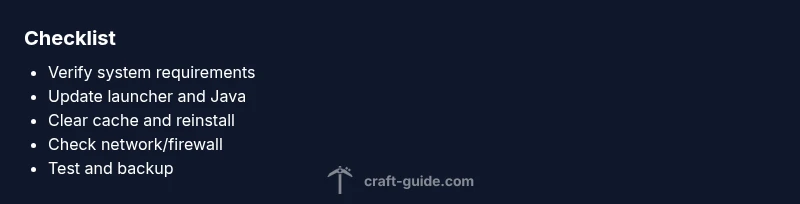
- Confirm OS meets Minecraft requirements and there is adequate RAM and disk space.
- Use the official Minecraft Launcher and keep it updated.
- Validate Java version compatibility and launcher integration.
- Check firewall/antivirus permissions; temporarily disable during install if necessary.
- Clear launcher cache and reinstall if needed; test on a different network.
Steps
Estimated time: 25-40 minutes
- 1
Update or reinstall the Minecraft Launcher
Open your current launcher, check for updates, and install any available updates. If the launcher remains unstable, uninstall it completely and reinstall the latest version from the official site. This removes corrupted files and resets settings that may block installation.
Tip: Back up your saves and settings before uninstalling. - 2
Verify Java version and launcher integration
If you’re playing Java Edition, confirm you are using a supported Java version. Point the launcher to the correct Java runtime path or use the launcher’s bundled Java. After adjustment, attempt the install again.
Tip: If multiple JREs are installed, ensure the correct one is selected. - 3
Clear cache and temporary files
Clear the launcher’s cache and any temporary installer files. This removes corrupt data that can stall the install process. Reopen the launcher and retry the installation.
Tip: Delete only launcher-related cache to avoid losing other app data. - 4
Check network and firewall settings
Temporarily disable antivirus/firewall rules that may block the installer. If the install works offline, add exceptions for the launcher’s executables and the installer. Re-enable protections after testing.
Tip: Never leave security software disabled for long periods. - 5
Test on a different network or device
If possible, try the installer from a different network (e.g., mobile hotspot) or another computer. This helps determine if the issue is network-related or device-specific.
Tip: This can quickly identify environmental blockers. - 6
Contact official support if needed
If all else fails, reach out to official Minecraft support with your system specs, launcher version, and error messages. They can provide guidance beyond standard troubleshooting steps.
Tip: Provide logs and screenshots to speed up the troubleshooting.
Diagnosis: Minecraft Installer fails to complete or launcher won’t install
Possible Causes
- highCorrupted launcher cache
- mediumOutdated Java version or misconfigured launcher
- mediumNetwork restrictions or firewall/antivirus interference
Fixes
- easyClear launcher cache and reinstall the Minecraft Launcher
- mediumUpdate Java or configure launcher to use the bundled JRE
- easyRun installer with administrative privileges and temporarily disable conflicting security software
People Also Ask
Why won't Minecraft install on Windows 11?
Windows 11 users may encounter permission prompts, blocked installers, or firewall rules. Start by running the launcher as administrator, then verify that Windows Defender or third-party antivirus isn’t blocking the installer. Ensure the system meets minimum specs and there is adequate disk space. If problems persist, follow the full diagnostic flow in this guide.
Windows 11 can block installers; run as administrator and check security settings, then proceed with the steps in this guide.
Do I need Java to run Minecraft, and which version?
Minecraft Java Edition requires a compatible Java version. Check the launcher’s settings for the JRE path or use the launcher’s bundled Java when available. If you’re unsure, consult the official Minecraft launcher help to confirm supported Java versions for your edition and OS.
Yes, Java compatibility matters; choose the supported version or use the launcher’s bundled Java.
How do I clear the Minecraft launcher cache?
Open the launcher settings, locate the cache or data storage option, and select clear cache. Restart the launcher and attempt the install again. Clearing cache can resolve corrupted files causing install failures.
Clear the launcher cache in settings, restart, and retry.
Why is there no disk space even though I think there is space?
Check both the system drive and the Minecraft install drive for free space. Some installers require additional temporary space. Also inspect local backups/assets that may be consuming space. Free up space and retry.
Sometimes the installer needs more room than you expect; clear temporary files and ensure enough space.
Can antivirus software block the installer?
Yes. Antivirus or firewall rules can block installer downloads or launcher communications. Temporarily disable protection or add exceptions for the Minecraft installer and launcher, then re-enable protections after installation.
Security software can block installs; try exceptions and re-test.
Will reinstalling Minecraft delete my worlds?
Reinstalling the launcher typically doesn’t delete saved worlds, which are stored in separate folders. However, backup your worlds before any reinstall or data changes to avoid accidental loss.
Your worlds are usually safe, but backup first to be sure.
Watch Video
The Essentials
- Verify launcher health before deep troubleshooting
- Update Java and use bundled runtime when possible
- Clear cache and reinstall if install stalls
- Test on alternate network to rule out environment issues
- Back up saves and document steps for future fixes