Why Minecraft Won't Launch: Troubleshooting Guide
An urgent, practical guide to fix Minecraft launch issues. Learn step-by-step checks, diagnosis flow, and proven fixes to get you back into your world quickly.


If Minecraft won't launch, the most likely causes are an outdated Java version, a corrupted launcher cache, or conflicting mods. Start with quick fixes: update the launcher and Java, clear cache, and disable mods to test a clean start. This guide provides a proven flow to get you back in-game quickly.
Understanding the problem and your first questions
When you see the Minecraft launcher fail to start, it’s natural to worry about a corrupted game file or a broken installation. According to Craft Guide, the root of most launch failures is not a mystery; it’s a preventable sequence of checks and fixes. A clear mindset helps: identify the exact failure point (launcher, game, or mod), confirm your environment (OS, Java, RAM), and apply fixes in a deliberate order. The phrase why is minecraft not launching often appears in support forums, and the fastest path to resolution is a structured diagnostic flow rather than random trial-and-error. Stay calm, document any error messages, and tackle one variable at a time. This approach minimizes data loss and keeps your saves safe as you troubleshoot.
wordCountNoteIgnoredForNow
Steps
Estimated time: 45-90 minutes
- 1
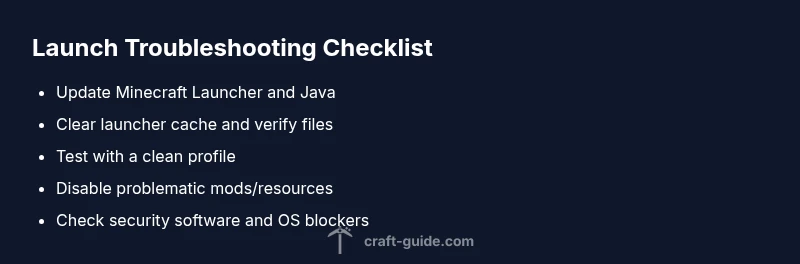
Update launcher and Java
Close all Minecraft processes, check for launcher updates, and install the latest version. Then verify your Java installation is current and compatible with your Minecraft edition. This step often resolves launch-blocking compatibility issues.
Tip: Back up your worlds before major updates or Java changes. - 2
Verify/repair game files
Open the launcher and use the built-in verify or repair function for the Java Edition. If the option isn’t available, reinstall the launcher cleanly to replace corrupted files and reset settings that might block startup.
Tip: Keep your saved worlds in a separate backup folder before reinstalling. - 3
Allocate RAM carefully
In the launcher settings, allocate a reasonable amount of RAM (usually 2–4 GB for most systems). Avoid mapping all available memory, which can cause instability. This helps the game load without exhausting system resources.
Tip: Rule of thumb: don’t exceed 75% of total RAM for a single Java process. - 4
Test with a clean profile
Create a new Minecraft profile with vanilla settings and no mods. Launch with this profile to confirm whether the issue is profile-related. If it works, known-good with mods can be isolated later.
Tip: If you rely on a specific mod pack, add it back gradually to identify the conflict. - 5
Disable mods and resource packs
Move mods and resource packs out of the /mods and /resourcepacks folders, then relaunch. If the game boots, reintroduce items one by one to pinpoint the culprit.
Tip: Make a clean test folder before moving files; document what you remove. - 6
Check security software and OS blocking
Antivirus and firewall settings can block Minecraft assets from loading. Temporarily whitelist the launcher and game, and disable overlays or real-time protection if necessary while testing.
Tip: Never leave security off; use exclusions and re-enable protections after testing. - 7
Reinstall if all else fails
As a last resort, uninstall Minecraft completely, delete residual folders (like .minecraft), and reinstall from official sources. This often resolves stubborn problems caused by mixed configurations.
Tip: Ensure you back up worlds to a safe location before a full reinstall.
Diagnosis: Minecraft won't launch after clicking Play
Possible Causes
- highOutdated or incompatible Java version
- mediumCorrupted launcher cache or launcher files
- lowMods, resource packs, or incompatible profiles
Fixes
- easyUpdate the Minecraft Launcher and ensure Java is up to date
- easyClear launcher cache, verify game files, or reinstall the launcher
- mediumDisable all mods and resource packs, then test with a clean profile
People Also Ask
Why is my Minecraft launcher not opening at all?
There can be several reasons: an outdated Java version, corrupted launcher cache, or a misconfigured profile. Start with updating the launcher and Java, then verify files or reinstall the launcher if needed.
If your launcher won’t open, try updating the launcher and Java first, then verify files or reinstall if needed.
Can outdated Java cause Minecraft not to launch?
Yes. Java version compatibility with your Minecraft edition matters. Update Java or switch to the recommended version for your launcher to restore startup capability.
Outdated Java can stop launch; update to the recommended Java version for your Minecraft edition.
Should I delete mod folders if the game won’t launch?
If mods are suspected, remove them and test with a clean profile. Conflicts are a common cause of launch failures, so testing without mods helps identify the issue.
Remove mods and test with a clean profile to see if launch improves.
How do I read error messages or logs to diagnose launch issues?
Logs are found in the .minecraft/logs folder. Look for red warnings or exceptions, then search for those exact messages to guide fixes.
Check the logs in .minecraft/logs for warnings or errors to guide fixes.
Is reinstalling Minecraft safe for my worlds?
Reinstalling is generally safe if you back up your saves. World saves are stored separately and can be restored after a fresh install.
Reinstalling is safe if you back up your worlds first.
What if the game runs only on one profile but not another?
This indicates a profile-specific problem. Create a new profile and migrate save data gradually to identify the conflicting setting.
If it runs on one profile but not another, start with a fresh profile and move saves carefully.
Watch Video
The Essentials
- Start with quick updates and checks before deep fixes
- Test with a clean profile to isolate issues
- Maintain backups to protect worlds during fixes
- Mods and antivirus settings are common blockers
- Follow a structured flow to avoid wandering in circles