Why Minecraft LAN Not Working? A Step-by-Step Fix Guide
Urgent guide to diagnose and fix Minecraft LAN issues, covering version mismatches, firewall blocks, and network settings. Learn fast, safe steps to restore local multiplayer with minimal downtime.


The LAN not working in Minecraft is most often caused by a version mismatch or a network discovery block. A fast fix is to ensure both players run the exact same Minecraft version, enable Open to LAN on the host, and allow LAN traffic through the firewall. If it still fails, double-check both devices are on the same router and try joining by IP. According to Craft Guide, this approach fixes most issues.
Why Minecraft LAN Not Working: Common Causes
When players report that their Minecraft LAN games won’t start or others can’t join via LAN, the first step is to identify the most common causes. The question often heard is why minecraft lan not working, and the answer usually boils down to version mismatches, host discovery issues, or network restrictions. In many homes, both players run different builds or launch options, which prevents the game from detecting a shared world. In addition, Windows Defender Firewall, macOS Gatekeeper, or third-party antivirus can quietly block the traffic that carries the LAN session. Another frequent culprit is that players are on different subnets or connected to guest networks that isolate devices. Before you dive into advanced settings, confirm the basics: both players are on an identical version of Minecraft Bedrock or Java Edition, both are connected to the same local network, and the host has the LAN option enabled.
Craft Guide analysis shows that these three factors account for the vast majority of LAN failures in Minecraft. Start with the simplest fixes and move toward diagnostics if the issue persists. Also remember that LAN play is sensitive to router settings; even tiny changes can restore visibility of the hosted game. If you’re playing on Java Edition, ensure that online features are enabled and that Java is up to date. If you are on Bedrock, verify that the world is opened to LAN and that you share the correct port. Finally, don’t overlook simple fixes such as restarting devices and rejoining the network.
Verify Versions and Edition Alignment
The simplest check is version alignment. If host runs Java Edition 1.20, the client must run the same build. Bedrock players should be on the same Bedrock version across devices. Mismatches are the single most common reason for LAN discovery to fail. In addition, confirm that neither player has disabled LAN-related features in settings. For Windows users, run Minecraft as administrator to ensure the game can access network resources. If you are using third-party launchers or mods, disable them temporarily to test vanilla LAN play.
Next, confirm that the host has Open to LAN enabled. In Java, the host must press the T key to bring up chat and the "Open to LAN" button, then set a game mode and a port. In Bedrock, the host should enable LAN games in the pause menu under settings. Note the port shown; some players cannot connect without using ip:port. Craft Guide recommends testing with both the standard LAN method and direct IP join to confirm the issue is not with discovery.
Network Topology: Router and Wi‑Fi Considerations
Local network topology matters for LAN visibility. If you’re on a guest network, or your router is using client isolation, devices often cannot see each other’s LAN broadcasts. Ensure both machines are on the same subnet (for example 192.168.0.x or 192.168.1.x) and disable any features that block local discovery, such as AP isolation, SIP ALG, or strict AP isolation settings. If you’re on Wi‑Fi, a wired Ethernet backup can stabilize connectivity and reduce dropped packets. In larger homes, consider creating a dedicated LAN or gaming VLAN to avoid cross‑traffic from other devices.
Firewall, Antivirus, and Security Software
Security software can block Minecraft’s local network traffic without warning. Start by temporarily disabling firewall rules for the Minecraft executable or adding an exception for both Java and Bedrock launchers. If you’re on macOS, grant the app full disk access and ensure Screen Time or Gatekeeper isn’t restricting network access. Remember to re-enable protections after testing. Avoid turning off protections permanently; instead, create a precise exception or allow the specific port used by Open to LAN.
IP, Port, and Direct Join: Hands-On Testing
If LAN across the network remains elusive, test using direct IP connections. On the host, note the port shown in the Open to LAN dialog; on the client, join using IP:port format. If the host uses a dynamic IP, refresh the address or re-launch the LAN game to obtain a stable IP. Verifying IPv4 connectivity with ping or traceroute can reveal blocking hops. Finally, restart both devices to clear stale network caches and re‑establish a clean connection.
Prevention and Best Practices for Future LAN Sessions
Maintain a consistent Minecraft version across all players, keep the host’s Open to LAN setting ready for quick launches, and document the connection steps in a shared note for your group. Regularly update your router firmware and keep security software aligned with your gaming needs. Consider using a fixed local IP for the host and testing LAN connections after any network change to prevent future failures.
Steps
Estimated time: 45-60 minutes
- 1
Verify Minecraft versions on both devices
Open Minecraft on both machines and confirm they are on the exact same edition and build. If a mismatch is found, update to the same version and restart both clients.
Tip: Always test with vanilla builds first; mods can introduce conflicts. - 2
Open host to LAN and note port
On the host, open the world to LAN and choose a game mode. Record the port number shown; you will need it for direct IP joins.
Tip: If you don’t see the Open to LAN button, restart Minecraft or re-create the world. - 3
Check same network and IP addressing
Ensure both devices are on the same Wi‑Fi network or wired LAN. Verify IPv4 addresses to confirm they share a local subnet.
Tip: Wired connections are more stable for LAN play. - 4
Test with IP:port or standard LAN join
On the client, try joining using the host’s IP and the port, even if LAN appears in the game menu. If direct join works, the issue is discovery.
Tip: Avoid VPNs or proxies during LAN testing. - 5
Adjust firewall and security software
Add exceptions for both Minecraft executables or temporarily disable protections to test. Re-enable protections after testing.
Tip: Only disable protections briefly for testing. - 6
Router and network hygiene
Check for client isolation, UPnP, and multicast settings. A simple router reboot can clear stuck sessions.
Tip: Set a static local IP for the host to simplify future connections.
Diagnosis: LAN world not appearing or players cannot join via LAN
Possible Causes
- highDifferent Minecraft versions on host and client
- highFirewall or antivirus blocks LAN traffic
- mediumNetwork isolation (guest network or router settings)
- lowIncorrect host discovery due to IPv6 vs IPv4
Fixes
- easyUpdate both host and client to the same Minecraft version/build
- easyTemporarily disable firewall/AV or add an exception for Minecraft
- easyEnsure both devices are on the same local network; use wired Ethernet if possible
- easyOpen to LAN on host and join using the listed IP:port if required
- mediumCheck router settings to allow local discovery (UPnP or multicast) and disable client isolation
People Also Ask
What is the most common reason LAN games fail in Minecraft?
The most common reasons are version mismatches and LAN discovery blocks. Ensure both players run the same edition and the host has Open to LAN enabled. Testing with IP:port can help diagnose discovery issues.
The most common reasons are mismatched versions and LAN discovery blocks. Make sure both players use the same version and the host is Open to LAN.
Do I need to be connected to the same router for LAN?
Yes, both players must be on the same local network. Wired connections tend to be more reliable than Wi‑Fi for LAN play.
Yes, you need to be on the same local network. A wired connection is usually more reliable.
Can parental controls block Minecraft LAN?
Yes. Some parental controls or security software can block LAN traffic. Temporarily adjust rules or whitelist Minecraft, then re-test.
Yes, parental controls can block LAN. Whitelist Minecraft or adjust rules, then test again.
What if host and client are on different Minecraft versions?
Update both to the same version, restart the game, and re-test. Avoid using unsupported snapshot builds for LAN sessions.
If versions differ, update both to the same build and try again.
Is port forwarding needed for LAN?
No, true LAN play does not require port forwarding. It relies on local network discovery, which can fail due to discovery settings or network isolation.
No port forwarding is needed for LAN. Discovery and local network settings matter.
Why can’t I see LAN Worlds even after opening to LAN?
Ensure Open to LAN is active on the host, and other players are on the same subnet. If needed, join by the IP and port to bypass discovery.
If you can’t see LAN worlds, confirm Open to LAN is active and try IP:port join.
Watch Video
The Essentials
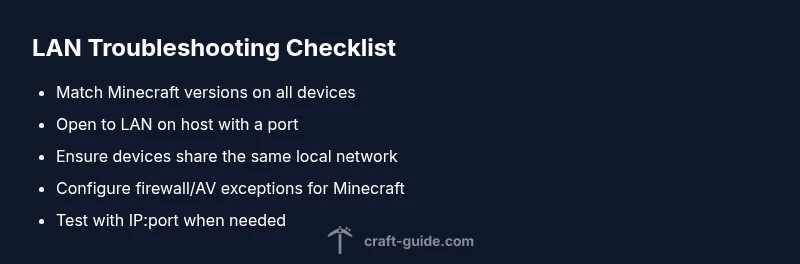
- Ensure both clients share the same Minecraft version
- Enable Open to LAN and allow LAN traffic on host
- Verify devices are on the same local network
- Test with direct IP join if discovery fails
- Keep router and security settings aligned with LAN play