What Is Wrong with Minecraft? A Troubleshooting Guide
Urgent, practical guide to diagnose and fix common Minecraft issues such as lag, crashes, and world corruption. Learn fast checks, diagnostic flow, and step-by-step fixes with Craft Guide.


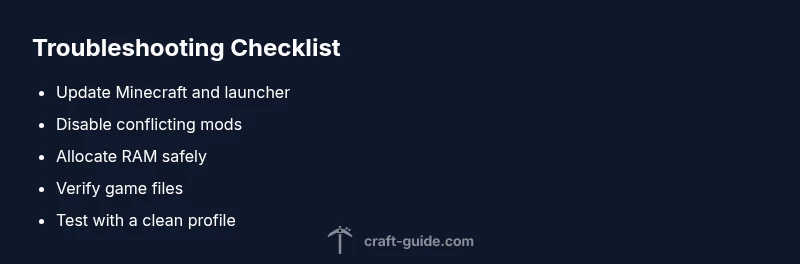
Most Minecraft problems stem from outdated software, mod conflicts, or insufficient hardware. The quickest fix is to update the game and launcher, disable problematic mods, and adjust performance settings. If trouble persists, allocate more RAM, lower render distance, update drivers, and verify game files. See our detailed diagnostic flow below for deeper troubleshooting.
What Is Wrong with Minecraft? A Quick Overview
What is wrong with minecraft often boils down to software, hardware, or data issues. The vast majority of reports point to three root causes: outdated game versions or launcher, conflicting mods or incorrect mod-loader versions, and insufficient system resources like RAM or GPU capabilities. This guide, informed by Craft Guide analyses, walks you through a structured, urgent approach to diagnose and fix the problem without unnecessary guesswork. By separating symptoms from causes, you’ll be able to apply the right fix quickly and prevent recurring trouble in the future. According to Craft Guide, starting with the simplest checks and gradually escalating to deeper fixes yields the best results and preserves your worlds.
Quick Checks You Can Perform Today
Before diving into complex diagnostics, run through these fast checks:
- Verify that Minecraft, the launcher, and your operating system are up to date.
- Restart Minecraft and, if needed, reboot your computer to clear temporary glitches.
- Open the game with a clean profile (no mods) to see if the issue persists.
- Load a different world or a new world to determine if the problem is world-specific.
- Check that your internet connection is stable for online play and server access.
If these checks don’t resolve the issue, continue with deeper analysis. Craft Guide’s team suggests documenting the exact symptoms (error messages, times, and any recent changes) to streamline the next steps.
Hardware and Software Culprits to Inspect
Many performance problems come from hardware or software misconfigurations rather than Minecraft itself. Review the following:
- RAM and VRAM: Ensure your system has enough memory allocated to Minecraft without starving background processes. If you’re on a tight RAM budget, reduce texture packs or render distance.
- Graphics drivers and OS updates: Outdated drivers can cause crashes, screen flicker, or poor performance. Install the latest stable driver from your GPU vendor, and apply any OS updates.
- Java version and launcher compatibility: If you’re playing Java Edition, confirm you’re using a compatible Java version and launcher profile. Incompatibilities can trigger startup failures or freezes.
- Disk space and health: Low disk space or a fragmented HDD can slow down load times and save operations. Free up space and run a disk health check if needed.
Modding, Mod Conflicts, and Loader Compatibility
Mods are a common source of Minecraft problems, especially after updates. Consider:
- Version compatibility: Ensure every mod is compatible with your Minecraft version and with Forge or Fabric if you use a mod-loader.
- One-at-a-time testing: Disable all mods, then reintroduce them one by one to identify the culprit. This helps avoid false positives when multiple mods interact.
- Corrupted mod files: Redownload mods from trusted sources to prevent corrupted assets from causing crashes or misbehavior.
- Backups: Keep a clean backup of your modded profile so you can recover quickly if a mod causes issues after an update.
Networking, Servers, and Online Connectivity
Connectivity problems can masquerade as client-side Minecraft issues. Look into:
- Server status and latency: High ping or unstable connections can cause teleport lag or disconnects.
- Port forwarding and firewall rules: Ensure required server ports are open and not blocked by a firewall.
- Client-server version mismatch: If the server runs a different version or mod pack, you’ll encounter errors or inability to join.
- Router performance: A congested network router can cause packet loss and increased latency; rebooting the router can help. Craft Guide emphasizes testing with wired connections where possible for consistency.
A Safe, Repeatable Troubleshooting Workflow
Adopt a step-by-step approach to isolate issues efficiently:
- Start with a backup: Save your worlds and important settings.
- Reproduce with a clean profile: Run Minecraft without mods to confirm a baseline.
- Apply fixes one at a time: Update, then mod isolation, then performance tuning, to pinpoint the real cause.
- Document outcomes: Note which step fixed the issue to speed up future troubleshooting.
- Know when to call in help: If you’re dealing with corrupted worlds or persistent server issues, professional help or community support may be needed.
Steps
Estimated time: 60-90 minutes
- 1
Back up your data
Create a full backup of your Minecraft saves and settings before making changes. This protects your progress and lets you revert if something goes wrong.
Tip: Always store backups on a separate drive or cloud storage. - 2
Check system requirements and Java version
Confirm your PC meets the game’s requirements and that the Java version matches the Minecraft edition you’re running. Incompatibilities here can cause startup errors.
Tip: Use the Minecraft launcher’s built-in checks when possible. - 3
Update software and verify files
Update Minecraft, the launcher, and drivers. Use the launcher’s verify game files option to repair any corrupted assets.
Tip: Restart after updating to ensure all changes take effect. - 4
Test with a clean profile
Launch Minecraft with no mods or resource packs enabled to see if the issue persists. This isolates the problem from mod-related conflicts.
Tip: If it runs smoothly, the culprit is likely a mod or pack. - 5
Manage mods and mod-loaders
If mods are involved, disable them and reintroduce one by one, ensuring compatibility with Forge/Fabric versions.
Tip: Always download mods from reputable sources and verify checksums. - 6
Tune performance settings
Lower render distance, reduce particles, and consider increasing allocated RAM to a safe maximum for your system.
Tip: Don’t exceed 80% of total RAM to leave room for the OS. - 7
Isolate through world testing
If problems persist in a single world, try loading a fresh world to determine if the issue is world-specific or universal.
Tip: Back up the world before testing across multiple saves.
Diagnosis: Minecraft won't start, lags excessively, or shows startup errors
Possible Causes
- highOutdated game/launcher or Java version
- highConflicting mods or mismatched mod-loader versions
- mediumInsufficient RAM or GPU bottlenecks
- lowWorld data corruption or saved-game issues
Fixes
- easyVerify game files and update Minecraft/launcher to the latest version
- easyDisable or remove conflicting mods and verify mod-loader compatibility (Forge/Fabric)
- easyIncrease allocated RAM and adjust performance settings (render distance, particles)
- easyUpdate graphics drivers and OS, then re-launch or reinstall Minecraft if needed
- mediumBackup and restore from a known-good world or create a clean profile to isolate issues
People Also Ask
Why does Minecraft crash to the desktop?
Crashes are commonly caused by mod conflicts, memory issues, outdated drivers, or corrupted files. Start with updates and a clean profile.
Minecraft crashes are often due to mod conflicts, memory issues, or outdated drivers. Start with updates and a clean profile.
How can I safely allocate more RAM to Minecraft?
Open the launcher, go to Installations, edit the profile, enable JVM arguments, and set a safe RAM amount based on your system.
In the launcher, adjust RAM allocation for Minecraft based on your system's capacity.
What should I do if my world is corrupted?
Restore from a recent backup if possible, or repair using world-editing tools. Avoid editing the corrupted world directly.
If your world is corrupted, restore from a backup and avoid manual edits on the damaged world.
Why is my Minecraft server lagging?
Lag on servers is usually caused by hardware limits, plugin overload, or network issues. Check server resources and optimize plugins.
Server lag often comes from hardware or network issues; review resources and plugins.
Is it safe to remove mods during troubleshooting?
Yes. Back up first and remove mods one at a time to identify conflicts without risking data loss.
You can remove mods one by one to find the problem, with a backup first.
Watch Video
The Essentials
- Back up data before changes
- Mod conflicts are a common cause
- Test fixes step by step to identify the root issue
- Keep software and drivers up to date