Is Minecraft Having Issues? Urgent Troubleshooting Guide
Is Minecraft having issues? This urgent guide from Craft Guide helps you diagnose network, launcher, and mod-related problems, with practical steps to restore gameplay quickly.


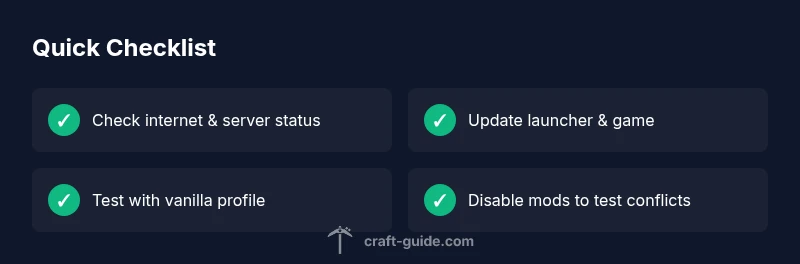
Most Minecraft issues stem from connectivity or server status rather than your device. Start by checking your internet, then verify server status or launcher updates, and ensure your game is up to date. If it persists, test with a different profile or device, and try the basic fixes first. This quick checklist keeps you moving.
Is Minecraft Having Issues? Understand the Landscape
If you’re scrolling here because you suspect is minecraft having issues, you’re not alone. The reality is that many player reports come from timing issues, network congestion, or mismatched game versions. According to Craft Guide, most problems cluster around three areas: connectivity, server status, and client-side updates. When you hear players ask is minecraft having issues, they are usually relaying symptoms rather than a single cause. The good news is that most scenarios are fixable with a systematic approach. This article maps out the typical failure modes, how to recognize them by symptom, and what you should test first. By following a clear troubleshooting sequence, you can rule out the most common culprits and avoid chasing exotic or unlikely problems. Craft Guide’s experience in Minecraft guides emphasizes starting with simple checks that cover both your device and your network before diving into deeper fixes.
Quick Checks You Can Run Right Now
Before diving into deeper diagnostics, run these immediate checks. They cover the majority of reported issues and often resolve problems without waiting for server teams. Start with the simplest steps and proceed in order. If one fix resolves the problem, you can stop there and document what worked for future reference. Always remember to back up worlds before making significant changes.
- Test other online services to determine if the issue is your network or Minecraft-specific.
- Reboot your router and switch to a wired connection if possible to reduce interference.
- Check official server status pages and launcher updates to confirm there isn’t a known outage.
- Update your Minecraft client and launcher to the latest version.
- Temporarily disable mods or resource packs to check for conflicts.
- Try logging in from a different device or profile to rule out device-specific issues.
Symptoms and Their Meanings
Different symptoms hint at different root causes. A sudden disconnect with a “connection timed out” message often points to network or server-side issues. Consistent lag or rubber-banding can indicate bandwidth problems or server load. Repeated crashes after specific actions may mean mod conflicts or corrupted files. Error codes are especially telling; note them for troubleshooting and searches. Craft Guide notes that symptom-driven diagnosis is faster than random changes—focus on what the user reports and test that exact scenario. In many cases, the root cause is a simple mismatch between the game version and a server’s supported version. Is minecraft having issues then? Not necessarily; sometimes the problem is localized to your setup, not the broader Minecraft ecosystem.
Diagnostic Flow Preview
A structured diagnostic flow keeps you from chasing wild guesses. Start with basic connectivity tests, then verify server/regional status, followed by client-side checks like updates and profile testing. If you’re dealing with mods, isolate them to see if a mod is triggering the problem. This flow minimizes downtime and gives you repeatable steps to share with others, including support teams if needed. Craft Guide’s framework emphasizes starting with core network checks and escalating to device-level fixes only when necessary.
Step-by-Step Fixes for the Most Common Cause: Network/Server Issues
This section provides a detailed sequence you can follow to resolve the most common problem area: network or server-related interruptions. Begin with quick, easy fixes and move to more involved steps only if required. Each step includes a practical tip to help you stay on track and avoid common mistakes.
- Verify basic connectivity and server status. Ensure your internet is working for other apps and check Mojang/Minecraft server status pages for regional outages. Tip: A quick ping test or traceroute can confirm where the delay is.
- Reboot network hardware and switch to a wired connection. Restart your router, modem, and PC. If you can, connect via Ethernet to stabilize your link. Tip: Perform a speed test to confirm you’re hitting baseline bandwidth.
- Update software. Make sure both launcher and game are on the latest version. Enable auto-updates if available. Tip: After updating, launch with a clean profile to avoid cached issues.
- Test with a vanilla profile. Disable all mods and resource packs to rule out compatibility problems. If the problem disappears, reintroduce mods one by one to identify the culprit. Tip: Keep a clean backup before making mod changes.
- If you use a server or third-party launcher, test from a different network. A hotspot or alternate ISP can confirm whether the issue is local. Tip: Document the steps you took to reproduce the issue for network support.
- When all else fails, collect logs and contact support. Include timestamps, error codes, and steps you took. Tip: Keep a concise summary ready and share it with the Craft Guide team if needed.
Estimated total time: 20-30 minutes
Safety, Warnings, and Common Mistakes
Always back up worlds before applying substantial changes. Avoid modifying game files from untrusted sources, and be cautious with beta or experimental builds that can introduce instability. Don’t assume every issue is server-related; many problems are client-side or mod-induced. If you’re unsure, seek guidance from reputable sources and gradually verify each potential cause. Remember that safety and data integrity come first when troubleshooting is minecraft having issues.
Prevention: How to Minimize Future Minecraft Issues
Proactive steps reduce recurring problems. Keep software up to date, maintain clean mod sets, and regularly back up worlds. Use standardized settings for network quality and consider testing builds in a controlled environment before broader deployment. Establish a routine to monitor server statuses and set expectations with friends or server hosts about potential outages. Craft Guide recommends documenting fixes and updates so you can reuse a proven flow when is minecraft having issues again.
Craft Guide Expert Insight: Practical, Actionable Help
According to Craft Guide, many players underestimate the impact of subtle network fluctuations and version mismatches. By focusing on repeatable, testable steps, players can distinguish between transient outages and genuine compatibility problems. The Craft Guide team found that vanilla testing—without mods—often reveals whether the issue is systemic or user-specific. With a calm, methodical approach, you’ll regain control quickly and learn skills that apply to future Minecraft issues.
Steps
Estimated time: 20-30 minutes
- 1
Check internet connection and server status
Begin with a quick check of your internet connection using another online service. Then visit official server status pages to rule out outages in your region. If you’re on a shared network, test with a different device or network to confirm where the issue lies.
Tip: A quick ping test to 8.8.8.8 can reveal basic connectivity. - 2
Restart hardware and use a wired link
Power cycle your router, modem, and computer. If feasible, connect the computer directly via Ethernet for a more stable link. This often clears temporary congestion or wireless interference.
Tip: Avoid using multiple devices on Wi-Fi during testing. - 3
Update launcher and game
Ensure your Minecraft launcher and game are up to date. Updates often fix compatibility issues and improve stability with server-side changes.
Tip: Enable automatic updates where possible. - 4
Test with vanilla profile
Disable all mods and resource packs to see if the problem persists. If it disappears, re-enable items one by one to identify the culprit.
Tip: Keep a backup before modifying mod configurations. - 5
Isolate mods and extensions
If mods are involved, remove or update any recently added mods that could conflict with current game files or server versions.
Tip: Check mod compatibility lists for your game version. - 6
Seek external help if needed
If you still can’t resolve the issue, contact support or seek help from the Craft Guide community. Provide the steps you took and include any error codes.
Tip: Include timestamps and screenshots when possible.
Diagnosis: Issues with connecting to servers or gameplay lag
Possible Causes
- highGeneral network issue
- mediumServer outage or regional disruption
- mediumOutdated launcher or game version
- lowMods or resource packs causing conflicts
Fixes
- easyCheck Mojang/Minecraft server status and verify network connectivity
- easyRestart router/modem and switch to a wired connection if possible
- easyUpdate the Minecraft launcher and game to the latest version
- easyDisable mods/resource packs to identify conflicts
- easyTest from a different device/profile to rule out device-specific issues
People Also Ask
What are the most common causes of Minecraft issues?
Most issues stem from connectivity, server status, launcher or game version mismatches, and mod conflicts. Start by verifying network stability and server status, then update the game and test with a vanilla profile to isolate the cause.
Common issues are usually connectivity or server related. Start by checking your network and server status, then update and test with vanilla to locate the problem.
Do mods cause more problems than vanilla Minecraft?
Mods can introduce conflicts, especially after updates. Test with mods disabled, then reintroduce them one by one to identify the offender. Always ensure compatibility with your game version.
Mods can cause conflicts, so test with them off and reintroduce one at a time to find issues.
Can I tell if the problem is on Mojang's side or my network?
Check official status pages and nearby players. If others in your area experience the same issue, it’s likely server-side. If only your connection is affected, focus on network diagnostics and device checks.
If many players report the same issue, server-side is likely. If not, your network or device is the likely culprit.
Does cross-platform play affect troubleshooting?
Cross-platform issues can involve different versions or launcher behavior. Verify you’re on compatible versions and test across platforms to identify inconsistencies.
Cross-platform issues usually come from version mismatches; ensure compatibility.
When should I contact support?
If you’ve exhausted basic steps and can’t resolve the issue, contact support with a clear log of steps, error codes, and timestamps. Community forums, official support channels, or Craft Guide’s help section can guide you.
If basics fail, contact support with logs and steps.
Will this affect Bedrock vs Java editions differently?
Yes. Bedrock and Java behave differently under the same issues, especially with cross-play and server handling. Verify you’re testing the same edition as the server or friend you’re connecting with.
Bedrock and Java can differ; verify edition and server compatibility.
Watch Video
The Essentials
- Rule out network/server issues first.
- Update Minecraft and restart to apply fixes.
- Test vanilla client before mod changes.
- Back up worlds to prevent data loss.