How to Minecraft LAN: A Practical Local Multiplayer Guide
Learn how to set up a local LAN Minecraft session on Java and Bedrock editions, troubleshoot issues, and play with friends on the same network. A practical, beginner-friendly guide from Craft Guide.


How to Minecraft LAN lets you play a shared world with friends on the same local network without needing an online server. This quick answer covers the basics for Java and Bedrock editions, what you need, and the fastest route to a working LAN game. According to Craft Guide, the setup is straightforward when all players use the same version and local IPs are reachable.
Understanding LAN Minecraft
LAN Minecraft enables local multiplayer by letting a host computer run a world that others on the same local network can join without an internet server. This approach is ideal for casual play with friends, family, or a classroom setting where everyone connects through a shared router. The essential idea is simple: one device hosts the world, others connect using the host's local network address. Craft Guide emphasizes that the experience hinges on consistent game versions, reachable IPs, and reliable local networking. When done well, you get a responsive session with minimal latency and no external hosting costs.
Java Edition vs Bedrock Edition for LAN play
Java Edition (PC/Mac) and Bedrock Edition (Windows 10, consoles, mobile) handle LAN a bit differently. In Java, the host uses Open to LAN from the pause menu, which broadcasts the game to nearby devices. In Bedrock, you’ll typically use the LAN World option or the Local Network functionality to allow nearby devices to find the host. The core requirements are the same: all players on the same LAN, the same version, and unrestricted local network visibility. If you’re guiding a group through a mixed environment, plan a quick cross-check before starting.
Network prerequisites and recommended setup
Before launching the first game, verify the network basics. Each device must be on the same router or switch, and IP addressing should be valid on the local network. Ethernet is strongly recommended for the host to reduce packet loss and latency; however, a strong Wi‑Fi connection can work in low-traffic homes. Disable any guest-network isolation if present, as it can block device discovery. Ensure the host’s firewall allows Java or Bedrock traffic on the local network, so other players can see and join the world. This block aligns with Craft Guide’s guidance on reliable local multiplayer setups.
Troubleshooting common LAN problems
If the LAN world doesn’t appear to other players, start with the basics: confirm the host and clients are on the same version and network, and verify there are no IP conflicts. Check firewall and antivirus software that might block local traffic, and temporarily disable IPv6 if you encounter discovery issues. On some routers, client isolation can prevent devices from seeing each other; disable this feature for the session. If you still can’t connect, try restarting the router and reloading Minecraft on all devices. Craft Guide Analysis, 2026, suggests that real-world networks, not just game settings, often determine LAN success.
Best practices for smooth local multiplayer
To maximize success, stick to wired Ethernet when possible, especially for the host. Keep game settings consistent across devices—prefer the same difficulty and world type. If you’re hosting on a laptop, close bandwidth-heavy apps to free up network resources. Maintain a shared, quiet broadcast name for the LAN world to help players identify the session quickly. Finally, document the host device’s local IP in case a direct connect is needed for stubborn join attempts.
Tools & Materials
- Minecraft installed on host device(Java Edition for PC host; Bedrock is common on consoles/mobile)
- Second device on the same local network(Another computer or console connected via Ethernet or Wi‑Fi)
- Stable local network (router)(Wired Ethernet preferred for reliability)
- Ethernet cables(At least one long cable for host; switch if needed)
- Active Minecraft accounts(Both players must be logged into Minecraft)
- Firewall access to LAN ports(Allow local network traffic for Java/Bedrock)
- Optional: Keyboard/Mouse or Controller(Convenience for the host)
Steps
Estimated time: 15-25 minutes
- 1
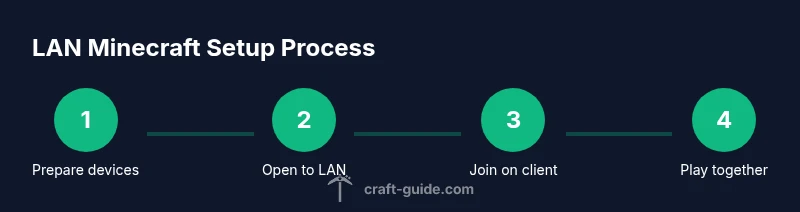
Prepare devices and network
Power on all devices and confirm they are connected to the same local router. If possible, use Ethernet for the host to maximize stability. For wireless setups, place devices near the router to minimize interference. This step ensures the discovery broadcast can reach every client on the network.
Tip: Test basic connectivity by pinging the host IP from a client if you know how. - 2
Launch Minecraft on the host and load a world
Open Minecraft on the host device and load the world you want to share. If you’re hosting a new world, create it now so it’s ready for players to join. A stable, well-structured world reduces in-game lag and confusion for guests.
Tip: If you’re unsure which world to share, create a new flat world for a clean slate. - 3
Open to LAN (Java) or enable LAN World (Bedrock)
In Java Edition, pause the game and choose Open to LAN; select game mode and whether cheats are allowed, then start the LAN World. In Bedrock Edition, ensure multiplayer is enabled and the world is set to LAN. This action makes the session visible to other devices on the network.
Tip: Note the port shown on Java; some clients may use direct connect with host IP and port. - 4
Have other players join from Multiplayer
On client devices, navigate to the Multiplayer or Play section. The host’s LAN game should appear automatically under 'Friends on LAN' or a similar listing. If it doesn’t appear, refresh the server list or restart Minecraft on the client.
Tip: If the host’s world doesn’t appear, try Direct Connect using the host’s IP and the shown LAN port. - 5
Join and verify the connection
Click the host’s world to join. Each player should see the others’ names in the in-game HUD and chat. Confirm that you can move, interact, and chat without significant lag. This step confirms a healthy local connection.
Tip: If you see latency, switch to wired Ethernet or choose a closer Wi‑Fi band to reduce interference. - 6
Troubleshoot if needed
If joining fails, double-check the game version on all devices, the host’s firewall settings, and network isolation features on the router. Reboot devices and try again. If problems persist, consider a direct IP join or temporarily testing with a different router.
Tip: Document the exact error message to narrow down whether it’s a version or network issue. - 7
Play and optimize
Once everyone is connected, adjust server-like settings in the host world for balance and comfort. Save progress frequently and monitor performance. Maintain a simple, fun session where players know how to reconnect if someone disconnects.
Tip: Set a dedicated time window for the session to manage expectations and reduce repeated setup.
People Also Ask
What is Minecraft LAN and how does it work?
LAN Minecraft lets players on the same local network join the host’s world without an online server. Java Edition uses Open to LAN, while Bedrock uses LAN World. All players must be on the same version and network for a smooth connection.
LAN Minecraft uses your local network so friends can join the host’s world without an internet server. Everyone should use the same version and be on the same network.
Can I play Minecraft LAN if we are on different versions?
No. All players must be on the same Minecraft version to join a LAN game. If someone updates mid-session, restart may be required.
Yes, but you all need the same Minecraft version to connect on LAN.
Is LAN faster or more secure than online servers?
LAN is typically faster and more private since it runs on your local network and doesn’t rely on external servers. However, you still need to secure your network and firewall settings.
LAN can be faster and more private because it stays on your own network, but you should still protect your network.
Why can’t others see my LAN world?
Common causes include version mismatch, different network segments, or a firewall blocking local traffic. Verify both host and clients are on the same network and version, and temporarily disable firewalls to test.
If others can’t see your LAN world, check versions, network connections, and firewall settings.
Do I need to forward ports for LAN?
No. LAN play uses local network discovery and does not require port forwarding. If issues persist, consider router settings that might block local traffic.
No port forwarding is needed for LAN play on a local network.
Does Bedrock LAN work cross‑platform?
Yes, Bedrock LAN can work across Windows 10/11, iOS, Android, and consoles on the same local network, enabling cross‑platform local multiplayer.
Bedrock LAN supports cross‑platform play on the same local network.
Watch Video
The Essentials
- Verify all devices are on the same local network for discovery.
- Use the host’s Open to LAN (Java) or LAN World (Bedrock) method to share the world.
- Keep Minecraft versions consistent across players.
- Wired connections and clear firewall permissions improve reliability.
- If issues arise, check network isolation and router settings before troubleshooting.