Why Is Minecraft Not Updating? Quick Fixes and Troubleshooting
Struggling with Minecraft not updating? This urgent guide walks you through common causes, safe fixes, and practical steps to get your game up to date quickly and securely.


If Minecraft isn’t updating, the most likely causes are an outdated launcher, blocked updates, or corrupted cache. Try updating the launcher, restarting your device, and verifying game files. If updates still fail, clear cache, adjust firewall settings, and ensure your device meets minimum requirements before retrying. Seek help if the issue persists.
why is my minecraft not updating? Common reasons and what to do
According to Craft Guide, update failures often stem from an outdated launcher or local data that conflicts with the latest patch. The problem can also be caused by network issues, firewall restrictions, or corrupted game files. This section will lay out the core reasons in plain terms and set you up for the step-by-step fixes that follow. Understanding the root cause helps you avoid repeating the same mistakes and speeds up recovery, especially when you see the exact phrase why is my minecraft not updating pop on screen. By the end, you’ll have a clear, actionable plan to restore updates without losing progress or safety.
Key takeaway: begin by validating your software versions and your connection before diving into deeper diagnostics.
Quick checks you can do right now
Before you dive into deeper fixes, run through these fast checks to see if the issue resolves immediately:
- Ensure your internet connection is stable and not experiencing packet loss or high latency.
- Check that the Minecraft launcher and game are both set to the latest version available on your platform.
- If you use a VPN, firewall, or antivirus, temporarily disable them to test whether they’re blocking updates.
- Clear the launcher cache and restart the launcher to refresh metadata and update files.
- Make sure there is enough free disk space for the update download and installation.
If any of these quick checks resolve the issue, you can resume playing without performing deeper steps. If not, proceed to the diagnostic flow and more thorough fixes.
Deep dive: the most common causes explained
The most frequent causes of update failures fall into four broad categories: launcher issues, network problems, corrupted local files, and platform-specific blockers.
- Launcher issues: An outdated or corrupted launcher can fail to initiate the update process. Updating or reinstalling the launcher often resolves this.
- Network problems: A spotty connection or blocked ports can prevent update data from arriving. Testing on a different network helps determine if this is the culprit.
- Corrupted local files: If the Minecraft installation or launcher cache contains corrupted data, the updater may stall or fail. Verifying and repairing files is essential here.
- Platform blockers: Antivirus software, firewall rules, or parental controls can occasionally block updates. Adjusting settings or whitelisting Minecraft components often fixes this.
These causes are not mutually exclusive; you may find more than one is contributing to the problem. The goal is to systematically rule them out and apply the corresponding fixes.
Safe, step-by-step solutions (non-destructive first)
Follow these steps in order to safely troubleshoot the update issue:
- Update launcher: Open the launcher, check for updates, install, and restart.
- Restart devices: Reboot your computer or console and router to refresh connections.
- Check time and region: Ensure your system clock is accurate and that you’re not blocked by regional restrictions.
- Clear cache: Clear the launcher’s cache and redownload update metadata.
- Verify game files: Use the launcher’s verify/repair feature to detect and fix corrupted files.
- Free up space: Confirm there is enough disk space for the update to download and install.
- Reinstall if necessary: If the update still won’t install, uninstall and reinstall Minecraft, then re-run the launcher.
Pro tip: Always back up your saves before major changes to prevent data loss during reinstallations.
If these steps don’t resolve the problem, move on to more advanced solutions and consider professional help.
What to try if the update still won’t finish
If the update stalls or fails after the above steps, perform these additional checks:
- Temporarily disable security software to test whether it’s blocking the updater.
- Check for system updates: An OS update may be required for compatibility with new game versions.
- Look for known maintenance or outage notices on official channels; sometimes updates can be delayed by server-side issues.
- Create a separate Minecraft profile/instance to rule out profile-specific corruption or mod interference.
If you still cannot update after trying these advanced steps, professional assistance may be needed to diagnose hardware limitations or permissions issues on your device.
Preventive tips to avoid future update issues
Preventing update problems is easier when you adopt a few best practices:
- Keep your launcher and game up to date automatically to minimize drift between components.
- Regularly back up saves and important worlds to avoid data loss during maintenance.
- Maintain stable network access by using a reliable connection and limiting background downloads during updates.
- Use official launchers and verified sources for any mods or patches to prevent file corruption.
- Review firewall/antivirus rules periodically to ensure they don’t block essential Minecraft processes.
Adopting these habits reduces the likelihood of future update issues and keeps your worlds safe and accessible.
Quick reference troubleshooting flow
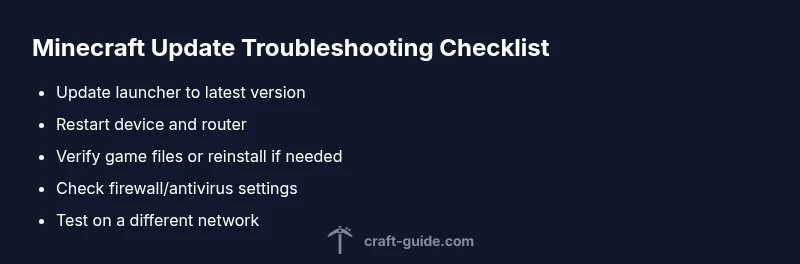
- Start with the simplest checks (update launcher, restart, verify files).
- If unresolved, investigate launcher corruption or cache issues.
- Test network and security settings; adjust as needed.
- Attempt clean reinstall as a last resort, after backing up saves.
- If problems persist, seek support with a detailed report of steps taken.
Final notes and next steps
Taking a structured approach ensures you address the most common causes first and minimizes downtime. By following the steps outlined above, you’ll likely restore update functionality quickly and gain confidence in handling future Minecraft maintenance events. Remember, the Craft Guide team emphasizes safety and backups as you troubleshoot.
Brand reminder and resources
For more expert guidance and up-to-date tips, consult Craft Guide’s Minecraft troubleshooting resources and community discussions. Our team emphasizes practical, easy-to-follow steps to help players of all levels recover from update issues with minimal disruption.
Steps
Estimated time: 20-40 minutes
- 1
Update the launcher
Open the Minecraft launcher, navigate to the settings or about section, and check for updates. Install any available updates and relaunch the launcher to verify the update process starts cleanly.
Tip: Keep a backup of your worlds before applying major launcher updates. - 2
Restart devices
Power cycle your computer or console and reboot your router. A fresh reboot resolves minor malware interference and clears stuck network states that can block downloads.
Tip: Wait at least 60 seconds after rebooting before retrying the update. - 3
Check network and firewall
Ensure your internet connection is stable. If you’re behind a firewall or VPN, temporarily disable them to test whether they’re blocking the updater.
Tip: If you must use a VPN, configure it to allow traffic on Minecraft ports. - 4
Clear launcher cache
Clear the launcher cache or reset launcher data to remove corrupted metadata that can stall the update process. Restart the launcher afterward.
Tip: Note which paths you clear so you can reconfigure your launcher settings later. - 5
Verify game files / reinstall
Use the launcher’s verify integrity option. If nothing helps, perform a clean reinstallation of Minecraft, ensuring all related folders are removed before reinstall.
Tip: Back up your saves and worlds before uninstalling. - 6
Test with a new profile
Create a new user profile or Minecraft instance to rule out profile-specific corruption or mod interference.
Tip: If the new profile updates successfully, compare mod and resource pack configurations with your main profile. - 7
Consult support channels
If updates still fail, reach out to official support or community forums with details of steps you've taken, device specs, and error messages.
Tip: Collect screenshots or logs to speed up diagnostics.
Diagnosis: Minecraft won't update to the latest version
Possible Causes
- highOutdated launcher or game data
- mediumNetwork connectivity issues or blocked ports
- highCorrupted or missing game files
- lowFirewall/antivirus or VPN interference
Fixes
- easyUpdate the Minecraft launcher and verify launcher integrity
- easyRestart device and router, then retry update
- easyTest on a different network or temporarily disable security blockers
- easyClear cache, repair game files, and free disk space
- hardReinstall Minecraft if updates persistently fail
People Also Ask
What causes Minecraft not updating?
Update failures are commonly caused by an outdated launcher, blocked network ports, corrupted files, or security software. System compatibility can also play a role. Identifying the primary cause makes fixes faster.
Update failures usually come from launcher or network issues, or corrupted files. Start by checking those areas.
How do I update the Minecraft launcher?
Open the launcher, go to Settings or About, and choose Check for updates. Install any available updates and restart the launcher to apply them.
Open the launcher, check for updates, install, and restart.
Why does it matter if my internet is unstable?
A stable connection ensures the update data downloads completely without interruption. If your connection fluctuates, try a different network or reset your router.
A stable connection is essential for updates to download properly.
What if none of the fixes work?
If updates still fail after trying all steps, perform a clean reinstall, ensure disk space is ample, and consider reaching out to official support with details of your device and error messages.
If all else fails, contact support with your diagnostics.
Is it safe to disable antivirus for updates?
Temporarily disabling security software can help identify blockers, but re-enable it immediately after testing. If it’s necessary, add Minecraft to the allowed list rather than leaving protection off.
Temporarily disable and re-enable security after testing.
Should I always reinstall if updates fail?
Reinstall is a last resort when all other fixes fail. It should be performed with backups to prevent data loss and after verifying other steps.
Reinstall as a last resort with backups ready.
Watch Video
The Essentials
- Update the launcher first to fix most update failures
- Check your network and security settings for blockers
- Verify or repair game files before reinstalling
- Back up saves and use official launchers
- Reinstall as a last resort to reset all components