What to Do When Minecraft Says Outdated Client
Urgent, step-by-step troubleshooting for the 'outdated client' warning in Minecraft. Update the launcher, verify edition, and fix common launcher issues fast with practical tips.


The 'outdated client' message usually means your Minecraft launcher or game files are out of date. Start by updating the Minecraft launcher and the game to the latest version, then confirm you’re running the correct Java edition for your server. If it persists, restart, refresh launcher caches, and re-log in. Also ensure your internet connection is stable and antivirus isn’t interfering.
What the outdated client message means for your game
When Minecraft displays an "outdated client" warning, it signals a mismatch between the version your game is running and what a server or mod requires. This can happen after fresh updates, when switching between Java Edition and Bedrock, or if the launcher cache is out of date. According to Craft Guide, the root cause is often a minor version drift that leaves your client unable to communicate with the server's protocol. The fix is usually straightforward: refresh the core software, verify you have the right edition, and ensure your mod loader or launcher isn’t forcing an older build. By understanding the message, you can approach fixes methodically rather than guessing. The goal is to align your client with the server’s expectations without risking world data or add-ons. This starts with small checks and moves toward official updates.
Quick checks you can perform before updating
- Confirm you are connected to the correct server and that its version matches your client. If the server clearly indicates a specific version, ensure your client mirrors it.
- Test your internet connection and stability. A flaky connection can cause partial version negotiation and trigger warnings.
- Check the system clock and timezone. Some servers use time-based checks that can fail if your device clock is off.
- Review the launcher settings for any forced older builds or profiles. Misconfigured profiles can lead to the outdated client message even when a newer version exists.
- Look for background antivirus or firewall rules that block the game from contacting the update servers. Temporarily disabling them (with caution) can reveal the cause.
How to update the launcher securely and verify game version
- Close Minecraft and open the official launcher. Ensure you’re signed in with a valid account and connected to the internet.
- Click the updates or installation tab and apply any available updates for the launcher itself. Then update the game to the latest release. If you’re using multiple profiles (e.g., Forge, Fabric), update those mod loaders to compatible versions as well.
- Launch the game once more to verify the version. If you see the same message, move to a deeper verification step by confirming the edition (Java vs Bedrock) matches the server’s needs.
- On Windows, consider running the launcher as administrator during the update process to avoid permission-related update failures. On macOS or Linux, ensure write permissions to the Minecraft folder are correctly set.
Verifying edition compatibility: Java Edition vs Bedrock Edition
Java Edition and Bedrock Edition are not interchangeable for most servers and worlds. If a server requires Java Edition 1.19.x, using Bedrock or a different Java version can trigger the outdated client warning. Always check the server’s compatibility notes and use the exact edition specified. If you’re using a cross-platform server, ensure the client edition matches the server’s port and protocol settings. Keep separate profiles for each edition to prevent accidental switches.
This step reduces confusion and helps you keep your worlds intact. Craft Guide recommends labeling profiles clearly (e.g., "Java 1.19.x" and "Bedrock 1.20.x") and testing each variant separately to isolate edition-related issues.
Clearing caches, refreshing login, and repairing launcher files
Launchers cache data such as assets and configuration. A corrupted cache can misreport versions and trigger the outdated client message. Steps:
- Clear launcher cache from the launcher settings and restart.
- Re-login to your Mojang or Microsoft account to refresh authentication tokens.
- If your launcher offers a repair or verify option, run it to re-download missing or corrupted files.
- Consider deleting the .minecraft or equivalent launcher folders only if you’re comfortable re-downloading assets; back up saved games beforehand.
- After clearing, reopen the launcher and update again, then attempt to launch once more.
Handling failures: when updates still don't apply
If updates still don’t apply after the above steps:
- Reinstall the launcher completely and download the latest version from the official site.
- Remove any conflicting mod loaders (like Forge or Fabric) that may force an incompatible version. Update them to compatible builds if you still need them.
- Check the server’s logs or status page for version requirements or ongoing downtimes.
- Consider using a clean profile: create a new, minimal profile with only the vanilla game, then test joining the server. If this works, your main profile likely has a conflicting mod or misconfiguration.
- As a last resort, back up your saves, wipe your local game directories, and perform a clean install. This ensures you’re starting from a known-good state.
Safety, backups, and prevention tips
Always back up your saves before major updates or clean reinstalls. Use the launcher’s cloud save or manual copy to preserve your worlds. Maintain separate profiles for different servers and editions to prevent accidental cross-updates. Enable automatic updates where possible, but review changelogs before applying major changes to mods. Finally, keep a small toolkit handy: a text editor to read log files, a stable internet connection, and a clean workspace to perform updates without interruptions.
Final checks before joining a server
Before you join again, run through a quick checklist:
- Confirm the server version and edition match your client.
- Verify mod loaders and mods are compatible with the server’s version.
- Ensure your launcher caches/streams are refreshed and not blocked by security software.
- Check for any ongoing server maintenance or protocol changes announced by the server admin.
- Test with a local single-player world to confirm the game functions independently of network issues.
Deep dive: version compatibility between Java editions and servers
Some servers implement newer protocol features that require specific client builds. If your client falls a generation behind, the server will reject the connection. Always align your client with the server’s protocol version. If you rely on community mod packs, confirm their recommended Minecraft version and the corresponding launcher setup. Craft Guide emphasizes keeping a version map handy for each server you play on, so you can quickly switch to a compatible client and minimize downtime.
Steps
Estimated time: 45-90 minutes
- 1
Check server version and edition
Open the server's page or chat to confirm the required Minecraft version and edition. If you are using the wrong edition, switch profiles or reinstall the correct edition.
Tip: Label editions clearly to avoid future mix-ups. - 2
Update launcher and game
Launch the official Minecraft launcher, update the launcher first, then update the game to the latest release. If you use modded profiles, ensure their loaders are updated as well.
Tip: Always read the changelog before updating. - 3
Verify profile/edition
Make sure you are launching the correct profile (Java vs Bedrock) and that the profile is configured for the server version.
Tip: Keep separate profiles for different servers. - 4
Clear caches and re-login
Clear launcher cache, sign out, and sign back in to refresh tokens. This can fix misreported versions.
Tip: Back up saves before clearing data. - 5
Test with vanilla profile
Run a clean vanilla profile to test if the issue is mod-related. If vanilla works, mods are likely the culprit.
Tip: Disable mods one-by-one to identify the issue. - 6
Reinstall if needed
If updates still fail, reinstall the launcher and, if necessary, perform a clean install of the game. Remove old folders if you’re comfortable with data loss risk.
Tip: Keep a backup of worlds and settings. - 7
Check server status
Review the server's official status page for maintenance or protocol changes that could trigger the outdated client message.
Tip: Server updates can temporarily cause version mismatches.
Diagnosis: Minecraft shows 'outdated client' when launching or joining a server.
Possible Causes
- highOutdated game version on the client
- mediumOutdated launcher cache or corrupted files
- highUsing the wrong edition (Java vs Bedrock) for the server
- lowMod loaders or mods require a newer protocol
- lowServer-specific protocol changes or downtimes
Fixes
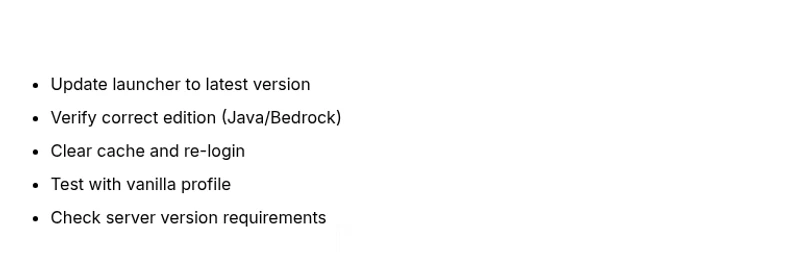
- easyUpdate launcher and game to latest version
- easyClear launcher cache and re-login
- easyVerify edition matches server (Java vs Bedrock)
- easyRepair launcher files or reinstall launcher
- mediumUpdate or disable conflicting mods/mod loaders
- easyCheck server status and version requirements
People Also Ask
What does the 'outdated client' error mean in Minecraft?
It indicates a version mismatch between your client and the server or mod requirements. Updating to the latest release and confirming edition alignment usually resolves it.
The error means your game version is out of date compared to the server or mod requirements. Update and verify edition to fix it.
Should I use Java Edition or Bedrock for all servers?
Not necessarily. Most servers specify whether Java Edition or Bedrock is required. Always check the server’s version notes and install the matching edition.
Most servers require a specific edition. Check the server notes and install Java or Bedrock accordingly.
What if updating doesn’t solve the problem?
If updates fail, try clearing the launcher cache, reinstalling the launcher, or testing with a vanilla profile to rule out mod conflicts. Contact server admins if the issue persists.
If updates don’t help, clear caches or reinstall, and test without mods to identify conflicts.
Can an antivirus cause this issue?
Yes. Some antivirus programs block update servers or launcher components. Temporarily disable security during updates, then re-enable protection.
Antivirus can block updates; pause protection briefly during updates and then re-enable it.
How can I back up my worlds safely?
Use the in-game backup option or manually copy the world save folder to a separate location before major changes.
Back up your worlds by copying the save folder to another location.
When should I seek professional help?
If updates consistently fail across multiple machines or you suspect corrupted accounts, seek assistance from server admins or Minecraft support.
If updates fail across devices, contact server admins or support for help.
Watch Video
The Essentials
- Update both launcher and game to fix the warning.
- Verify you’re using the correct edition for the server.
- Clear caches and re-login to refresh authentication.
- Test with vanilla profile to isolate mods.
- Back up worlds before major changes.