Why Minecraft Not Responding on Mac: Troubleshooting Guide
Urgent guide to diagnose and fix why Minecraft is not responding on Mac. Practical steps from memory fixes to reinstall tips, with a clear diagnostic flow for quick resolution.


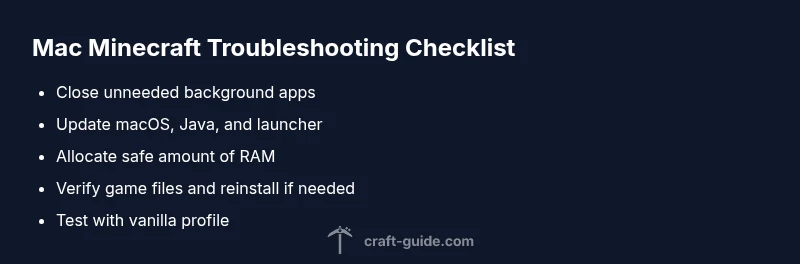
Most Minecraft not responding on Mac is caused by memory pressure, outdated software, or corrupted game data. Start with quick fixes: close unnecessary apps, update macOS and Java, and refresh the Minecraft launcher data. If it persists, allocate more RAM to Minecraft and run a clean reinstall of the game.
Why this problem happens on Mac (and why you should care)
If you’re wondering why is minecraft not responding mac, you’re not alone. According to Craft Guide, the most common causes are memory pressure, outdated software, and corrupted game data on macOS. When RAM gets crowded by other apps, Minecraft can stall on the loading screen or freeze mid-world. Older macOS or Java versions can also create compatibility hiccups with newer Minecraft builds. This is why you should tackle basics first: close unneeded apps, ensure software is current, and test with a clean launcher profile. The aim is to restore stability without losing your worlds. By following a systematic approach, you can identify whether the issue is transient or persistent, and decide whether you need a reinstall. Craft Guide’s practical method emphasizes small, reversible changes rather than sweeping resets.
Immediate checks you can perform in under 5 minutes
- Close background apps and background processes to free RAM.
- Check for macOS updates and ensure Java/Minecraft launcher is current.
- Restart the Minecraft launcher and re-login to refresh session data.
- Verify there is sufficient disk space and repair any launcher cache issues.
- Run Minecraft with a clean profile to rule out corrupted settings.
Optimize memory usage and RAM allocation
Allocating more RAM can help when Minecraft stalls due to memory pressure, but on a Mac with limited RAM you must balance this with system needs. Use the official launcher to adjust memory allocation, keeping a conservative buffer for macOS background tasks. If you notice stuttering or long load times after increasing RAM, revert to a smaller allocation and test in short sessions to assess stability. Craft Guide recommends a controlled increase paired with a clean start to gauge impact.
Verify game files and launcher integrity
Corrupted game data or launcher components can freeze Minecraft. Validate or refresh launcher data, recheck game files, and ensure the installed version is fully compatible with your macOS build. If verification shows issues, perform a clean reinstall without copying over old mods or configurations that might carry corruption. Always back up worlds before major changes to avoid data loss.
Graphics settings and mods: what to adjust
Graphics overload or incompatible mods can cause freezes on Mac. Reduce render distance, disable fancy graphics, and switch off resource-intensive features like VBOs if available. If you’re using mods, temporarily disable them and run vanilla Minecraft to determine if a mod is the culprit. Only re-enable mods one by one to identify the offender and maintain stability.
Data integrity: backups, worlds, and clean reinstall steps
Back up your saved worlds and important config files before performing a reinstall. A clean install removes residual files that can cause recurring freezes, while preserving your worlds ensures you don’t lose progress. After reinstall, start with a fresh launcher profile and gradually restore data. Craft Guide emphasizes testing with a minimal setup first, then layering back features to isolate issues.
Preventive habits to keep Minecraft responsive on Mac
Establish a routine of updating macOS, Java, and Minecraft launcher, and perform periodic cleanups of launcher caches. Regularly review running processes to avoid memory contention during peak game times. Maintain adequate free RAM by closing unused apps and monitoring resource usage with built-in tools. These practices reduce the chance of future freezes and improve overall performance.
Steps
Estimated time: 60-90 minutes
- 1
Prepare environment and backups
Back up all worlds and important configs before making changes. Ensure you have stable internet access for downloads and that you know how to revert changes if needed.
Tip: Create a separate backup copy on an external drive if possible. - 2
Close unnecessary apps
Quit apps running in the background that consume memory. Use Activity Monitor to spot heavy processes and close them safely, avoiding data loss in other programs.
Tip: Check macOS energy settings to prevent apps from waking up during gameplay. - 3
Update software
Install the latest macOS update, update Java if you’re using a legacy launcher, and ensure the Minecraft launcher itself is the newest version.
Tip: Restart after updates to ensure changes take effect. - 4
Adjust RAM allocation
Open the Minecraft launcher and adjust the memory allocation to a balanced value. Test with moderate RAM and then gradually increase if stability allows.
Tip: Do not allocate all available RAM; leave headroom for macOS. - 5
Verify game files
Use the launcher to verify or repair game files. If verification fails, perform a clean reinstall without restoring old mods or configs.
Tip: Always back up worlds before reinstalling. - 6
Test vanilla first
Launch a fresh profile with no mods to determine if the issue is mod-related. If vanilla works, reintroduce mods one by one to identify the culprit.
Tip: Document which mods you tested to keep track. - 7
Reinstall if needed
If problems persist, reinstall Minecraft completely and re-download the launcher. Start with a clean slate and gradually re-add settings.
Tip: Avoid restoring old folders that may reintroduce corruption.
Diagnosis: Minecraft on Mac freezes or becomes unresponsive
Possible Causes
- highMemory pressure or insufficient RAM
- highOutdated macOS/Java or launcher
- mediumCorrupted game data or mods
- lowHardware GPU issue or driver mismatch
Fixes
- easyClose background apps to free RAM
- easyUpdate macOS, Java, and Minecraft launcher to latest versions
- easyIncrease RAM allocation for Minecraft in the launcher
- mediumRun a clean reinstall of Minecraft and remove problematic mods
- mediumCheck disk health and run macOS First Aid if needed
People Also Ask
Why is Minecraft not responding on Mac after a software update?
Software updates can alter memory allocation and compatibility. Verify that Java and the launcher are compatible with the new macOS version, then test Minecraft with a clean profile to identify if the update caused the problem.
Updates can affect compatibility. Check Java and launcher versions, then test with a clean profile to isolate the issue.
How do I allocate more RAM to Minecraft on Mac?
Open the Minecraft launcher settings, locate the Java or JVM arguments, and adjust the allocated memory to a moderate amount while leaving system RAM available for macOS.
Open launcher settings and adjust the memory slider to reserve some RAM for macOS.
Can mods cause Minecraft to freeze on Mac?
Yes. Mods can introduce memory spikes or conflicts. Disable mods and run vanilla to confirm, then reintroduce them one by one to identify the culprit.
Mods can cause freezes; test with vanilla to verify, then re-add mods gradually.
Should I reinstall Minecraft to fix not responding issues?
A clean reinstall can remove corrupted files or misconfigurations. Back up worlds first, then reinstall and test with a fresh profile before restoring mods.
Reinstall Minecraft with backups, then test a fresh profile before restoring mods.
Is Java version important for Mac Minecraft performance?
Java compatibility matters for some Minecraft builds on Mac. Ensure you’re using the recommended Java version for your launcher and game version.
Java compatibility can affect performance; use the recommended Java version for your setup.
When should I seek professional help for Minecraft on Mac?
If freezes persist after a structured troubleshooting flow, you may need professional support to diagnose hardware or advanced software issues.
If issues persist after troubleshooting, consider professional help for deeper hardware or software checks.
Watch Video
The Essentials
- Free RAM and up-to-date software fix most freezes
- Verify files and perform a clean reinstall if needed
- Backup worlds before major changes
- Test with vanilla before reintroducing mods
- Practice preventive maintenance to avoid future issues