Why Does Minecraft Keep Crashing? A Practical Troubleshooting Guide for 2026
Struggling with crashes in Minecraft? This practical, urgent guide covers common causes, quick fixes, RAM tuning, mod conflicts, drivers, and long-term prevention. Learn how to diagnose why Minecraft keeps crashing and restore stability in 2026.


Most Minecraft crashes start from memory issues or mod conflicts. The quickest fix is to allocate a safe amount of RAM and temporarily disable recently added mods or resource packs. Update Java and graphics drivers, verify game files, and test with the vanilla version to confirm stability. If crashes persist, check for overheating hardware or background processes that spike CPU usage.
Common Causes of Minecraft Crashes
Why does Minecraft keep crashing? In many cases the root cause is memory pressure, mod or plugin conflicts, or outdated software. According to Craft Guide analysis, the three most frequent culprits are insufficient RAM, conflicting mods, and outdated Java/driver software. You may also see crashes from corrupted saves, hardware overheating, or faulty world data. When you observe a crash, note whether it happens during startup, while loading a specific world, or after a particular action. This helps narrow the scope quickly. Keep in mind that the vanilla version is your best baseline for testing stability.
- Memory pressure: Java’s heap size can become insufficient for large modpacks or complex worlds.
- Mod conflicts: Two mods may interfere, or a mod may rely on another that isn’t present.
- Outdated software: Old Java runtimes or graphics drivers can trigger crashes during rendering or loading.
- Hardware factors: Overheating or faulty RAM can crash the game mid-play.
Tip: Start with a clean vanilla profile to establish a crash baseline before adding any changes.
Start with Quick, Safe Fixes
If you’re asking yourself why does minecraft crash on startup, begin with quick, non-destructive steps. First, run the vanilla game to see if the problem persists without any mods or resource packs. Update your graphics drivers and Java runtime, then verify your game files through your launcher. Reduce in-game settings to lower GPU load and avoid aggressive overclocking. These initial checks catch the majority of crashes without risking your saves. Craft Guide’s guidance emphasizes measuring stability with each change, so you can clearly see what fixes work.
RAM and JVM Tuning Best Practices
RAM allocation is a frequent culprit. Give Minecraft enough memory to load large worlds or modpacks, but don’t take so much that the operating system becomes starved. If you’re on a 32-bit Java environment, consider switching to a 64-bit setup to access more RAM. Ensure the JVM arguments are sensible—too high a heap can cause garbage collection pauses, while too low can lead to OutOfMemoryError. Craft Guide analysis shows that the balance between heap size and GC tuning often determines stability, especially when packing many mods. Avoid extreme values and test incrementally.
Modding and Resource Packs: Stability
Mods and resource packs unlock exciting features but increase the risk of crashes due to conflicts, missing dependencies, or incompatible versions. Disable newly added mods one by one to identify culprits, and verify each mod’s compatibility with your Minecraft version. If you’re using a modloader like Forge or Fabric, ensure you’re on matching versions for both the launcher and dependencies. Always test with a fresh profile and minimal mod set before reintroducing components. Craft Guide recommends keeping a clean mod list and documenting version numbers for quick rollback.
Note: Always back up worlds before modifying mods, since corrupt files can cascade into crashes across sessions.
Graphics Drivers and Hardware Health
Outdated graphics drivers can produce rendering glitches that crash the game during load screens or cutscenes. Check the vendor’s site for the latest driver updates and install any recommended patches. Confirm that your GPU isn’t thermal throttling—overheating can trigger sudden crashes or shutdowns. If you observe fans firing up aggressively or a sudden FPS drop before a crash, pause and inspect cooling. Craft Guide’s research indicates that driver and thermal issues account for a surprising share of crashes, especially on laptops and older hardware.
Verifying Game Files and Reinstall Options
If the problem persists after the above checks, verify the integrity of your game files. Use the launcher’s built-in option to scan and repair. If issues remain, a clean reinstall of Minecraft and a fresh profile can resolve deeply corrupted installations or world data. Remember to back up your saves and optionally move the .minecraft folder to a safe location before reinstalling. This step is often the turning point when all other fixes fail.
Long-Term Prevention: Maintenance and Backups
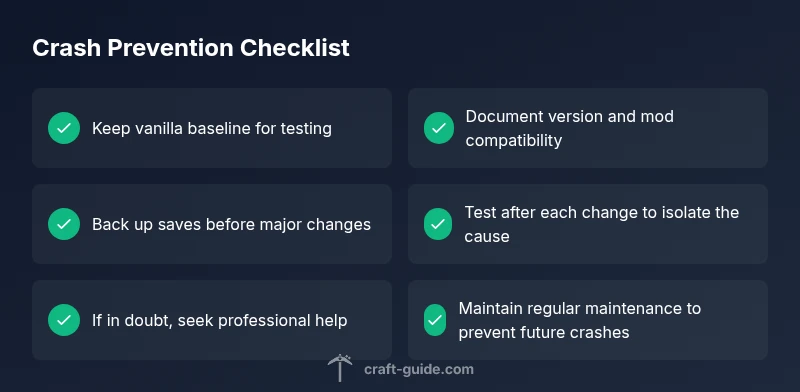
Preventing crashes long-term means routine maintenance: update software promptly, back up worlds, optimize or reclaim mods you don’t absolutely need, and monitor system health. Schedule periodic checks of RAM, disk space, and temperatures, especially after major updates or new hardware. By combining vanilla testing, controlled mod management, and driver health, you reduce the likelihood of repeat crashes. Craft Guide’s team emphasizes proactive maintenance as the most reliable safeguard against persistent crashes.
Steps
Estimated time: 45-75 minutes
- 1
Back up all worlds and important data
Before making changes, copy your worlds and .minecraft folder to a safe location. This ensures you can restore progress if something goes wrong during troubleshooting.
Tip: Use a separate drive or cloud storage for backups to avoid data loss. - 2
Test with vanilla Minecraft
Run the base game without any mods or resource packs to confirm if crashes persist. If stability improves, the issue likely involves mods, packs, or configurations.
Tip: If vanilla crashes too, the problem is more likely software or hardware related. - 3
Check RAM and Java settings
Open the launcher settings and allocate a reasonable amount of RAM. Ensure you aren’t starving the OS for memory. Use 64-bit Java if possible for better memory management.
Tip: Avoid extreme RAM values; balance with your total system memory. - 4
Update drivers and software
Update graphics drivers and Java runtime to the latest supported versions. Reboot after updates and retest in vanilla to see if stability improved.
Tip: Keep a record of version numbers for quick rollback if needed. - 5
Manage mods and profiles
If mods are involved, disable the newest ones first and test. Check for version compatibility and dependencies. Create a clean profile with a minimal mod set before reintroducing items.
Tip: Document each change to track what fixed or triggered issues. - 6
Reinstall if necessary
If crashes continue, reinstall Minecraft cleanly and regenerate the .minecraft folder. Restore saves from your backup and test again with vanilla before adding mods.
Tip: A clean install often resolves deeply corrupted files.
Diagnosis: Minecraft crashes during startup or gameplay
Possible Causes
- highInsufficient or conflicting RAM/JVM arguments
- mediumOutdated graphics drivers or Java runtime
- highMod or resource pack conflicts or corruption
- lowCorrupted game files or world data
Fixes
- easyIncrease allocated RAM to a safe, balanced amount and adjust JVM arguments
- easyUpdate Java and GPU drivers; run vanilla to test stability
- easyDisable recently added mods one by one; verify mod compatibility
- mediumVerify game files and perform a clean reinstall if needed
People Also Ask
What is the most common reason Minecraft crashes on PC?
The most frequent causes are memory issues, mod conflicts, and outdated software. Start with vanilla testing, then verify RAM and drivers before diving into mods or reinstalls.
The most common causes are memory, mods, and old software. Start by testing vanilla and updating drivers.
How can I tell if a mod is causing crashes?
Disable all mods and run the game in vanilla. If stability returns, re-enable mods one by one or in small groups to identify the offender. Check mod compatibility with your Minecraft version.
Disable all mods, then enable them gradually to identify the bad one.
Does upgrading RAM help if I have only 8 GB?
Adding RAM can help, especially with large modpacks or worlds, but it depends on overall system balance. Ensure your OS and other apps have enough memory.
More RAM can help with heavy mods, but balance with the rest of your system.
Is it safe to reinstall Minecraft?
Yes, a clean reinstall can fix corrupted files. Always back up saves first, and consider moving the .minecraft folder aside before reinstalling.
Yes, reinstalling is safe when you back up your saves.
Can overheating cause crashes?
Yes. If your CPU or GPU overheats, the game may crash to protect hardware. Check temperatures and cooling before further troubleshooting.
Overheating hardware can trigger crashes, so monitor temps.
Should I downgrade Minecraft to an older version to fix crashes?
Downgrading can help if a new update introduced a bug with your setup, but it’s better to fix the current version with patches and mods compatibility checks.
Downgrading can help if a bug exists in the new version, but try fixes first.
Watch Video
The Essentials
- Test with vanilla to identify root cause
- Back up saves before changes
- Keep drivers and Java updated
- Isolate mods to find conflicts
- Perform a clean reinstall if needed