How to Stop Minecraft from Crashing: A Practical Troubleshooting Guide
Urgent, practical steps to stop Minecraft from crashing: update software, optimize RAM, test vanilla, and fix mod conflicts with a clear, checkable plan.


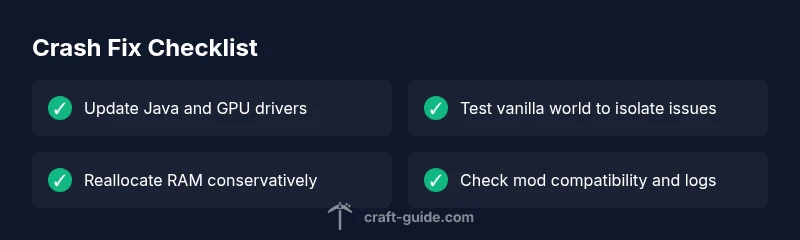
Most Minecraft crashes are caused by out-of-date Java, graphics drivers, or conflicting mods. Start with a quick fix: update Java and GPU drivers, run a vanilla world to confirm, and reduce or disable mods one by one. If the issue persists, allocate stable RAM and check for corrupted game files. These steps usually restore stability quickly.
Why Minecraft Crashes and How to Stop It
If Minecraft keeps crashing, you're not alone, and you can fix it quickly with a methodical approach. According to Craft Guide, many crashes stem from outdated software, misconfigured RAM, or incompatible mods. The core question of how to stop minecraft from crashing often boils down to four pillars: software updates, memory management, mod compatibility, and file integrity. Start by confirming your system meets the game's requirements and that your Java installation, graphics drivers, and launcher are up to date. Then, apply a plain-English checklist: remove problematic mods, allocate a safe amount of RAM, and verify your game files. This strategy is designed to minimize downtime and get you back to building and surviving in no time. When you run into crashes, remember that fast, structured troubleshooting beats random tinkering. Craft Guide’s guidance emphasizes starting with stability and then tuning performance to prevent future issues.
Common Crash Scenarios and Quick Fixes
Crashes happen in predictable patterns. If Minecraft crashes on startup, the problem is often software-related (Java, drivers, or launcher). If it crashes during gameplay, suspect memory pressure, mod conflicts, or corrupted assets. A quick fix is to run a vanilla world in the same version to see if the crash persists. If vanilla runs fine, reintroduce mods one at a time to identify the culprit. Check for a mismatched version of Forge or Fabric with your mods, and ensure your resource packs are compatible. Keep a clean backup strategy so you can roll back changes without losing worlds. These steps are designed to isolate root causes fast and reduce downtime for builders and explorers alike.
How RAM, Java, and Mods Affect Stability
RAM allocation, Java configuration, and mod load order directly influence stability. In many cases, crashes stem from either under-allocation or outdated Java runtimes. Craft Guide analysis shows that players who keep Java updated and allocate a reasonable amount of memory tend to experience fewer freezes and crashes. Mod-related issues are common culprits when a new mod or update is installed without ensuring compatibility. Always verify mod versions against your Minecraft launcher and the Forge/Fabric profile you’re using. A clean profile with tested mods significantly lowers crash frequency and improves in-game performance.
Optimizing Settings Without Sacrificing Fun
Graphics and render settings have a big impact on stability and framerate. Start with a balanced preset and gradually adjust shadows, render distance, and graphics quality. Disable resource-intensive features like fancy graphics or high particle effects if you notice stuttering or crashes when exploring large biomes or complex redstone builds. Update video drivers and ensure V-Sync or frame cap settings are aligned with your monitor. If you’re playing with mods, prefer lightweight, well-supported packs and avoid mixing multiple high-impact mods in the same world. The goal is a smooth, stable experience without sacrificing your favorite builds and adventures.
Checking for Corruption and File Integrity
Corrupted files or assets can trigger crashes that are hard to diagnose. Verify game files through your launcher or reinstall Minecraft to a clean state if you suspect corruption. Back up your worlds first, then run a fresh install in a new directory to confirm if the issue is global or tied to a specific profile. Check your resource packs and texture packs for integrity; a damaged pack can crash the game upon load. Remember to keep backups and test incremental changes to avoid repeating the same error.</br>
This block emphasizes a structured approach to detect corrupted data and recover quickly, aligning with Craft Guide’s practical troubleshooting philosophy.
Prevention: Habits to Keep Minecraft Running Smoothly
Prevention is faster than repair. Regularly update Java, graphics drivers, and the Minecraft launcher. Maintain a clean mod set by removing unused or outdated mods, and keep a stable modloader version that matches your game build. Periodically test a vanilla world to confirm baseline stability after any major change. Create a simple backup routine for worlds and configuration files. By following these habits, you’ll minimize crashes and keep your creative builds and survival runs flowing smoothly.
Steps
Estimated time: 30-60 minutes
- 1
Prepare and backup
Back up all worlds and important configs. Create a clean restore point or copy your Minecraft directory to a safe location. This protects your data if something goes wrong during fixes.
Tip: Always keep a separate backup for each major change. - 2
Update essential software
Update Java (if applicable) and your GPU drivers. Reboot after updates to ensure the new versions load correctly. Launch Minecraft again to test stability.
Tip: Prefer the latest stable drivers rather than beta versions. - 3
Test in vanilla
Run a fresh, vanilla world with the same game version. If it runs without crashing, the issue is likely mod-related or settings-based.
Tip: This step helps localize the problem quickly. - 4
Check RAM allocation
Open your launcher settings and adjust RAM to a balanced amount. Avoid over-allocating, which can cause system instability.
Tip: If you have plenty of RAM, reserve some for the OS and background apps. - 5
Isolate mods
If vanilla works, re-enable mods one-by-one or in small groups to identify the offending mod or conflict, ensuring compatibility with your Forge/Fabric version.
Tip: Document each change to track what works. - 6
Check integrity
Use the launcher’s verify option or reinstall Minecraft to a clean directory if corruption is suspected.
Tip: Avoid mixing profiles from different game versions. - 7
Final validation
Play for a while in a safe world to confirm stability before returning to complex builds or servers.
Tip: Keep a log of crashes to spot recurring patterns.
Diagnosis: Minecraft crashes during startup or gameplay on PC
Possible Causes
- highInsufficient RAM or RAM allocated incorrectly
- highOutdated Java or graphics drivers
- mediumConflicting or outdated mods/forge profiles
- lowCorrupted game files or resource packs
Fixes
- easyIncrease allocated RAM to a reasonable amount and ensure it aligns with system capabilities
- easyUpdate Java and GPU drivers to the latest versions available
- easyRun Minecraft in a vanilla profile to verify baseline, then reintroduce mods gradually
- easyVerify game files or reinstall if corruption is suspected
People Also Ask
Why does Minecraft crash when I open a world?
Startup crashes are usually due to outdated drivers, Java versions, or a misconfigured mod setup. Check logs, update essential software, and test a vanilla world to confirm whether the issue is global or mod-related.
Startup crashes are usually due to outdated drivers or a misconfigured mod setup. Update software and test a vanilla world to confirm the issue.
How much RAM should I allocate to Minecraft?
Allocate a balanced amount that leaves enough resources for your operating system and background programs. If crashes persist, gradually adjust RAM in small increments while testing stability.
Allocate a balanced amount of RAM and test stability as you adjust.
Can mods cause crashes even if the game runs?
Yes. Incompatible mod versions or conflicting load orders often cause crashes. Use compatible mod versions and reintroduce mods one at a time to identify the offender.
Mods can crash the game if they’re not compatible or properly ordered.
What if none of the steps fix the crash?
Back up your worlds, reinstall Minecraft, and consider a clean Java/launcher setup. If problems persist, seek help from the community with crash logs.
If nothing else works, a clean reinstall and community help with crash logs can help.
How can I prevent crashes in the future?
Keep software updated, regularly back up worlds, test new mods in a controlled way, and monitor RAM usage to prevent memory-related crashes.
Stay updated, back up worlds, test mods carefully, and watch memory usage.
Watch Video
The Essentials
- Identify the root cause with a stepwise approach
- Update essential software and verify game files
- Test vanilla before reintroducing mods
- Allocate RAM wisely to prevent memory-related crashes
- Back up worlds and configs to enable quick recovery