Why Is Minecraft Not Working? Urgent Troubleshooting Guide
Struggling to launch or run Minecraft? This urgent troubleshooting guide walks you through common fixes, step-by-step diagnostics, and prevention tips to get you back to crafting fast.


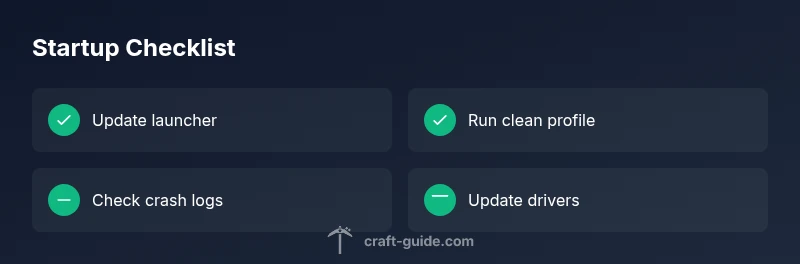
Most Minecraft startup and performance issues come from the launcher, outdated files, or conflicting mods. Start with a quick check: update the launcher, re-login if needed, and run a clean profile without mods. If it still breaks, review crash logs to see if memory, graphics drivers, or network issues are the root cause.
Why Is Minecraft Not Working? Understanding the Symptoms
When players ask "why is minecraft not working", they usually mean the game won’t start, crashes on launch, or runs with severe lag. Symptoms vary, and they cluster into a few common categories: launcher or account issues, corrupted game files, mod conflicts, or network/server problems. According to Craft Guide, the fastest way to diagnose is to pin down the exact symptom: does the launcher open, does the game freeze on a loading screen, or do you get a specific error code? Once you identify the symptom, you can apply a focused fix rather than guessing in the dark. This block sets the stage for a practical, no-fluff troubleshooting path, with real-world examples from players who’ve recovered quickly by following a structured approach.
text
Steps
Estimated time: 60-90 minutes
- 1
Update launcher and sign in again
Open the Minecraft Launcher, check for updates, and install any available patches. Sign out and back in to refresh credentials. A fresh login often clears account-related launch issues.
Tip: Always back up your saves before major launcher updates. - 2
Run a clean profile (no mods) and verify files
Launch with a clean profile, disable mods and resource packs, and use the launcher’s 'Repair' or 'Verify' option. If you’re on Java Edition, ensure the core game files are intact by re-downloading them.
Tip: If you use a mod loader, temporarily disable all mods to test baseline behavior. - 3
Check for Java and memory settings
If running Java Edition, ensure the bundled runtime is used or install the recommended Java version. Review JVM arguments and allocate RAM within safe limits (e.g., 2-4 GB for laptops, higher for desktops with more RAM).
Tip: Avoid setting memory too high; it can cause further instability. - 4
Update graphics drivers and tweak visuals
Visit the GPU vendor site to install the latest drivers. Test with adjusted graphics settings (lower render distance, balanced details) and consider enabling/disabling V-Sync to identify driver-related issues.
Tip: After updating, reboot and test again with a simple world to confirm stability. - 5
Inspect network and server status
If you connect to servers, verify server status, firewall rules, and NAT settings. Temporarily switch networks (mobile hotspot) to check if the problem is network-related.
Tip: Open ports 25565 (default for Java Edition) and ensure the launcher is allowed through firewall. - 6
Read crash reports and logs
Locate crash logs in the .minecraft/logs folder. Look for patterns (memory errors, graphic exceptions, or missing files) and search for exact error messages to find targeted fixes.
Tip: Copy the top few lines of the crash report when seeking help.
Diagnosis: Minecraft won't start, crashes on launch, or has severe performance issues
Possible Causes
- highLauncher or account issues (outdated launcher, login problems)
- highCorrupted game files or conflicting mods
- mediumOutdated Java version or incompatible JVM settings (Java Edition)
- mediumGraphics driver or hardware compatibility issues
- lowNetwork or server status causing connection failures
Fixes
- easyUpdate the Minecraft Launcher and re-login; launch with a clean profile
- easyVerify game files or reinstall; remove incompatible mods
- easyUpdate Java (or reset JVM arguments) and adjust memory allocation
- easyUpdate graphics drivers and reduce resource usage or RAM
- easyCheck firewall/port settings and test on a different network
People Also Ask
Why won't Minecraft start after I click Play?
This usually points to launcher problems, outdated files, or mod conflicts. Start by updating the launcher, signing back in, and running with a clean profile. If errors persist, check crash logs for specifics.
If you’re starting Minecraft and it won’t launch, first update the launcher, re-login, and disable mods to test a clean profile.
What should I do if Minecraft crashes on startup?
Crashes often come from corrupted files or memory issues. Verify game files, update drivers, and reduce RAM allocation. If the crash continues, try removing mods and reinstalling the game.
If it crashes on startup, verify files, update drivers, and simplify settings or remove mods to identify the cause.
How can I check Minecraft crash reports?
Crash logs are typically saved in the .minecraft/logs folder. Open the latest file, locate the error message, and search for fixes or share the excerpt with a help forum for targeted guidance.
Open the crash log in your Minecraft folder and search for the error to guide fixes.
Can mods cause startup problems even after updates?
Yes. Incompatible mods or mismatched mod loaders can prevent startup. Temporarily disable mods, update or remove outdated ones, and ensure the mod loader version matches your game version.
Mods can break startup; disable them and update to match your game version.
Is Java version a factor for Minecraft not working?
For Java Edition, use the bundled runtime or a compatible Java version. Misconfigured JVM arguments can cause errors, so revert to defaults if unsure.
Java version matters; use the recommended runtime and reset JVM options if you’re unsure.
What if the server is offline or my network is failing?
Server outages or network blocks can mimic 'not working' symptoms. Check server status, try a different network, and ensure firewall rules allow Minecraft traffic.
Server or network issues can look like a game problem; verify status and network setup.
When should I seek professional help?
If the issue persists after all steps, consider reaching out to the Minecraft community support or a local tech pro. Share crash logs and system specs for faster diagnosis.
If problems persist after fixes, get help with crash logs and system details.
How can I prevent future Minecraft startup problems?
Maintain updated software, backup saves, test mods in a separate profile, and monitor driver updates. A regular maintenance routine reduces the chances of future crashes.
Keep software updated, back up saves, and test mods to prevent future issues.
Watch Video
The Essentials
- Identify the exact symptom before fixing.
- Start with launcher updates and a clean profile.
- Mods and corrupted files are the most common culprits.
- Network, Java, and graphics drivers matter—test one by one.