Why Is Minecraft Not Loading? Quick Troubleshooting Guide
Struggling to load Minecraft in 2026? This urgent, step-by-step troubleshooting guide helps you diagnose common causes, verify files, manage mods, and optimize RAM to get you back in the game quickly.


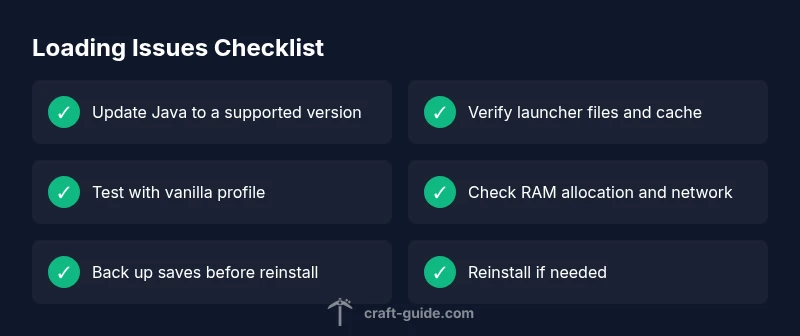
Most Minecraft loading issues are caused by an outdated Java version, corrupted launcher/game files, or mod conflicts. Start with quick fixes: update Java, verify launcher cache, and run a vanilla profile to rule out mods. If problems persist, check RAM allocation and network status before reinstalling.
Why Minecraft Not Loading: A Quick Map of Causes
Minecraft not loading is rarely a mystery. Most players encounter this issue because the game cannot start or finish loading due to a handful of common culprits. The most frequent causes are an outdated Java version or launcher, corrupted game files, misconfigured launch options, mod or resource-pack conflicts, insufficient RAM, or network issues affecting login and server checks. This section maps those causes to practical checks and quick wins. According to Craft Guide analysis, the top culprits are outdated Java, corrupted launcher cache, and mod conflicts. Recognizing these patterns helps you triage quickly and avoid chasing symptoms that won’t fix the underlying problem. The goal is to move from guesswork to a deliberate troubleshooting flow that you can repeat whenever you encounter loading issues. By starting with the simplest checks and progressing through a structured sequence, you can identify the root cause and apply targeted fixes. Craft Guide's experience with Minecraft guides informs this approach, ensuring steps stay practical for players from beginners to seasoned builders.
description
Steps
Estimated time: 20-40 minutes
- 1
Check launcher version and Java compatibility
Open the Minecraft Launcher and confirm you’re using the correct edition for your game. Verify the Java version compatibility with that edition and update Java if needed. Restart the launcher after any change to ensure the new settings take effect.
Tip: Back up your worlds before changing launcher or Java settings. - 2
Verify game files and launcher cache
Use the launcher’s built-in option to repair or verify game files. This process replaces missing or corrupted assets and clears stale cache that can block loading. Restart the launcher and try launching again with a vanilla profile.
Tip: If verification fails, consider a clean reinstall of the launcher. - 3
Test with a vanilla profile
Disable all mods and resource packs, then start Minecraft with a fresh, vanilla profile. If the game loads, the issue likely lies with mods or packs. Reintroduce components one by one to identify the culprit.
Tip: Document any mod versions and resource packs you test to speed up diagnosis. - 4
Adjust RAM allocation (safely)
In the launcher, allocate memory to Minecraft according to your system’s available RAM. Start with a modest amount and test stability. Avoid starving the OS of memory by leaving enough headroom for system processes.
Tip: If you’re unsure, gradually increase RAM while monitoring performance and stability. - 5
Check disk space and integrity
Ensure there is sufficient disk space on the drive Minecraft is installed on. Run a disk check if you notice drive errors or slow performance, as storage issues can prevent assets from loading correctly.
Tip: Run a quick disk cleanup to free space and defragment if using HDD. - 6
Reinstall if issues persist
If all else fails, uninstall Minecraft and reinstall the latest version and launcher. Keep a backup of your saves, and reimport them after reinstall to minimize data loss.
Tip: Always back up your worlds before a reinstall.
Diagnosis: Minecraft won't start or loads very slowly, with error messages or a spinning splash screen
Possible Causes
- highOutdated Java version
- highCorrupted game files or launcher cache
- mediumMod or resource pack conflicts
- mediumInsufficient RAM or excessive background processes
- lowNetwork/server issues preventing login
Fixes
- easyUpdate Java to a supported version and restart the launcher
- easyVerify game files in the launcher and clear launcher cache
- mediumRemove or disable recently added mods/resource packs to test vanilla
- easyIncrease RAM allocation and close unnecessary background applications
- easyCheck internet connection and Mojang/server status, retry later
- hardReinstall Minecraft if problems persist after all checks
People Also Ask
Why won't Minecraft load after the launcher starts?
This is often caused by an outdated Java version, a corrupted launcher cache, or conflicting mods. Update Java, verify launcher files, and try launching with a vanilla profile to isolate the issue. If needed, test removing mods or reinstalling the launcher.
Outdated Java, corrupted caches, or mods are common culprits. Start by updating Java, verify files, and run a vanilla profile to narrow down the cause.
Why do I see a black screen on startup?
A black screen usually signals graphics driver problems or a JVM crash. Update your graphics drivers, ensure the JVM is compatible, and lower in-game settings. If the problem persists, test with a clean profile and check for conflicting mods or resource packs.
A black screen is often a graphics driver or JVM issue. Update drivers, verify compatibility, and test with a vanilla profile.
What if Minecraft loads but crashes during the loading screen?
Crashes during loading are commonly caused by mod or resource pack conflicts. Disable all mods and test, then re-enable them one by one to find the offender. Check crash logs for mod-specific messages and ensure all mods are compatible with your game version.
If it crashes during loading, remove mods and test vanilla, then reintroduce mods slowly.
How can I tell if RAM is the issue?
RAM problems present as slow loading, stuttering, or JVM out-of-memory errors. Check how much memory your launcher allocates and ensure the system has headroom for background tasks. If needed, adjust RAM allocation and monitor performance during play.
RAM issues show up as lag or slow loads; adjust allocation and watch performance.
Should I reinstall Minecraft?
Reinstalling can fix corrupted files and launcher problems. Back up your saves, uninstall, then reinstall the latest version and launcher. Restore saves afterward and test again to confirm the issue is resolved.
Reinstalling often fixes stubborn problems; back up first and reinstall cleanly.
When should I seek professional help?
If all standard troubleshooting fails, contact Mojang Support or Craft Guide for guided help. Bring crash reports, system specs, and a timeline of the steps you’ve tried to speed up diagnosis. If hardware issues are suspected, consult a computer technician.
If problems persist after all steps, reach out to support with your crash reports and system details.
Watch Video
The Essentials
- Test vanilla first to rule out mod conflicts
- Update Java and verify launcher files
- Allocate RAM carefully and monitor performance
- Check network/server status if login fails
- Back up saves before reinstalling