How to Fix Minecraft When It Is Not Loading
A practical, step-by-step guide to fix Minecraft not loading on PC, Mac, or consoles. Diagnose common causes, apply safe fixes, and prevent future loading issues with practical tips.


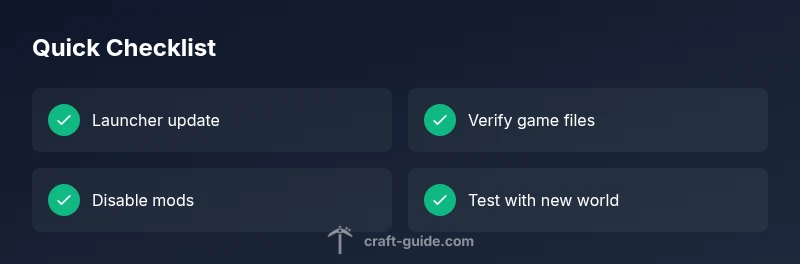
If Minecraft won’t load, the most likely causes are launcher issues, corrupted game files, or incompatible mods. Start with quick checks: update your launcher and Java/Bedrock, verify game files, and disable mods temporarily. If the issue persists, continue with the full step-by-step guide for targeted fixes.
Why Minecraft Not Loading Happens
Minecraft not loading can feel urgent, but most issues fall into a few repeatable categories: launcher problems, corrupted assets, mod/resource pack conflicts, and transient network glitches. According to Craft Guide, resolving loading problems usually starts with the simplest checks and proves more effective than drastic reinstalls. In this section we break down what typically fails and why, so you can quickly triage the problem and avoid wasted time testing unlikely causes. Remember that different editions (Java vs Bedrock) have distinct repair paths, which we cover in later sections to keep you focused on the right fix first.
Key takeaway: most load failures are local to your setup rather than the world itself. A systematic triage helps you find the bottleneck fast and reduces fallout from changes like mod updates or launcher upgrades.
Quick checks you can do before diving deeper
Before you dive into diagnostics, perform these low-effort checks. They’re designed to catch the majority of simple, repeatable issues and minimize risk:
- Restart the launcher and your computer to clear temporary glitches.
- Update Minecraft Launcher, Java (for Java Edition), or the Bedrock client to the latest version.
- Check your internet connection and firewall settings; even a momentary block can interrupt loading.
- Verify game files if your launcher supports it; this re-downloads missing or corrupted components.
- Temporarily disable all mods and resource packs to see if a clean profile loads.
- Clear Minecraft cache or temporary files if your platform stores them separately.
If these steps don’t fix the problem, move to deeper diagnostics. These checks often resolve the issue without risking data loss. Craft Guide’s approach emphasizes simple fixes first to save time and prevent unnecessary reinstallations.
Diagnostic steps: system, mods, and network
A structured diagnostic flow keeps you from chasing ghost problems. Consider three pillars: system/hardware, mod/resource content, and network/server state. If a game launches but the world doesn’t load, suspect world data or mods. If the launcher never starts, suspect launcher integrity or Java configuration. A good diagnostic path looks like:
- Confirm platform edition (Java vs Bedrock) and launcher health. 2) Check for recent mod or resource pack changes and disable them. 3) Test with a fresh profile or a new world to isolate saves. 4) Inspect network conditions and server status if you’re connecting to realms or multiplayer. Craft Guide notes that systematic testing yields fast isolation of the root cause.
If you have access to another device, try loading the same profile there to confirm whether the issue is device-specific.
Step-by-step fixes for the most common cause
The most common root cause is a corrupted or mismatched game file, often aggravated by mods or an outdated launcher. Follow these fixes in order, stopping at the first successful result:
- Update all relevant software (launcher, Java for Java Edition, Bedrock app).
- Verify integrity of game files through the launcher; let it replace missing pieces.
- If mods are installed, remove or temporarily disable them; test with a clean profile.
- Reinstall Minecraft if necessary, but keep a backup of your worlds.
- Clear cache and reset the game’s local data directory if errors persist.
- Allocate appropriate RAM to the game; too little can cause loading failures on large worlds.
- Disable overclocking or GPU-related overlays that can interfere with startup.
If none of these steps work, the problem may be server-side or a rare engine issue, at which point you should escalate to professional help or consult the community forums for your edition.
Modding and resource packs: safety checks
Mods and resource packs can be powerful but fragile. An incompatible version, a corrupt download, or a mod conflict can stop loading entirely. Start by removing everything non-essential:
- Move mods and resource packs out of the Minecraft folders; reintroduce them one by one to pinpoint the offender.
- Check mod compatibility with your Minecraft version and with other installed mods.
- Update mods to the latest compatible versions and ensure Forge or Fabric is matched to the mod set.
- For Bedrock players, disable any add-ons that could be corrupted or conflicting.
Always back up saves before significant changes and test with a fresh profile to avoid propagating issues across worlds.
Platform-specific tips: Java vs Bedrock
Java Edition and Bedrock Edition handle loading differently. Java relies on Java runtime, mod loaders, and launcher integrity; Bedrock uses a packaged runtime with add-ons that can conflict with certain system configurations. If Java Edition won’t load, verify your Java installation and launcher integration. If Bedrock won’t load, inspect add-ons, Microsoft/Xbox services status, and the launcher version. Craft Guide’s guidance highlights matching the edition with the correct launcher and latest patches to prevent version mismatch problems.
Network, server, and realm considerations
Sometimes the problem isn’t the game but how the device communicates with the server. Check your network:
- Test a different network (mobile hotspot) to verify whether the issue is network-related.
- Ensure your router isn’t blocking Minecraft ports or triggering firewall rules.
- If you’re connecting to Realms or servers, check status pages or social feeds for outages.
- Disable VPNs or proxies that may interfere with authentication or latency.
If loading succeeds on a different network, you’ve narrowed the fault to local network settings. Craft Guide recommends configuring your router with standard ports and enabling UPnP or manual port forwarding where appropriate.
Data integrity: saves and world data
Corrupt save files can prevent loading while still allowing the launcher to start. If you suspect a corrupt world:
- Move your world save to a backup location and try loading a new world.
- Use the in-game world repair tools if available or rely on third-party utilities cautiously.
- Restore from a recent backup if you keep one; consider enabling automated backups for future safety.
Prevent corruption by ensuring proper power-downs, avoiding abrupt crashes, and keeping backups for critical worlds.
When to escalate and next steps
If you’ve exhausted the common fixes and the game still won’t load, escalate wisely. Capture your system specs, launcher version, mod list, and any error messages. Seek help from official support channels or community forums with clear steps to reproduce the issue. Craft Guide recommends documenting all attempted fixes and backups tried so others can help more effectively. In some cases, a clean reinstall of the entire game, graphics drivers, or operating system updates may be warranted, but only after you’ve secured all your worlds and data.
Key takeaways and prevention tips
- Start with the simplest checks: launcher updates, file verification, and mod isolation.
- Keep backups of worlds and profiles; backups prevent data loss during troubleshooting.
- Maintain edition-specific compatibility between launcher, Java, and mods/add-ons.
- Test connectivity on a different network to distinguish local vs server issues.
- If in doubt, don’t over-tweak system settings; incorrect changes can cause more harm than good.
Steps
Estimated time: 60-90 minutes
- 1
Update launcher and edition
Open the Minecraft Launcher, check for updates, and install any available patches for your edition (Java or Bedrock). Restart the launcher after install and attempt to load again.
Tip: Always read the release notes; some updates require a restart of your computer. - 2
Verify game files
Use the launcher’s built-in feature to verify or repair game files. This replaces missing or corrupted assets without a full reinstall.
Tip: If verification fails, remove the local cache or folder and re-download the game data. - 3
Isolate mods and add-ons
Move mods and resource packs out of the game folder and start with a clean profile. Add them back one by one to identify the offender.
Tip: Back up mods before removal to avoid data loss. - 4
Test with a new world/profile
Create a new world (or new profile) to see if loading succeeds. If it does, your original world or profile may be corrupted.
Tip: Keep two or three backups of your most important worlds. - 5
Adjust RAM allocation
If the game barely loads or hangs, consider increasing allocated RAM within safe limits for your system.
Tip: Do not allocate all memory to Minecraft; leave enough for the OS and background apps. - 6
Check network/connectivity
Test another network and disable VPNs or proxies that could interfere with authentication and realms loading.
Tip: If you’re on a school or work network, restrictions may apply; try a home network if possible. - 7
Restore from backup if needed
If a known-good backup exists, restore the world save and test loading again to confirm the issue was data-related.
Tip: Document changes and keep clean backups for future troubleshooting. - 8
Reinstall as a last resort
Uninstall Minecraft completely and reinstall a fresh copy, then re-import your worlds from backups.
Tip: Ensure you back up your saves before uninstalling.
Diagnosis: Minecraft won't load or crashes during startup
Possible Causes
- highLauncher integrity or outdated version
- highCorrupted game files or cache
- mediumMods, resource packs, or add-ons conflicts
- mediumWorld save corruption or incompatible world format
- lowNetwork issues or server outages (Realms/multiplayer)
- lowHardware driver or OS compatibility problems
Fixes
- easyUpdate launcher and game to the latest version
- easyVerify game files and refresh cache
- easyDisable mods/add-ons and test with a fresh profile
- mediumReinstall Minecraft if necessary, preserving saves
- easyTest connection on a different network or disable VPN
- mediumCheck for world save corruption and restore from backup
People Also Ask
Why won't Minecraft load after I click Play?
This usually indicates an issue with the launcher, a corrupted file, or a conflicting mod/add-on. Start with updates and file verification, then isolate mods if needed.
Most loading failures come from the launcher, corrupted files, or conflicting mods. Begin with updates and file verification, then check mods if needed.
What should I do first if the game crashes on startup?
First, restart the launcher and computer, then verify game files and ensure Java/Bedrock is up to date. If the problem continues, try running without mods or add-ons.
Restart everything, verify files, update, and try a clean profile without mods.
Can mods cause loading issues even if I didn’t install new ones recently?
Yes. Even if you didn’t add new mods, an update to Forge/Fabric or a mod-dependent resource pack can cause conflicts. Temporarily removing mods helps confirm.
Yes, mods can conflict after updates even if you didn’t add new ones. Test by removing them temporarily.
Is it safe to reinstall Minecraft to fix loading problems?
Reinstalling is a valid last-resort option. Back up your saves first, then reinstall and restore from backups if possible.
Reinstall as a last resort after backing up all saves.
How can I prevent loading issues in the future?
Keep periodic backups, install only compatible mods, verify game files after updates, and test changes on a secondary profile before applying them to your main world.
Back up regularly, validate compatibility, and test changes on a secondary profile.
What if I’m playing on Bedrock and still can’t load?
Bedrock issues often relate to add-ons or Xbox services. Ensure you’re logged in, update the Bedrock client, and try nullifying add-ons or resetting network settings.
Bedrock problems are usually add-ons or service-related; update and test without add-ons.
Watch Video
The Essentials
- Start with simple fixes and file verification.
- Isolate mods and content to identify conflicts.
- Back up worlds and profiles before major changes.
- Match edition and launcher versions for Java vs Bedrock.
- If in doubt, test on another network to rule out connectivity issues.