What Causes Minecraft to Crash? A Practical Troubleshooting Guide
Urgent, step-by-step troubleshooting for Minecraft crashes, covering memory, Java versions, mods, and common misconfigurations to stabilize your game quickly.


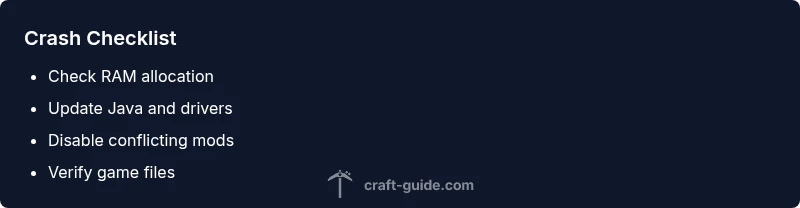
Minecraft crashes are usually caused by memory limits, Java version mismatches, or mod conflicts. Begin by increasing RAM, updating Java, and disabling suspicious mods or resource packs. If problems persist, verify game files and revert to a clean profile. This quick check can save hours of troubleshooting.
Why Minecraft Crashes Happen
What causes minecraft to crash can hinge on a few core factors that stack up during play. The most common culprits are memory shortages, outdated or incompatible Java versions, and conflicts from mods or resource packs. In vanilla Minecraft, crashes often occur when the game tries to allocate more memory than the system can spare, or when a launcher is misconfigured for the installed Java. The Craft Guide team emphasizes that starting with the simplest checks—RAM allocation, version consistency, and clean profiles—prevents chasing complex issues prematurely. Understanding these basics helps you triage quickly and minimizes wasted time.
The Role of Memory, RAM, and Java
Memory management is frequently the sovereign factor in crashes. If Minecraft cannot secure enough RAM, you’ll see sudden exits, freezes, or long-loading screens. Ensure you’re not over-allocating RAM, which can cause system instability, and verify that the allocated portion aligns with your total RAM. Java is another frequent trigger; running a different Java version from what the launcher expects can lead to runtime errors. Always confirm you’re using the recommended Java version for your Minecraft edition and launcher. The Craft Guide approach is to align Java, launcher, and game files before touching other components.
Mods and Resource Packs: Conflicts That Crash Games
If you’re playing with mods or resource packs, conflicts can cascade into crashes across startup or during world load. Start by disabling recently added mods or resource packs and test with a clean vanilla profile. If the game runs, reintroduce components one at a time to identify the offender. Keep an eye on mod loader compatibility (Forge, Fabric) and ensure all mods match your game version. The fastest route to stabilization is isolating the suspect addition and validating each change with fresh logs.
Graphical Drivers, Hardware, and Disk Health
Graphics drivers, GPU temps, and even disk health contribute to instability. Outdated video drivers or overheating can cause sudden terminations, especially when rendering complex terrain or high-resolution textures. Update GPU drivers from the manufacturer, monitor temperatures during play, and ensure your storage drive has sufficient free space. If your hard drive shows signs of errors, running a health check can prevent cascading crashes. These checks often resolve issues that aren’t tied to in-game content.
Common Startup vs In-Game Crash Scenarios
Startup crashes typically point to launcher configuration, Java, or missing dependencies, while in-game crashes often relate to mods, corrupted world data, or resource packs. Start with a vanilla profile and a separate test world to reproduce the issue without extra baggage. If the crash happens only with a specific world, the world file may be corrupted. In such cases, loading from backups or creating a new world is a practical test. The aim is to isolate whether the problem is systemic or content-specific.
Logs, Crash Reports, and How to Read Them
Crash reports sit in the .minecraft/crashes folder and reveal stack traces that point to failing mods, libraries, or core files. Open the latest file and scan for exceptions, red flags like 'java.lang' or 'Fatal.' Even if you don’t understand every line, the first few entries often identify the responsible mod or renderer. Compare timestamps with your recent changes to narrow the search. TheCraft Guide method encourages keeping a log of fixes matched to crashes for faster future triage.
Safe Testing and Prevention Practices
Adopt a safe testing workflow: back up saves before trying fixes, test in vanilla first, and reintroduce features gradually. Maintain separate profiles for vanilla and modded play to avoid cross-contamination of settings. Regularly update the game, launcher, and drivers, and monitor system temperatures during play. Proactive maintenance reduces the frequency and impact of crashes, keeping your Minecraft sessions smoother over time.
Steps
Estimated time: 30-60 minutes
- 1
Verify software versions and game build
Check that the Minecraft edition matches the launcher, confirm Java version compatibility, and review any recent updates. Read crash logs to identify if a specific mod or library is implicated.
Tip: Document each change you make so you can revert if needed. - 2
Adjust RAM allocation and launcher settings
Open your launcher settings and set a reasonable RAM cap (e.g., 4–8 GB depending on system). Avoid over-allocating, which can cause OS instability.
Tip: Use monitoring to ensure memory usage stays within safe bounds. - 3
Disable suspect mods/resource packs
Temporarily disable the most recently added mods and any non-vanilla resource packs. Launch with a clean profile to test baseline stability.
Tip: Reintroduce items one-by-one to pinpoint the offender. - 4
Verify or reinstall Minecraft
Run a file check through the launcher. If issues persist, reinstall Minecraft to restore core files while preserving your saves.
Tip: Back up your worlds before reinstalling. - 5
Run a vanilla test world
Create or load a fresh vanilla world to see if crashes persist. If vanilla runs smoothly, the issue is likely mod/world-specific.
Tip: Keep a dedicated vanilla profile for testing. - 6
Investigate hardware and drivers
Update graphics drivers, monitor temperatures, and ensure hardware is within supported specs. Clear space on the drive and run health checks if suspicious.
Tip: Crashes with high temperatures often indicate cooling or power issues.
Diagnosis: Minecraft crashes or fails to start
Possible Causes
- highInsufficient or misallocated RAM
- highJava version mismatch or misconfiguration
- highMod/Resource pack conflicts or outdated mods
- mediumCorrupted world data or saves
- lowOutdated drivers or hardware compatibility issues
Fixes
- easyIncrease RAM allocation within safe limits in the launcher
- easyUpdate Java and ensure launcher uses the correct runtime
- easyRemove or disable recently added mods/resource packs and retest
- mediumVerify game files or perform a clean reinstall
- easyTest with a fresh world or backup to rule out data corruption
- hardInspect hardware drivers and perform system maintenance if needed
People Also Ask
What causes Minecraft to crash on startup?
Startup crashes are often due to Java launcher issues, missing dependencies, memory misconfiguration, or incompatible mods. Check the crash report for specifics and confirm your setup matches the expected configuration.
Startup crashes are usually Java or mod-related; check the log for exact errors.
How can I read Minecraft crash reports?
Crash reports are saved in the .minecraft/crashes folder. Open the latest file to see the stack trace and identify the failing mod or file.
Crash reports live in your Minecraft folder; open the newest file to see what's failing.
Does increasing RAM help crashes?
Raising RAM can fix memory-related crashes, but too much RAM can hurt performance. Find a balance based on your system.
Giving Minecraft more memory can help if it's running out of RAM.
Should I delete mods to fix crashes?
Only remove recently added mods or those not updated for your version. Run vanilla to confirm the baseline.
Try a clean vanilla profile first, then reintroduce mods one-by-one.
Is reinstalling Minecraft safe?
Yes, reinstalling can fix corrupted core files. Back up saves first and use the official launcher.
Reinstalling is safe if you back up worlds.
What about world corruption causing crashes?
World corruption can crash a game during load. Try opening a backup copy or world from an alternate seed.
World corruption is a common hitch; load from backup.
Watch Video
The Essentials
- Start with memory, Java, and mods.
- Back up worlds before changes.
- Verify files and drivers if issues persist.
- Test in vanilla to isolate causes.