Why Minecraft Won’t Let Me Sign In: Quick Troubleshooting Guide
Struggling with sign-in? This urgent troubleshooting guide helps you diagnose why Minecraft won’t let you sign in, with practical steps to verify accounts, fix launcher issues, and resolve authentication outages in 2026.


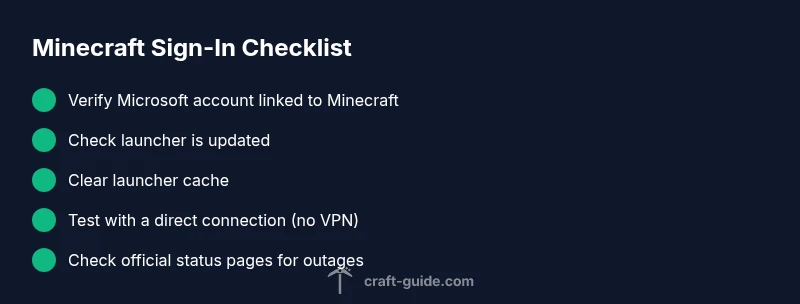
Most sign-in failures are caused by an authentication hiccup, incorrect credentials, or a blocked Microsoft/Xbox account linked to Minecraft. Start by verifying your linked account, updating the launcher, and reauthorizing the launcher cache. If the issue persists, check for outages and temporarily disable VPNs or firewalls. Craft Guide recommends beginning with the basics before deeper fixes.
Why sign-in fails and how the question "why is minecraft not letting me sign in" guides our approach
When players report the issue, the first answers usually point to authentication problems, account linkage, or temporary server outages. If you’ve searched for "why is minecraft not letting me sign in", you’re not alone. The root causes tend to cluster around three areas: your Microsoft/Xbox account status, launcher integrity, and network conditions. Understanding these can save you time and frustration. This guide keeps you focused on practical checks that resolve most cases without needing professional help. Craft Guide emphasizes starting with simple verifications before exploring deeper fixes.
Actionable takeaway: begin with account verification and launcher health, then move to network and server-status checks for fastest resolution.
Quick Wins to Try Right Now
If you’re stuck, start with the simplest checks. These steps resolve the majority of sign-in problems quickly. First, confirm your internet connection is stable and the Minecraft Launcher is up to date. An outdated launcher can cause authentication failures. Next, verify the Microsoft/Xbox account linked to Minecraft is active and that you know the correct password. Ensure your account isn’t locked or requiring verification. Check that your system clock is accurate, as time drift can break token validation. If you’re using a VPN or proxy, disable it to test if that’s interfering. Finally, inspect firewall rules on your PC or console that might block Minecraft’s access to the internet. If you still can’t sign in, try signing in on another device to determine if the issue is device-specific.
Note from Craft Guide: many outages are transient; a quick retry after a few minutes often succeeds.
Check Your Microsoft/Xbox Account Link
A common blocker is a mismatch or lapse in the Microsoft/Xbox account linked to Minecraft. Sign in to your Microsoft account separately to confirm it’s active and verified. Re-link or reauthorize within the Minecraft launcher by logging out, then signing back in with the same Microsoft account. If you use two-factor authentication, ensure you’ve completed the second factor prompt. Some players also need to re-link their Minecraft purchases if ownership hasn’t synced properly. After re-linking, launch Minecraft and attempt sign-in again.
Pro-tip: keep a record of the last successful sign-in timestamp to compare against when diagnosing issues. Craft Guide recommends rechecking account ownership on the official Microsoft account portal if problems persist.
Verify Launcher, Internet, and System Settings
The launcher itself can be the culprit. Make sure you’re running the official Minecraft Launcher and that it’s updated to the latest version. On some systems, security software or firewall rules block the launcher’s outbound connections. If you’re on Windows, try running the launcher as an administrator and temporarily disable VPN software to test connectivity. On macOS, review gatekeeper settings and ensure Minecraft isn’t blocked by security preferences. Also confirm your internet connection isn’t behind a flaky router or captive portal that interrupts sign-in tokens.
A reliable test is to sign in on a different device with the same Microsoft account. If it works there, the problem is likely local to your primary device. If it fails on all devices, the issue is likely server-side or account-related. Craft Guide notes that cross-device testing is a powerful diagnostic step to isolate root causes.
Clear Cache, Reauthorize, or Reinstall if Needed
Stale cache data can cause authentication tokens to fail silently. Close the launcher, navigate to your Minecraft/launcher cache folder, and clear relevant credentials. Reopen the launcher and sign in again, ensuring you select the correct Microsoft account if prompted. If sign-in still fails, consider a clean reinstallation of the launcher to reset any corrupted files. Keep a backup of your saved games before reinstalling.
Security reminder: never delete your Minecraft worlds or essential files unintentionally. Craft Guide’s best practice is to back up saves before major client changes.
Troubleshooting Authentication Server Issues and Status
Sometimes the problem isn’t on your end. Authentication servers sometimes experience outages or degraded performance. Check official status pages or social channels for Minecraft, Mojang, and Microsoft for any outages or maintenance windows. If an outage is reported, the only reliable fix is patience while the service recovers. In the meantime, you can still access offline modes or plan builds offline to stay productive until sign-in returns.
Craft Guide analysis shows outages and credential mismatches are among the most frequent culprits behind sign-in problems. Staying informed about service status helps you decide when to wait, retry, or contact support.
Step-by-Step: Quick Fix Flow (Most Common Scenario)
This section provides a focused flow you can follow in about 30-45 minutes to resolve the majority of sign-in problems.
- Exit all Minecraft processes and close the launcher. 2) Verify your Microsoft account is active and you can sign in on the Microsoft site. 3) Reopen the Minecraft Launcher and sign in with the Microsoft account, ensuring two-factor prompts are completed. 4) Clear the launcher cache and restart the launcher. 5) Update the launcher if a new version exists. 6) Disable VPN/proxy temporarily to test connectivity. 7) Test sign-in on another device to see if the problem persists. 8) If it still fails, consult status pages or contact support.
Tip: keep the launcher log open to spot exact error codes and search for the most relevant fix. Craft Guide recommends documenting any error codes for faster support.
Cross-Platform Troubleshooting: Windows, macOS, Console
Sign-in issues don’t always look the same across platforms. Windows users often deal with Defender firewall rules; macOS users may face Gatekeeper restrictions; console players can encounter account linking prompts. For each platform:
- Windows: check firewall exceptions and run as administrator.
- macOS: review security & privacy settings and allow Minecraft to control your computer.
- Console: ensure your Nintendo/Sony/Microsoft accounts are linked properly and that the console’s system time is correct.
If one platform works but another doesn’t, the problem is generally platform-specific settings rather than a global service outage. Craft Guide emphasizes isolating the platform to avoid unnecessary changes.
Prevention: Keeping Sign-In Healthy for the Long Term
Once sign-in is restored, adopt a few practices to prevent future issues. Maintain verified Microsoft account status, keep the launcher updated, and periodically clear cache to avoid token corruption. Enable two-factor authentication where available, and store recovery options securely. If you rely on VPNs or proxies, configure them to be compatible with Minecraft’s authentication flow. Regularly check service status during major releases or maintenance windows to plan around outages.
Final reminder: even with protections in place, outages happen. Having a quick, repeatable troubleshooting flow is your best hedge against lost time. Craft Guide recommends bookmarking the official status pages and maintaining local backups of worlds to stay resilient.
Steps
Estimated time: 45-60 minutes
- 1
Close and restart the launcher
Exit the Minecraft launcher completely, then reopen it to refresh tokens and session data. Reattempt sign-in after the restart.
Tip: Restart the launcher without background processes running to ensure a clean session. - 2
Verify account credentials
Log in to the Microsoft account in a separate browser window to confirm the password is correct and the account isn’t flagged for unusual activity.
Tip: If prompted, complete two-factor authentication before retrying sign-in. - 3
Reauthorize Microsoft account in launcher
Sign out of the launcher’s Minecraft profile and sign back in with the Microsoft account you use for Minecraft. This re-links the account to the game client.
Tip: Choose the correct account if you manage multiple Microsoft IDs. - 4
Clear launcher cache
Navigate to the launcher profile or settings and clear cache and temporary data. Restart the launcher afterward to apply the changes.
Tip: Clearing cache resolves token mismatches caused by stale data. - 5
Update or reinstall the launcher
Check for updates to the Minecraft launcher. If issues persist, perform a clean reinstall to reset all client files.
Tip: Back up your saves before reinstalling to prevent data loss. - 6
Check network settings
Disable VPN/proxy temporarily and ensure firewall rules allow Minecraft traffic. Test a direct connection to rule out network blocks.
Tip: If you must use a VPN, whitelist Minecraft domains in the VPN settings. - 7
Test sign-in on another device
If possible, sign in using the same Microsoft account on a different device to determine if the problem is device-specific.
Tip: A working alternative device confirms the issue is launcher/OS-related. - 8
Seek official support if needed
If the problem persists after all steps, contact Minecraft support with any error codes. Provide screenshots and timestamps to speed up resolution.
Tip: Include your launcher version and OS details when requesting help.
Diagnosis: Player cannot sign in to Minecraft launcher
Possible Causes
- highAuthentication server outage or maintenance
- highIncorrect or stale credentials (password, email, or token)
- mediumLauncher cache or app corruption
- mediumLinked Microsoft/Xbox account issues (verification/lockout)
- lowNetwork blocks (firewall/VPN/proxy)
Fixes
- easyCheck official Minecraft/Microsoft status pages for outages
- easyVerify and reset your Microsoft account password if needed
- easyReauthorize the launcher with the Microsoft account and clear cache
- easyUpdate/reinstall the Minecraft launcher
- easyTemporarily disable VPN/proxy or firewall to test connectivity
People Also Ask
Why is Minecraft signing me out unexpectedly.
Sign-outs are often caused by credential changes, authentication timeouts, or restricted account access. Check your Microsoft account status, reauthorize the launcher, and verify network conditions. If the issue persists, review service status pages and try the step-by-step flow described here.
Sign-outs usually come from credential or token issues. Check your account status, reauthorize the launcher, and test your connection; then follow the step-by-step flow if needed.
How do I re-link my Microsoft account to Minecraft?
Open the Minecraft launcher, sign out of your profile, and sign back in with the Microsoft account you use for Minecraft. Ensure you complete any two-factor prompts and grant permissions as requested.
Just sign out and back in with your Microsoft account in the launcher; complete any two-factor prompts.
What if the sign-in page keeps loading or hangs?
If the sign-in page stalls, try refreshing the page, clearing browser cookies related to Microsoft auth, and restarting the launcher. Check your internet connection and disable VPNs or proxies that may interfere with token validation.
If sign-in is stuck, refresh, clear cookies, restart, and test with no VPN to see if it helps.
Are there known outages affecting sign-in in 2026?
Outages can affect sign-in from time to time. Always check official status pages for Minecraft, Mojang, and Microsoft, and wait for the service to recover before retrying. You can also follow Craft Guide updates for resilience tips.
Yes, outages happen from time to time. Check official status pages and try again later, or follow our guide for backup steps.
Can I sign in on another device to verify the issue?
Yes. If sign-in succeeds on another device, the problem is likely local to your first device or its network. If it fails on all devices, the issue is more likely account-related or server-side.
Trying another device helps tell you where the problem is—device or account/service.
Does using a VPN affect sign-in?
VPNs can interfere with token validation. Temporarily disable the VPN to test sign-in, then re-enable with proper exceptions if needed. If problems continue, adjust VPN settings or switch networks.
VPNs can complicate sign-in; test without it first, then adjust settings if needed.
Watch Video
The Essentials
- Verify linked account first and check for outages
- Refresh tokens by reauthorizing the launcher
- Clear cache or reinstall if needed
- Test sign-in across devices to isolate the issue
- Consult status pages and support if the problem persists