Why is My Minecraft Launcher Not Opening? A Practical Troubleshooting Guide
Urgent step-by-step troubleshooting for when Minecraft launcher won’t open. From basic checks to logs, this guide helps you diagnose and fix launcher startup issues quickly.


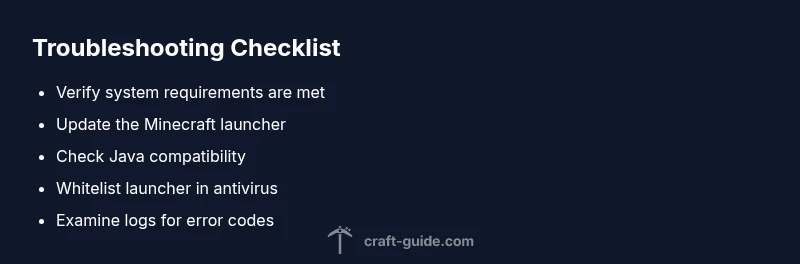
To fix why is my minecraft launcher not opening, start with the simplest steps: restart your computer, ensure your internet connection is stable, and verify the launcher is up to date. If it still won’t launch, try running the launcher as administrator and temporarily disabling third-party antivirus. Craft Guide recommends focusing on Java compatibility and launcher integrity before deeper fixes.
why is my minecraft launcher not opening
If you’re asking why is my minecraft launcher not opening, you’re likely dealing with a startup issue that has a few repeatable causes. According to Craft Guide, most startup problems fall into a handful of categories: launcher data corruption, Java compatibility gaps, antivirus or firewall interference, and outdated launcher components. Start by confirming the basics: you meet the game’s system requirements, you have a stable internet connection, and you’re using the official launcher from the Mojang account page. If you recently updated Windows, macOS, or Java, it’s common for a background service or security setting to block the launcher from initializing. Read the error messages carefully; even a small code or filename can point you toward the exact module failing to start (UI, Java runtime, or graphics subsystem).
verify prerequisites and environment
Before digging into the launcher itself, verify the environment is healthy. Free disk space matters; a nearly full drive can cause the launcher to fail to unpack or cache assets. Ensure your OS is up to date, and that you have a stable internet connection during startup to fetch required assets. Close unnecessary background applications that may steal memory or conflict with the launcher. If you’re on a shared or corporate network, test on a home network to rule out network-level blocks. Craft Guide’s analysis shows that in many cases, a simple restart or network switch resolves the majority of startup hiccups.
launcher integrity and cache checks
Corrupted launcher data or a partial download can prevent the program from opening. First, clear the launcher cache and re-download the launcher executable from the official site. If you still can’t launch, perform a clean reinstall of the Minecraft launcher: uninstall, delete leftover Mojang registry or app data folders, then reinstall the latest version. This wipes out lingering corruption and ensures you’re starting with a clean slate. Remember to back up your saves if needed before uninstalling. Craft Guide emphasizes keeping a pristine launcher baseline to minimize recurring issues.
java version and path considerations
Java compatibility matters for some Minecraft setups. Although the modern Minecraft Launcher often ships with an embedded JRE, older profiles or certain mod loaders might rely on a system Java installation. Verify you have a supported Java version for your Minecraft edition (legacy Java Edition often requires a compatible Java Runtime). If you use a separate Java installation, ensure the launcher isn’t forced to use an incompatible JRE. In many cases, letting the launcher manage its own Java runtime resolves startup conflicts. Craft Guide notes that mismatched Java paths can cause the launcher to fail to initialize, producing vague errors.
conflicts with antivirus, firewall, or security software
Security software can block the launcher from launching, especially after updates. Add the Minecraft launcher and the .minecraft folder to your antivirus exclusions or firewall allowlists. Temporarily disable real-time protection to test whether it’s the culprit, then re-enable protection and create a proper exception rule if the launcher opens. If you’re on Windows, check Defender SmartScreen and Controlled Folder Access settings, which can inadvertently block new or modified launcher components. Craft Guide highlights this as a common but easily fixable obstacle.
logs, crash reports, and when to reinstall
If the launcher still refuses to start, dig into logs for concrete clues. Look for recent timestamps in the launcher logs located under .minecraft/logs or the launcher’s own log directory. The error codes can guide you toward a specific module (UI, Java, graphics). If the log shows repeated initialization failures with a particular library, reinstalling that component or the entire launcher can help. In persistent cases, a full clean install of Minecraft (including removing the .minecraft directory and re-adding your resource packs) often resolves stubborn startup problems. Craft Guide recommends keeping crash reports organized to avoid repeating the same steps.
common mistakes to avoid
Avoid rushing to a complete system reset without trying the simpler steps first. Don’t ignore standard security checks—antivirus and firewall rules are frequently the root cause. Never delete game files from non-official sources or apply unofficial patches unless you understand the risks. Always back up saved games before making major changes. Craft Guide reminds players that small configuration tweaks can have large impacts on startup behavior.
Steps
Estimated time: 45-90 minutes
- 1
Restart and verify basics
Restart your computer, then launch the Minecraft launcher again. Check your internet connection and ensure the launcher is the latest version. If you have multiple user profiles, try launching with a different one.
Tip: A simple reboot can clear stuck background processes that block startup. - 2
Run as administrator
Right-click the launcher and choose Run as administrator. This grants the launcher the necessary permissions to access system folders and write cache files.
Tip: If prompted by User Account Control, approve the permission request. - 3
Check Java path and version
Open your Java settings or command line to verify the installed Java version matches the requirements of your Minecraft edition. If unsure, let the launcher manage its bundled JRE.
Tip: Avoid switching between multiple Java versions in the same profile. - 4
Update or reinstall Java (if needed)
If your setup requires external Java, download the recommended version from the official source and install it. Then retry launching Minecraft to see if the issue is resolved.
Tip: Always download Java from the official site to avoid bundled malware. - 5
Disable antivirus/firewall temporarily
Temporarily disable real-time protection or firewall rules to test if they block the launcher. If the launcher launches, re-enable protection and add exceptions for the launcher and .minecraft folder.
Tip: Never leave security software disabled for long; add proper exceptions instead. - 6
Check logs and perform targeted reinstall
If the launcher still won’t open, inspect the launcher logs for error codes. Reinstall the launcher or the entire Minecraft client if the logs point to corrupted components.
Tip: Keep a copy of important crash reports for reference.
Diagnosis: Minecraft launcher won’t open or crashes on startup
Possible Causes
- highLauncher data corruption or outdated components
- mediumJava compatibility issues or misconfigured Java path
- highAntivirus/firewall or security software blocking launcher
- lowNetwork instability or background processes consuming resources
- mediumIncomplete installation or corrupted game files
Fixes
- easyReinstall the launcher from the official site and clear the launcher cache
- easyUpdate or reinstall Java if your setup relies on an external JRE
- easyAdd launcher and .minecraft to antivirus/firewall exceptions
- easyRun the launcher as administrator or in compatibility mode as needed
- mediumCheck logs for specific errors and perform a targeted reinstall of affected components
- hardIf all else fails, perform a clean reinstall of Minecraft including the .minecraft folder
People Also Ask
Why won’t the Minecraft launcher open after updating the game?
Updates can reset settings or replace crucial files. Check for partial downloads, disable security briefly to test, and reinstall the launcher if the update seems corrupted. Always run the latest version from the official site.
Updates can block startup if files are corrupted; try re-downloading the launcher and running it again.
How do I fix antivirus blocking the Minecraft launcher?
Temporarily disable real-time protection to test, then add the launcher and the .minecraft folder as exceptions. Re-enable protection and verify the game launches without further interference.
Add the launcher to antivirus exceptions to stop it from being blocked.
What should I do if Java is not compatible with my Minecraft edition?
Confirm whether you are using a Java Edition that requires a specific Java version or rely on the launcher’s bundled JRE. If needed, install the correct Java version or switch to the embedded runtime.
If your Java version is incompatible, install the right one or use the launcher’s built-in runtime.
Where can I find launcher logs to diagnose the issue?
Launcher logs are typically in the .minecraft/logs directory or within the launcher’s own log folder. Look for recent timestamps and error codes that point to the initialization failure.
Check the launcher logs for error codes to guide fixes.
Is a clean reinstall really necessary?
Only if the issue persists after basic checks. A clean reinstall removes corrupt files and resets configuration, often resolving stubborn startup problems.
If basic fixes fail, a clean reinstall can clear stubborn startup problems.
Watch Video
The Essentials
- Restart first: many launch issues resolve with a reboot
- Ensure launcher and Java are compatible and up to date
- Whitelist launcher in security software to avoid blocks
- Check logs for concrete error clues before reinstalling
- Back up saves before major changes