What to Do If Minecraft Won't Open: Troubleshooting Guide
A practical, urgent troubleshooting guide to fix Minecraft not opening, with quick fixes, a diagnostic flow, step-by-step actions, and safety tips for players of all levels.


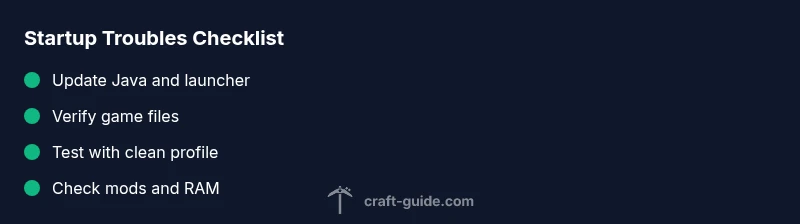
If Minecraft won’t open, start with the simplest fixes: update Java and the Minecraft launcher, then verify game files and reset launcher settings. According to Craft Guide, the leading causes are launcher misconfigurations and outdated Java, so these steps resolve most issues quickly. If this doesn’t fix it, continue with our diagnostic flow to check for corrupted files, firewall blocks, and incompatible mods.
Why Minecraft Won't Open: Common Causes
If you're wondering what to do if minecraft won't open, start by addressing the two most common culprits: outdated Java and launcher misconfigurations. There are several frequent reasons a game launcher won't start, and most can be resolved without deep technical changes. The most common culprits include outdated Java or a mismatched Java version, launcher misconfigurations, corrupted game files, and conflicting mods. Hardware issues or Windows/macOS updates can also disrupt startup. The Craft Guide team emphasizes checking launcher settings and the core runtime first, since addressing these two areas fixes the majority of startup problems. Other drivers and software, such as antivirus or firewall suites, can interfere with file access or network verification, leading to a blocked launch or a frozen startup screen. A clean, methodical check is far faster than random tweaks once you know the typical failure paths.
Quick Checks You Should Do Right Now
Before diving into deeper fixes, perform a few quick checks that cover most cases. Ensure your internet connection is stable, since the launcher may need to verify files online. Open the launcher and confirm you’re running the correct edition (Java Edition vs. Bedrock) and the latest launcher version. Restart your computer to clear locked files and memory, then retry. If you still see a problem, note any error messages as they guide the next steps. Keeping a simple checklist helps you stay on track and avoids repeating steps.
Verifying Java and Launcher Setup
Minecraft’s startup depends heavily on the correct Java version and a properly configured launcher. Check that you are using a supported Java Runtime Environment (JRE) or Java Development Kit (JDK) for your Minecraft version; most modern launches require Java 17 or newer. In Windows, open a command prompt and type java -version to confirm the installed version. If needed, download and install the recommended JRE/JDK from the official source, then re-run the launcher. Also verify the launcher’s settings to ensure the correct game version and profile are selected. These adjustments resolve many common launch-time errors.
Repairing Game Files and Launcher Data
If the game still refuses to start, repairing the launcher data and game files is the next best step. Use the launcher’s built-in repair or verification feature to check for missing or corrupted files. On Windows, you can also locate the Minecraft installation folder and run a file integrity check or replace suspicious files with clean copies from the official installer. After repairing, restart the launcher and try to launch again. This approach catches corrupted assets that cause runtime exceptions.
Mod Troubleshooting and Clean Profiles
Mods are a frequent source of startup issues, especially when versions don’t match the game or Forge/Rift profiles are out of date. Start with a clean profile: move or rename your mods folder, reset the profile, and attempt to launch with no mods. If Minecraft opens, reintroduce mods one by one or in small groups to identify the culprit. For mod packs, ensure all components are designed for your exact Minecraft version and launcher. Documentation and mod pages usually list compatibility details and installation steps.
RAM, Graphics, and OS Considerations
Insufficient RAM or aggressive graphics settings can cause the game to fail to start or crash immediately after opening. In the launcher, allocate more RAM within sensible limits (usually 2-4 GB for base setups, 4-6 GB for moderate use, and 6-8 GB for heavy worlds with mods). Check your graphics drivers and update or roll back if you notice instability. Ensure your operating system is up to date and that background applications aren’t consuming excessive CPU, memory, or disk I/O during startup.
Safety, Prevention, and Best Practices
Safeguard your Minecraft startup by following best practices: keep Java and the launcher updated, verify game files after any update, and back up your saves regularly. Avoid repeatedly deleting files without verification, which can corrupt profiles. Use trusted sources for plugins and mods, and maintain a simple, documented troubleshooting routine to reduce repeated steps. If you rely on mods or large texture packs, consider testing on a separate profile to avoid breaking your main world.
When to Reinstall and How to Back Up
If the above steps fail to resolve the issue, a clean reinstall is a reliable last resort. Before reinstalling, back up your worlds (and any custom resource packs or mod configurations) to a safe location. Uninstall Minecraft completely, then reinstall the latest launcher and game files from the official site. Restore your saves afterward. A fresh install often clears stubborn conflicts that other fixes can’t touch.
Steps
Estimated time: 30-45 minutes
- 1
Close and restart everything
Fully exit the launcher and any Minecraft processes. Restart your PC to clear memory and reset locked files. This clean slate often resolves simple startup hiccups.
Tip: Save any open work before restarting. - 2
Update Java and the launcher
Verify you’re using a supported Java version and that the launcher is up to date. Install the recommended Java if needed, then re-open the launcher.
Tip: Keep a note of the Java version shown in the launcher. - 3
Verify game files
Use the launcher’s Verify/Repair or equivalent feature to scan and replace corrupted files. This catches missing assets and mismatched libraries.
Tip: Run verification after any update or mod change. - 4
Test with a clean profile
Create or switch to a clean profile with no mods or resource packs. Attempt to launch the game to confirm whether a mod dependency is at fault.
Tip: If it launches, you know the issue is mod-related. - 5
Tackle mods and profiles
If a clean profile works, reintroduce mods one at a time or in small groups. Confirm each item’s compatibility with your Minecraft version.
Tip: Document each change for easy rollback. - 6
Adjust RAM and drivers
Increase allocated RAM if needed and verify your graphics drivers are current. A small RAM increase can resolve certain startup freezes.
Tip: Avoid allocating all available RAM. - 7
Check firewall/antivirus
Temporarily disable security software to test whether it blocks the launcher or game. If it’s the cause, add an exception rather than leaving protection off.
Tip: Only disable protection briefly while testing. - 8
Reinstall if necessary
If nothing else works, perform a clean reinstall of Minecraft and the launcher. Restore saves afterward and re-check compatibility before re-adding mods.
Tip: Back up saves before reinstall.
Diagnosis: Minecraft won't open after clicking the launcher
Possible Causes
- highLauncher Java version mismatch
- highOutdated or corrupted game files
- mediumMods or mod profiles incompatible with current version
- mediumLauncher misconfiguration or incomplete updates
- lowAntivirus/firewall blocking files
- lowInsufficient RAM or graphics driver issues
Fixes
- easyUpdate Java to a supported version and ensure launcher uses that Java
- easyUse launcher’s Verify/Repair feature to fix or replace corrupted files
- mediumRemove or disable mods; test with a clean profile
- easyUpdate or reinstall the Minecraft launcher
- easyAllocate more RAM within safe limits and update graphics drivers
- easyTemporarily disable antivirus/firewall during launch tests (re-enable after)
- hardIf nothing else works, perform a clean reinstall of Minecraft
People Also Ask
Why won't Minecraft open after an update?
Updates can reset launcher settings or require newer Java. Check that the launcher is up to date, confirm you’re running a compatible Java version, and look for any new error messages. If problems persist, move to verifying game files.
Updates can reset settings and require newer Java. Check the launcher version and Java compatibility, then verify game files if needed.
How do I check my Java version for Minecraft?
Minecraft Java Edition needs Java 17+ in recent versions. Open the command prompt or terminal and type java -version, then compare with the launcher requirements. If outdated, install the recommended JRE/JDK from the official source.
Open your terminal and type java -version to see what you have; update to the recommended version.
What should I do about mods interfering with startup?
Disable or remove mods and profiles that could conflict with the launch. Start with a clean profile and test the game. If Minecraft opens with a clean profile, reintroduce mods one by one to isolate the culprit.
Disable mods and test with a clean profile to see if your game starts.
Why does Minecraft crash on startup but the launcher opens?
This often indicates corrupted game files or mismatched mod versions. Verify files, clear cache, and ensure all mods match the Minecraft version. If still crashing, reinstall.
If the launcher opens but the game crashes, check file integrity and mod compatibility.
How much RAM should I allocate to Minecraft?
Allocate enough RAM for smooth gameplay without starving the system. Typical ranges are 2-4 GB for basic setups, 4-6 GB for medium, and 6-8 GB for heavy worlds or mods. Adjust in the launcher settings.
Give Minecraft a few gigs of RAM, typically 2 to 4, adjust as needed.
When should I reinstall Minecraft?
If Java and launcher updates, file verification, and mod cleanup fail to resolve the issue, a clean reinstall is the safest option. Back up your saves before reinstalling.
If fixes don’t work, consider a clean reinstall after backing up saves.
Watch Video
The Essentials
- Start with quick fixes to save time.
- Verify Java and launcher compatibility first.
- Back up saves before major fixes or reinstall.
- Follow a diagnostic flow instead of random tweaks.