What to Do If Minecraft Not Responding
Urgent troubleshooting guide to diagnose and fix Minecraft not responding issues. From launcher updates to network checks, learn practical steps to get back to building fast.


If Minecraft isn’t responding, start with simple checks: restart the launcher, verify you have the latest version, and ensure your internet connection isn’t blocked. Update Java if needed, allocate adequate RAM, and test on a different network or server. If the issue persists, verify game files or temporarily disable mods to isolate the cause. This fast, structured approach saves time and reduces frustration.
Is Minecraft Not Responding? Quick Diagnosis
If you're wondering what to do if minecraft is not responding, start with the simplest checks. In most cases, the problem isn't a bug in the game engine but a combination of launcher glitches, insufficient memory, or blocked network access. According to Craft Guide, many startup freezes stem from an outdated launcher, a mismatched Java version, or firewall rules that block Minecraft from connecting. By isolating the cause, you can fix it quickly and get back to your build. This quick diagnosis aims to reduce guessing and guide you toward a reliable fix, so you can minimize frustration and wasted time. It also helps you distinguish between client-side problems (your PC, software) and server-side issues (network or server status).
Check Your System and Launcher
Your hardware and the launcher health are often the bottleneck when Minecraft stops responding. Start by ensuring there is enough free memory, the disk isn't full, and your graphics drivers are up to date. Then verify that the launcher is current and you’re launching the correct edition of Minecraft. If you use Java Edition, confirm the bundled Java version or the launcher’s Java settings align with Minecraft’s requirements. Small mismatches here are a frequent source of freezes that manifest as unresponsiveness.
Verify Game Files and Mod Conflicts
Corrupted game files or conflicting mods and resource packs are common culprits for unresponsive behavior. Use the official launcher to verify integrity or repair the installation. If you run mods, temporarily disable them to test whether the game runs normally; incompatible mods, outdated mod loaders, or misconfigured options can lock up the game during startup or while loading worlds. After testing, reintroduce mods one by one to locate the conflicting item.
Network, Servers, and Latency
A poor network connection can make Minecraft appear to freeze, especially in multiplayer or on crowded servers. Check your internet connection, test with a wired connection if possible, and verify that your firewall isn’t blocking Minecraft’s network access. If you’re playing on a specific server, check the server status page or try connecting to a different server to determine if the issue is server-side. VPNs, proxies, or dynamic IP changes can also trigger connection problems.
Step-by-Step Quick Fixes you can perform now
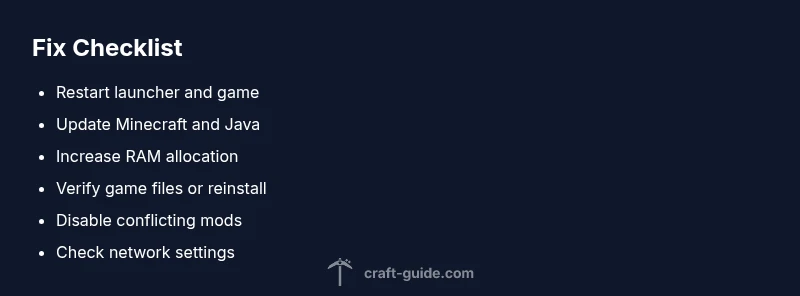
- Restart the game and launcher. Close both programs completely, wait a moment, then reopen and try loading again. Tip: ensure you’re not running background processes that consume RAM.
- Update software. Install the latest Minecraft version and ensure any required runtimes are current. Tip: prefer official sources to avoid corrupted installs.
- Adjust memory allocation. If your device has spare RAM, allocate more memory to Minecraft through the launcher settings; avoid over-allocating beyond what is available.
- Verify or reinstall. Use the launcher’s verify/repair option; if problems persist, reinstall Minecraft while backing up saves. Tip: back up your worlds before reinstall.
- Minimize extras. Disable or remove problematic mods and resource packs, then re-enable one at a time to identify culprits. Tip: remove old mods that aren’t maintained.
- Check network. Switch to a wired connection, disable VPN, and temporarily pause antivirus monitoring to see if the issue clears. Tip: record the exact error or hang times to help diagnostics.
Prevention and Best Practices
To reduce future not responding issues, maintain a regular update schedule for Minecraft and all dependencies, back up worlds, and keep an organized mod setup with version compatibility notes. Allocate a sensible amount of RAM, monitor CPU and GPU temperatures during play, and update drivers periodically. If trouble recurs, create a minimal test world to isolate variables and document changes. Craft Guide's general approach emphasizes a methodical, reversible process rather than guessing in the dark. The Craft Guide team recommends following these steps to resolve issues efficiently and keep your worlds safe.
Steps
Estimated time: 30-60 minutes
- 1
Restart the game and launcher
Close Minecraft and the launcher completely, wait a moment, then relaunch and try again. This resets transient glitches that cause unresponsiveness.
Tip: Ensure no background updates or scans are running. - 2
Check for updates
Install the latest Minecraft version and update the launcher and any required runtimes. Running an outdated build is a common source of freezes.
Tip: Use official sources only to avoid corrupted files. - 3
Adjust memory allocation
Open the launcher settings and allocate a comfortable amount of RAM for Minecraft, ensuring you don’t starve other programs.
Tip: If you’re unsure, start with a conservative increase and test. - 4
Verify or reinstall
Use the launcher’s verify/repair feature; if issues persist, reinstall Minecraft while backing up saves.
Tip: Back up your worlds before reinstalling. - 5
Test mods and resource packs
Disable all mods, then re-enable one by one to identify the culprit. Remove old or unmaintained mods.
Tip: Maintain a clean mod list with compatibility notes. - 6
Check network settings
Switch to a wired connection if possible, temporarily disable VPNs, and review firewall rules that could block Minecraft.
Tip: Note any server-specific issues and try a different server.
Diagnosis: Minecraft not responding or freezing during startup/load
Possible Causes
- highOutdated launcher or Java version
- highInsufficient memory or RAM allocation
- mediumCorrupted game files or mod conflicts
- mediumNetwork issues or server-side problems
Fixes
- easyUpdate the launcher and Java version to the latest supported build
- easyIncrease RAM allocation and free up system memory
- mediumVerify or repair game files; temporarily remove mods/resource packs
- easyTest on a different network or disable VPN/firewall rules blocking Minecraft
People Also Ask
Why is Minecraft not responding on startup?
Most startup freezes come from launcher or system issues rather than the game itself. Update the launcher, check the Java version, and verify game files to resolve the problem.
Startup freezes are usually launcher or system problems, so update and verify.
Why does Minecraft freeze after loading a world?
This often signals mod conflicts or resource pack issues. Disable mods and test with a clean profile to identify the culprit.
Usually mods or resource packs; test with a clean profile.
Can network issues cause not responding?
Yes. Latency or blocked ports can prevent server responses. Try offline mode or switch networks to confirm.
Network problems can cause not responding; test different networks.
Is reinstalling Minecraft necessary?
Often resolves corrupted files or launcher problems; back up saves before reinstalling.
Sometimes a reinstall fixes it; back up first.
How can I prevent not responding in the future?
Keep software updated, back up worlds, and maintain a minimal, compatible mod setup. Regular maintenance helps.
Keep things updated and tested with minimal setups.
Watch Video
The Essentials
- Troubleshoot in order: launcher, RAM, files, then network
- Back up saves before major changes
- Isolate mods to find conflicts
- Use official sources for updates
- Document every change for easy rollback