How to fix Minecraft lag: A practical, step-by-step guide
Learn how to fix Minecraft lag with a practical, step-by-step approach. This guide covers client, server, and network optimizations, plus maintenance tips to keep your world running smoothly.


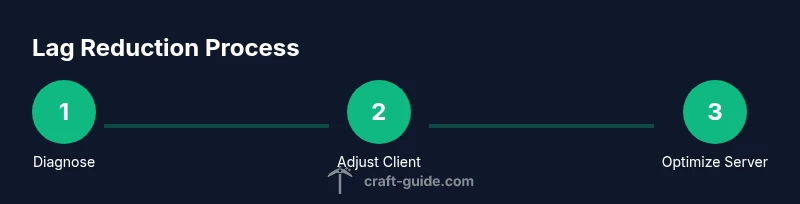
According to Craft Guide, Minecraft lag is usually a sign of bottlenecks between hardware, software, and network. This guide shows you how to diagnose the type of lag and apply practical fixes: client settings, server/network tweaks, and maintenance routines for smoother gameplay.
What is lag in Minecraft and why it happens
Minecraft lag is a slowdown, stutter, or freeze that makes gameplay feel unresponsive. It can stem from three broad sources: the client (your computer running the game), the server (the game world hosting your session), and the network (your connection to the server). Client lag shows up as low FPS, long frame times, or frozen textures; server lag appears as rubber-banding or delayed actions; network lag reveals high ping and inconsistent packet delivery. Understanding which category dominates helps you target fixes efficiently. According to Craft Guide analysis, many lag issues arise when a player’s hardware or drivers are outdated, or when a world has high entity counts and distant view settings that force excessive rendering. This section helps you map symptoms to bottlenecks so you can choose the right fixes.
Diagnosing lag with a structured checklist
To break down lag, run a quick diagnostic you can repeat after changes:
- Check FPS (frames per second) and frame times in-game or via a launcher overlay. If FPS drops dramatically during heavy worlds, you might be hitting GPU or CPU limits.
- Measure latency (ping) to the server. A high or unstable ping usually points to network latency rather than rendering.
- Observe memory usage (RAM) and Java process size. If the game uses memory well beyond what your system can spare, you’ll see occasional stutters as the game trades memory for performance.
- Note when lag occurs: during chunk loading, redstone activity, or mob spawns? Break down events to identify whether rendering, physics, or world processing is the bottleneck.
- Test with a fresh profile or a clean world to determine if world data or mods contribute to lag. If the lag disappears, something in the current world or mod setup is causing the issue.
Documenting these signals will guide your next steps and prevent guessing. Craft Guide Analysis, 2026 emphasizes a methodical approach to ensure you target the right bottleneck rather than applying broad optimizations that may backfire.
Client-side optimizations you can implement now
Many lag issues are rooted in rendering demands or suboptimal settings. Start with the safest, reversible changes:
- Lower render distance and disable heavy visual effects such as smooth lighting or fancy graphics. Reducing field-of-view and particles can also lower GPU load.
- Turn off resource-intensive experimental features if enabled, and use a stable, supported version of Minecraft. These steps often yield noticeable FPS gains without affecting core gameplay.
- Update graphics drivers and ensure Java (or your game launcher) is up to date. New drivers improve efficiency and reduce driver-induced lag.
- Allocate memory wisely: give Minecraft enough RAM to breathe, but avoid starving the OS or other apps. If you’re using a launcher, adjust the memory allocation rules conservatively and test incrementally.
- Prefer wired connections over Wi‑Fi for stability, especially in multiplayer sessions. A stable link reduces jitter that manifests as lag.
- Consider a performance-focused mod or optimization pack that reduces rendering load while preserving visuals. Always back up before installing new software and add one change at a time to isolate effects.
Apply changes one by one and test. If you notice improvements, keep the settings; if not, revert and try the next fix. This measured approach minimizes risk and helps you reach a stable baseline faster.
Server and network optimizations for smoother multiplayer
Lag in multiplayer often involves the server or network path. Implement these best practices to reduce delays and improve responsiveness:
- If you run a personal server, reduce view distance and limit entity counts where possible. Fewer active chunks and entities lower the server’s processing load and help all players.
- Use a stable wired connection for your server and select a hosting plan suitable for your player count. A consistent latency path keeps interaction times predictable.
- If you’re playing on Realms or a hosted server, verify that the server software is up to date and consider lowering the frequency of tick-heavy processes in high-traffic areas.
- Optimize world generation settings by avoiding overly complex features in older hardware. Simpler worlds render faster and load more consistently.
- Monitor network health: run periodic speed tests, check for packet loss, and ensure there are no local network bottlenecks (other devices chewing bandwidth during play).
Networking tools, proper server configuration, and sensible world settings combine to deliver smoother multiplayer experiences. Craft Guide’s practical observations in 2026 stress the importance of aligning server capacity with player activity to avoid chronic lag.
Advanced options: mods, resource packs, and performance tools
If you’re willing to experiment, performance-oriented changes can yield meaningful gains without sacrificing playability:
- Use resource packs that reduce texture resolution or optimize texture streaming to lessen GPU demand while preserving a cohesive look.
- Add performance-focused mods or mod suites that streamline rendering, memory management, and chunk loading. Implement one mod group at a time to assess impact and maintain compatibility with your game version.
- Avoid installing too many mods or conflicting plugins; test each change in a controlled environment and back up worlds before big updates.
- When using mods, verify compatibility with your Minecraft version and other installed mods. Incompatible combinations can cause worse lag or crashes.
- Regularly clean up old worlds, saved data, and unused mods to prevent clutter that can tax storage access and disk I/O.
These options are powerful when used judiciously. The key is deliberate experimentation: add, test, revert if negative, and document results to build a personalized performance profile for your setup.
Maintenance habits to keep lag at bay
Sustained performance requires ongoing habits that prevent lag from creeping back in:
- Keep Minecraft and all related software up to date; enable automatic updates where possible to avoid missing important optimizations.
- Maintain backups of your worlds and game profiles; this protects against data corruption when applying fixes.
- Periodically monitor system resources and game performance, especially after major changes like adding mods or upgrading hardware.
- Schedule regular performance sanity checks, especially after server changes or new world generation features, to catch bottlenecks early.
- Document your tested configurations, including what settings were changed and the observed impact, so future tweaks are more targeted.
With disciplined maintenance, you’ll enjoy a steadier frame rate, fewer stutters, and a more reliable Minecraft experience across versions and worlds.
Tools & Materials
- Minecraft launcher with stable version(Ensure you’re using the recommended build for your world)
- A PC or laptop with adequate resources(Check for drivers and system updates; consider a wired connection)
- Stable internet connection (prefer wired)(Minimize router hops; avoid busy wireless networks)
- Backup plan (external drive or cloud)(Back up worlds before major changes)
- Monitoring tools (task manager, network monitor)(Use to identify CPU, RAM, and network bottlenecks)
- Documentation system (notes/logs)(Record changes and outcomes for future reference)
Steps
Estimated time: two to three hours
- 1
Identify lag type
Observe the symptoms and classify lag as client, server, or network related. Use FPS counters, ping measurements, and resource monitors to determine where changes will have the greatest impact.
Tip: Start with a controlled test world to isolate variables. - 2
Adjust client rendering settings
Lower render distance, optimize lighting, and disable demanding visuals to ease GPU and CPU load. These changes can yield immediate FPS improvements without affecting core gameplay.
Tip: Test one change at a time and measure FPS before and after. - 3
Allocate memory carefully
Configure the launcher to assign a reasonable amount of RAM to Minecraft so the game has enough headroom while leaving enough for the operating system and other apps.
Tip: Avoid over-allocating RAM, which can cause system instability. - 4
Check server settings if you host
If you host, reduce view distance and limit entity counts to lower server load. A less demanding server runs smoother for all players.
Tip: Coordinate changes with other players to avoid unintended consequences. - 5
Test network improvements
Use a wired connection where possible and minimize concurrent network usage. Stable latency often yields the most noticeable improvements in multiplayer.
Tip: Run a quick ping test during gameplay to verify improvements. - 6
Consider performance mods or resource packs
If you’re comfortable, apply performance-focused mods and lighter resource packs to improve rendering efficiency and memory usage.
Tip: Add only one modification at a time and verify compatibility with your version.
People Also Ask
What is Minecraft lag and how can I tell the difference between client lag and server lag?
Lag is a slowdown or stutter in gameplay. Client lag comes from your computer's performance, while server lag stems from hosting capacity or network issues. Look at FPS and latency signals to differentiate.
Lag is a slowdown in your game. If your FPS drops, it’s usually client-side; if actions lag but FPS stays high, it’s often server or network related.
Should I allocate more RAM to Minecraft, and how do I do it safely?
Allocating RAM can help if your system has headroom, but too much can starve the OS. Use the launcher settings to adjust a conservative amount and test the impact.
You can give Minecraft more RAM if you have spare memory, but don’t overdo it. Test gradually after each change.
Will lowering graphics settings hurt my experience?
Lowering graphics reduces load on GPU and CPU and often improves stability without drastically changing core gameplay. Balance visuals with performance to taste.
Lowering settings can boost performance and often isn’t a big trade-off for most players.
How can I improve lag on a personal server or Realms?
Server lag is reduced by lowering view distance, reducing active entities, and ensuring the host has stable hardware and network. Realms can be constrained by service limits, so optimize world size and activity.
For servers, cut view distance and keep server hardware and network steady.
Do mods help or hurt performance?
Certain performance-focused mods can help, but others may add overhead. Introduce mods selectively and verify compatibility with your game version.
Mods can help, but pick ones designed for performance and test them carefully.
Is lag always caused by my internet connection?
Not always. Lag can stem from hardware, software, or server constraints as well as network conditions. Use the diagnostic steps to pinpoint the primary cause.
Sometimes lag is hardware or server related, not just the internet.
Watch Video
The Essentials
- Identify lag bottlenecks before applying fixes
- Client settings often yield quick wins
- Server and network improvements benefit multiplayer
- Tread carefully with mods and maintain backups