What Causes Minecraft Exit Code 1 (Fix Guide)
Urgent guide to what causes Minecraft exit code 1 and how to fix it quickly. Diagnose Java, mods, and launcher issues with clear steps from Craft Guide.


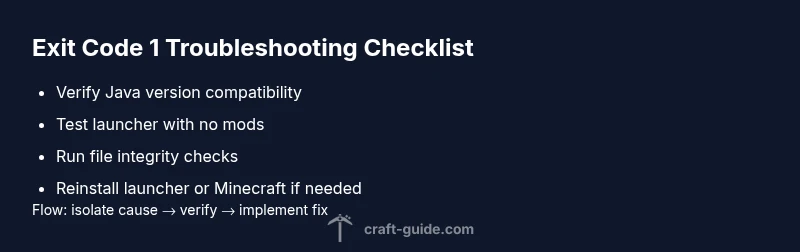
Exit code 1 means Minecraft failed to launch due to a startup error detected by the launcher. The most common causes are a Java version mismatch, corrupted game files, or conflicts from mods and resource packs. Start with quick, safe fixes: update Java and the Minecraft launcher, run a clean profile with no mods, verify game files, and reinstall the launcher if needed. Act fast to restore your world.
What Exit Code 1 Means for Minecraft
Exit code 1 is a generic startup error thrown by the Minecraft launcher when the game fails to start. It does not tell you the exact root cause, but it signals that something prevented the game from creating a valid Java process, loading assets, or initializing the launcher environment. In practical terms, this means you need to check several layers: the Java runtime, the launcher configuration, the integrity of the game files, and any mods or resource packs you have installed. The Craft Guide team notes that many players encounter this problem after updating to a new launcher version or after adding large numbers of mods. To move quickly, treat this as a pipeline of checks rather than a single overlooked bug. The key is to isolate the stage where the failure occurs and verify each component step by step.
Common Causes by Likelihood
What causes minecraft exit code 1 can be traced to several recurring culprits. The most common is a Java runtime version mismatch or misconfiguration, which prevents the launcher from spawning the Java process Minecraft needs. Another frequent offender is a conflict among mods, Forge/Fabric loaders, or resource packs that introduce incompatible code or assets. Less obvious but still impactful are corrupted game files, damaged launcher caches, or incomplete installations after updates. Hardware quirks like insufficient allocated RAM or a failing hard drive can also produce startup errors that appear as exit code 1. Finally, user profiles with custom launch options or outdated launchers may fail to initialize correctly. By organizing these causes from most to least likely, you can prioritize fixes without guessing at random.
Quick Fixes You Can Try Now
If you’re seeing exit code 1, you can usually resolve the issue without deep repairs by trying a sequence of safe, fast steps. First, restart the launcher and verify you’re using the bundled or a compatible Java runtime. Next, run a game file integrity check or reinstall the launcher to clear caches. Disable all mods and resource packs to test a clean startup, then reintroduce one element at a time to identify the culprit. Ensure your profile is set to a sane RAM allocation (not too high, not too low) and that you’re on a stable internet connection during verification. If these steps don’t fix the problem, a full reinstall of Minecraft is often sufficient to clear lingering corruption. Craft Guide recommends documenting each change so you can revert if needed.
How to Diagnose Specifically
To properly diagnose exit code 1, begin by reproducing the error with a minimal setup. Launch Minecraft with no mods and with the default resource pack to establish a baseline. If the game starts, the issue likely lies with your modded setup or resource packs. Check the launcher logs (and the .minecraft/logs folder) for explicit exceptions or stack traces—these reveal whether Java, a mod, or an asset is failing. Look for common patterns: ClassNotFound, NoSuchMethodError, or memory-related messages. If you see memory warnings, adjust the heap size in the launcher settings and try again. If you still fail, test with a clean profile and a fresh install of Minecraft to rule out corrupted assets. Craft Guide analysis shows that most users solve the problem by addressing Java compatibility or mod conflicts first.
Step-by-Step Fix for the Most Common Cause
The leading cause of exit code 1 is a mismatch between the Java runtime and the launcher, often compounded by mod conflicts. Follow these steps in order: 1) Back up your worlds and important configs; 2) Update Java to a version known to be compatible with your launcher (or use the launcher-provided Java); 3) Clear launcher caches or reinstall the launcher to reset settings; 4) Temporarily move all mods/resource packs out of the mod folder and launch with a clean profile; 5) If the game starts, reintroduce mods one at a time to identify the culprit. If the problem persists after these steps, perform a clean reinstall of Minecraft. Time estimates: 45–90 minutes depending on data size and internet speed.
Alternative Causes and How to Troubleshoot
If Java and mods aren’t the root cause, consider alternative issues. Corrupted game files or a damaged assets cache can trigger exit code 1 even with a correct Java setup. Running a file integrity check or reinstalling individual components can fix this. Launcher cache pollution or a corrupted profile can also block startup; resetting profiles or creating a new one often resolves the problem. In rare cases, hardware problems like RAM faults or a failing SSD contribute to startup failures. Run basic hardware diagnostics if you suspect physical issues. Craft Guide reminds readers to verify that all software components are up to date and properly configured before assuming hardware is at fault.
Safety, Backups, and When to Seek Help
Always back up your worlds before making changes. If you are unsure about performing a reinstall or clearing launcher caches, seek help from a trusted source or the official Minecraft support forums. Do not delete critical files from outside the Minecraft folders without a backup. If the error persists after all standard steps, it may be a deeper compatibility issue with your system; in that case, contacting the launcher developer support or a professional technician is advised. Craft Guide emphasizes prioritizing safe, reversible changes over radical repairs, especially when working with a heavily modded setup.
Steps
Estimated time: 45-90 minutes
- 1
Back up your data
Copy your worlds and important configs to a separate location. This creates a safe restore point before you modify launch settings or remove mods. Keep at least two backups in different locations.
Tip: Store backups offline or on a different drive to guard against drive failure. - 2
Update Java and the launcher
Install the latest compatible Java version or use the launcher’s bundled Java. Open the launcher settings and ensure the correct runtime is selected.
Tip: If your launcher offers a “Use bundled Java” option, enable it to avoid version conflicts. - 3
Verify game files or reinstall the launcher
Run a verification or repair in the launcher if available. If verification fails, reinstall the launcher to reset caches and libraries.
Tip: After reinstall, sign in with the same account to preserve your profiles. - 4
Isolate mods and resource packs
Move all mods/resource packs out of the mod folder and launch with a clean profile. Add them back one by one to identify the culprit.
Tip: Begin with one change at a time to pinpoint the exact source of the conflict.
Diagnosis: Minecraft exits with code 1 during startup
Possible Causes
- highJava runtime version mismatch or misconfiguration
- highMod/Forge/Fabric conflicts or outdated mod(s)
- highCorrupted game files, launcher cache, or incomplete installation
- lowInsufficient RAM allocation or unstable hardware
Fixes
- easyUpdate Java to a compatible version and set JAVA_HOME correctly
- easyDisable or remove problematic mods and test with a clean profile
- easyRepair or reinstall the Minecraft launcher and reinstall Minecraft calls
People Also Ask
What does exit code 1 mean in Minecraft?
Exit code 1 is a general startup error indicating Minecraft could not launch. It commonly results from Java compatibility problems, mod conflicts, or corrupted game files. Follow a structured troubleshooting path to isolate and fix the issue.
Exit code 1 means the game couldn't start. Most often it’s Java, mods, or corrupted files causing the failure.
Can Java version cause Exit code 1?
Yes. An incompatible or outdated Java version frequently triggers exit code 1. Ensure you’re using the supported Java runtime for your launcher or opt for the bundled Java version provided by the launcher.
Yes—Java matters. Use the launcher’s bundled Java or a compatible runtime.
Do mods cause Exit code 1?
Absolutely. Conflicting or corrupted mods or resource packs are a leading cause of exit code 1. Disable all mods and test with a clean profile, then reintroduce mods one by one to identify the culprit.
Mods can cause it; test with a clean profile and reintroduce mods one by one.
Is exit code 1 a sign of malware?
Not typically. It’s usually software-conflict related. Run a malware scan if you notice unusual behavior, but focus on Java, launcher, and mod configurations first.
Usually not malware; focus on the game setup and mods first.
When should I reinstall Minecraft?
If the issue persists after updating Java and removing problematic mods, a clean reinstall of the launcher and game files often resolves deep corruption.
If problems continue, a clean reinstall can fix it.
How can I test if a specific mod is the culprit?
Move all mods out, launch with a clean profile, then add mods back one at a time to find the offender.
Test mods one by one to find the culprit.
Watch Video
The Essentials
- Identify root cause via layered checks
- Prioritize Java compatibility and mod conflicts
- Back up before making changes
- Test with a clean profile to isolate issues
- Reinstall as a last resort if corruption is suspected