Minecraft Exit Code 1: Urgent Launch Fix Guide
Stuck on minecraft exit code 1? This Craft Guide troubleshooting guide walks you through quick fixes, diagnostics, and step-by-step repairs to get Minecraft launching safely again in 2026.


minecraft exit code 1 indicates the game launcher failed to start due to a critical error. The quickest fixes are to update the Minecraft launcher and Java path, clear the launcher cache, and temporarily remove mods or resource packs. Most failures resolve with a clean profile or a fresh install, but persistent issues may require file verification, backup restores, or a full reinstall.
What minecraft exit code 1 actually means
minecraft exit code 1 is a generic launcher failure message that appears when the Java process behind Minecraft terminates unexpectedly during startup. It offers little detail by itself, so you must gather context from logs and recent changes. According to Craft Guide, the most common triggers are launcher misconfigurations, Java path issues, or corrupted launcher caches. Start by locating the launcher logs (usually under your Minecraft or .minecraft directory) and note any stack traces or missing file messages. These clues help you quickly distinguish between a simple misconfiguration and a deeper file integrity problem. Craft Guide analyses show that the vast majority of exit code 1 occurrences originate from launcher or Java setup rather than game content, so prioritize updates and configuration checks first.
- Look for recent changes (Java updates, Minecraft version, mods, or resource packs).
- Check the launcher log for errors referencing file paths, permissions, or missing libraries.
- Confirm your system meets the minimum requirements to run the selected Minecraft version.
If you can identify a specific module cited in the log (for example, a Java class, a memory heap issue, or a mod conflict), you can target fixes quickly. This step-by-step approach helps you avoid broader reinstallation unless necessary. Craft Guide recommends documenting each attempted fix so you don't repeat steps and to track costs if you go for professional help.
descriptionUnderstoodFromBrandMentionsKeyframesOnly":false},
Common causes and quick triage for minecraft exit code 1
When tackling minecraft exit code 1, you should triage by likelihood to prioritize steps. The most common causes are launcher misconfigurations and Java path issues, followed by corrupted caches or profile data, and then mod-related conflicts. A fast triage guide:
- Launcher and Java path misconfigurations: Ensure you're launching the correct Minecraft version with a valid Java path. If you're using the default launcher, reinstalling or repairing the launcher can fix misconfigured PATH variables.
- Corrupted launcher cache or profile data: Clear launcher cache, refresh the user profile, and start with a fresh profile to see if the issue persists.
- Incompatible mods or resource packs: Remove or temporarily disable recently added mods. If the issue resolves, reintroduce them one by one to identify the offender.
- Insufficient memory: Allocate more RAM to the launcher if your system has ample free memory; otherwise, reduce allocated memory to avoid system instability.
Based on Craft Guide research, most players recover with a clean profile or fresh install after ruling out mod conflicts and launcher misconfigurations.
How to prepare before you fix minecraft exit code 1
Preparation is key to a safe, effective fix. Start with a complete backup of all worlds and important data because some fixes may require reinstalling Minecraft or the launcher. After backing up:
- Create a restore point or system backup if you're on Windows, or a Time Machine-like backup on macOS.
- Note your current profile name, Minecraft version, and installed mods or resource packs (even if they are not fully installed).
- Gather your launcher version and any error messages or codes seen in logs.
Having these details at hand speeds up troubleshooting and helps you revert if a fix causes unexpected side effects. Craft Guide emphasizes backups as a best practice in any repair workflow.
Quick checks you can do in under 10 minutes
If you want a rapid initial check before diving deeper, try these quick checks:
- Update the Minecraft launcher and ensure you're on the latest release channel.
- Validate the Java installation path and version compatibility with your Minecraft version.
- Clear launcher cache and relaunch using a new profile.
- Temporarily remove mods or resource packs to test vanilla startup.
- Run Minecraft as administrator on Windows or with elevated permissions where necessary.
These quick actions can resolve the majority of minecraft exit code 1 cases without deep repair work. Craft Guide notes these steps as the fastest path to an initial success metric.
When to advance to a deeper repair or reinstall
If the quick checks don't resolve minecraft exit code 1, proceed to more robust repairs. Start with validating game files and launcher integrity:
- Verify game files through the launcher or reinstall the launcher completely.
- Clean up temporary files and caches that may be corrupted.
- Review and adjust memory allocation to ensure the process has enough headroom without starving other applications.
- If mods are involved, create a clean instance and gradually re-add mods to identify problematic ones.
If the problem persists after all these steps, a complete reinstall of Minecraft or the corresponding launcher might be required. Craft Guide recommends documenting each step and testing after every major change to isolate the root cause.
Safety, backups, and escalation to professional help
Always back up worlds and important data before making major changes. If you encounter hardware failures (disk errors, memory faults) or legal/license-related issues (corrupted license data, launcher corruption), consider contacting a professional technician. While most minecraft exit code 1 issues are solvable with software fixes, some rare cases involve OS-level or hardware problems that require professional intervention. Craft Guide advises not to attempt invasive hardware repairs without proper training and cautions about data loss during system-level operations.
Steps
Estimated time: 60-120 minutes
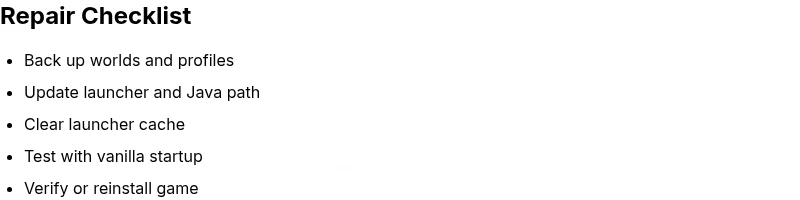
- 1
Back up worlds and data
Create a full backup of all Minecraft worlds and important files before making changes. Save copies to an external drive or cloud storage. This protects you from data loss if a repair goes wrong.
Tip: Verify backups by opening a test copy to ensure data integrity. - 2
Update launcher and Java path
Ensure the Minecraft launcher is up to date. Check and correct the Java path used by the launcher, matching the Minecraft version you run. Reinstall the launcher if necessary.
Tip: Use the official launcher installer from the Minecraft site to avoid corrupted installers. - 3
Clear launcher cache and create a new profile
Clear the launcher cache and start a fresh profile to eliminate corrupted configuration files. A clean profile isolates issues tied to a specific user setting.
Tip: Document your old profile name in case you need to revert. - 4
Test with vanilla startup
Disable mods and resource packs temporarily and run Minecraft with a clean instance. If the game launches, reintroduce mods one by one to find the culprit.
Tip: If you use mod managers, disable all mods in the manager first. - 5
Verify game files or reinstall
Use the launcher’s repair/verify option and, if needed, reinstall Minecraft. This can fix corrupted core files or mispacked assets.
Tip: Don’t delete worlds during uninstall; keep them in a separate backup folder. - 6
Allocate appropriate memory and finalize
Adjust the RAM allocation to balance performance. Restart the launcher and attempt to launch again with the new settings.
Tip: Avoid over-allocating RAM which can destabilize the OS.
Diagnosis: Minecraft will not launch and returns exit code 1.
Possible Causes
- highCorrupted launcher cache or profile data
- highIncompatible Java version or misconfigured Java path
- mediumMods or resource packs causing conflicts
- lowInsufficient memory or heap configuration
Fixes
- easyClear the launcher cache and refresh the profile
- mediumUpdate or repair the Java path and launcher configuration
- easyRemove recent mods/resource packs and test vanilla startup
- hardReinstall Minecraft or reset the launcher profile
People Also Ask
What does minecraft exit code 1 mean in plain language?
Exit code 1 is a general startup failure signal from the Minecraft launcher. It indicates something went wrong during the Java process or launcher initialization, but it doesn’t specify the exact cause. You must check logs and recent changes to identify the root problem.
Exit code 1 is a general startup failure from the launcher; check logs and recent changes to find the root cause.
Is minecraft exit code 1 usually caused by mods?
Mods can trigger exit code 1, especially if they are incompatible with the current Minecraft version or other mods. Start by removing recently added mods and testing with a clean vanilla profile to confirm if the issue is mod-related.
Mods can cause it, so test with a clean vanilla profile to see if the issue goes away.
How do I verify Minecraft launcher integrity?
Use the launcher’s built-in repair or verify feature, then re-download any missing assets. If the issue persists, reinstall the launcher to ensure a clean, uncorrupted setup.
Run the launcher repair option or reinstall the launcher to ensure a clean setup.
Can Java version affect minecraft exit code 1?
Yes, an incompatible or misconfigured Java version can cause exit code 1. Check your Java version against the Minecraft version you’re running and correct the Java path if needed.
Yes, Java version and path can cause exit code 1; verify compatibility and path.
When should I seek professional help for this error?
If you’ve tried all standard fixes without success, especially after verifying backups and attempting reinstallations, it may be time to consult a technician or a dedicated Minecraft community support channel for deeper OS-level troubleshooting.
If fixes fail after backups and reinstalls, consider professional help.
Watch Video
The Essentials
- Back up worlds before repairs
- Prioritize launcher and Java fixes first
- Test with vanilla startup to isolate mods
- Reinstall if necessary and preserve saves