Exit Code 1 Minecraft: Urgent Troubleshooting Guide
Urgent guide to fix exit code 1 Minecraft startup errors. Learn quick checks, mod conflict resolution, Java setup, and file verification to get back to your world fast.


Exit code 1 minecraft indicates the launcher or JVM terminated with an error during startup. Common triggers include flawed Java setup, incompatible mods, corrupted game files, or memory misconfigurations. Quick fixes: verify game files, update Java, run with lower memory, disable problematic mods, and ensure launcher integrity. Examine crash logs for specifics and check recent changes to your mod list.
What exit code 1 minecraft really means
Exit code 1 minecraft is a generic startup failure reported by the launcher when the Java process crashes during the game’s initialization. According to Craft Guide, this isn’t a single fault but a symptom that can point to several root causes. In practice, you’ll see the launcher terminate with a non-zero exit status, and the game will fail to reach the main menu. The key is to treat it as a triage signal: start with broad checks (Java, launcher, and file integrity) and then narrow down to mods or specific configurations. Recognizing this error early can save hours by avoiding blind tinkering and directing effort toward the most likely culprits.
The Craft Guide team emphasizes that exit code 1 minecraft frequently accompanies a cascade of tiny failures rather than a single obvious fault. When you encounter it, you should proceed with a methodical approach: verify baseline software, inspect recent changes, and test in a clean environment to isolate the failure. This mindset helps reduce friction and accelerates getting back to your build or survival world.
Common startup triggers you should check
- Mod conflicts or recently added packs
- Outdated or incompatible Java version
- Corrupted Minecraft or launcher files
- Insufficient memory or misconfigured RAM allocation
- Launcher settings or profile corruption
Craft Guide analysis shows that mod conflicts and Java configuration are the leading culprits for exit code 1 minecraft. Other factors, like corrupted assets or launcher glitches, can also contribute. By prioritizing checks in this order, you’ll often resolve the issue without reinstalling the entire game. Remember to back up your worlds before making major changes to avoid data loss.
Quick fixes you can try now (no deep dive required)
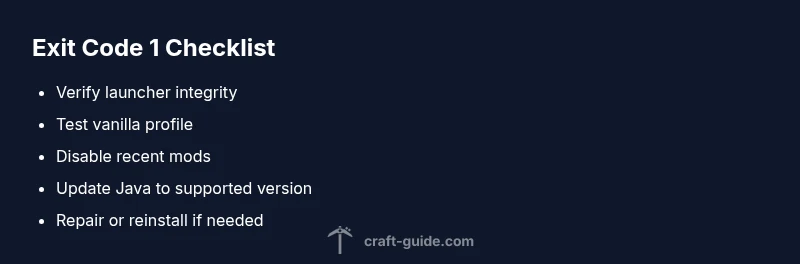
- Restart the launcher and your computer to clear transient issues. 2. Verify game files via the launcher (or reinstall if verification fails). 3. Update or reconfigure Java to a supported version and re-point JAVA_HOME if needed. 4. Temporarily disable recently added mods or resource packs and launch with a clean profile. 5. Reduce RAM allocation to a safe range and test startup again. 6. Check the latest.log file for clues about the crash point and act on the mod or asset referenced.
If any of these steps get you to a launch but then crash again, proceed to Step-By-Step troubleshooting for deeper inspection.
Deep dive: Mod conflicts and modded setups
Mods are the most common source of exit code 1 minecraft when you’re using a heavily customized setup. Incompatibilities between mods, outdated mod versions, or dependencies can crash the Java process during startup. Start by removing newly added mods one by one or temporarily disabling all mods to see if the game boots. If it does, reintroduce mods gradually to identify the offender. Consider using a clean profile with only the base game or a tested modlist to establish a stable baseline.
Resource packs and shaders can also trigger startup failures if they’re incompatible with your current game version or mod set. Disable these and test booting with vanilla assets before reintroducing them.
Verifying game files and launcher settings
Corrupted game files or launcher data can produce exit code 1 minecraft. Use the launcher’s built-in repair or verify feature to check integrity, and consider a clean reinstall if verification fails repeatedly. Ensure the launcher is up to date, and reset settings to defaults if you suspect profile corruption. Backup your settings and worlds before any reinstall.
In addition, ensure the launcher is installed in a stable path without unusual characters or long directory names, which can cause path-related issues on some systems. A clean profile with fresh settings often reveals whether the problem is systemic or profile-specific.
Java setup and memory allocation: getting it right
Java misconfiguration is a frequent culprit. Use a supported Java version recommended by Minecraft and confirm that your system’s PATH (or JAVA_HOME) points to the correct JRE/JDK. In launcher settings, allocate a reasonable amount of memory—enough for the game without starving the OS. If you’re running mods that demand more RAM, adjust carefully and test incrementally. Excessively high RAM allocations can cause instability on low-end machines and trigger exit code 1 minecraft.
If you use a multi-instance launcher, ensure each instance targets the correct Java version and launcher profile. Tracking memory usage with a monitoring tool during startup can reveal runaway processes or memory leaks.
Reading logs and crash reports: extract actionable clues
The latest.log and crash reports pinpoint where the startup fails. Look for lines that indicate a mod, library, or asset error, or a stack trace that points to a specific jar. If you see a failing mod name, that’s your smoking gun. When logs are inconclusive, search for repeated patterns like “Could not create the Java Virtual Machine” or “Error: LinkageError.” Translate these clues into concrete actions—remove the offending mod, swap in a different version, or revert to vanilla assets to verify baseline stability.
Keep in mind that logs can be verbose; focus on the last 100 lines before the crash and any lines labeled ERROR or EXCEPTION for the most relevant data.
Preventive maintenance and best practices for future launches
Establish a baseline by running Minecraft with a minimal mod list and vanilla assets, then add mods in small batches. Maintain regular backups of worlds and profiles, especially before big updates. Keep your launcher, Java, and mods updated to compatible versions, and use reputable mod sources to reduce risk. Document your configurations so you can reproduce a stable setup if something breaks. Finally, consider a dedicated test profile for troubleshooting, separate from your main world save to prevent data loss.
FAQ and quick takeaways
Takeaway: exit code 1 minecraft is usually solvable with a methodical triage. Start with base game integrity, then test a clean profile, and finally isolate mods or assets. Maintain backups and monitor logs for precise failure points. By sticking to a disciplined process, you’ll minimize downtime and protect your Minecraft worlds.
Steps
Estimated time: 30-60 minutes
- 1
Back up worlds and profiles
Create a safe copy of your Minecraft saves and launcher profiles before making changes to prevent data loss.
Tip: Store backups on an external drive or in cloud storage. - 2
Check crash logs and identify a likely culprit
Open latest.log or crash reports and look for ERROR or EXCEPTION lines pointing to a mod or library.
Tip: Copy the log snippet to a note for quick reference. - 3
Test with a clean profile
Launch Minecraft with a fresh profile and no mods to confirm baseline startup works.
Tip: If vanilla starts, the issue is mod-related. - 4
Disable recently added mods
Temporarily disable or remove mods added in the last two changes, then retry startup.
Tip: Reintroduce mods one at a time to identify the offender. - 5
Update Java and launcher
Install a supported Java version and re-point the launcher to it; update the launcher if a newer version is available.
Tip: Avoid beta or unstable Java builds. - 6
Repair or reinstall
If startup still fails, verify game files or reinstall Minecraft/launcher as a last resort.
Tip: Keep backups and consider a clean install to remove hidden corrupt files.
Diagnosis: Minecraft crashes on startup with exit code 1
Possible Causes
- highIncompatible mods or mod conflicts
- mediumOutdated or incompatible Java version
- lowCorrupted Minecraft or launcher files
Fixes
- easyDisable or remove recently added mods, or run with a clean profile
- easyUpdate Java to a supported version and ensure JAVA_HOME is set
- mediumVerify integrity of game files or reinstall Minecraft/launcher
- easyCheck launcher updates and adjust RAM allocation for stability
People Also Ask
What does exit code 1 minecraft mean?
Exit code 1 minecraft indicates a startup failure where the Java process crashed during initialization. It’s a generic error, usually caused by mod conflicts, Java version issues, or corrupted game files. Start with baseline checks and move toward mod management if needed.
Exit code 1 means the game failed to start due to a startup crash. Check mods, Java, and file integrity first.
Can mods cause this error?
Yes. Incompatible or recently added mods are a common cause of exit code 1 minecraft. Test with mods disabled to confirm if the issue lies with mod conflicts.
Mods can definitely cause startup errors; try disabling new mods to test.
How do I fix exit code 1 on Windows vs Mac?
The fixes are similar across platforms: verify files, update Java, reduce RAM, and test with a clean profile. If issues persist, reinstall the launcher or the game. Platform-specific paths may require adjusting shortcut or launcher configurations.
The fixes work the same across Windows and Mac; just follow the steps and adjust paths if needed.
Is Java version compatibility important for this error?
Absolutely. An outdated or incompatible Java version often triggers exit code 1 minecraft. Ensure you’re using a supported Java version and that the launcher points to it correctly.
Java compatibility is a frequent cause, so verify your Java version and launcher configuration.
Should I reinstall Minecraft if the problem persists?
If you’ve exhausted file verification and mod debugging, a clean reinstall can resolve deeply corrupted files or launcher misconfigurations. Always back up first.
If other fixes fail, reinstall Minecraft after backing up your worlds.
How long does it typically take to fix exit code 1 minecraft?
Most issues resolve within 30-60 minutes when approached methodically. Complex mod conflicts may require longer troubleshooting or community support.
Most fixes take under an hour, depending on mod complexity; backups are essential.
Watch Video
The Essentials
- Verify baseline game integrity before diving into mods.
- Use crash logs to pinpoint the problem quickly.
- Keep backups and apply changes in small, testable steps.
- Update Java and launcher to recommended versions.