Minecraft Survival Multiplayer Server Setup: A Practical Guide
Learn how to launch a Minecraft survival multiplayer server—from choosing a host and installing the Java edition to configuring rules, permissions, and ongoing maintenance.


Goal: Set up a Minecraft survival multiplayer server you can invite friends to, with reliable hosting, basic security, and play rules. You’ll need a computer or hosting plan, the Java edition server jar, and a stable internet connection. This quick answer outlines the essential steps and considerations.
What is a Minecraft survival multiplayer server?
A Minecraft survival multiplayer server is a shared world where players collaborate to build, explore, and survive against hostile mobs. You can customize rules, apply plugins or datapacks, and host events for your community. According to Craft Guide, a well-run server fosters cooperative play and reduces grief-related issues, creating a welcoming space for players of all skill levels. In survival mode, resource gathering, base-building, and teamwork are central, so setting clear expectations from day one helps everyone have fun. Start by defining the server’s purpose: a casual social hub, a long-term survival challenge, or a competitive arena. Clarify who can join, what the rules are, and what players should do if they encounter problems. Keep in mind that a thriving server depends on reliable hosting, regular backups, and proactive moderation. Even with the most polished setup, you’ll still need to adapt as your community grows. This block sets the stage for practical steps later: hosting choices, software setup, rule frameworks, and strategies for sustaining an active player base.
Choosing hosting: self-host vs. paid hosting vs. cloud options
Your hosting choice decides performance, uptime, and how easy life is for you as a server admin. Self-hosting on a home PC gives maximum control but relies on your network, power, and firewall settings; it’s best for small, private groups. Paid hosting plans provide straightforward upgrades, stable bandwidth, and provider support, which reduces downtime but adds ongoing costs. Cloud options scale with demand, letting you level resources up or down as your player base fluctuates. Craft Guide analysis shows that most beginner servers start with a modest hosted plan and scale up as activity grows. When evaluating options, consider: expected player count, number of plugins or datapacks, daily backups, and your willingness to manage backups and security. Regardless of choice, ensure the host supports Java Edition and offers reasonable SLAs, DDoS protection, and easy access to server logs. Finally, plan for future growth by selecting a solution that can survive a surge in players during weekends or events.
Setting up the server software: Java edition, JRE, and RAM allocation
Most Minecraft servers run on the Java Edition of the game, which provides robust support for plugins and performance tweaks. Start by obtaining the server jar from the official source and choosing a stable Java Runtime Environment JRE compatible with that jar. You’ll also want a clean, dedicated folder for the server and a background process manager like screen or tmux to keep it running even when you disconnect. Before starting, decide on a baseline memory allocation that leaves enough headroom for operating system tasks and other background processes. A safe workflow is to start with a modest allocation and monitor usage, scaling up if you see frequent garbage collection pauses or out-of-memory errors. After you set up the jar, run a first startup to generate the world and the basic files. Finally, ensure you have version control for your server files so you can roll back if an update introduces issues. This approach keeps the core experience stable while you introduce plugins and datapacks later.
Basic server.properties and world settings
The server.properties file stores essential parameters that shape your world. Start by setting your server's name, game mode, difficulty, and whether PVP is enabled. You’ll also configure the spawn protection, maximum players, and the view distance to balance load and player visibility. If you’re new to server management, enable online mode to verify players against Mojang accounts, but remember that this can affect cross-play. In a survival server, you’ll often want to encourage exploration and slow resource acquisition, so consider adjusting generation settings, seed behavior, and world border limits. Document any changes and communicate them to your players so everyone understands what to expect. After adjusting settings, restart the server to apply changes and test with a few friends to confirm no obvious issues.
Managing players with whitelists, permissions, and roles
Whitelisting is a simple way to control who can join your server, especially in early stages or when testing features. A whitelist keeps your world private until you’re ready for public access. Pair it with a permissions strategy that assigns roles to players—such as moderators, builders, and newcomers—to simplify moderation. If you’re comfortable with plugins or datapacks, you can customize permissions to restrict commands or enable specific features. Keep a written roster of trusted players and designate at least one backup admin in case of emergencies. Communicate expectations for behavior, building standards, and consented sparing rules to avoid conflicts. Finally, routinely audit permissions after major updates to prevent accidental privilege escalations.
Anti-griefing, backups, and security practices
Griefing can derail a server’s early progress, so implement layered defenses. Start with basic anti-grief rules: land claims, protected areas, and a clear policy for raiding or looting. Enable backups frequently—preferably daily for active worlds—and store archives in a separate location to guard against hardware failure. Use secure admin accounts and enable two-factor authentication where possible. If you plan to host with others, create a simple incident report workflow so players know how to report griefs and how moderators will respond. Finally, maintain a changelog that records major plugin updates, configuration tweaks, and policy changes to help you diagnose issues later.
Performance tuning and troubleshooting common issues
Failing to optimize can lead to lag, crashes, and player drop-off. Start by monitoring CPU and memory usage, observingTPS (ticks per second), and inspecting log files for errors after restarts or updates. If you notice frequent lag, reduce view distance for clients, limit entity counts, and adjust mob spawn rules. For plugin-heavy servers, ensure compatibility and keep plugins updated—outdated plugins are a frequent source of crashes. When issues appear after an update, roll back specific plugins or restore from the latest backup to minimize downtime. Keep an eye on disk space, as insufficient space can cause write failures and corruption. Regularly test your server’s performance during peak times and adjust settings as needed to maintain a smooth experience.
Growing your server: communities, events, and world design
A thriving survival server relies on a welcoming community and engaging content. Schedule regular events such as building challenges, scavenger hunts, and cooperative builds to encourage participation. Create starter kits and clear rules for new players to ease onboarding. Showcase a featured build of the week to foster pride and collaboration, and welcome feedback via a dedicated forum or Discord channel. Focus on a world design that scales with your player base: seed safe zones for new players, designate public landmarks, and use themed biomes to guide exploration. Remember to document world rules and maintain consistent moderation as your community expands.
Long-term maintenance and scaling strategies
As your server grows, shift from one-off sessions to a sustainable cadence of updates, backups, and community management. Plan an onboarding funnel for new players, maintain a public roadmap of upcoming features, and rotate staff to prevent burnout. Regularly review your server’s performance metrics and resource allocation, adjusting hardware or hosting plan as needed. Finally, keep engaging content in the rotation—seasonal events, new world seeds, and community-built structures—to retain interest and reduce churn.
Authoritative sources
- https://www.nature.com
- https://www.bbc.com
- https://www.harvard.edu
Tools & Materials
- Computer or dedicated hosting plan(A stable machine with network access and power; for small groups, start with consumer hardware or a budget VPS.)
- Java Edition server jar(Download from official sources; ensure version compatibility with plugins/datapacks.)
- RAM allocation settings(Allocate headroom for the OS and other processes; avoid over-allocating.)
- FTP client or SSH access(Use to upload server files and manage configuration.)
- Backup storage(Regular backups; store off-site if possible.)
- Text editor for config files(Edit server.properties and whitelist/permissions files.)
- Permissions or moderation tools (optional)(Plugins or datapacks for advanced control.)
Steps
Estimated time: 2-4 hours
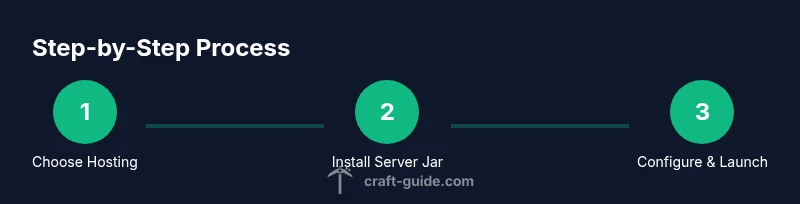
- 1
Choose hosting and prepare the environment
Select a hosting option and set up your working directory. Create a dedicated folder for the server files and ensure you have a reliable internet connection. Document your plan for access, backups, and escalation paths so teammates know how to contribute.
Tip: Before launching, estimate peak player count to guide hosting choice. - 2
Install and run the Java edition server jar
Download the server jar, place it in your server folder, and launch it with a minimal startup command. Make sure you have a compatible JRE installed. Create a simple startup script to restart cleanly after updates.
Tip: Use a background process manager to keep the server running when you disconnect. - 3
Configure server.properties and generate the world
Edit server.properties to set game mode, difficulty, and limits. Start the server to generate the world files, then stop it to make final adjustments before inviting players.
Tip: Document changes and test with a friend to confirm settings work as intended. - 4
Set up players, whitelist, and permissions
Enable a whitelist if needed, then assign roles and permissions for moderators and builders. Create a process for onboarding and handling reports to keep the community healthy.
Tip: Keep a backup admin in case of password issues or moderation conflicts. - 5
Test, monitor, and iterate
Invite a few players to test the server, monitor performance, and collect feedback. Tweak settings and plugins based on data, then scale resources as needed.
Tip: Maintain a changelog to track what you changed and why.
People Also Ask
What’s needed to start a Minecraft survival multiplayer server?
To start, you need hosting or a computer, the Java Edition server jar, and internet access. Then you configure rules, backups, and basic permissions to run a safe, fun server.
You’ll need hosting or a PC, the Java server jar, and a good internet connection to start.
How much does it cost to run a server?
Costs vary with hosting type and resources. Start small with a basic plan or home hosting, then scale up as activity grows; consider ongoing hosting fees if you want hands-off management.
Costs can range from low monthly hosting to higher if you need more resources.
Can I run a server on my home PC?
Yes, for a small, private group. Ensure a stable connection, adequate hardware, and port-forwarding setup. Use backups and moderators to manage the community.
Yes, a home PC can work for a small group with proper setup and backups.
What are essential protections against griefing?
Use whitelists or gated access, layered permissions, world protections, and regular backups. Establish a clear moderation policy and incident reporting workflow.
Whitelists, permissions, backups, and a simple report process help prevent griefing.
Which server software should I choose?
For most players, a plugin-friendly option like Paper or Spigot is ideal. Vanilla is simplest but supports fewer mods; choose based on desired features and stability.
Most players start with a plugin-friendly option like Paper for flexibility.
Watch Video
The Essentials
- Plan hosting based on expected player count.
- Secure and back up your world data frequently.
- Use whitelist and permissions to control access.
- Monitor performance and scale resources gradually.