Host a Minecraft Game Server: A Practical How-To
Learn how to host a Minecraft game server—from hosting options to security and backups. This practical guide covers setup steps, configuration tips, and reliable maintenance for smooth gameplay.


By the end of this guide, you’ll know how to host a Minecraft game server, choose the right hosting path, configure core settings, and keep your world secure and stable. You’ll need a computer or hosting plan, Java Edition, and basic networking know-how. The steps cover setup, maintenance, backups, and practical tips for players joining your server.
Why hosting a Minecraft game server gives you control and flexibility
Hosting a Minecraft game server puts you in the driver’s seat. You decide who can join, which rules apply, which mods or datapacks are allowed, and how the world evolves over time. Compared with public servers or official Realms, a self-hosted or VPS-based server lets you tune performance, install plugins, and implement custom governance like whitelists or ladder rules for competitive play. For beginners, the process may seem daunting, but with careful planning you can scale from a small, cozy world to a thriving community. According to Craft Guide, starting with a modest setup and growing as needed reduces risk and keeps learning manageable. This section covers the core reasons why many players choose to host their own Minecraft world and what benefits you can expect when you control the environment, updates, backups, and player permissions. You’ll learn that hosting is less about a fancy machine and more about good configuration, clear rules, and consistent maintenance. By understanding your goals—family-friendly co-op, a redstone-heavy creation server, or a mini-competitive arena—you can pick a hosting path that suits the project and your schedule.
Choosing a Hosting Approach
There are several routes to hosting a Minecraft server, each with trade-offs in control, cost, and complexity. Running a server on your personal computer is the simplest option for a small group, but it ties resources to your home network and can expose your equipment to online risks. A Virtual Private Server (VPS) provides a clean separation from your daily work tasks and often better uptime, but requires a basic familiarity with Linux or Windows server administration. A dedicated server gives the most headroom and customization, yet it’s more expensive and usually reserved for larger communities or ambitious mod packs. Cloud-based hosts offer scalable resources and managed services, which reduces setup time but can lead to ongoing costs. Official Mojang Realms provides a turnkey, hosted experience with predictable pricing, but it limits customization. Craft Guide analysis shows that for most players, a mid-range VPS or cloud instance paired with a strong backup plan delivers the best balance of control and cost. Whichever path you choose, plan for maintenance windows, updates, and a simple rollback plan if things go wrong.
Minimum Hardware and Network Requirements
Your server’s performance hinges on the number of players, redstone activity, and world size rather than a single number. For a small group and a peaceful world, a modest machine with sufficient RAM and a stable internet connection usually suffices. As the player count grows or you enable resource-intensive features like large redstone builds or complex mods, you’ll want more headroom. The goal is to keep enough headroom for spikes in activity so the game never stutters. Craft Guide analysis shows that the most important factors are memory availability, stable disk I/O, and network bandwidth rather than flashy hardware. Prioritize a reliable power supply and a backup plan for outages. Ensure your network has a consistent upload speed, minimal latency to your players, and a router that can handle port forwarding without bogging down other devices. If you host at home, consider a wired connection over Wi-Fi to reduce variability. For servers hosted with a third-party provider, choose a plan that clearly states guaranteed uptime and allows easy scale-up as your world grows.
Step-by-Step: Set Up a Minecraft Server (Java Edition)
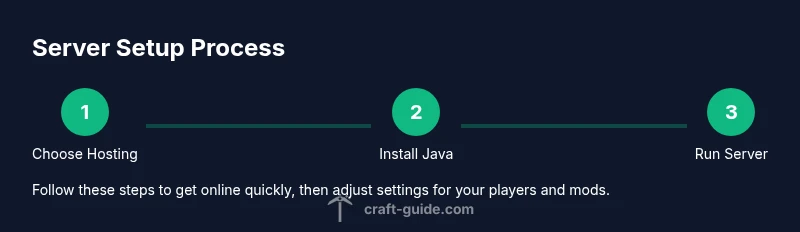
Setting up a Minecraft Java Edition server involves a sequence of concrete actions to create a stable, runnable world. Start by confirming you have Java installed and a dedicated folder for the server files. Download the official server JAR from the Minecraft website and place it in the folder. Run the JAR once to generate the initial files, then open the eula.txt file and change eula=false to eula=true to agree to the license. After that, re-run the server to create the remaining configuration files. You’ll then locate the server.properties file to adjust game rules, difficulty, and world settings. Finally, set up automatic restarts and regular backups to protect your world. Each step may require a short delay as the server completes tasks, so plan for a few minutes between runs. Following these steps ensures you have a functional foundation for your public or private world, ready for players to join once the network and permissions are configured.
Configuring Server Properties for Performance
The server.properties file controls core behavior. Tweak the server’s game mode, difficulty, and whether players can fly; adjust the view distance to balance visual quality with server load. Enabling online-mode verifies players with Mojang’s authentication, while whitelist restricts access to approved players. If you plan to run a modded or resource-intensive world, consider lowering the default view distance, lowering max-tick time, and turning off features you don’t need during off-peak hours. Remember to test changes with a few players to observe how they affect latency and frame rates. Document your settings so you can replicate a successful configuration after updates or hardware changes.
Security and Moderation Essentials
Security-focused hosting reduces the risk of griefing and unauthorized access. Use a whitelist or restrict access to specific usernames. Assign operator privileges carefully, and maintain separate admin accounts with strong passwords. Regularly update the server software and any plugins or datapacks you use, and enable automatic backups. Use a firewall to limit inbound connections to the Minecraft port and your administrative tools. Consider enabling two-factor authentication on your hosting provider's control panel. Finally, prepare a simple moderation policy and a trusted staff team to enforce rules consistently.
Networking: Port Forwarding and IP Considerations
To let friends connect, you must expose the server to the internet through your router. This typically involves forwarding the Minecraft port on the router to your server’s internal IP address. If you don’t have a static home IP, use dynamic DNS to keep your domain pointing to your changing public IP. When hosting from a cloud provider or VPS, you usually receive a public IP, and you’ll still configure a firewall to allow inbound connections. Maintain a simple, documented networking diagram so you can troubleshoot connectivity problems quickly. For families or school groups, consider alternatives like a managed server or a community-hosted solution if you cannot guarantee a stable network connection.
Backups, Redundancy, and Uptime
Backups are your safety net. Create periodic save points of your world and important configuration files, ideally in multiple locations. Verify backups by attempting a restore in a test environment. Use snapshot backups for quick rollbacks, and consider separate backups for the world data and the server configuration. If you’re running a modded setup, ensure that the backup process includes mod files and dependencies. Plan for planned maintenance windows and alert players ahead of time for any downtime.
Practical Maintenance Routine and Upgrades
A consistent maintenance routine keeps your server healthy and enjoyable for players. Schedule weekly checks for updates, plugin compatibility, and world health. Restart the server after updates to ensure new changes are loaded cleanly and to avoid memory leaks. Monitor memory usage and adjust allocation if you notice lag during peak times. Periodically re-evaluate your hardware or hosting plan as your community grows, and scale resources before they become a bottleneck. Finally, communicate changes with your community and gather feedback to improve the server experience. The Craft Guide team recommends documenting your setup with a simple runbook, so you can reproduce a successful configuration on future projects and as players join or leave.
Tools & Materials
- Computer or server hardware(Dedicated, reliable, runs 24/7 if self-hosting)
- Java Runtime (JRE/JDK)(Java 17 or newer depending on server version)
- Minecraft server software (official JAR)(Download from the official Minecraft website)
- Operating system(Windows, Linux, or macOS; Linux is common for servers)
- Network equipment(Router with port forwarding capabilities and a stable internet connection)
- Backups storage(External drive or cloud storage for world data and configs)
Steps
Estimated time: 2-4 hours
- 1
Install Java
Install the appropriate Java runtime for your Minecraft server version. Verify the Java version is compatible with the server software you plan to run. If you’re unsure, install the recommended LTS Java version and keep it updated.
Tip: Check your OS package manager for the latest compatible Java package to reduce setup time. - 2
Create a dedicated folder
Create a clean, dedicated folder to hold the server JAR and all related files. Keeping server files isolated makes backups, updates, and migrations easier in the future.
Tip: Use a descriptive name and store in a location with ample disk space and proper permissions. - 3
Download the official server JAR
Download the latest Minecraft server JAR from the official site and place it in your dedicated folder. This file is what the server runs when started.
Tip: Verify checksums if provided by the source to ensure file integrity. - 4
Run the server to generate files
Run the JAR once to generate initial configuration files, including eula.txt. This creates the baseline setup before you customize anything.
Tip: Watch the console for initial messages and note any missing dependencies. - 5
Agree to the EULA
Open eula.txt and set eula=true to accept the license. Re-run the server to continue with proper permissions.
Tip: If you use automation, ensure the script only toggles this file after user confirmation. - 6
Configure server.properties
Edit server.properties to adjust game rules, world settings, and gameplay balance. Start with conservative defaults and test with a small test group.
Tip: Keep a changelog of property changes to simplify troubleshooting. - 7
Set up port forwarding
Configure your router to forward the Minecraft port to your server’s internal IP address, enabling external connections from friends.
Tip: If you don’t have a static IP, consider dynamic DNS to keep your domain pointing correctly. - 8
Secure the server
Enable whitelist or restricted access, assign admins carefully, and set up basic firewall rules. Regularly update software and plugins.
Tip: Use strong, unique passwords and consider two-factor authentication on hosting panels. - 9
Create backups
Set up automated backups for world data and configuration files. Regular testing of restores ensures you can recover quickly.
Tip: Store backups offsite or in a separate cloud location to protect against local failures. - 10
Test and refine
Invite a few trusted players to test connectivity, performance, and rules. Use feedback to refine settings and add helpful rules or plugins.
Tip: Document the test results and adjust resource allocations as needed.
People Also Ask
Can I host a Minecraft server from my home network?
Yes, you can host from a home network, but you’ll need a stable internet connection, decent hardware, and strong security practices. Be mindful of bandwidth and power consumption, and consider backups and updates as part of your routine.
Yes, you can. Just ensure you have a stable connection, decent hardware, and good security.
Is a static IP required to run a server?
A static IP is recommended for a smoother experience, especially if friends will connect frequently. If you don’t have one, use dynamic DNS to keep your domain aligned with your changing IP.
A static IP is preferred, but you can manage with dynamic DNS.
What hosting options are best for beginners?
For beginners, a mid-range VPS or cloud instance paired with a simple backup plan offers a balance of control and ease. Realms is easiest but limits customization.
A mid-range VPS or cloud instance is usually the best balance for beginners.
How can I prevent griefing on my server?
Use a whitelist or restrict access, set proper permissions, and establish moderation rules. Regular updates and trusted admins help maintain a positive community.
Whitelisting and clear admin rules help prevent griefing.
How often should I back up the world?
Backups should be regular and frequent enough to protect progress, especially after major builds or updates. Tailor the frequency to your activity level.
Back up often, especially after big changes.
Can I run mods or datapacks on my server?
Yes, you can run mods or datapacks, but ensure all players use compatible versions and maintain backups of mod files. Compatibility is key for a smooth experience.
Mods are possible, just keep backups and version compatibility in mind.
Watch Video
The Essentials
- Choose a hosting path that fits your group size and goals
- Back up regularly and test restores to ensure reliability
- Secure access with whitelist/admin controls and fresh credentials
- Tune server properties for your typical player base and keep it simple
- Scale resources proactively as your community grows