How to Run a Free Minecraft Server on PC
Learn how to host a free Minecraft server on your PC with safe setup steps, free software options, and practical networking tips for reliable multiplayer.


Goal: learn how to run a free Minecraft server on your PC, with safe, practical steps and free software options. You'll cover hardware needs, network setup, and a step-by-step launch. Required: a PC with modern CPU, at least 4 GB RAM (8 GB recommended for multiple players), a stable broadband connection, and basic port-forwarding knowledge.
What you’re building with a free Minecraft server
Craft Guide's community resources explain that a free Minecraft server on PC can host a small group of players without server fees. The exact setup will depend on your PC, your network, and your goals, but the core idea remains simple: you provide the world, and others connect to your machine. According to Craft Guide, starting with a modest, local test is the best way to learn the process and avoid overcommitting resources. For many players, the first step is to decide whether to use the official Java Edition server or a popular, free alternative like PaperMC. The term 'minecraft server pc free' covers both the software choice and the hosting environment, and choosing the right balance between performance and capability is essential to a successful multiplayer experience.
In this guide, you’ll learn how to set up a basic server, test it locally, and invite friends. You’ll also consider hardware limits and software options that keep costs down while still delivering a smooth experience. The goal is a reliable, low-friction setup that you can grow from a small test world to a shared playground without paying for hosting. By the end, you’ll understand the core trade-offs and feel confident making adjustments as your server size changes.
Tools & Materials
- PC or Laptop with wired Internet(Intended for hosting; ensure RAM is sufficient for expected players and world size.)
- Java Runtime / JRE/JDK(Check compatibility with your server version (Java 17+ is common for modern setups).)
- Free Minecraft server software(Options include official Java Edition server or community forks (e.g., PaperMC) for better performance.)
- Stable Internet Connection(Wired Ethernet is preferred; avoid flaky Wi‑Fi connections.)
- Router with Port Forwarding access(Open default port 25565 or a chosen port and point to your PC's local IP.)
- Backup storage and power backup (optional)(UPS or backup power helps prevent data loss during outages.)
- Text editor for config files(Use a simple editor to modify server.properties and eula.txt.)
Steps
Estimated time: 60-180 minutes
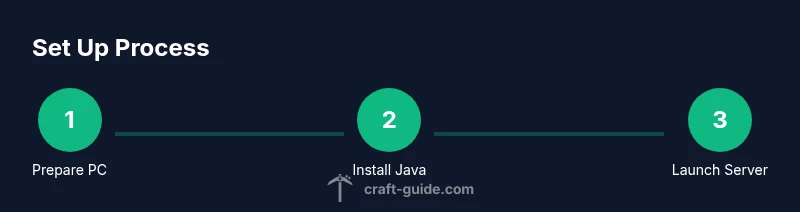
- 1
Prepare your PC and environment
Clear the workspace and ensure your PC has a stable OS install, updated drivers, and a dedicated user account for server tasks. This reduces conflicts with other software and simplifies permission management. Create a local test world first to avoid exposing a fresh setup to the internet before you verify basics.
Tip: Back up any important data before starting; this saves you if something goes wrong. - 2
Install Java and verify version
Install the Java Runtime or JDK required by your chosen server software. Verify the version is compatible with the server build you plan to run. After installation, open a terminal or command prompt and run java -version to confirm the correct Java is active.
Tip: Keep Java up to date to avoid compatibility issues with new Minecraft versions. - 3
Download and set up the server software
Obtain the official Java Edition server or a free alternative like PaperMC. Place the server jar in a dedicated folder and create a startup script (e.g., a simple batch or shell script) that runs the jar with your preferred memory flags.
Tip: Prefer dedicated folders for server files to keep backups and configs organized. - 4
Initial run to generate files
Run the server once to generate the essential files (world, server.properties, and eula.txt). Agree to the EULA by editing eula.txt, setting eula=true. This first launch creates the baseline configuration you’ll adjust later.
Tip: If the server stops quickly, check console messages for missing dependencies or syntax errors. - 5
Configure server.properties and EULA
Edit server.properties to customize game rules, difficulty, and spawn settings. Reopen eula.txt if you edited it previously and ensure the line reads eula=true. Keep a separate backup of your changed properties for quick recovery.
Tip: Document any changes you make so you can replicate favorable settings later. - 6
Test the server locally
Connect to the server from your own PC using localhost or 127.0.0.1 to verify basic connectivity and world generation. If possible, connect a second client on the same network to simulate a short multiplayer session and confirm basic gameplay works.
Tip: If the local test works, you’re ready to expose the server to others. - 7
Set up port forwarding and firewall rules
Configure your router to forward the Minecraft port (25565) to your PC’s local IP address. Adjust firewall settings to allow inbound traffic on this port. If you’re cautious, start with a whitelist and only enable public access after testing performance.
Tip: Use a static local IP to avoid router reassignment breaking port forwarding. - 8
Invite players and monitor performance
Share your public IP and port with friends and observe how the server handles traffic. Track CPU, RAM, and network usage; adjust memory allocation and view distance if lag appears. Plan for routine maintenance windows to restart services and apply updates.
Tip: Encourage players to report lag symptoms early so you can fine-tune settings.
People Also Ask
What do I need to host a free Minecraft server on PC?
You need a capable PC (with sufficient CPU and RAM), Java runtime, free server software (official or community forks), and a network setup that allows port forwarding. A wired internet connection and a basic understanding of firewall rules help a lot. Start with a local test world before opening to the internet.
You'll need a capable PC, Java, free server software, and a network setup that allows port forwarding; start with a local test world first.
Can I run a Minecraft server on a low-end PC?
Yes, but with fewer players and smaller worlds. You’ll want to optimize settings, use lightweight server software, and avoid resource-heavy features. This approach is best for learning rather than long-term public multiplayer.
Yes, you can, but you’ll limit players and world size and keep the setup simple.
What is the best free server software to use?
Many beginners start with the official Minecraft Java Edition server for simplicity, while PaperMC or Spigot offer improved performance and plugin support. Choose based on your goals: vanilla-like freedom or extensible features.
Most beginners use the official server or PaperMC for better performance and plugins.
Do I need to run the server 24/7?
Not necessarily. You can run the server during play sessions and power it down otherwise to save energy. If you want constant availability, ensure a stable power supply and consider an online hosting alternative later.
No, you can run it during play times and shut it down otherwise unless you need full-time access.
How can I secure a free Minecraft server?
Use a whitelist during initial setup, limit admin access to trusted accounts, keep software updated, and back up worlds regularly. Avoid storing sensitive credentials in plain text and monitor logs for unusual activity.
Secure your server with whitelist, trusted admins, updates, and regular backups.
Is Bedrock Edition compatible with Java Edition servers?
Bedrock and Java editions use different protocols; cross-play support is limited and often requires a separate Bedrock server. If cross-play is essential, plan accordingly and test with players on the same edition.
Bedrock and Java aren’t fully compatible; test separately if cross-play is important.
Watch Video
The Essentials
- Choose free server software suitable for your goals
- Test locally before opening to friends
- Prioritize wired networking and backups
- Monitor performance and adjust RAM/CPU as needed
- Plan a scalable path from PC-hosted to dedicated hosting