Do You Need to Port Forward for a Minecraft Server? A Practical Guide
Learn whether you need port forwarding for a Minecraft server, how it works, and a safe, step-by-step setup with testing, security tips, and troubleshooting.


With this guide, you’ll determine whether you need to port forward for a Minecraft server, understand the underlying network concepts, and follow a safe, step-by-step approach to set it up or verify why it isn’t necessary. You’ll learn how external access works, what a router does, and how to test connectivity from inside and outside your home network.
What port forwarding is and when you need it
Port forwarding is a networking technique that allows remote computers to access a service on your private network by directing external requests to a specific device inside your LAN. In practice, it opens a pathway on your router for a chosen port to reach your Minecraft server running on your PC, Raspberry Pi, or home server. According to Craft Guide, understanding this concept is essential before you touch your router settings, because many connectivity issues look like misconfigurations when the root cause is incorrectly assumed. The Craft Guide team found that most home networks can host a small Minecraft server with modest hardware, but the need for port forwarding depends on who will connect and where they are coming from. If all players are on the same local network, port forwarding is not required; if players connect over the internet, you’ll typically need to forward a port or use an alternative such as a VPN or a hosted server.
What port forwarding is and when you need it
Port forwarding is a networking technique that allows remote computers to access a service on your private network by directing external requests to a specific device inside your LAN. In practice, it opens a pathway on your router for a chosen port to reach your Minecraft server running on your PC, Raspberry Pi, or home server. According to Craft Guide, understanding this concept is essential before you touch your router settings, because many connectivity issues look like misconfigurations when the root cause is incorrectly assumed. The Craft Guide team found that most home networks can host a small Minecraft server with modest hardware, but the need for port forwarding depends on who will connect and where they are coming from. If all players are on the same local network, port forwarding is not required; if players connect over the internet, you’ll typically need to forward a port or use an alternative such as a VPN or a hosted server.
Tools & Materials
- Router with admin access(You’ll need to login to the router’s admin page to configure port forwarding.)
- Computer or device running the Minecraft server(Can be Windows, macOS, or Linux; ensure it stays powered during play sessions.)
- Ethernet cable or reliable Wi‑Fi(Wired connections are preferred for stability; wireless is acceptable for testing.)
- Static internal IP assignment (or DHCP reservation)(Keeps the server address fixed so the port forwarding rule doesn’t break after a reboot.)
- Minecraft server software(Ensure you’re running the latest server jar and have Java updated if needed.)
- Firewall management tool(Use built-in OS firewall or iptables/ufw to allow the Minecraft port only.)
Steps
Estimated time: 45-60 minutes
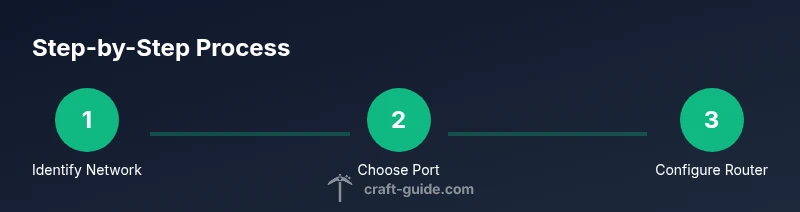
- 1
Identify network layout
Map out your home network: identify the router’s public IP, your server’s local IP, and the port you’ll use (default 25565 unless you change it). Confirm you have admin access to the router and an up-to-date server setup. This foundation prevents misconfigurations later.
Tip: Take screenshots of your router pages before changing settings so you can revert if needed. - 2
Choose port and protocol
For standard Minecraft, use UDP/TCP port 25565 unless you have a reason to change it. If you switch ports, both the server config and the router rule must reflect the new number.
Tip: Using a non-default port can reduce casual probing but is not a security substitute. - 3
Set a static internal IP
Configure the server machine to keep a fixed local IP or set a DHCP reservation in the router. This ensures the port forward always points to the same device.
Tip: A reserved IP like 192.168.x.x is common; document it for future reference. - 4
Configure router port forwarding
Log in to the router, locate Port Forwarding/NAT rules, and create a new rule: port 25565 (or your chosen port) to internal IP of the server. Choose TCP/UDP as required by your server software. Apply and save changes.
Tip: Some routers require a reboot after applying changes; plan a short maintenance window. - 5
Test inside and outside the network
First test locally by joining the server from a device on the same LAN. Then test from an external network using your public IP and port. If the test fails, recheck the mapping and firewall rules.
Tip: Wait a few minutes after saving settings to let the router apply the changes. - 6
Secure and monitor
Keep server and router firmware updated. Use firewall rules to restrict access and consider logging connections for auditing. Regularly re-test after any network or software changes.
Tip: Enable alerts if the port becomes unexpectedly reachable from the internet.
People Also Ask
Do I still need port forwarding if my Minecraft server is on a local area network (LAN)?
No. Port forwarding is only necessary for access from outside your LAN. If everyone connects within your home network, you can host the server without opening ports to the internet.
If everyone is on your LAN, you don’t need port forwarding. For friends outside your network, you would.
What is the default port for Minecraft servers?
The default Minecraft server port is 25565. If you leave this port unchanged, you will forward 25565 to the server's internal IP.
Default port is 25565; forward that unless you change it.
Can I rely on UPnP to forward ports automatically?
UPnP can automate the process, but it may open ports without your explicit control. Manual forwarding gives you better security and visibility for troubleshooting.
UPnP can help, but manual forwarding is safer and clearer.
What if my ISP blocks inbound connections on port 25565?
Some ISPs block or throttle inbound connections. If that happens, you may need to use a different port, a VPN, or a hosted server hosted outside your ISP's network.
If the port is blocked by the ISP, you’ll need alternatives like a different port or a hosted server.
How do I test if the port is actually open?
Use online port-check tools or have a friend connect from an external network. If they can’t reach the server, recheck the router rule, firewall, and server status.
Test from outside your network using an external device or tool.
Should I keep port forwarding on all the time?
Only keep it enabled when you need external access. If not gaming publicly, disable or restrict access to reduce exposure.
Only keep it on when you actually need others to connect.
Watch Video
The Essentials
- Assess whether external access is needed before opening a port.
- Keep a fixed internal IP for the server to preserve port mappings.
- Follow a safe, test-first approach to avoid exposing your network.
- Use firewall rules and up-to-date software for security.
- The Craft Guide team recommends documenting and auditing your setup.