Can You Make a Minecraft Server for Free? A Practical Guide
Learn how to run a Minecraft server for free using local hosting, free cloud tiers, or LAN setups. This step-by-step guide covers setup, security, backups, and tips for players from beginners to advanced.


Yes—it's possible to start a Minecraft server for free with a basic setup. You can host locally on your PC, use free-tier cloud options, or run a LAN server for friends. Each method has trade-offs in uptime, performance, and scalability; this guide walks you through steps, tools, and safety tips.
Free options vs paid hosting
For many players, the main barrier to a Minecraft server is cost. The concept of 'free' servers usually means you either host locally on your own device, rely on a free tier from a cloud provider, or run a LAN game for a small group. In practice, free options come with limits on uptime (how long the server stays online), memory, CPU, and the number of concurrent players. Craft Guide analysis shows that free tiers often cap resources and may require periodic restarts. If you're just testing, learning, or playing with close friends, a free setup can be perfectly adequate. This section compares the core trade-offs and helps you decide which path fits your goals. We’ll cover what 'free' usually means in the Minecraft server space, including typical constraints and how to work within them. As you read, remember that the best free option depends on your hardware, your internet connection, and how many players you plan to invite.
Free options vs paid hosting
Tools & Materials
- Computer or Raspberry Pi for hosting(Stays on to keep the server accessible)
- Java Runtime Environment (JRE) or Java Development Kit (JDK)(Needed to run the Minecraft server jar)
- Stable internet connection(Higher upload speeds support more players)
- Administrative access (SSH/Remote Desktop) for setup(Remote management makes ongoing maintenance easier)
- Static IP or dynamic DNS service (optional)(Optional but helps friends connect reliably)
- Backup storage(Optional but highly recommended for restores)
- Minecraft server jar from minecraft.net(Official jar compatible with your client)
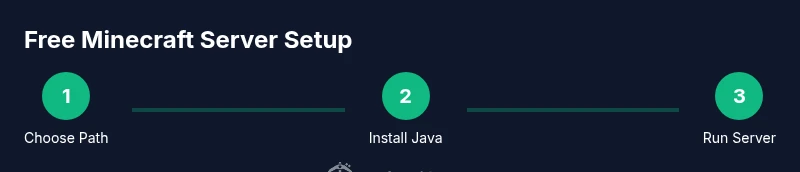
Steps
Estimated time: 30-60 minutes
- 1
Choose hosting path
Decide between local PC hosting, free cloud tiers, or a LAN setup for friends. Consider uptime needs, your hardware, and how many players you expect. This choice drives every later step.
Tip: Start with a goal: 2-4 players online simultaneously is a sensible free target. - 2
Install Java and download the server jar
Install a supported Java runtime and obtain the official Minecraft server jar. Keep the jar version aligned with the client version you expect your players to use.
Tip: Avoid running mixed-version clients on the same server to prevent compatibility issues. - 3
Create a dedicated server folder and accept the EULA
Create a separate folder for the server files, place the jar inside, and run it once to generate files. Open the eula.txt and set eula=true to proceed.
Tip: Keep the server folder in a location with enough disk space for world saves. - 4
Configure port forwarding or NAT
If hosting from home, set up port forwarding for the Minecraft port (default 25565) on your router and allow the Java process through your firewall.
Tip: Test with a local connection first, then test externally using an external network to confirm reachability. - 5
Run the server and test
Start the server from the command line, monitor console logs, and connect with a local client to verify world loading and basic commands.
Tip: Join with localhost or 127.0.0.1 first to ensure the server responds before inviting others. - 6
Set up backups and admin controls
Implement regular automatic backups and assign at least one trusted administrator. Plan for updates and remediations as needed.
Tip: Schedule backups during idle hours to minimize performance impact.
People Also Ask
Can I host a Minecraft server for free on my own computer 24/7?
Yes, you can run a Minecraft server from your own computer for free, but it requires reliable power, a stable internet connection, and careful management of resources. Expect occasional reboots or downtime if you are not dedicated to keeping it online.
You can host on your PC for free, but keep in mind it may go down if you left it off or if your internet resets.
What are the limits of free cloud hosting options?
Free cloud tiers usually limit memory, CPU, and network bandwidth. They are great for experimentation or small groups, but you may need to upgrade if more players join or if uptime guarantees are critical.
Free cloud tiers are good for small groups but expect limits on memory and uptime.
How many players can I host without paying?
The exact number varies with hardware and network, but free options typically support a handful of players. Plan for gradual growth and consider upgrades if you add users.
Expect a small number of players; upgrading helps when your group grows.
Are free options safe to use for kids and friends?
Yes, if you follow basic security practices: keep Java updated, use strong admin credentials, configure a firewall, and back up worlds regularly.
Yes, with basic security and backups, free options can be safe for groups.
Do I need a domain name for a free server?
No, a domain name is not required for a free server. You can connect via IP or dynamic DNS if you want a friendlier address.
No domain is required; IP or dynamic DNS works.
Can I switch from free to paid hosting later?
Yes, you can migrate your server to a paid host later. Plan a migration strategy that minimizes downtime and preserves your world files.
Migration to paid hosting is possible with minimal downtime if planned.
Watch Video
The Essentials
- Free options exist but come with trade-offs.
- Local hosting offers control but requires hardware and power.
- Backups and security are essential from day one.
- Upgrade paths exist if you outgrow a free setup.