Minecraft Server Linux Download: Step-by-Step Setup Guide
Learn to download and run a Minecraft server on Linux. This stepwise guide covers Java setup, the official server jar, security basics, and ongoing maintenance.


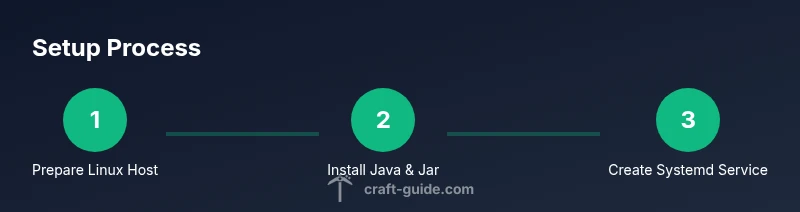
This guide helps you download and run a Minecraft server on Linux. You'll choose a distro, install Java, fetch the official server jar, and set up a reusable systemd service. The steps cover firewall rules, auto-start, backups, and basic troubleshooting for a smooth multiplayer experience.
Why Linux is a solid choice for minecraft server linux download
Linux is the preferred platform for many Minecraft administrators because it tends to offer stability, low overhead, and robust networking. A well-tuned Linux server can handle multiple players with modest hardware while remaining responsive for admin tasks. According to Craft Guide, the Linux ecosystem provides superior control over processes, memory, and security when compared with some consumer operating systems. In practice, this makes updates, backups, and automated tasks easier to script and maintain over time. If you want reliable uptime and predictable performance for your minecraft server linux download, Linux is a logical starting point. This section explains why Linux matters and how it aligns with your goals of a stable, scalable multiplayer environment.
Choosing a Linux Distro and Preparing the Server
Your choice of Linux distribution influences maintenance, updates, and compatibility with server software. Common starting points are Ubuntu or Debian-based systems for their broad support and large repositories, while CentOS/RHEL-family distributions are favored for long-term stability in enterprise contexts. Regardless of choice, ensure a 64-bit install and keep the system updated before you install Java or the Minecraft server jar. Craft Guide analysis shows that using a familiar, well-documented distro reduces debugging time and helps you locate community help quickly. Prepare a clean user account for the Minecraft server service, and disable password-based login for better security.
Installing Java and the Official Server Jar
The Minecraft server requires a Java runtime. Install a supported Java version (Java 17 or newer) through your distro's package manager. After Java is installed, download the official server jar from the Minecraft website and place it in a dedicated directory. Run the jar once to generate the initial files, then review and accept the EULA by setting eula=true in eula.txt. If the download or run fails, check that you have network access and that the jar filename matches the official distribution. This step is foundational; with Java ready and the jar in place, you can proceed to keep the server running smoothly. As Craft Guide Team notes, keeping the Java runtime current is crucial for security and performance.
Setting Up the Server as a Systemd Service
To keep the server running reliably, create a dedicated system user (e.g., minecraft) and a service file under /etc/systemd/system/minecraft.service. The service should start the server with the appropriate jar path and nogui flag, set Limits for memory and file handles, and restart on failure. Enable the service so it starts on boot and start it now to test. This approach ensures consistent startup behavior and easier administration across reboots. Pro tip: use a separate screen session or a background task manager if you need to attach to the console for live monitoring. Craft Guide Team emphasizes using systemd for resilience and simple maintenance.
Network, Firewall, and Security Basics
A server exposed to the internet requires careful network configuration. Open only the necessary port (default 25565) and forward it on your router if you are hosting behind NAT. Use a host-based firewall such as UFW (Uncomplicated FireWall) or firewalld to restrict access, allow SSH from trusted IPs, and log odd activity. Regularly update your OS and Java, and avoid running the server as root. Craft Guide analysis shows that a well-tuned firewall reduces the risk of unauthorized access and improves uptime, while keeping logs helps you detect abuse early.
Backups, Updates, and Maintenance
Backups protect against world corruption, server crashes, and accidental deletions. Establish a regular backup routine for the world directory and server configuration, storing copies on a separate drive or network share. When updating the server jar or Java, shut down the server gracefully, replace the jar, and restart. Test your backups by restoring a copy to a separate location before relying on them in production. Keep a changelog of configuration changes and mod updates to simplify troubleshooting and future upgrades. The Craft Guide Team recommends documenting backup schedules and testing restore procedures at least quarterly.
Troubleshooting Common Issues
If players report lag, verify that the server has enough allocated memory and that the world isn't corrupted. Check the server logs in the logs directory for errors such as "java.lang" exceptions or file-not-found messages. Ensure the server has network access and the firewall isn't blocking the port. Permissions issues can arise if the world directory is owned by root or another user; adjust ownership to the Minecraft user. Finally, ensure you are running a compatible Minecraft client version with the server version. By following these checks, most issues can be diagnosed quickly and resolved with minimal downtime. Craft Guide Team reminds readers to consult the official Minecraft support resources for persistent problems.
Tools & Materials
- Java Runtime (OpenJDK 17+)(Install a compatible Java version for the Minecraft server jar.)
- Official Minecraft server jar(Download from the official Minecraft website; save as minecraft_server.jar in a dedicated directory.)
- Linux server (Ubuntu/Debian or CentOS/RHEL or derivatives)(64-bit recommended for modern servers.)
- wget or curl(Tools to fetch the server jar and updates from the command line.)
- systemd(Use to manage the Minecraft service and ensure auto-start on boot.)
- Firewall tool (ufw or firewalld)(Restrict access to essential ports and monitor traffic.)
- Backup storage(External drive or network share for world and config backups.)
Steps
Estimated time: 60-180 minutes
- 1
Prepare the Linux server
Create a dedicated non-root user for the Minecraft server and update your system. This reduces risk and simplifies permissions. Confirm network access and SSH security before proceeding.
Tip: Use a separate user like 'minecraft' and disable password SSH for better security. - 2
Install Java
Install a compatible Java runtime (Java 17+). Verify the installation with java -version and ensure you can run java commands from your user account.
Tip: Keep Java updated to the latest LTS release for security and performance. - 3
Download the server jar
Fetch the official minecraft_server.jar from the Minecraft website and place it in a dedicated directory. Ensure the file is not renamed to a non-standard name.
Tip: Verify the download matches the official SHA256 if provided on the site. - 4
Run the initial jar
Run the jar once to generate the initial world and config files. Stop the process after generation to prepare for service setup.
Tip: Use nogui to conserve resources during automated runs. - 5
Accept the EULA
Edit eula.txt and set eula=true to accept the Minecraft End User License Agreement. This is required before full operation.
Tip: Only edit the eula.txt as the Minecraft user to maintain permissions. - 6
Create a systemd service
Create a service file at /etc/systemd/system/minecraft.service that runs the jar with nogui and restarts on failure. Reload systemd and enable the service.
Tip: Set memory and file limits conservatively and test startup without remote access first. - 7
Open firewall port and test
Open the default Minecraft port (25565) in your firewall and verify that you can connect from a client. Test both local and remote connections to confirm accessibility.
Tip: Limit SSH access to trusted IPs to reduce exposure. - 8
Backups and updates
Schedule regular backups for worlds and config. When updating, stop the server, replace the jar, and restart. Validate a backup restore regularly.
Tip: Document your backup routine and test restores at least quarterly.
People Also Ask
What is the best Linux distribution for hosting a Minecraft server?
Ubuntu or Debian-based systems are popular for ease of use, broad documentation, and strong community support. CentOS/RHEL variants offer stability in enterprise contexts. Your choice should align with your comfort level and the need for long-term support.
Ubuntu or Debian is a solid starting point, with CentOS or RHEL offering stability for larger setups.
Do I need root access to run the server?
No. Create a dedicated user (for example, 'minecraft') and run the server under that account to limit risk. Use sudo only for administrative tasks.
No root access needed; run it under a separate user and sudo when necessary.
How much RAM should I allocate?
Allocate memory based on your load and world size; start with a modest amount and monitor performance before increasing. Avoid allocating all available memory to Java.
It depends on how many players and size of the world; start small and watch performance.
Can I host a server on Linux without internet access?
The official server jar requires internet access to download and to connect clients. You can run a LAN server locally if all clients are on the same network, but public hosting needs internet access.
You need internet to download and join; LAN hosting is possible with a local network.
Where can I download the official server jar?
Download the official minecraft_server.jar from the Minecraft website and place it in a dedicated directory. Always verify you’re on the official downloads page to avoid tampering.
From the official Minecraft website; ensure you’re on the official downloads page.
How do I update the server without downtime?
Shut down the server gracefully, back up, replace the jar with the new version, and restart. Test connectivity afterward to confirm a smooth transition.
Shut down, backup, update the jar, and restart, then verify everything works.
Watch Video
The Essentials
- Use a dedicated Linux host for stability.
- Run the server under systemd for reliability.
- Secure access with a firewall and regular updates.
- Schedule regular backups and verify restoration.