Can You Play Minecraft on Linux? A Complete How-To
Learn how to run Minecraft on Linux with a complete, step-by-step guide. From installing Java to launching the official launcher and optimizing performance—crafted for beginners to advanced players.


You can play Minecraft on Linux by running the Java Edition with the official launcher. No Linux-native Bedrock is required for most players, and performance can be excellent with proper Java setup and drivers. This guide shows you how to install Java, download the launcher, and configure Minecraft on Linux for smooth play, regardless of your distribution.
Can Linux support Minecraft? Myth vs. Reality
The short answer is yes for the vast majority of players who want to enjoy Minecraft on Linux. Minecraft on Linux is well-supported through the Java Edition, which runs on a wide range of distributions, from Ubuntu and Fedora to Debian and Arch. The more nuanced question—can you play minecraft of linux—gets answered by understanding how Java, graphics drivers, and the official launcher interact with your system. According to Craft Guide, a lot of Linux users experience smooth frame rates and reliable stability when they follow a small set of best practices: use the official launcher, ensure you have a supported Java runtime, and keep drivers up to date. This isn’t just a hobbyist trick; it’s a practical approach that aligns with Linux gaming communities and common-sense performance tuning.
In this guide, you’ll learn how to set up Minecraft on Linux, why Java is the backbone of the experience, and how to optimize your environment for reliable play. The goal is straightforward: get you from installation to a stable, enjoyable session, with a solid foundation in Linux-specific considerations. You’ll also see how to troubleshoot typical issues and what to avoid when you’re ready to customize your setup.
Java Edition vs Bedrock on Linux
Linux users have historically leaned on Minecraft Java Edition because it has robust support, a rich ecosystem of tools, and broad compatibility with mods and resource packs. Bedrock Edition, while designed for cross-platform play, does not have an official Linux launcher and is not generally supported as a native build on Linux distributions. Some players explore unofficial ports or workarounds, but those approaches can be unstable and may violate terms of service or licensing. For most players who want a reliable, moddable, cross-platform experience, Java Edition on Linux is the recommended path. The Craft Guide Team notes that sticking to Java Edition minimizes compatibility headaches and keeps updates aligned with the rest of the Minecraft community.
If you’re curious about cross-platform play with friends on Windows or macOS, Java Edition maintains strong cross-play support, so Linux players can join friends on other operating systems without needing separate doors or workarounds.
System prerequisites and distro readiness
Before you install, ensure your Linux system meets a few baseline requirements. A modern 64-bit distribution with recent kernel support, ample RAM (4 GB minimum, 8 GB+ recommended for smoother performance), and a capable GPU driver set the stage for success. You’ll also want a web browser and stable internet access to download the launcher and game assets. OpenJDK 17 or newer is typically recommended for Java Edition, and keeping your graphics drivers (NVIDIA, AMD, or Intel) up to date makes a big difference in frame rates and stability. For players on rolling release distros, enabling the official repositories and avoiding deprecated libraries reduces surprises during updates. As you prepare, remember that can you play minecraft of linux hinges on having a solid Java runtime and current drivers, so take a moment to verify these prerequisites first.
If you’re scripting installs across multiple machines, consider creating a simple checklist that includes Java version, launcher version, and driver status. This keeps your environment consistent and minimizes post-install surprises.
Installing the Java Edition launcher on Linux
Installing the official Minecraft Launcher on Linux is the foundation of a good playing experience. Start by downloading the launcher package from the official Minecraft site, then install it using your distribution’s package manager or through a universal installer. After installation, run the launcher to download the remaining game files and updates. The launcher will initialize the first-time setup, check your Java environment, and present you with a login screen. If you encounter issues, verify your Java path and ensure the launcher has execute permissions. With the launcher installed, you gain access to all Java Edition features, including world saves, multiplayer servers, and mod-friendly environments.
Tip: Always verify you’re downloading the official launcher from the official site to avoid tampered packages. Craft Guide emphasizes sticking with the official installer to maintain security and stability.
Performance tuning and common issues on Linux
Linux performance for Minecraft hinges on efficient memory usage and GPU acceleration. Start by allocating a modest amount of RAM to the launcher (for example, 2–4 GB for standard play, more for heavy worlds or with texture packs). Adjust the Java Virtual Machine (JVM) arguments to optimize garbage collection and memory management, based on your system’s capabilities. Keeping your system up to date with the latest kernel, graphics drivers, and open-source libraries reduces the likelihood of crashes and minor glitches. If you encounter graphical artifacts or low frame rates, verify driver installations and consider switching to a lighter resource pack or lowering render distance. Networking issues—such as “cannot connect to server”—often stem from firewall rules or router settings, so ensure you’ve opened needed ports and allowed the launcher through.
In can you play minecraft of linux contexts, many players report stability improvements after adding a dedicated Steam or Proton layer for Windows-based textures or textures, though this is optional and not necessary for standard Java Edition play. If you see persistent crashes, consult the Minecraft launcher logs, system logs, and driver logs to isolate the cause. Craft Guide’s experience suggests a methodical approach to isolating issues: reproduce the issue, apply a known fix, retest, and document results for future sessions.
Modding, resource packs, and Linux-specific considerations
Modding on Linux with Minecraft Java Edition is a popular path for players seeking custom content. The Forge and Fabric ecosystems provide robust mod loaders compatible with Linux—though mod compatibility varies, so always check a mod’s requirements before installing. Resource packs, shaders, and performance mods can significantly alter performance and visuals; ensure you have a fallback plan if a mod or shader pack causes instability. Linux users often prefer shader compatibility through the official launcher with a separate mod loader, which keeps the core game stable while enabling cosmetic enhancements. Remember to back up saves before making changes, especially when adding or removing large mods. This is especially important if you’re exploring “can you play minecraft of linux” with experimental setups. Craft Guide’s approach is to test each mod in a clean profile before introducing it to main worlds, reducing the risk of data loss.
If you use cross-platform servers, verify server compatibility with your mods and client versions to prevent version drift.
Safety, updates, and best practices for ongoing Linux play
Regularly update your Minecraft launcher and Java runtime to maintain security and compatibility with new Minecraft releases. Back up worlds frequently and consider keeping multiple profiles for vanilla and modded play so you can switch contexts without losing progress. Security-wise, avoid downloading third-party launchers or mods from untrusted sources; use official channels and well-known mod repositories. Finally, engage with the Linux gaming community for tips on distribution-specific optimizations and driver tweaks. By following these practices, you’ll maximize reliability and enjoyment when you play Minecraft on Linux.
Final tips and a practical play-ready setup
If you’re ready to start, set aside time for a clean install and first-run testing. Create a dedicated Minecraft directory and organize your worlds for quick backups. Use the official launcher to manage game versions, memory allocation, and mods in a contained environment. With careful setup, the Linux experience can be both stable and responsive, delivering a solid Minecraft session that matches Windows or macOS experiences—without leaving Linux behind. This approach aligns with Craft Guide’s recommendations for practical, repeatable setups that work across distributions, ensuring you can enjoy the game wherever you are.
The Craft Guide Team believes that Linux users should feel empowered to tailor their Minecraft experience using native tools and settings. The key is clarity: know what you want to run (vanilla vs modded), ensure your Java and graphics stacks are current, and keep your system clean and backed up. When you have a reliable base, you can explore advanced tweaks and mods on your terms. Craft Guide’s verdict is that Linux users can absolutely enjoy a smooth Minecraft experience with the Java Edition when you follow these steps and maintain good maintenance habits.
Tools & Materials
- A computer running a Linux OS (64-bit)(Ubuntu/Debian/Fedora/Arch recommended; ensure enough RAM (4 GB+).)
- OpenJDK 17+(Install via your distro’s package manager (e.g., apt, dnf, pacman).)
- Minecraft Launcher (official)(Download from the official Minecraft site.)
- Graphics drivers (NVIDIA/AMD/Intel)(Keep drivers up to date for best performance.)
- Web browser(Needed to download and verify the launcher.)
- Stable internet connection(For downloading game files and updates.)
Steps
Estimated time: 60-90 minutes
- 1
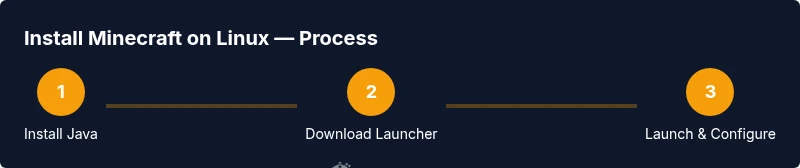
Install Java (OpenJDK 17+)
Open a terminal and install the Java Runtime. Verify by running java -version. This step lays the foundation for Minecraft Java Edition on Linux, ensuring the launcher and game run smoothly.
Tip: Use your distro’s recommended command to install OpenJDK, and confirm JAVA_HOME is set correctly. - 2
Download the official Minecraft Launcher
Visit the official Minecraft site and download the Linux launcher package (deb/rpm or universal tar). Once downloaded, place the file in your Downloads folder for easy access.
Tip: If you use a Debian-based distro, a deb package often provides seamless integration with your package manager. - 3
Make the launcher executable and run
Give the launcher execute permissions and start it. The launcher will download Minecraft files and set up the initial profile.
Tip: If you see permission errors, ensure the file is marked executable (chmod +x) and that you’re not running from a protected directory. - 4
Log in and install Java Edition
Sign in with your Microsoft/Xbox account, then select Java Edition. Allow the launcher to download the game files and components, choosing a sensible install path.
Tip: Use a dedicated Minecraft directory to keep saves separate from system files. - 5
Configure memory and graphics
Open launcher settings and adjust -Xmx and -Xms values to allocate appropriate memory, based on your system. Ensure graphics drivers are active and set render distance to balance visuals and performance.
Tip: Start with 2 GB RAM allocated and increase if you have headroom; avoid over-allocating beyond available RAM. - 6
Launch and optimize
Launch Minecraft and join a test world. If performance is off, try lowering render distance, disabling fancy graphics, and updating drivers. Check for updates to the launcher and Java.
Tip: Keep a backup of your worlds before trying new mods or resource packs. - 7
Troubleshoot common issues
If you encounter launch failures, inspect launcher logs, verify JVM arguments, and confirm that the correct Java version is in use. GPU driver issues are common culprits for crashes or artifacts.
Tip: Consult the official Minecraft support pages and community forums for distro-specific fixes.
People Also Ask
Can you play Minecraft on Linux?
Yes. Minecraft Java Edition runs on Linux with the official launcher. Bedrock Edition is not officially supported on Linux, so most players use Java Edition for Linux gameplay.
Yes. Minecraft's Java Edition runs on Linux with the official launcher, while Bedrock isn't officially supported on Linux.
Which edition should I install on Linux?
For Linux, Java Edition is the recommended and officially supported option. Bedrock lacks native Linux support, so Java Edition provides the best experience across Linux distributions.
Java Edition is the recommended option on Linux because Bedrock isn't officially supported there.
Do I need to use Wine to play Minecraft on Linux?
Typically, no. If you use Java Edition, the official launcher runs directly on Linux. Wine is usually only relevant if you’re attempting Windows-based Bedrock functionality, which is not officially supported.
Usually you don’t need Wine for Java Edition on Linux; it’s mainly for Windows-based setups which aren’t officially supported.
How can I improve performance on Linux?
Update graphics drivers, allocate appropriate RAM to the launcher, reduce render distance, and disable resource-heavy shaders if needed. Regular system updates and clean backups help maintain stability during play.
Update your drivers, optimize memory settings, and tweak render distance to gain better Linux performance.
What about mods on Linux?
Mods are supported on Linux through Forge or Fabric for Java Edition. Always check mod compatibility with your game version and back up saves before installing mods.
Mods are supported on Linux via Forge or Fabric; verify compatibility and back up saves first.
Is cross-platform play possible with Linux players?
Yes. Java Edition supports cross-platform play across Windows, macOS, and Linux, enabling multiplayer with friends on different systems as long as version and server compatibility are aligned.
Yes, you can play with friends on Windows or macOS using Java Edition, provided you're on the same game version.
Watch Video
The Essentials
- Install Java first to enable Minecraft Java Edition on Linux
- Use the official launcher for reliability and security
- Update graphics drivers for better performance
- Back up worlds before adding mods or resource packs
- Java Edition on Linux supports cross-platform play with Windows/macOS