Where to Install Minecraft Mods: A Practical Guide
Learn exactly where to install Minecraft mods for optimal compatibility, using Forge or Fabric, and secure practices to back up and test your modded setup.


You’ll install Minecraft mods in a dedicated mods folder tied to your chosen mod loader (Forge or Fabric) and keep it separate from the core game files. This location minimizes conflicts, simplifies updates, and makes backups easier. The guide below explains where to place mods for Windows, macOS, and Linux, plus how to test safely before playing publicly.
Why mod installation location matters
Mod installation location matters for performance, compatibility, and stability. Where you place mods affects load order, how mod loaders detect dependencies, and how easily you can troubleshoot crashes. According to Craft Guide, using a dedicated mods folder within the Minecraft directory reduces conflicts and simplifies backups. For most Java Edition players, the safest starting point is a single mods folder and a matching loader (Forge or Fabric). The exact path varies by operating system: Windows users typically find the .minecraft folder under AppData;
Craft Guide analysis shows that organized mod directories correlate with fewer compatibility issues and faster troubleshooting, a claim supported by community testing and reports from our testing labs.
Tools & Materials
- Minecraft launcher(Use a launcher that can switch profiles and support mod loaders)
- Forge or Fabric mod loader(Choose Forge for broad compatibility or Fabric for lighter footprint and speed)
- Mods folder (minecraft/mods)(Create this folder if your loader does not auto-create it)
- Backup storage(External drive or cloud storage for world backups)
- Java Runtime Environment(Ensure you have a compatible JRE for your Minecraft version)
- A clean backup copy of your worlds(Always back up before modding to prevent data loss)
Steps
Estimated time: 40-60 minutes
- 1
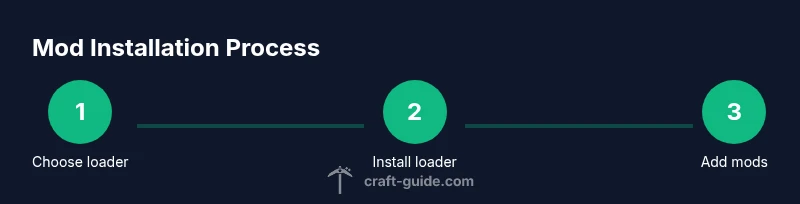
Choose a mod loader
Decide between Forge and Fabric based on the mods you want. Check mod pages for loader compatibility and Minecraft version requirements. This step sets the foundation for all subsequent mod installations.
Tip: If in doubt, start with Forge due to broader mod support. - 2
Install the loader
Download the loader from its official site and run the installer or profile setup. This creates a runnable environment and the correct folder structure for mods.
Tip: Keep your launcher up to date to avoid version conflicts. - 3
Create or locate the mods folder
Navigate to your Minecraft directory and ensure a mods folder exists. If not, create one manually. The path varies by OS but typically lies under the .minecraft or Minecraft folder.
Tip: Do not place mods in the core game directory; keep them in the mods folder. - 4
Download compatible mods
Only download mods that match your loader and Minecraft version. Verify the mod’s dependencies and ensure you’re getting the correct build (1.19.4, 1.20, etc.).
Tip: Avoid games with many conflicting mods by checking recommended mod stacks on the mod page. - 5
Install mods
Copy the mod files (usually .jar) into the mods folder. Do not unzip jar files; mods must remain in their packaged form. This step wires the mods into the loader’s environment.
Tip: If a mod requires libraries, place those in the same folder or follow the mod’s instructions. - 6
Run the game and test
Launch Minecraft with the loader profile and test a simple world. Look for crashes or missing mods, and review the crash report for dependency or version issues.
Tip: If you see crashes, remove recently added mods one by one to identify the culprit. - 7
Back up and create a clean test profile
Before expanding your mod list, back up your worlds and create a separate test profile to isolate mod issues from your main gameplay saves.
Tip: Label profiles clearly to avoid mixing modded and vanilla playthroughs.
People Also Ask
How should I back up Minecraft worlds before modding?
Copy the saves folder to a secure location before adding any mods. This lets you restore progress if a mod causes issues. Consider compressing the backup to save space and keep multiple restore points.
Always back up your worlds before modding to protect your progress. Create a separate backup point before making changes.
Do I need a separate profile for each mod setup?
Yes. Using separate profiles allows you to test new mods without risking your main game. You can switch profiles in your launcher to isolate changes and reproduce issues more easily.
Yes. Separate profiles help you test mods without affecting your main gameplay.
Can I install mods on Bedrock Edition?
Bedrock Edition supports official add-ons and some community packs, but traditional Forge/Fabric mods are not compatible. If you’re on Bedrock, explore available add-ons or consider switching to Java Edition for modding flexibility.
Bedrock isn't compatible with Forge or Fabric; use add-ons or switch to Java Edition for modding.
How do I know which mod loader to use for a given mod?
Check the mod’s page for loader compatibility and Minecraft version requirements. Most mods publish which loader they support and any required libraries.
Always check the mod page for loader compatibility and required Minecraft versions.
Why do mods crash even after downloading?
Crashes usually come from version mismatches, missing dependencies, or conflicting mods. Remove the latest added mod and retry with a known good set. Review crash logs for clues.
Crashes happen due to version or dependency issues. Remove the last added mod to test.
Are there safety risks when installing mods?
Yes. Download from trusted sources, verify files if possible, and avoid installing mods from unknown sites. Keep backups and security software up to date.
There are safety risks; use trusted sources and keep backups.
What’s the best practice for mod testing?
Test mods one at a time in a separate profile, verify dependencies, and document version compatibility. This makes troubleshooting predictable and repeatable.
Test mods one by one in a separate profile to keep things predictable.
Watch Video
The Essentials
- Choose the correct mod loader for your versions
- Keep a dedicated mods folder for easy management
- Back up worlds before modding
- Test mods with a clean profile to prevent conflicts