How to Install Minecraft Mods: A Practical Guide
Learn how to install Minecraft mods safely with Forge or Fabric. This step-by-step guide covers loaders, compatibility, backup strategies, and troubleshooting to keep your modded world stable and fun.


By the end of this guide you’ll be able to safely install Minecraft mods using Forge or Fabric, verify mod compatibility, and run a modded game without corrupt saves. You’ll need a compatible Minecraft version, the correct mod loader, and a few essential tools. This process emphasizes backups and careful loading order to keep your world stable.
Understanding Modding Basics
Minecraft mods are community-created modifications that alter or extend the base game. When you learn how to install minecraft mods, you typically use a mod loader like Forge or Fabric to manage and load jar files. Using a loader ensures compatibility and isolation from the vanilla game, reducing the risk of crashes. The Craft Guide team notes that modding is a powerful way to customize gameplay, but it also introduces potential stability issues if versions don’t line up. Mods can add items, creatures, biomes, new dimensions, or quality-of-life features that change survival or creative play. Before you start, decide whether Forge or Fabric best suits your modding goals: Forge hosts a larger catalog and broader compatibility; Fabric updates quickly and tends to be lighter on resources. Also confirm you’re playing on Minecraft Java Edition, because Bedrock edition does not support the same modding approach. Craft Guide Analysis, 2026, shows that most mod-related crashes come from version mismatches, missing dependencies, or conflicts between mods. With careful planning, you can create a stable modded world by sticking to a tested combination of Minecraft version, loader, and mods.
Choosing Forge vs Fabric
Choosing the right loader is foundational to your modding experience. Forge has the largest ecosystem, offering thousands of mods and extensive compatibility layers. If your goal is to run a broad library of mods and rely on widely tested combinations, Forge is usually the safer bet. Fabric, by contrast, emphasizes speed, lighter resource usage, and faster updates. It’s ideal if you want a lean modded setup or you enjoy experimenting with newer mods that arrive sooner after a Minecraft update. The Craft Guide team recommends evaluating the mods you want first: if most of your favorites require Forge, that may dictate your path; if you want a smaller, snappier setup, Fabric could be the better fit. Regardless of choice, ensure the loader version matches your Minecraft edition and the target game version. A mismatch is a common cause of startup crashes and world corruption.
Checking Mod Compatibility and Sources
Never download mods from untrusted sites. Always check mod pages for supported Minecraft versions, required libraries, and dependencies. Compatibility isn’t just about the Minecraft version; some mods require a specific loader build or other mods to run. Use reputable sources and cross-check mod pages with your loader’s official wiki to confirm compatibility. Craft Guide analysis shows that many issues arise from mismatched dependencies or outdated mod files. Keep a small, curated mod list for your testing world before migrating to your main save.
Setting Up Your Modding Environment
Before you start modding, prepare a clean environment. Install Java if you don’t already have it, and confirm your system meets the requirements of your chosen loader. Create a separate modding profile in your launcher to avoid affecting your vanilla playthrough. Download the Forge or Fabric installer corresponding to your Minecraft version and run it to set up the appropriate environment. After installation, verify that the loader is listed in your launcher profiles, then prepare a dedicated folder for mods and related libraries. Craft Guide’s step-by-step approach emphasizes isolating your modded setup to prevent cross-contamination with vanilla data and to simplify troubleshooting.
The Installation Process at a Glance
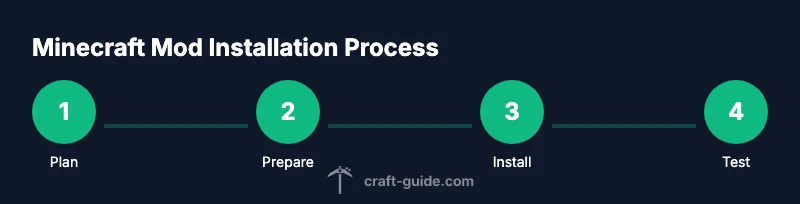
In this stage you’ll move from planning to execution. The basic workflow is: install the loader, place mods in the mods folder, launch with the loader, and verify that mods load correctly. Keep in mind that some mods require specific libraries, so you may need to install those as well. Always start with a small mod subset to test stability before expanding your collection. This section provides the foundation for the detailed steps that follow, ensuring you’re prepared for a smooth modding session.
Troubleshooting Common Modding Issues
Even with careful preparation, issues can occur. Common problems include the game not starting, mods not appearing in-game, or crashes during world load. Solutions often involve checking the Minecraft version, loader version, and mod compatibility, along with ensuring all required dependencies are present. Running Minecraft in a clean profile and using a test world helps identify the source of the problem. If you encounter a crash report, review the log for missing libraries or incompatible mods, then adjust your mod list accordingly.
Tools & Materials
- Minecraft Java Edition (correct version)(Confirm exact version compatibility with your chosen loader and mods)
- Java Runtime Environment(Ensure the version required by Forge or Fabric (often Java 8+ or newer, depending on the loader))
- Forge or Fabric installer(Download the correct loader build for your Minecraft version)
- Mods in .jar format(Only mods compatible with both your loader and Minecraft version)
- Backup storage (external drive or cloud)(Back up worlds and game profiles before modding)
- Mods folder(Typically under .minecraft/mods; create if missing)
- Optional: Mod manager or launcher profiles(Helps manage multiple mod setups and profiles)
Steps
Estimated time: 45-75 minutes
- 1
Check game version and Java
Open the Minecraft Launcher and confirm the exact game version you intend to mod. Verify that your Java Runtime matches the loader’s requirements. This ensures you don’t install mods that won’t run on your setup.
Tip: If in doubt, choose a widely supported version and back up first. - 2
Back up your worlds
Copy your worlds and your current Minecraft folder to a safe location. This protects you from potential corruption if mods cause instability or crashes.
Tip: Keep a separate backup for modded vs vanilla saves to avoid cross-contamination. - 3
Install the mod loader (Forge or Fabric)
Download the correct installer for Forge or Fabric and run it. Choose the client installation and the target Minecraft version. The installer will add a loader to your launcher profile.
Tip: Use the official installer from the loader’s site to avoid corrupted files. - 4
Download compatible mods
Find mods that match your Minecraft version and loader. Read the mod pages for dependencies and conflicts. Download only from reputable sources.
Tip: Prefer mods with recent updates and clear documentation. - 5
Place mods in the mods folder
Move or save the mod jar files into the game’s mods folder. Do not place mods in the game root or a wrong subfolder. Ensure each mod file is intact and not partially downloaded.
Tip: Only add a few mods at first to test stability. - 6
Launch with the loader profile
Open the Minecraft Launcher and select the Forge or Fabric profile. Start the game and wait for it to reach the main menu. If you see a mod loading screen, you’re on the right track.
Tip: If the game crashes at startup, revert to backup and recheck version compatibility. - 7
Test in a new world
Create a new world to verify that mods load without impacting existing saves. Check for missing blocks, items, or NPCs and ensure gameplay remains stable.
Tip: Avoid loading a modded world until you’re confident in mod compatibility. - 8
Manage updates and conflicts
Keep mod versions aligned with game version. Remove conflicting mods or update them to compatible builds. Maintain a changelog to track changes across updates.
Tip: If you see crashes after a mod update, roll back to a previous version that worked.
People Also Ask
Do I need Forge or Fabric to run mods?
Most mods require a loader such as Forge or Fabric to run. Choose based on mod compatibility and ecosystem. Forge generally offers broader compatibility with a larger mod catalog.
Most mods require a loader like Forge or Fabric. Forge is the safer bet for a wider mod library.
Can mods crash my world?
Yes, if mods are incompatible with the game version or with each other. Always back up, test in a new world, and verify dependencies before heavy use.
Mods can crash if incompatible; back up and test in a separate world first.
How do I update mods safely?
Update mods one at a time and test after each change. Check for version requirements and read changelogs for potential conflicts.
Update mods one by one and test; read the changelogs for conflicts.
Why aren’t my mods loading after installation?
Verify that the loader and mods are compatible with your Minecraft version, and confirm all required libraries are installed. Check the crash log for missing dependencies.
Mods not loading usually mean version or dependency issues; check logs.
Is modding available on Bedrock edition?
Modding approaches differ across editions. This guide focuses on Minecraft Java Edition, where Forge and Fabric are standard tools.
Bedrock uses different modding methods; this guide is for Java Edition.
Where can I safely download mods?
Use well-known repositories and the mod pages themselves. Avoid suspicious sites and always check user reviews and version compatibility.
Download mods from trusted pages and verify compatibility.
The Essentials
- Plan version compatibility before downloading mods
- Back up worlds and profiles to prevent data loss
- Use trusted sources and verify dependencies
- Test with a small mod set before expanding
- Keep a changelog for mod updates