How to Download Minecraft and Mods: A Complete Step-by-Step Guide
Learn how to download Minecraft and mods safely, choose the right edition, install Forge or Fabric, and add mods with confidence. Includes tips, safety warnings, and troubleshooting for a smooth modded experience.


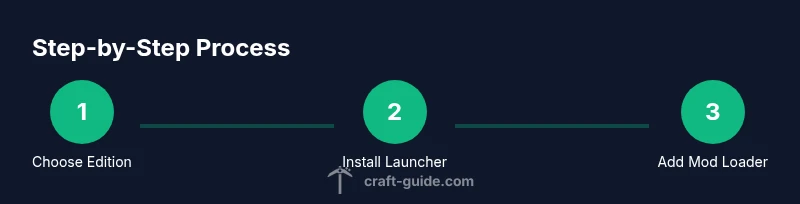
You will download Minecraft from the official site and then install a mod loader to add mods. This guide covers Java Edition, which supports most mods, and explains how to choose Forge or Fabric, find trusted mods, and safely install them. Expect 2-3 prerequisites and a 30-60 minute setup for beginners.
Understanding editions, prerequisites, and safety
Before you download anything, decide which Minecraft edition you plan to use. Mods for Minecraft are primarily built for the Java Edition; Bedrock Edition supports limited, official add-ons and third-party tools but is not designed for the same mod ecosystem. If your goal is to customize gameplay with a wide library of mods, Java Edition is the right choice. You’ll also want to verify that your computer meets the minimum requirements and that you have a modern web browser and a stable internet connection. For safety, only download from official sources and reputable mod sites; avoid pirated builds or modified installers that could contain malware. The Craft Guide team notes that sticking to widely used mod loaders like Forge or Fabric reduces risk and helps you manage compatibility across Minecraft updates. Always back up your existing saves before adding mods to avoid losing progress.
How Minecraft editions affect modding and safety
The vast majority of mods are designed for Java Edition due to its Open APIs and mod loader support. Bedrock offers official add-ons and a marketplace model, but these aren’t compatible with Forge or Fabric. If you plan to explore heavy modding, confirm you’re using Java Edition and that your machine meets Java requirements. Craft Guide analysis shows that starting with Java Edition and a trusted loader minimizes compatibility issues and simplifies updates. Consider creating a dedicated modded profile to isolate changes from vanilla saves.
Where to download Minecraft safely and what to expect
Always use the official site (minecraft.net) to download the launcher. The launcher handles updates, version management, and profile switching. Expect to sign in with a Microsoft account if prompted, and choose the Java Edition when shown options. If you already own the license, you’ll see an option to download the launcher; if not, you can purchase Java Edition through the site. The official launcher provides a safer environment for modding and reduces the risk of bundled malware, a point emphasized by Craft Guide.
Understanding mod loaders and their role in playing with mods
Mod loaders like Forge and Fabric are essential to run most Minecraft mods. They act as a bridge between the game and the mods, ensuring compatibility and simplifying updates. Forge has the largest mod library and broad compatibility, while Fabric is leaner and often quicker to update after Minecraft releases. Reading mod pages for loader and version requirements is crucial to avoid crashes. Craft Guide notes that choosing the right loader early saves time during setup.
Tools & Materials
- Minecraft account (Java Edition)(Active account and license; needed to access the official launcher.)
- Official Minecraft launcher(Download from minecraft.net and use it to manage installations.)
- Java Runtime Environment (64-bit)(Java 8 or newer; 64-bit recommended for modded setups.)
- Forge or Fabric mod loader(Install the client version that matches your Minecraft edition and mod version.)
- Mods from trusted sources (e.g., CurseForge, Thunderstore)(Only download mods compatible with your Minecraft and loader version.)
- Backup storage (external drive or cloud)(Keep copies of saves and mod files before making changes.)
- File extraction tool (e.g., 7zip)(Useful for handling mod archives when needed.)
Steps
Estimated time: 60-90 minutes
- 1
Verify edition and account status
Confirm you’re targeting Minecraft Java Edition for mod support. Bedrock users should rely on official add-ons or marketplaces, which behave differently from mods. Ensure your Microsoft account is active and linked, so you can sign in to the official launcher. This step sets a solid foundation for successful modding.
Tip: Double-check mod requirements on the loader and mod pages to avoid version mismatches. - 2
Download and install the official Minecraft launcher
Visit minecraft.net, sign in, and download the official launcher. Run the installer and follow prompts to install. The launcher will manage game files, updates, and profiles. After installation, sign in again to access your Java Edition profile.
Tip: Always download from the official site to minimize malware risk. - 3
Launch Minecraft and verify Java Edition
Open the launcher and select Java Edition. Let it download base game data and confirm vanilla gameplay runs perfectly. This base check helps isolate mod-related issues later. Exit after a successful vanilla run to prepare for the loader installation.
Tip: If vanilla runs fail, fix that before attempting modding; mod issues won’t load if the base game isn’t stable. - 4
Choose a mod loader: Forge or Fabric
Visit the official pages for Forge or Fabric and review compatibility notes for your intended mods. If you’re new to modding, Forge is the most widely supported option. Fabric can be faster for new Minecraft versions but has a smaller mod library.
Tip: When in doubt, start with Forge because of the larger ecosystem. - 5
Install the mod loader
Run the loader installer and select Install client for Minecraft Java Edition. The installer creates a new profile in the launcher for modding. Open the launcher, choose the new profile, and let it download loader files.
Tip: Verify the loader version matches the Minecraft version you’ll mod. - 6
Find mods compatible with your version
Browse trusted sources and filter by Minecraft version and loader (Forge or Fabric). Download the mod jar file and any required dependencies. Read the mod page carefully for compatibility and dependencies.
Tip: Avoid mixing mods that require different loaders in the same profile. - 7
Install mods into the mods folder
Navigate to your .minecraft/mods directory (the path varies by OS) and drop the mod jar there. If the folder doesn’t exist, run Minecraft once with the mod loader to generate it. Some mods need additional API files; add them if noted on the mod page.
Tip: Keep a clean mods folder by testing one or two mods at a time before adding more. - 8
Run, test, and adjust
Launch the modded profile and test the game. If it crashes, review the crash report for version or dependency issues. Remove conflicting mods or update to compatible versions, then re-test. Maintain a habit of incremental changes to isolate problems.
Tip: Create a separate backup before each new mod you add.
People Also Ask
Can I download mods for Bedrock Edition?
Mods are primarily built for Java Edition. Bedrock uses add-ons from the Marketplace, which behave differently and have a separate modding pathway. If modding is your goal, Java Edition is recommended.
Mods work best with Java Edition; Bedrock uses official add-ons from the Marketplace instead.
Do I need a separate launcher for mods?
You’ll use the official Minecraft launcher to install and manage the base game, then add a mod loader like Forge or Fabric to run mods. The mod loader integrates with the launcher to switch between vanilla and modded profiles.
Yes, rely on the official launcher and a mod loader to manage modded profiles.
How do I know which mod version to download?
Always match the mod version to your Minecraft version and the loader you’re using. Check the mod page for compatibility details and dependencies before downloading.
Make sure the mod version matches both your Minecraft version and the loader.
What if mods crash the game?
If crashes occur, disable the most recently added mod or update to a compatible version. Check the crash report for details and ensure dependencies are installed.
If crashes happen, remove the latest mod, then re-test with a compatible version.
Are mods safe to download from CurseForge or Thunderstore?
Yes, CurseForge and Thunderstore are reputable sources when used carefully. Always read reviews, confirm compatibility, and scan downloads with antivirus software.
CurseForge and Thunderstore are generally safe, but verify compatibility and scan files before use.
Watch Video
The Essentials
- Choose Java Edition for broad mod support.
- Use Forge or Fabric to run mods safely.
- Only download mods from trusted sources and verify compatibility.
- Back up saves and test mods incrementally to prevent crashes.