How to Install Minecraft Forge: A Step-by-Step Guide
Learn how to install Minecraft Forge safely and quickly. This step-by-step guide covers version matching, official downloads, installer usage, and loading mods with practical troubleshooting tips for a smooth modded experience.


Learning how to install Minecraft Forge safely and correctly. This guide walks you through verifying your Minecraft version, downloading the official Forge installer, running the installer to set up a client, locating the mods folder, and testing a simple mod. By the end, you’ll be ready to add mods confidently.
What Forge is and why it's essential for modding
Forge is a modding API and loader that makes it easier to add mods to Minecraft. It provides a unified framework for mods to communicate with the game and with each other. According to Craft Guide, Forge reduces compatibility issues and streamlines mod management for players of all skill levels. The Craft Guide team found that a well-chosen Forge setup can minimize crashes and maximize compatibility, making it easier to manage mods over time. In this guide, we’ll cover how Forge works, how to pick the right version, and how to install it safely.
Understanding Minecraft versions and Forge compatibility
Forge builds are specific to a Minecraft version. For example, a Forge for 1.18.x will not work on 1.19.x. The safest approach is to decide which Minecraft version you want to mod, then pick the Forge version that explicitly supports that exact game version. Craft Guide recommends always aligning the Forge build with the base Minecraft version you intend to play to prevent crashes or missing features.
How Forge differs from other mod loaders
There are several mod loaders in the Minecraft ecosystem, each with its own mod format and loading mechanism. Forge is widely adopted because it provides a robust modding API, a large catalog of compatible mods, and active community support. While Fabric offers a smaller API surface and faster load times, Forge's ecosystem tends to be more comprehensive for traditional modders. Understanding these differences helps you pick the right tool for your project, especially if you plan on using multiple mods that depend on Forge.
Safety and download sources you can trust
Always download Forge from official sources to avoid malware or tampered files. The primary source is the Forge project site, linked from the official Minecraft downloads page. In addition to Forge itself, check mod creators’ pages and communities only for verified files. Be cautious of mirrors or third-party download sites, and consider enabling a malware scan on every downloaded file. This careful approach minimizes risk and keeps your computer and your world safe.
Step-by-step overview of the installation flow
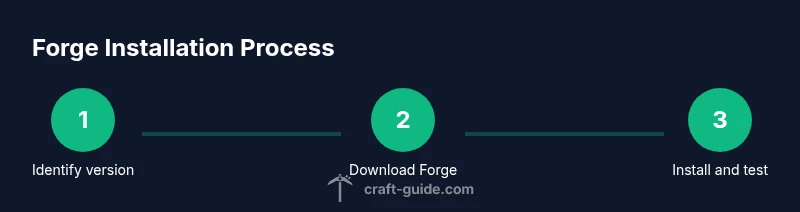
The typical installation flow is straightforward: determine your Minecraft version, download the matching Forge installer, run the installer and choose Install client, launch Minecraft with the Forge profile, and then place mods into the mods folder. This overview sets expectations and makes the deeper steps that follow easier to follow. If you’re a new player, you’ll appreciate how each action translates into a mod-ready environment.
Installing the Forge installer and client properly
Download the official Forge installer JAR for your target Minecraft version, then run it. Ensure you select Install client and that the installation path points to your Minecraft directory. If a security warning appears, allow the file to run from your browser’s download bar. Once finished, you should see Forge in your launcher’s profile list as a modded option. This step creates the necessary Forge libraries and a functional modding environment.
Setting up the mods folder and loading mods
Locate your Minecraft directory (usually .minecraft) and look for a folder named mods. If it doesn’t exist, create it. Only place mods that are compatible with your Forge and Minecraft version; mixing incompatible mods can crash the game. After adding mods, start Minecraft with the Forge profile to verify that mods load and the game runs smoothly.
Troubleshooting common issues and known fixes
If Minecraft won’t launch after installing Forge, review crash logs to identify the offending mod or version mismatch. Common fixes include updating Forge, ensuring Java is installed, and removing recently added mods to isolate the problem. When in doubt, run Minecraft vanilla with Forge disabled to confirm Forge itself is functioning. This process helps you diagnose issues quickly and restore a stable modded setup.
AUTHORITY SOURCES
• Forge official site: https://files.minecraftforge.net/ • Minecraft official downloads: https://www.minecraft.net/en-us/downloads • Britannica Minecraft article: https://www.britannica.com/topic/Minecraft
Tools & Materials
- Computer or device with internet access(Critical for downloading Forge and mods.)
- Java Runtime Environment (JRE) 8+ / Java 17+ (depending on Forge)(Ensure the correct Java version for your Forge build.)
- Official Forge installer JAR(From the Forge project site.)
- Minecraft launcher installed(Must be up-to-date.)
- Mods (optional)(Only after Forge is installed.)
- Backup of Minecraft profile/world(Prevents data loss from crashes.)
- Anti-malware scanner(Optional but recommended for safety.)
Steps
Estimated time: 30-60 minutes
- 1
Identify target Minecraft version
Decide which Minecraft version you want to mod and note it. Forge must match this version exactly to work properly, preventing crashes caused by version drift.
Tip: Always start by confirming the base game version in the launcher. - 2
Download the official Forge installer
Visit the Forge project site and select the version that matches your Minecraft version. Download the installer JAR to your computer.
Tip: Verify the URL begins with https and the file ends with installer.jar. - 3
Run the Forge installer and choose Install client
Double-click the Forge JAR and choose Install client. Leave the installation path as default unless you know a custom Minecraft folder is in use.
Tip: If Windows blocks the file, use a browser's 'Keep' option or run as administrator. - 4
Launch Minecraft with the Forge profile
Open the Minecraft launcher, select the Forge profile, and click Play. If Forge doesn’t appear, run the launcher once to generate necessary files and profiles.
Tip: If Forge still isn’t listed, restart the launcher or reinstall Forge. - 5
Create or locate the mods folder
Navigate to your Minecraft directory (.minecraft) and locate a folder named mods. Create it if it doesn’t exist.
Tip: Mods must be compatible with your Forge version; mixing mods can cause crashes. - 6
Add compatible mods to the mods folder
Download mods from trusted sources and place only those that match your Forge and Minecraft versions into the mods folder.
Tip: Always check mod dependencies and required Forge versions. - 7
Test run the modded environment
Launch Minecraft with the Forge profile and verify the mods load correctly. If a mod is missing or causes a crash, remove it and test again.
Tip: Check the Mods list on the main menu to confirm loaded mods. - 8
Troubleshoot issues and refine setup
If problems persist, review crash logs, check Java compatibility, and ensure you’re using the correct Forge build for your Minecraft version.
Tip: Isolate issues by disabling all mods and reintroducing them one by one. - 9
Backup and maintain your mod setup
Create backups of your saves, mods, and configuration so you can restore quickly if something goes wrong.
Tip: Keep separate profiles for vanilla and modded gameplay to avoid cross-contamination.
People Also Ask
What is Minecraft Forge?
Minecraft Forge is a modding API and loader that enables mods to interact with Minecraft in a standardized way. It provides a shared framework for mod development and compatibility.
Forge is the tool that allows mods to work with Minecraft in a standard way.
Do I need Java to install Forge?
Yes. Forge requires Java, and you should install a compatible Java version for your Forge build. Most setups work with the Java version bundled with your Minecraft launcher.
Yes, you need Java for Forge to run correctly.
Can Forge work with all Minecraft versions?
Forge builds are version-specific. You must download the Forge version that exactly matches your Minecraft version to ensure compatibility and stability.
Forge versions must match Minecraft versions exactly.
Why won't Forge install or launch?
Common causes include version mismatch, corrupted installer, or insufficient Java. Re-download Forge, verify version alignment, and run the installer again.
Check version matching and file integrity if Forge won't install.
Is it safe to download Forge from the official site?
Yes. Download Forge only from the official Forge site or trusted Minecraft sources to avoid tampered files or malware.
Forge is safe when downloaded from official sources.
What if mods are unstable after installing Forge?
Unstable mods are usually due to version mismatches or dependencies. Remove the problematic mod, update Forge, and reintroduce mods one by one to identify the culprit.
Identify the unstable mod and adjust accordingly.
Watch Video
The Essentials
- Verify Forge version matches Minecraft version
- Always download from official sources
- Back up saves before modding
- Test modded setup with a controlled run