How to Get Minecraft Mods: A Practical Guide for 2026
Discover a safe, structured method to get Minecraft mods. Learn to choose Forge or Fabric, verify compatibility, install loaders and mods, and maintain a stable modded world in 2026.


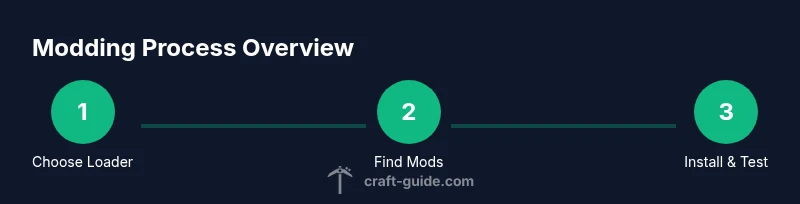
By the end of this guide, you’ll know how to get Minecraft mods safely and effectively. We cover selecting a mod loader (Forge or Fabric), locating reputable sources, matching your Minecraft version with mods, installing the loader and mods, and verifying mod functionality with backups and basic troubleshooting. You’ll also learn management tips to keep your modded game stable and up-to-date.
Why Modding Enhances Minecraft
Modding breathes new life into Minecraft by adding new biomes, creatures, tools, and gameplay mechanics. For many players, mods unlock performance enhancements, decorative aesthetics, and automation that the base game can’t provide. Crafting a modded world also builds a community around shared creations, tutorials, and compatible mod packs. However, the benefits come with responsibilities: compatibility, version alignment, and safe download practices. This section explains the core motivations for getting Minecraft mods and what you gain when you mod thoughtfully. For learners, mods offer practical examples of how software ecosystems evolve, from dependency management to configuration. Craft Guide’s approach emphasizes safety, clarity, and repeatable steps so players at all levels can enjoy modding without needless risk. See Craft Guide Analysis, 2026 for context on best practices.
Key takeaways: Modding expands Minecraft’s scope; plan version compatibility and sources; back up before changes.
Forge vs Fabric: Choosing Your Mod Loader
Choosing between Forge and Fabric is foundational to your modding journey. Forge is the older, more widely supported loader with a large ecosystem of mods and libraries. Fabric is lighter, faster to load, and excels with performance-oriented mods and rapid updates. Your decision should hinge on (a) the versions of Minecraft you intend to play, (b) the specific mods you want, and (c) whether you value stability (Forge) or speed and modularity (Fabric). Some mods are exclusive to one loader, and not all mods require a loader at all (data packs, for example). Always verify compatibility on the mod’s page and in the loader’s official docs. Craft Guide’s guidance supports both paths, helping you align mods, loaders, and Minecraft versions for a smooth start.
Pro tip: If you’re new, pick one loader and stick with it to reduce conflicts. A clean setup makes troubleshooting far easier.
Finding Safe Mods: Reputable Sources and Checking Versions
Reliable mod sources dramatically reduce the risk of malware or broken setups. The most trusted repositories for Java Edition mods are well-known sites and their verification processes: (a) CurseForge and (b) Modrinth, which allow user comments, version history, and direct verification of mod dependencies. Always confirm the Minecraft version and loader compatibility listed on the mod page. Check for required libraries or dependencies, known conflicts with other mods, and whether the mod has been updated within the last 12–24 months. Avoid “hand‑off” download links or unknown sites. Craft Guide Analysis, 2026 indicates that cautious source verification correlates with fewer crashes and smoother mod loading.
Note: Reading user reviews and change logs helps anticipate issues before you install.
Understanding Mod Compatibility and Profiles
Mod compatibility hinges on the Minecraft version, loader version, and the mod’s own requirements. Some mods require libraries or other mods to function; in Forge, these are often packaged as dependencies, while Fabric uses a module system with optional adapters. A practical approach is to create distinct profiles in the Minecraft launcher: one clean, vanilla profile; one Forge/Fabric profile; and one for the specific mod set you’re testing. This separation avoids cross-profile conflicts and makes rollbacks easier. Always note the recommended Java version for your chosen mods, as newer Minecraft updates sometimes demand newer JVMs. Craft Guide recommends using a small, test world to verify stability before dedicating a real world to modded gameplay.
Installing Forge or Fabric and Setting Up
Begin by downloading the installer for your chosen loader from the official source. Run the installer to create a new game profile within the Minecraft Launcher. The loader will set up a mods directory and the necessary libraries. After installation, launch Minecraft with the new profile to confirm the loader is active. If you see a Forge/Fabric message or a loader version in the main menu, you’re ready to move to the next step. Always back up your worlds before altering your mod setup to prevent loss from incompatibilities.
Pro tip: Keep a log of your loader and mod versions so you can reproduce a working configuration later.
Installing Your First Mod: Step-by-Step
With the loader installed, locate the mods you want and download the corresponding version for your Minecraft state. Place the mod file (usually a .jar) into the mods directory created by the loader. Start Minecraft with the loader profile and check the mod list from the main menu to verify it’s loaded. If the game crashes on startup, remove recently added mods and confirm version compatibility. This process can be iterative; start with a single mod to validate stability before expanding your collection.
Note: Always download mods from official pages and verify digital signatures where provided.
Managing Mods: Organization and Backups
Organization reduces confusion and avoids accidental conflicts. Use a clean folder structure: a dedicated mods folder with a separate backups folder, a version log, and a readme file for each mod describing its purpose and dependencies. Maintain at least two backups: one local snapshot and one external/cloud copy. When updating mods, replace older versions one at a time and test thoroughly before adding new ones. This disciplined approach minimizes crashes and ensures you can restore a working state quickly if something goes wrong.
Pro tip: Use mod managers or launcher profiles to keep baselines stable and make rollbacks faster.
Troubleshooting Common Mod Issues
Modding can introduce incompatibilities that manifest as crashes, world corruption, or missing items. Common fixes include verifying version compatibility, updating all related libraries, and ensuring there are no duplicate mod files. Read crash logs carefully to identify the offending mod. If a crash occurs, start with removing the most recently added mod or disabling one at a time to isolate the issue. Keep your world backups ready and test mods in a fresh world to distinguish mod-specific problems from launcher or Java issues. Craft Guide’s troubleshooting flow helps you quickly identify root causes and recover your playtime.
Keeping Mods Up-to-Date and Avoiding Breakage
Staying current with mods reduces security risks and improves performance, but updates can break worlds. Before updating, back up your world and mod list. Update in small batches, testing after each change. If a mod is no longer maintained, consider alternatives or temporarily disable it while you wait for compatibility updates. Use the launcher’s profile system to test a snapshot of your modded setup. This cautious approach preserves your progress and reduces the chance of a game-breaking update.
Warning: Always ensure a recovery plan if an update introduces major changes.
Ethical and Legal Considerations
Respect mod authors’ licenses and terms of use. Do not redistribute paid or restricted mods without permission. Respect the modding community by reporting bugs, avoiding malware, and crediting creators in your builds or showcases. The Minecraft modding ecosystem thrives on open collaboration, so practice safe downloading, data privacy, and fair use. Craft Guide’s ethos emphasizes integrity, safety, and community stewardship in all modding activities.
Next Steps: Building a Modded World
Now that you know how to get Minecraft mods, start planning a themed modded world. Choose a core set of mods that complement each other—graphics, performance, and gameplay enhancements—then expand gradually. Consider shader packs for visuals, optimization mods to improve frame rates, and gameplay mods to add new challenges. Document your build decisions and maintain a changelog for your friends or viewers if you share your world. With a solid foundation, you can create rich, stable modded experiences that showcase your creativity.
Tools & Materials
- Computer with internet access(For downloading mod files and launcher updates)
- Minecraft Java Edition(Mods are primarily for Java Edition; Bedrock uses different modding approaches)
- Official Minecraft Launcher(Allows installation of mod loaders and launching modded profiles)
- Forge or Fabric installer(One loader per setup; ensure version matches Minecraft)
- Mods downloaded from reputable sources (.jar files)(Verify version compatibility and avoid unknown sources)
- Backup storage (external drive or cloud)(Back up worlds and mod lists before changes)
- Java Runtime Environment (JRE/JDK)(Use the Java version required by your mods)
- Mod folder access(Ensure write access to the .minecraft/mods directory)
- Optional: Mod management tool(Can simplify updates and organization)
Steps
Estimated time: 1-2 hours
- 1
Decide between Forge or Fabric
Decide which loader best fits your mod goals by checking the mod list you want. Forge offers broader compatibility for many mods, while Fabric emphasizes lightweight performance and rapid updates. This choice dictates where you install mods and which versions you can use.
Tip: Check the exact mod versions and their compatibility notes before proceeding. - 2
Install the chosen mod loader
Download the loader installer from the official site and run it to create a new launcher profile. This profile will manage the necessary libraries and the mods folder.
Tip: Keep a separate, clean profile for testing new mods before adding them to your main world. - 3
Launch with the loader to verify setup
Open Minecraft with the loader profile to confirm the loader appears in the main menu and that the mods folder is created. If not, re-run the installer and verify Java is installed.
Tip: A successful loader launch is your first green signal. - 4
Find mods from reputable sources
Visit CurseForge or Modrinth and filter by your Minecraft version and loader. Read comments, check for dependencies, and confirm the mod’s last update. Download only from trusted pages.
Tip: Avoid random file-hosting sites that bundle multiple mods. - 5
Copy mod files to the mods folder
Place downloaded mod jars into the .minecraft/mods folder. If prompted, remove any duplicates and ensure file names are clear.
Tip: Keep your mods well-organized with a simple naming convention. - 6
Launch and test with a small world
Start Minecraft, select the modded profile, and load a fresh world first to test. Check for missing blocks, crashes, or odd textures.
Tip: If crashes occur, remove the latest added mod and re-test. - 7
Debug and verify dependencies
If a mod requires another library, ensure that dependency is present. Read the mod’s documentation about required libraries.
Tip: An incompatible library is a common source of crashes. - 8
Create a backup before expanding
Before adding more mods, backup your world and the entire mod setup. This gives you a safe rollback point if something goes wrong.
Tip: Automate backups on a schedule if you mod frequently. - 9
Iterate with a minimal set when testing
When introducing many mods, test in small batches. Confirm stability with each batch before adding more.
Tip: A staged approach helps isolate problematic mods. - 10
Manage updates gracefully
Periodically update mods, loaders, and the game itself. Do it in small steps and test after each update to catch conflicts early.
Tip: Always revert to a prior backup if an update destabilizes the world. - 11
Document your modding process
Maintain notes on loader version, mod versions, and backup points. This makes future modding sessions faster and safer.
Tip: A simple changelog saves time during troubleshooting. - 12
Learn from community resources
Engage with community forums, mod authors, and Craft Guide guides. Shared experiences reduce frustration and expand your modding toolkit.
Tip: Ask questions and share your own findings to help others.
People Also Ask
What is a mod loader and why do I need one?
A mod loader is a framework that allows Minecraft to load extra content (mods) safely. Forge and Fabric are the two most common loaders. They provide APIs, handle dependencies, and ensure mods don’t clash with the base game. Without a loader, most mods will not run or may crash the game.
A mod loader lets Minecraft run mods by providing interfaces and handling dependencies. Forge and Fabric are the main options, and you’ll typically choose one to start modding.
Which mod loader should I choose for my mods?
Choose Forge if your mod list includes a large number of older or complex mods. Pick Fabric for newer setups focusing on performance and quick updates. Always confirm compatibility with the mods you intend to use.
Forge is great for many mods; Fabric shines with newer, lightweight mods. Check your mod list for compatibility first.
Where can I safely download Minecraft mods?
Use trusted sources like CurseForge and Modrinth. Verify the Minecraft version, loader compatibility, and read user reviews or changelogs. Avoid unfamiliar sites that offer mods bundled with other software.
Stick to CurseForge or Modrinth, check versions, and read reviews before downloading.
What should I do if Minecraft crashes after installing a mod?
First, disable or remove the most recently added mod and relaunch. Check crash logs to identify the offending mod or dependency. Restore from a backup if the issue persists and re-test with a smaller mod set.
If it crashes, remove the latest mod and test again. Use backups if needed.
Can I use mods with any Minecraft world?
Mods are global to the game and can affect saved worlds. Always back up worlds before modding, test in a fresh world, and be prepared to remove mods if a world becomes unstable.
Mods can affect saved worlds; back up and test in a new world first.
How often should I update mods?
Update mods in small batches and test after each change. If a mod is no longer maintained, consider alternatives and keep a stable baseline for future updates.
Update in small batches, and test each change before proceeding.
The Essentials
- Plan mod loader choice based on your preferred mods.
- Always verify compatibility before downloading.
- Back up before making changes to your world.
- Test mods in small batches to isolate issues.
- Maintain good organization for easy rollbacks.