Minecraft with Mods: A Practical Starter Guide
Learn how to set up minecraft with mods, pick a loader, install safe mods, and optimize performance with clear, beginner-friendly steps and best practices from Craft Guide.


By the end of this guide you will be able to run minecraft with mods: choosing Forge or Fabric, installing a starter mod set, and running a stable modded profile. Start by selecting a mod loader, then download compatible mods from trusted sources, and configure a clean profile for testing. According to Craft Guide, thoughtful modding unlocks new gameplay possibilities while keeping your world safe and debuggable.
Why modded Minecraft expands creativity and learning
Minecraft with mods isn’t just about more blocks or dragons—it’s a structured way to extend systems, automate tasks, and experiment with new world generation. By adding mods, players can design intricate redstone machines, craft new biomes, or inject tech trees that rival small software projects. For learners, modded play becomes a sandbox for problem solving: you test hypotheses about performance, balance, and compatibility, then iterate. According to Craft Guide, many players report that a well-chosen modset helps bridge intuition from vanilla gameplay to software-like design. A modded world can reveal how code, data packs, and resource management come together in a tangible way, making concepts like memory usage, file organization, and dependency tracking more than abstract ideas. This article focuses on practical, beginner-friendly steps to enter the modding scene and keeps the learning curve approachable while maintaining Minecraft’s core charm.
Mod loader choices: Forge vs Fabric
Choosing between Forge and Fabric is one of the first strategic decisions in minecraft with mods. Forge has a long history, extensive mod compatibility, and a large ecosystem of tools and libraries. Fabric is lighter-weight, faster to update, and often favored for performance-sensitive builds. Your choice largely depends on which mods you plan to use and how you value stability versus speed of updates. The Craft Guide team suggests starting with Forge if you want a broad mod catalog and proven install paths; if you prefer faster load times and modular updates, consider Fabric and its API.
Setting up your modding workspace
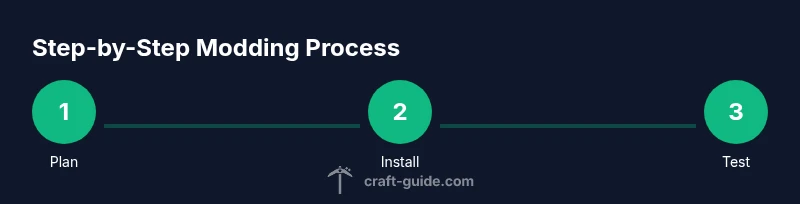
A robust workspace starts with planning and preparation. Create a dedicated folder for your modded profile to keep vanilla and modded worlds separate. Install a compatible Java Runtime Environment and allocate memory to your Minecraft launcher that suits modded play without starving the game of resources. Backups are essential before you begin, because modding introduces new dependencies that can complicate world data. Keep a changelog for added or removed mods, and document mod versions and their dependencies. This setup makes troubleshooting easier and helps you revert to a clean state if something goes wrong.
Installing Forge or Fabric and a baseline mod pack
With a stable environment, the next step is to install your chosen mod loader and a baseline mod pack. For Forge, download the installer from the official site, run it to create a modded profile, then drop a small starter set of mods into the mods folder. For Fabric, install the Fabric Loader and Fabric API, then add a few core mods that improve compatibility and performance. Start with a baseline pack that includes essential quality-of-life features (performance tweaks, inventory enhancements, and mod management tools). Always confirm mod compatibility with your Minecraft version and loader, and remove any conflicting mods early to avoid crashes. This careful approach pays off in a smoother experience right from launch.
Finding and installing mods safely
Where you source mods matters as much as which mods you choose. Prefer well-known repositories such as CurseForge or Modrinth, and check user reviews, version histories, and mod dependencies before download. Maintain a minimal viable mod list when you begin: add one or two mods at a time, test stability, then expand. Keep an eye on mod authors and update logs; avoid deprecated or suspicious-looking files. After download, verify that the mod’s version matches your loader and Minecraft version, and place it in the correct mods folder. A clean install reduces the risk of corrupt saves or crashes, and simplifies later updates.
Performance tuning and compatibility tricks
Modded Minecraft can demand more RAM and CPU. Tweak launcher settings to allocate more memory, but avoid overcommitting, which can crash the game. Use memory-friendly mods and consider performance-focused options like optimizations and render distance adjustments. If you encounter lag, identify problematic mods by temporarily disabling them and testing the world, then reintroduce mods one by one. Keeping different mod profiles for different play styles—survival, tech, or exploration—helps maintain stability and reduces the chance of conflicts when you update Minecraft or mods.
Managing conflicts, updates, and backups
Conflict management is a routine task in minecraft with mods. When updating, incrementally upgrade your mods and run a quick test world to catch incompatibilities early. Regular backups of your saves and configs are essential—storing copies offsite or in cloud storage minimizes the risk of data loss. If a mod causes incompatibilities, consult the mod page for a known conflict or a compatibility patch, and search community forums for workarounds. Document every change in a simple changelog so you can reproduce a stable setup later.
Starter project ideas and progression plan
Begin with a small project that blends exploration and tech, such as a compact base that automates resource gathering using a handful of mods. Progress to a mid-game automation challenge that introduces power generation, item pipelines, and storage systems. Over time, experiment with world generation mods to create custom biomes or dungeon layouts, then document your discoveries in a personal build log or wiki. These projects help you learn modular design, testing, and iteration—core skills for any modded playthrough.
Authority Sources
Access credible references for modding practices and safety:
- https://www.nature.com/articles/d41586-020-00514-2
- https://www.nytimes.com/2020/07/15/technology/minecraft-mods.html
- https://www.bbc.com/news/technology-46996297
Tools & Materials
- A computer capable of running Minecraft with mods(A mid-range system with sufficient RAM and a multi-core CPU is recommended.)
- Java Runtime Environment (JRE) or JDK(Ensure you have the correct version for your mod loader.)
- Mod loader (Forge or Fabric)(Choose one based on your planned mods and community support.)
- Mod management tool (optional)(Examples: MultiMC, CurseForge launcher to organize profiles.)
- Backup storage for world data(Back up worlds before adding or updating mods.)
Steps
Estimated time: 2-6 hours
- 1
Plan your modded goals
Define what you want to achieve with mods—automation, tech exploration, or aesthetic improvements. This clarity guides loader choice and mod selection, reducing wasted time on incompatible combos. Create a simple checklist of features you want and a rough timeline for trying them.
Tip: Sketch a one-page plan before downloading mods to stay focused. - 2
Choose a loader and version
Decide between Forge and Fabric based on your target mods and update frequency. Verify that your Minecraft version and the loader version align with the mods you plan to use. This upfront decision prevents later reconfiguration or missing features.
Tip: If new to modding, start with Forge for broader compatibility. - 3
Set up a clean profile
Create a dedicated Minecraft profile for modding—the separate profile keeps vanilla saves safe and makes troubleshooting easier. Prepare a baseline mods folder with a few core, well-supported mods.
Tip: Keep a changelog to track what you install or remove. - 4
Install the mod loader
Download the loader installer and run it to generate a modded profile. Follow the on-screen prompts to create the profile and ensure it appears in the launcher. Test launch with a minimal mod list to confirm stability.
Tip: Use the official installer to avoid corrupted files. - 5
Add your baseline mods
Place a small, stable set of mods into the mods folder. Start with essential utilities (storage, performance tweaks) before adding content mods. Launch and verify the game runs without crashes.
Tip: Add mods one by one to isolate issues quickly. - 6
Test and iterate
Launch the game and test core interactions. If crashes occur, check the logs, disable recently added mods, and re-launch. Gradually expand your mod list while keeping a separate backup after each successful test.
Tip: Document any crash patterns for faster troubleshooting. - 7
Manage compatibility
Check each mod’s dependencies and version requirements. Watch for conflicts between mods that modify the same systems and seek patches or alternative mods if issues arise.
Tip: Prefer modular mods with frequent updates and clear changelogs. - 8
Backup and commit to a plan
Once stable, back up your modded world and configs. Create a personal “modpack” profile you can reuse or share, ensuring you can reproduce the exact setup later.
Tip: Regular backups save countless hours of recovery.
People Also Ask
What does 'Minecraft with mods' mean and why should I try it?
Modded Minecraft adds user-created content that changes gameplay, adds tech systems, or expands world generation. It allows players to customize their experience beyond the base game while teaching basics of software management and problem solving.
Modded Minecraft lets you tailor the game with community-made content, giving you new tools and adventures while teaching you about managing software.
Do I need to back up worlds before modding?
Yes. Backing up prevents data loss if mods corrupt a save or introduce crashes. Create a separate backup of the world and its data so you can revert safely.
Always back up your world before adding or updating mods to avoid losing progress.
Is modding safe for my computer?
Modding, when done with trusted sources and stable versions, is generally safe. Avoid loading suspicious mods and keep backups to mitigate any issues.
Modding can be safe if you use trusted sources and keep backups.
Which loader should I start with, Forge or Fabric?
Forge tends to have a broader mod catalog and longer compatibility history, making it easier for beginners. Fabric is lighter and updates faster for performance-minded players.
Most beginners start with Forge for compatibility, but Fabric can be great if you want speed and a lean setup.
Can I play multiplayer with mods?
Yes, multiplayer with mods is possible but requires all players to use compatible mods and versions. Create a shared modpack to avoid version conflicts.
Yes, you can play with mods in multiplayer by agreeing on a shared mod list with everyone.
Where can I safely download mods?
Use well-known repositories like CurseForge or Modrinth, check mod versions, read user reviews, and verify compatibility with your Minecraft version and loader.
Get mods from trusted sites and check compatibility before downloading.
Watch Video
The Essentials
- Plan mod goals before installing any mods
- Choose a loader and version early to prevent compatibility issues
- Test mods incrementally and back up frequently
- Keep a clean, documented mod list for reproducibility
- Prioritize safety and backups over chasing every new mod