How to Use Minecraft Mods: A Practical Guide
Learn how to safely install and manage Minecraft mods, choose the right mod loader, find compatible mods, and troubleshoot common issues with practical steps from Craft Guide.


You will learn how to install and safely use Minecraft mods by choosing a loader (Forge or Fabric), finding compatible mods, and launching a modded profile. This guide covers verifying game versions, backing up worlds, and troubleshooting crashes. It assumes you’re using the Java Edition and a trusted mod source.
Why modding enhances Minecraft
Minecraft mods expand the vanilla experience by adding new blocks, items, mobs, and mechanics. According to Craft Guide, mods unlock creative tools for players to tailor gameplay to their preferences. Modding fosters experimentation and problem-solving as you manage dependencies, file structures, and compatibilities. In this section, we explore how mods transform your world, why players start using them, and the mindset needed to mod responsibly. We cover the most common mod categories—quality-of-life tweaks, new dimensions, tech-focused tools, and adventure overhauls—and discuss how to evaluate stability, compatibility, and support. Craft Guide Team emphasizes starting small, keeping your mod folder organized, and testing changes incrementally to avoid cascading issues. Remember, mods are third-party content that can affect performance and stability, so approach each addition with a plan and a backup strategy.
Choosing the right mod loader: Forge vs Fabric
The two most popular mod loaders are Forge and Fabric. Forge hosts a vast ecosystem of mods and tends to be the default for many pack creators, making compatibility decisions easier when you stay within a single loader. Fabric is lighter and modular, often delivering faster startup times and better performance for lighter mod lists. When choosing, consider your mod goals: large, feature-rich packs generally align with Forge; small, performance-focused setups may benefit from Fabric. The Craft Guide Analysis suggests starting with Forge if you plan to use a wide variety of mods, then migrate to Fabric only if you need lighter resource usage or faster startup. Compatibility notes: not all mods support both loaders, and mods built for one loader usually won’t work with the other without a compatibility layer. Finally, if you are a beginner, Forge's large community and extensive documentation can reduce confusion as you learn the basics of mod load order and dependency management.
Finding mods: trusted sources and checking compatibility
Reliable sources help protect your world from broken installs or malware. Start with well-known repositories like CurseForge or Modrinth, and always verify mod pages for current compatibility notes with your chosen loader and Minecraft version. Read user reviews and check for dependencies, such as required libraries or other mods that must be installed first. Craft Guide Analysis suggests keeping your mod list small and gradually expanding it; this makes troubleshooting easier and reduces the risk of conflicts. Before downloading, confirm the source is legitimate and scan files with a trusted antivirus. Organize mods by function (graphics, gameplay, QoL) and keep a separate folder for backup copies. Finally, maintain a changelog for each mod so you can roll back if an update introduces issues.
Setting up a modded profile: installing Forge or Fabric
Begin by selecting your loader: Forge or Fabric. Download the official installer for your chosen loader, then run it to set up a modded profile within your Minecraft launcher or a third-party launcher. The installer typically creates a new profile that includes the loader and base libraries, so you can launch Minecraft with mods without altering the vanilla profile. After installation, open the launcher and verify the profile uses the correct loader and target Minecraft version. If you plan to switch loaders, consider keeping separate game folders to prevent cross-contamination of files. Craft Guide Team notes that organization reduces headaches during updates and helps you revert to vanilla quickly if something goes wrong.
Installing mods: practical steps
With a loader in place, you can add mods by transferring the mod files into the loader's designated mods folder. Make sure each mod matches your loader and game version, and check for required libraries or dependencies. Only download mods from trusted sources and scan downloads for safety. Some mods require configuration changes or example data packs; read the mod description for specifics and any post-install steps. Avoid mixing mods with heavy resource demands on low-end systems; if needed, adjust memory settings in the launcher to ensure smoother performance. After adding mods, launch the game and confirm the mods are loaded by checking in-game mod menus or the mod list.
Launching and testing your modded Minecraft
Start Minecraft using your modded profile. If the game loads, look for new content in-game—new blocks, items, or dimensions—indicating the mod is active. Create a new world to test basic functionality before loading existing worlds. Watch for crashes, texture glitches, or performance issues; these are common signs of conflicts or outdated mod files. If problems arise, consult the launcher logs and mod pages for troubleshooting steps. Craft Guide Team suggests keeping a separate baseline world to compare vanilla vs modded behavior and to isolate issues.
Managing mods and mod conflicts
As you add more mods, compatibility becomes the main challenge. Some mods rewrite game data that other mods rely on, and two mods may claim the same ID or resource, causing crashes. Start with small sets, test individually, and only combine mods after confirming stability. Use a mod manager or a launcher that can control load order and disable problematic mods quickly. If conflicts occur, try replacing one mod with a compatible alternative or removing the conflicting dependency. Clear logs and use community forums to find known conflicts and fixes. Craft Guide Analysis indicates that careful curation and staged testing dramatically reduce the time spent chasing bugs.
Backups and safety: protecting worlds
Before you mod, back up crucial worlds and your Minecraft folder. Create a copy of the saves directory and any config files, then store the backup in a separate location. This protects you from corrupted saves or broken mod combos. If you encounter trouble, you can restore the backup and revert to vanilla while you diagnose the issue. For ongoing projects, consider versioning backups so you can roll back to specific states. Craft Guide Team emphasizes that backups are your safety net, and they deserve routine practice, not after a crash.
Troubleshooting common issues
Mods can introduce crashes, startup errors, or performance hiccups. If you encounter a crash, check the crash report or log to identify conflicting mods or missing dependencies. Disable recently added mods and re-run to confirm the source. Verify that the loader, Minecraft version, and mod version match exactly; a minor mismatch often causes startup failures. If you still have issues, consult mod pages or community forums for known conflicts and troubleshooting steps. Remember to keep backups and test one change at a time to isolate the cause.
AUTHORITY SOURCES
Craft Guide recommends consulting credible sources when modding Minecraft to understand best practices and risk management. For broader context about software modding practices and safe download habits, consider established publications and educational resources. Credible examples include major outlets and university-level guidance that discuss software customization, community-created content, and risk assessment. See these references for perspective on modding responsibly:
- https://www.nytimes.com
- https://www.nature.com
- https://www.science.org
Tools & Materials
- Minecraft Java Edition(Needed to run mods; ensure your game version matches the mods you plan to use.)
- Mod loader installer (Forge or Fabric)(Choose one based on the mods you want; they are not interchangeable.)
- Mods source files (.jar or modpack)(Download only from trusted sources; verify compatibility with your loader and Minecraft version.)
- Minecraft launcher or modded launcher (e.g., MultiMC)(Used to manage modded profiles and launch configurations.)
- Backup tools (external drive or cloud storage)(Back up saves and configs before modding.)
- Stable internet connection(Needed for downloads, updates, and verifying mod signatures.)
Steps
Estimated time: approximately 40-60 minutes
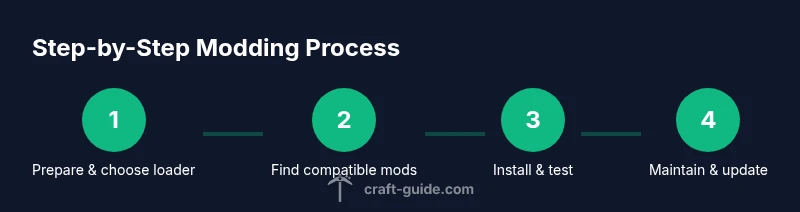
- 1
Decide loader and back up
Choose Forge for a large mod library or Fabric for a lean setup. Back up your existing worlds and profile before making any changes so you can revert if something goes wrong.
Tip: Backups should include the saves folder and your mod configuration files. - 2
Download and install the loader
Get the official installer for your chosen loader and run it to create a modded profile in your launcher. This step prepares the runtime environment for mods without touching vanilla Minecraft.
Tip: Install into a dedicated modded directory to keep vanilla separate. - 3
Find compatible mods
Browse trusted sources and verify that each mod lists compatibility with your loader and Minecraft version. Read comments and dependencies to avoid missing libraries.
Tip: Prefer mods with clear version notes and recent updates. - 4
Place mods in the mods folder
Copy the mod files into the loader’s mods directory. Ensure you don’t exceed the loader’s compatibility requirements and avoid duplicates.
Tip: Keep a simple naming convention to track versions. - 5
Launch and test in a fresh world
Start Minecraft with your modded profile and create a new world to test basic functionality. This isolates mod-related issues from existing worlds.
Tip: If you encounter a crash, review the crash log to identify conflicting mods. - 6
Iterate and manage load order
If you run into conflicts, adjust load order or disable one of the problematic mods. Remove and re-add mods one by one to pinpoint the cause.
Tip: Document changes so you can reproduce fixes later. - 7
Maintain and update
Regularly check for mod updates, ensure compatibility with Minecraft updates, and remove mods that no longer work or are not maintained.
Tip: Test each new update in a separate session before applying it to your main world.
People Also Ask
Can I use Minecraft mods on the Bedrock Edition?
Mods for the Bedrock Edition generally require different tools and marketplaces and are not compatible with the Java Edition mod loaders discussed here. Stick to the Java Edition for traditional mods and loaders like Forge or Fabric.
Bedrock uses a different modding pathway, so this guide focuses on Java Edition mods and popular loaders.
Do Forge and Fabric mods work together?
Forge and Fabric mods are not typically compatible with each other. If you want a wide mod library, choose Forge; for lighter, modular setups, Fabric is often better. Some utilities may bridge the two, but they are not guaranteed to work with all mods.
Usually, you pick one loader and build your mod list around it.
How do I back up my world before modding?
Copy your saves folder and the Minecraft config folder to a safe location before modding. This lets you restore your world if a mod causes issues.
Back up your saves and configs before you start modding, so you can revert if something goes wrong.
What should I do if a mod crashes my game?
Disable the recently added mods and restart with a known-good vanilla or baseline setup. Check the mod page for compatibility and dependencies, and review crash logs to identify the culprit.
If it crashes, remove the latest mod and test again to confirm the cause.
Should I update mods after a Minecraft update?
Yes, but only after verifying compatibility notes from mod pages. Update mods one at a time and test thoroughly to avoid cascading issues.
Update cautiously—test one change before applying it to all worlds.
How do I uninstall mods safely?
Remove the mod files from the mods folder and delete any related configuration files. Start the game to ensure stability and re-add mods only after verifying no conflicts.
Uninstall by removing the mod files and cleaning up configs, then test.
Watch Video
The Essentials
- Back up worlds before modding.
- Choose Forge or Fabric based on mod goals.
- Test mods individually to identify conflicts.
- Keep mods updated and source trusted for safety.