How to Know If Minecraft Mods Are Compatible (Guide)
Learn a practical, step-by-step approach to verify Minecraft mod compatibility. Align version, loader, and dependencies, then test in a clean profile to prevent crashes and corrupted worlds.


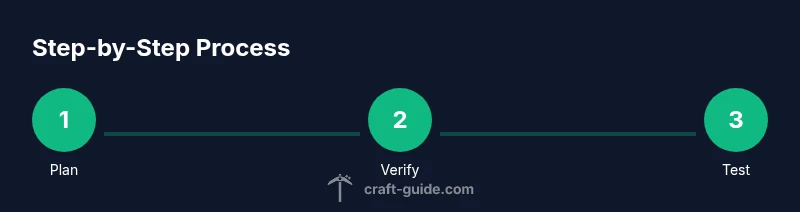
By the end, you’ll confirm mod compatibility without guesswork: verify Minecraft version, mod loader (Forge or Fabric), and each mod’s dependencies; ensure all mods target the same loader version; then test in a clean profile. This step‑by‑step approach minimizes crashes.
Why Mod Compatibility Matters
When you install mods, you’re adding new code into Minecraft’s runtime. If mods aren’t aligned in version, loader, or dependencies, you’ll see crashes, frozen worlds, or corrupted saves. In practice, this means load errors, missing textures, or mods not loading at all. Understanding compatibility helps you avoid hours of debugging and keeps your worlds stable. According to Craft Guide, most players who run into issues do so because they ignored version matching or assumed all mods would work together without checking loaders. Taking a methodical approach reduces risk and preserves your progress, especially on large mod packs that rely on multiple dependencies and libraries. By focusing on version parity, loader alignment, and consistent dependency trees, you create a reliable modded setup that’s easier to maintain over 2026 and beyond.
Understanding Mod Loaders and Minecraft Versions
Mods depend on a loader (Forge or Fabric) that hooks into Minecraft. They also target a specific game version (for example, 1.20.1) and may require libraries or API jars. Mixing loaders or loading a mod intended for a different launcher typically causes immediate startup errors. Always verify the loader brand and version listed on the mod page, and confirm the base game version it supports. In practice, you should keep a consistent baseline: the same Minecraft version, the same loader type and version, and a uniform set of compatible libraries. This consistency minimizes unexpected behavior and makes diagnosing issues much easier when you add or remove mods in future sessions. The goal is to maintain a stable core so that new experimental mods don’t destabilize your world.
How to Check Mod Version Compatibility
Start by compiling a master list of all mods you want to use and note each mod’s reported Minecraft version, loader (Forge or Fabric), and required libraries. Compare these three data points against your installed game and loader. If any mod version requires a newer or older Minecraft build than your base, it won’t be compatible and should be excluded or replaced. Also check if mods require a specific loader version (for example, Forge 1.19.4-44.1.0). If two mods require different minor build numbers, they may still work, but you’ll want to test. Finally, keep an eye on optional libraries—some mods fail when a required library is missing, even if the primary mod loads correctly. Document your findings so you can reproduce the same setup later.
Tools and Resources for Compatibility
Useful resources include the official mod pages, the loader’s release notes, and the Minecraft version notes. Maintain a personal notes file that lists each mod’s target version, loader requirement, and any known conflicts. Use crash reports and log files (latest.log) to confirm which mod eller library triggers issues. Community wikis and moderated forums can provide quick confirmations about compatibility groups. When you’re unsure, test in a fresh profile with a minimal mod set, then gradually reintroduce items while monitoring stability.
Common Scenarios and Quick Checks
A common pitfall is mixing mods that target different Minecraft major builds. Always align the Minecraft version, loader version, and libraries across all mods. Another pitfall: relying on optional dependencies to magically work; if a critical library is missing, even a seemingly compatible mod may crash. If a mod is marked as compatible but crashes, check the load order and ensure there’s no conflict between two mods addressing the same game hook. Finally, verify that all mods you plan to use are still actively maintained or have working forks.
Testing and Safe Practices
Before you begin heavy modding, back up your saves and create a dedicated mod testing profile. Install mods in small batches, then launch Minecraft and inspect the game log for errors. Use a consistent test routine: run a world, perform common actions (crafting, fighting, mining), and note any instability. If you see crashes, isolate the culprit by removing the last added mod or library and re-running the test. Keep a changelog of mod versions and loader builds to reproduce successful configurations later.
What to Do When Things Go Wrong
If you encounter a crash, review the crash report and identify the first mod involved. Re-check that all mods use the same loader version and Minecraft build. Remove or replace any mod that cites a mismatch in the report. Clean caches and regenerate the modded profile if necessary, and always re-test after changes. When all else fails, revert to a known-good backup and reintroduce mods one at a time to locate the source of the issue.
Tools & Materials
- Minecraft Java Edition (latest release)(Use a fresh install for testing)
- Mod Loader (Forge or Fabric)(Choose one; ensure version matches mods)
- Mods (ZIP/JAR files)(Only from trusted sources)
- Latest.log crash file viewer(Helpful for diagnostics)
- Dedicated mod testing profile(Separate from vanilla profile)
- Backup storage (cloud or local)(Back up saves before experiment)
Steps
Estimated time: 60-90 minutes
- 1
Prepare your environment
Create a new Minecraft profile and back up your worlds. This ensures you can revert if something goes wrong and keeps your main save intact.
Tip: Label the profile clearly and store backups in a separate folder. - 2
Confirm core versions
Check the target Minecraft version and loader version for each mod; align them across the board.
Tip: Reference the mod pages for explicit version numbers. - 3
Collect mod version data
Make a master list that includes mod name, Minecraft version, loader, and required libraries.
Tip: Use a spreadsheet to keep track of compatibility flags. - 4
Create a minimal test set
Install only a handful of mods that are clearly compatible with the chosen loader and version.
Tip: Start with 2-3 mods to simplify troubleshooting. - 5
Launch and observe
Run Minecraft, perform common actions, and monitor the logs for errors or warnings.
Tip: Take notes on any stack traces and mod names. - 6
Iterate and expand
If the test is stable, gradually add more mods while testing after each addition.
Tip: Pause after each install to confirm stability. - 7
Document the working combo
Record the final set that runs cleanly with exact versions, loader, and libraries.
Tip: Keep a changelog for future updates.
People Also Ask
What counts as mod compatibility in Minecraft?
Mod compatibility means mods run together without crashes, using the same Minecraft version, loader, and required libraries. It also means no conflicting game hooks or API changes.
Compatibility means mods run together without crashes and with matching game version, loader, and libraries.
Can I mix Forge and Fabric mods?
Forge and Fabric are not interchangeable; only mods built for the same loader will work in a given session. Mixing loaders usually causes startup failures.
Forge and Fabric mods can’t run together; stick to one loader per profile.
Why does a mod crash after installation?
Crashes often stem from version mismatches, missing dependencies, or plugin conflicts. Check the crash log for clues and verify each mod’s version against your Minecraft build.
Crashes usually come from version or dependency mismatches; read the crash log for clues.
How do I fix version mismatches?
Align all mods to the same Minecraft version and loader, then re-test. If a mod can’t align, remove it or find an alternative with matching targets.
Align mods to the same game version and loader, then test again.
Is a clean test profile necessary?
Yes. A clean profile isolates issues to the mod set being tested, reducing confounding variables from other mods or settings.
A clean profile helps you isolate issues more effectively.
Do mods require libraries beyond the main mod?
Many mods rely on shared libraries; ensure all required libraries are installed and versions match each mod’s spec.
Many mods need libraries—check and install exact versions.
Where can I find reliable compatibility information?
Refer to official mod pages, loader release notes, and community-maintained wikis for compatibility notes and known conflicts.
Official mod pages and release notes are your best sources.
Should I update mods as a group or one at a time?
Update mods one at a time in a tested order to identify which update causes issues; maintain a changelog.
Update mods one by one and log changes.
Watch Video
The Essentials
- Backup saves before testing mods
- Match game version, loader, and libraries
- Test in a clean profile and document versions
- Add mods gradually to isolate issues
- Maintain a changelog for future updates