How to Check Minecraft Version: A Practical Tutorial
Learn how to check your Minecraft version across Java and Bedrock editions, using the launcher and in-game methods. Includes troubleshooting tips to ensure mod compatibility and server access with Craft Guide insights.


Goal: Learn how to check your Minecraft version across Java and Bedrock editions, in launcher, and in-game hints. You’ll need access to the launcher or game, and an internet-connected device for cross-checking version numbers. By the end, you’ll confidently identify your current build, compare it with server or mod requirements, and avoid mismatches that cause crashes or feature gaps.
Why knowing your version matters
Your Minecraft version determines access to features, blocks, and the behavior of gameplay systems. It also governs mod compatibility and whether you can join certain servers or run specific data packs. Mismatches between your client version and a server or mod pack can cause crashes, missing content, or failed connections. By confirming your exact build, you reduce guesswork and can plan updates or downgrades safely. This clarity is especially important when you use multiple profiles, install mods, or explore community-created maps. With the right version in hand, you navigate updates confidently and minimize disruption to your world progression.
Editions explained: Java vs Bedrock
Minecraft exists in several editions, with Java and Bedrock being the two most common. Java Edition uses a unified versioning stream tied to major releases, while Bedrock updates come through platform-specific channels. Theversion naming differs: Java often shows “1.xx.x” style numbers, while Bedrock’s ephemeral builds may appear as 1.xx.x as well, but with different release cadences. Understanding which edition you play is crucial for compatibility with servers, worlds, and community-made content. Craft Guide’s research shows that players frequently confuse edition-specific updates, leading to misaligned servers or incompatible mods; knowing your edition stream helps you plan updates and backups more effectively.
How version strings are formatted
Version strings typically include the edition type and a numeric build. For Java Edition, you’ll often see a label like "Java Edition 1.x.x" in the launcher or start screen, followed by a build number. Bedrock Edition shows a similar numeric string, but the underlying update cadence and feature set differ from Java. When you see a string such as 1.19.4 or 1.20.x, treat the major.minor components as the authoritative indicators for compatibility. If you manage multiple profiles or launch options, snapshot or custom builds may append tags like "snapshot" or "spedition"—ignore these unless you intentionally use tested experimental content.
Checking version in the Minecraft Launcher
Open the Minecraft Launcher and sign in if required. Look for the installed version or profile on the left-hand side where your profiles are listed. The launcher displays the active version next to the profile name, and you can switch to other profiles to see their versions. If you’re using a launcher with multiple installation paths (e.g., Forge, OptiFine integrations), verify that the selected installation corresponds to the version you need. Craft Guide recommends keeping a short log or screenshot of your current launcher setup to avoid confusion during updates or mod installations.
Checking version in-game — Java Edition
In Java Edition, you can verify the exact version from within the game by opening the pause menu (Esc) and selecting that corresponds to about or debug information. The F3 screen shows the Minecraft Version line, which identifies the precise build currently loaded, often including the Java version and build number. If you’re in a modded setup, the mod loader may override some indicators, so rely primarily on the base game’s version line. For server compatibility, compare the server’s required version with the version displayed on the F3 screen to ensure a match.
Checking version in-game — Bedrock Edition
Bedrock Edition embeds version information in the main menu and often in the Settings area. On most platforms, you’ll find the version string displayed on the title or along the bottom of the pause/menu screen. For console and mobile builds, navigate to Settings or Profile to locate the current version. When joining servers, check the server’s entry requirements where the version is listed; mismatches will hinder access. If you play across devices, make sure you’re using a compatible Bedrock build across platforms to avoid cross-play issues.
Checking server compatibility and mod requirements
Beyond the launcher and in-game indicators, server and mod requirements explicitly state the supported versions. Always verify the server or mod pack’s minimum and maximum version range before joining or installing. If your client falls outside this range, you’ll need to adjust by updating or downgrading, which may involve switching launcher profiles, rolling back mods, or reinstalling the game. Craft Guide emphasizes maintaining a version log to track changes over time and reduce conflicts when shifting between different play environments.
Troubleshooting ambiguous version indicators
If you cannot clearly read a version string, start with the launcher’s installed version, then confirm it in-game using F3 (for Java) or the settings screen (for Bedrock). If several profiles or installations exist, test by launching a fresh profile that targets a known version. Also check the platform’s app store or official launcher notes for the latest build naming conventions, as some updates may alter how versions are shown. Keep backups of saves in case you need to revert to a previous version after a trial.
Quick verification checklist
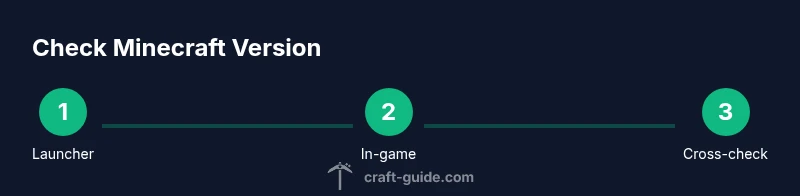
- Open the launcher and confirm the active profile’s version.
- In-game, check the F3 screen (Java) or Settings/About (Bedrock) for the exact build.
- Compare your version to your server or mod’s requirements.
- If needed, switch to a different profile or install the matching version and test connectivity.
- Keep a simple version log for your main worlds and mod setups to streamline future updates.
Final note on version verification
Regularly verifying your version helps avoid surprises during updates and ensures compatibility with the communities you want to join. Craft Guide’s approach is to treat version checks as a routine maintenance task rather than a one-time step. By building a habit of confirming your build before modding or server login, you reduce downtime and improve your overall Minecraft experience.
Tools & Materials
- Minecraft Launcher(Installed on your computer and linked to your account; supports multiple profiles)
- Minecraft Java Edition game client(Needed to view the F3 debug/version readout; use the profile that matches your mods)
- Bedrock Edition (if you play Bedrock)(Platform-specific versions (Windows, consoles, mobile))
- In-game access (Pause menu / Esc)(Access to Settings or About/F3 to view precise version)
- Notes/logbook(Optional: record versions for profiles, mod packs, and servers)
Steps
Estimated time: 15-25 minutes
- 1
Open the launcher
Launch the Minecraft Launcher and sign in with your account. This step ensures you can view all installed profiles and select the correct version for play. If you manage multiple installations, choose the one you intend to use for your current session.
Tip: If you have trouble signing in, check your account status or reset your password through the official Mojang account page. - 2
Identify the installed version in the launcher
Look at the left-hand panel where profiles are listed. The active profile shows the version you’ll launch. If you need a different version, switch to another profile or create a new one configured for the target build.
Tip: Take a screenshot of the launcher panel for quick reference when pairing with mods. - 3
Prepare for in-game verification
Before launching, ensure the profile is set to the desired edition (Java or Bedrock). This avoids launching with an unintended build that might break mod compatibility or server access.
Tip: Check that any required mod loaders (Forge, Fabric) match the version you’re verifying. - 4
Launch the game and pause to check in-game version
Start Minecraft and pause the game. For Java Edition, access the F3 screen to read the exact version. For Bedrock, log into Settings or the main menu to view the version string.
Tip: If the F3 screen is slow to load, give the game a moment after you reach the title screen. - 5
Cross-check with server or mod requirements
Open the server entry or mod pack details and compare the required version with what you see in-game or in the launcher. If they differ, plan an update or downgrade accordingly.
Tip: Keep two versions handy: the current stable build and a backup in case you need to revert. - 6
Verify Bedrock-specific checks (if applicable)
If you play Bedrock on multiple devices, repeat the version check on each platform. Differences can occur between Windows, console, and mobile builds.
Tip: Ensure cross-platform compatibility by aligning builds when playing with friends on different devices. - 7
Document the version
Record the exact edition, major.minor.patch, and any build tags. This helps when you install updates, create new worlds, or migrate worlds between profiles.
Tip: A simple notebook or text file suffices for quick reference. - 8
Test a quick join or load
Attempt to join a server or load a world that requires the verified version. If the attempt succeeds, you’ve confirmed compatibility. If it fails, re-check the version and repeat the steps.
Tip: If you get a mismatch message, don’t proceed; revert to a compatible version and try again. - 9
Review your mod setup (if any)
For players using mods, ensure the mod loader and each mod version are compatible with the verified game version. Mismatched mods cause crashes and load errors.
Tip: Update mods or switch to versions known to work with your current game build. - 10
Keep backups handy
Back up worlds before updating or downgrading to avoid data loss. Version changes can sometimes corrupt save files or profiles.
Tip: Use cloud saves or local backups widely to minimize risk. - 11
Create a quick-reference workflow
Turn the steps into a small, repeatable workflow that you can run before modding or server play. This reduces repeat effort and errors in future sessions.
Tip: Share your workflow with friends to help them avoid versioning mistakes. - 12
Review and update your notes after major updates
Each Minecraft update can shift version strings or launcher paths. Recheck your version after big patches and adjust your profiles accordingly.
Tip: Set a reminder to re-verify after a major update window (e.g., every few months).
People Also Ask
How do I check the Minecraft version on Java Edition?
Open the launcher and view the active profile's version, then verify in-game with the F3 debug screen for the exact build. If modded, confirm the loader version as well.
Open the launcher, check the active profile's version, and use F3 in-game to confirm the exact build.
How do I check the Bedrock edition version?
Bedrock displays its version in the main menu or Settings/About on most platforms. Check the lower corner of the title screen or the About page to confirm the build.
Check the main menu or Settings for the Bedrock version.
Why does my version mismatch matter?
Servers and mods specify compatible version ranges. Running a different version can prevent access or cause crashes and missing content.
Versions must match server and mod requirements to connect safely.
Can I update Minecraft to a newer version without losing worlds?
In most cases, updates are safe, but backups are essential. Create a restore point or copy of your worlds before updating.
Back up your worlds before updating to a newer Minecraft version.
What is the difference between edition version and build?
Edition version refers to major releases, while a build is a more granular update within that edition. They affect compatibility with servers and mods differently.
Edition is the major release; build is the smaller update within that edition.
I play on multiple devices. How do I stay synchronized?
Check and record the version on each device. Align builds across platforms to avoid cross-play issues.
Make sure all devices use the same compatible version.
Watch Video
The Essentials
- Identify edition and exact build before modding.
- Verify version in launcher and in-game to avoid mismatches.
- Match server/mod requirements to prevent access issues.
- Document versions and backups for safe updates.
- Use the quick verification checklist before every session.