How to Download Minecraft: A 2026 Beginner's Guide
Learn how to download Minecraft safely from official sources, choose the right edition, and install the launcher with confidence. This Craft Guide tutorial covers steps, tips, and common pitfalls.


You will learn how to download Minecraft safely from official sources, choose the correct edition for your device, install the launcher, and start playing. The guide covers verification, avoiding scams, and platform-specific steps for Windows, macOS, Linux, iOS, and Android. Follow the step-by-step process to ensure a smooth, secure setup.
What You Need to Prepare Before Download
Before you click anything, make sure your device is ready for Minecraft. This includes checking your operating system, ensuring enough storage space, and confirming you have a stable internet connection. According to Craft Guide, the safest path is to start from the official Minecraft site and use the official launcher. On Windows,
Edition Choices: Java Edition vs Bedrock
Minecraft comes in at least two major editions, each with different features, communities, and cross‑play capabilities. Java Edition is historically the PC‑focused version, with broad modding support and a robust customization ecosystem. Bedrock Edition is designed to run smoothly on a wider range of devices, including consoles, mobile, and Windows 10/11, and it generally provides better performance on lower‑spec machines. When deciding which edition to download, consider where you plan to play and with whom. If most of your friends are on console or mobile, Bedrock may be the best option; if you want extensive mods and a longer PC tradition, Java is often preferred. Note that you cannot run both editions with a single launcher profile; you need to install the appropriate launcher and possibly a separate account. The Craft Guide team recommends starting with the edition that aligns with your primary platform to minimize compatibility issues. It’s also worth checking if your device’s store or platform requires specific installation steps or licenses. Some players choose both editions for different devices, but that requires separate installations and accounts.
Official Sources and How to Spot Scams
The safest download path starts on official sites. Always navigate to the official Minecraft site or the store page for your device, such as minecraft.net or your platform’s marketplace, to download the launcher. Be wary of popups or third‑party sites that promise fast downloads or “free” copies. The Craft Guide analysis shows that most security incidents come from associating with unofficial installers or entering credentials on fraudulent pages. Before clicking download, verify the URL matches the official domain and check for a secure connection (https). If you see requests to install extra software, cancel and return to the official download page. After you download, scan the file with trusted security software and keep your antivirus up to date. By sticking to official channels, you reduce the risk of malware, bundled adware, or outdated installers that won’t update properly.
How to Create or Use a Minecraft Account
An official account is required to sign in and play, and the process varies slightly by edition. For Bedrock, you’ll typically sign in with a Microsoft account; for Java, you may use a Mojang or Microsoft account depending on changes in policy. Start by creating or signing into your account on the official site, then link it to the launcher you downloaded. Keep your password strong, enable two‑factor authentication if available, and avoid reusing credentials across sites. When you log in for the first time, you may be prompted to accept the EULA and set your preferred language and region. If you already have an account from a different platform, follow the migration prompts carefully so you don’t lose progress or purchases. Craft Guide notes that keeping your account information secure is essential to protect your purchase and any future upgrades.
Step-by-Step: Download and Install (High‑Level Overview)
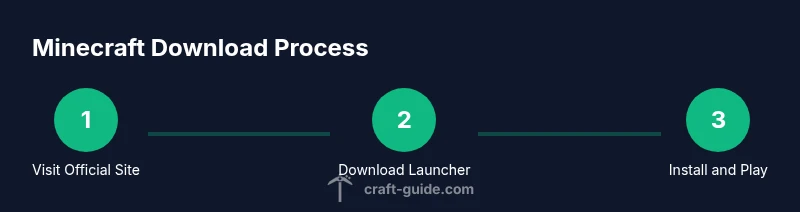
This section outlines the high‑level flow you’ll perform, with the details in the STEP‑BY‑STEP block below. Begin by locating the official download page for your edition and platform; download the launcher installer to your device. Run the installer, accept the license terms, and choose an installation path with enough free space. Launch the launcher, sign in with your official account, and select the edition you want to play. The launcher will download the core game files and may prompt you to accept updates. After installation, launch the game to verify it runs correctly and adjust video settings as needed. If you encounter a warning about missing drivers or runtime components, follow the launcher’s prompts to install them. Craft Guide tip: use a wired connection during download if possible to minimize interruptions. Estimated time for this flow is typically 15–25 minutes, depending on your connection and device.
Verifying Your Download and Setting Up
Verification is a simple but important step to ensure the game runs without hiccups. Compare the file size and checksums if the official page provides them; most users won’t need to manually verify, but it’s a solid extra precaution. After installation, open the launcher and check for updates; this ensures you’re launching with the latest fixes and features. Configure your graphics settings, audio levels, and controls before you dive in. Create a separate profile for your world if you want to experiment with different settings. If you’re using a shared or public device, consider enabling a guest mode or restricting access to avoid accidental changes. Craft Guide encourages players to keep their software up to date and to back up world data regularly to prevent loss before major updates.
Common Pitfalls and How to Avoid Them
Downloading Minecraft can be smooth, but there are common mistakes that trip up beginners. The most frequent error is using unofficial installers that bundle extra software or malware; always stick to official sources. Another pitfall is downloading the wrong edition for your platform, which can prevent multiplayer or cross‑play. Insufficient storage or a slow connection can interrupt downloads; ensure you have several gigabytes free and consider pausing and resuming if your connection is unstable. Some players forget to sign in or confuse their account credentials, which blocks progress and access to the launcher. If you run into performance hiccups after installation, verify your system meets the requirements and update your graphics drivers. Remember to disable VPNs that interfere with the launcher, and avoid downloading from unsolicited popups or message threads.
After Installation: Keeping Minecraft Safe and Up-to-Date
Once Minecraft is installed, the most important ongoing tasks are updates, security, and habits that keep your setup healthy. Keep the launcher configured to auto‑update so you always have the latest fixes, features, and security patches. Regularly scan your device for malware and maintain strong, unique passwords for your account. If you plan to play with friends, review your privacy settings and ensure you’re signing in with a trusted account. Consider enabling two‑factor authentication if available and periodically reviewing active sessions. Finally, back up your worlds regularly and keep a log of your game versions and backup dates. Craft Guide’s final recommendation is to stay vigilant about official sources and to enjoy Minecraft responsibly with up‑to‑date software.
Tools & Materials
- Device with internet access(PC, Mac, or mobile device)
- Official Minecraft account(Microsoft/Mojang account depending on edition)
- Web browser(Chrome, Firefox, Edge, Safari, etc.)
- Minecraft Launcher installer(Download from the official site)
- Adequate storage space(At least 2 GB free, more for updates)
- Stable internet connection(Prefer wired connection during download if possible)
Steps
Estimated time: 15-25 minutes
- 1
Verify system and edition
Check your device type, OS version, and ensure there is enough free space for the launcher and game files. Decide which edition you’ll use based on your platform and play goals.
Tip: Note your device’s RAM and storage so you can plan for future updates. - 2
Open official download page
Visit the official Minecraft website or your platform’s store to access the launcher download. Avoid clicking on ads or links from untrusted sources.
Tip: Bookmark the official page for future updates and avoid third-party mirrors. - 3
Download the launcher
Click the download button for your platform and save the installer to your device. Ensure the URL matches the official domain and that the connection is secure.
Tip: Use a stable connection; large files benefit from a paused/resume option. - 4
Run the installer
Launch the downloaded file, accept the license, and choose an installation path with sufficient space. If prompted, run as administrator on Windows for smoother installation.
Tip: Close other programs to speed up the install and prevent interruptions. - 5
Sign in to your account
Open the launcher and sign in with your official account. If this is your first time, follow prompts to link your account and accept the EULA.
Tip: Enable two-factor authentication if available for added security. - 6
Select the edition and install core files
Choose the edition you planned (Java or Bedrock) and allow the launcher to download the core game files. The launcher will handle updates automatically.
Tip: If you see missing runtime components, let the launcher install the required dependencies. - 7
Launch and verify
Start the game from the launcher and verify that it runs without errors. Check basic settings like resolution, difficulty, and controls.
Tip: Test a short world to confirm everything works before diving in deep. - 8
Update and optimize
Install any available updates and adjust graphics settings for your hardware. Keep the launcher set to auto-update for future patches.
Tip: Update graphics drivers if you notice performance issues.
People Also Ask
Do I need a Microsoft account to download Minecraft Bedrock?
Bedrock Edition generally requires signing in with a Microsoft account on most platforms. You may need to create or link one during launcher setup. The launcher handles sign‑in and purchases when applicable.
Yes, Bedrock usually uses a Microsoft account for sign‑in.
Can I download Minecraft for free?
Minecraft is a paid game; you typically purchase a license to play. Some platforms offer demos or trial versions, but full access requires payment.
It's usually paid, though demos may be available on some platforms.
Which edition should I download for PC?
For PC, Java Edition is popular for modding and classic gameplay, while Bedrock is optimized for performance and cross‑play. Choose based on your device and multiplayer needs.
Java is popular for PC modding; Bedrock works well across devices.
What if my download fails or is slow?
Retry from the official site, use a stable connection, and ensure sufficient storage. If problems persist, try another browser or pause and resume the download.
Retry with a stable connection and check storage; switch browsers if needed.
Is there a safe way to install Minecraft without scams?
Yes. Stick to the official minecraft.net site or the official launcher store page. Avoid third‑party installers and popups that promise free copies or fast downloads.
Always use official sources to stay safe.
Watch Video
The Essentials
- Download from official sources only.
- Choose edition that matches your device and play style.
- Follow the step-by-step to install with the launcher.
- Keep your account secure and up to date.
- Back up worlds and verify downloads when possible.