How to Disable a Minecraft Mod: A Practical Guide
Learn how to safely disable a Minecraft mod across Forge, Fabric, and Bedrock. Step-by-step instructions, backup tips, and best practices to keep your world stable while you manage mods.


You're looking to disable a Minecraft mod safely. You can do this by unloading or removing the mod from your launcher and mods folder, then restarting the game. This guide covers Forge, Fabric, and Bedrock editions, plus safe backup steps to avoid world damage. Follow the steps for each launcher, verify mod lists, and test a small world first.
Understanding mod systems on Minecraft
Minecraft supports mods through different loaders, with Forge and Fabric dominating the Java Edition and Bedrock using add-ons rather than the traditional mod jars. Each system scans a specific folder (usually the mods folder) at startup and loads compatible files, honoring version constraints and dependencies. Knowing which loader you use is essential because the disable process can differ: Forge/Fabric mods are typically jars; Bedrock add-ons may be packaged differently and sometimes require world-level changes rather than file removal. In practice, the safest route is to plan first: confirm you are working with the correct mod, verify its dependencies, and decide whether you want a temporary disable or a permanent removal. According to Craft Guide, understanding how mods are loaded helps you avoid cascading crashes and lost progress when you toggle features. If you are unsure about a mod's dependencies, check the mod's page or its accompanying config instructions before removing anything. This knowledge also helps you decide whether to disable from the launcher, move the mod file, or adjust in-game settings to reduce its impact without completely removing it. Craft Guide's approach emphasizes deliberate, measured changes to minimize frustration and preserve world integrity.
Methods to disable a mod
There are several legitimate ways to disable a Minecraft mod, and the method you choose should match your launcher and loader. The most common approach is to use the launcher’s built-in mod management features to unload or disable the mod before starting Minecraft; this is safer than deleting files while the game is running, and it helps preserve other mods' integrity. If your launcher does not offer a disable toggle, you can manage the mod by removing or moving its file from the mods folder to a separate backup location. In Forge and Fabric setups, the mod jar is typically placed in .minecraft/mods; deleting or renaming that jar prevents the loader from loading it on startup. If the mod provides in-game config options, you may be able to disable specific features without removing the mod entirely, but this is not universal. Finally, always validate the change by launching the game and checking the Mods screen or log files for references to the removed mod. The Craft Guide team notes that a cautious, stepwise approach reduces the risk of unintended side effects and makes it easier to revert if needed. Remember to test your world in a local or safe environment after disabling to confirm stability.
Safe steps for disabling without data loss
Before touching any mod files, back up your world and your mod profile. Create a separate copy of the mods folder or store the mod jar you are removing in a dedicated backup directory so you can restore quickly if needed. Close Minecraft and the launcher to prevent file locks, then locate the mods folder (commonly under .minecraft/mods) and move or rename the target mod jar rather than deleting it permanently; this gives you a quick rollback option. After restarting Minecraft, verify that the game loads without the disabled mod and that your saved worlds behave as expected. If you use a separate profile for mod testing, you can keep your main world intact while you experiment with different configurations. Consider keeping a simple changelog noting which mods were disabled and why, so future troubleshooting is easier. Craft Guide recommends maintaining a stable, minimal mod set whenever possible to reduce conflicts and simplify troubleshooting during updates or world repairs.
Common pitfalls and how to avoid them
One common pitfall is removing a mod that other mods or world features depend on. Always check dependencies and version compatibility before removal. Another pitfall is not backing up before editing: a failed restore can mean hours of lost progress. If you encounter crashes after removing a mod, it may be due to leftover config files or dependent resources; clean those remnants or revert to a backup. Finally, avoid deleting entire mod folders unless you are certain you want permanent removal; renaming or moving keeps a quick rollback path. Craft Guide emphasizes that careful planning and a conservative approach prevent unnecessary work and preserve your creative efforts.
Tools & Materials
- Minecraft launcher (Forge/Fabric profile)(Ensure you are using the launcher profile that matches your mod loader.)
- Mods folder path(Typically .minecraft/mods; know your OS path.)
- Backup workspace(Create a separate backup directory for mods you disable.)
- Internet access(Optional for checking guides or re-downloading mods.)
- Optional backup tool(Automate world/backups if you have a lot of progress.)
Steps
Estimated time: 10-20 minutes
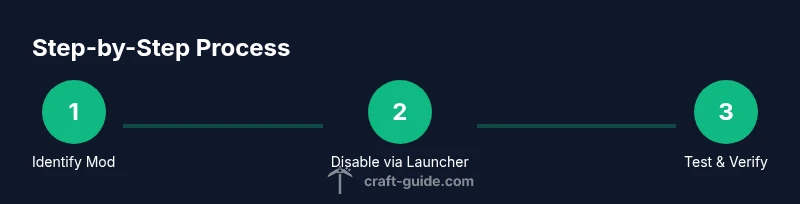
- 1
Identify the mod to disable
List the mods you have installed and confirm the exact mod name and version. Note any dependencies or related configs that could be affected by removal.
Tip: Double-check for dependencies and version compatibility to prevent crashes. - 2
Close Minecraft and the launcher
Exit the game and the launcher completely to avoid file locks. This ensures you can safely modify mod files without corruption.
Tip: Never edit mod files while Minecraft is running. - 3
Open the Mods folder
Navigate to the mods directory in your Minecraft folder (commonly .minecraft/mods). If you use multiple profiles, locate the mods folder for the active profile.
Tip: If you are unsure, use the launcher’s option to open the Mods folder directly. - 4
Move or rename the target mod
Move the mod jar (or folder, depending on loader) to a backup location or rename it to disable loading without permanent deletion.
Tip: Renaming to something like modname.disabled is a reversible approach. - 5
Restart Minecraft with the same profile
Launch Minecraft again with the same mod loader profile to verify that the game loads and the mod is no longer active.
Tip: Watch the startup logs for references to the removed mod. - 6
Verify the mod is disabled
Check the Mods screen, in-game menus, or world behavior to ensure the mod’s features are gone. Run a quick test world if possible.
Tip: If features persist, you may need to disable dependent mods or adjust configs. - 7
Reconsider or re-enable as needed
If you plan to re-enable later, keep the mod file in the backup location and test reloading in a separate profile first.
Tip: Document changes to simplify future maintenance.
People Also Ask
Can I re-enable a mod after disabling it?
Yes. Move the mod file back to the mods folder and relaunch Minecraft with the same profile. If the mod caused conflicts, resolve those dependencies first.
Yes—just restore the mod file and start Minecraft again with the same setup.
What if a mod affects world saves after removal?
Back up your worlds before removing mods. If issues occur, revert to the backup or test in a clean world to confirm stability.
Back up first; revert if you encounter issues after removing the mod.
Is disabling a mod different for Forge and Fabric?
The general approach is the same: unload via launcher or remove the jar from your mods folder, while respecting each loader’s file structure.
The process is similar across Forge and Fabric, just follow the loader’s conventions.
Can I disable mods in-game?
Most mods cannot be disabled from within the game itself. You typically disable by removing or moving the mod file and restarting.
Usually not; you need to restart after changing the mod files.
What should I do if Minecraft won’t start after disabling a mod?
If the game won’t start, restore from a backup and re-check mod dependencies. Re-enable mods one by one to identify the culprit.
If it won’t start, revert to backup and test mods individually.
Watch Video
The Essentials
- Back up worlds and profiles before mod changes
- Disable mods using the launcher when possible for safety
- Move, not delete, the mod jar to enable quick rollback
- Test changes in a separate profile to protect your main world
- Document mod changes for easier future maintenance