How to Download CurseForge Minecraft Mods: A Complete Guide
A practical, step-by-step guide to downloading CurseForge Minecraft mods, verifying compatibility, installing Forge or Fabric, and troubleshooting common issues.


Learn how to safely download CurseForge Minecraft mods, choose compatible versions, and install Forge or Fabric. According to Craft Guide, the secret to a stable modded game is matching Minecraft and loader versions, checking dependencies, and keeping backups. This quick guide outlines essential steps to get you modding confidently. You will learn how to verify file integrity, avoid malware, and test your setup.
What CurseForge Minecraft Mods Download Is
CurseForge is a widely used platform that hosts a large library of Minecraft mods, profiles, and modpacks. It provides a central destination to browse, download, and manage mods for Minecraft Java Edition. The phrase 'curseforge minecraft mods download' refers to acquiring individual mods or modpacks from CurseForge and adding them to your Minecraft setup. Before you start, understand that mods are code changes that require a compatible mod loader (Forge or Fabric) and a matching Minecraft version. Using CurseForge, you can filter by game version, loader, category, and popularity to discover mods that fit your goals, whether it's performance optimization, visual enhancements, new creatures, or gameplay overhaul. Always download from the official CurseForge page to minimize security risks, and verify the mod's version and dependencies before moving the file to your computer's storage. This ensures a smoother experience and reduces the chance of corrupt downloads. According to Craft Guide, starting with trusted sources and verified versions is the foundation of a stable modded Minecraft setup.
Understanding Mod Loaders: Forge vs Fabric
Minecraft mods require a mod loader to integrate with the base game. Forge and Fabric are the two most popular loaders, each with its own ecosystem of mods. Forge has a long history, broad compatibility, and extensive mod support, while Fabric emphasizes lightweight performance and fast updates. The choice between Forge and Fabric often comes down to which mods you plan to use and which Minecraft version you run. Some mods are Forge-only, others work with Fabric using adapters or equivalent libraries. Always verify mod compatibility with your chosen loader and Minecraft version before download to avoid crashes, missing textures, or world corruption. Craft Guide notes that aligning your loader with your mods from CurseForge is essential for a stable, enjoyable experience.
Finding Mods on CurseForge: Browsing Tips
Start on CurseForge’s Minecraft mods page and use filters to narrow results by Minecraft version, loader (Forge or Fabric), and popularity. Read mod descriptions, check the number of downloads, and scan the changelog for recent updates. Pay attention to the required loader, supported Minecraft versions, and any dependencies listed. If a mod has multiple files, select the one that matches your exact Minecraft version and loader. Look at user comments for real-world compatibility notes and potential conflicts with other mods. Craft Guide recommends bookmarking trusted mod pages and keeping a simple list of mods you plan to install to avoid overwhelming your setup.
Checking Compatibility: Versions, Dependencies, and Conflicts
Compatibility is the backbone of a smooth modding experience. Verify that every mod you download matches your Minecraft version and loader. Some mods require other mods or libraries as dependencies; failing to install these dependencies can cause crashes or missing features. Conflicts happen when two mods modify the same game systems in incompatible ways. Always check the mod’s compatibility notes, the required Minecraft version, and the loader version. If you run into issues, temporarily disable or remove recently added mods to isolate the cause. Craft Guide analysis shows that proactive version and dependency checks dramatically reduce post-install crashes and improve overall stability.
Safe Download Practices: Scams, Ads, and Trust Signals
Downloads from unofficial sites or suspicious links often pack malware or modified installers. Prefer CurseForge’s official pages and verify the mod file’s integrity by checking the digital signature or official verification notes. Be wary of sites that push extra download managers, browser hijackers, or excessive adware. Always run an up-to-date antivirus scan on any downloaded file before opening it. Use a clean, dedicated modded profile to prevent accidental changes to your vanilla game. Craft Guide emphasizes conservative browsing habits and sticking to official mod pages to minimize risk.
Installing a Loader and Mod Folder Setup
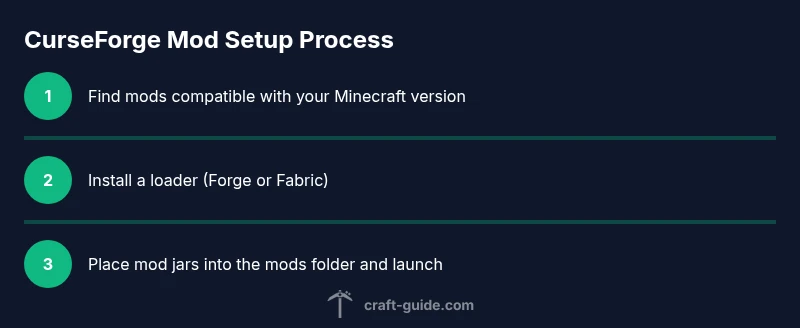
Begin by installing your chosen mod loader (Forge or Fabric) using the official installer. This process creates a dedicated Minecraft directory and a Mods folder. If you don’t already have a Mods folder, create it inside your Minecraft directory. This folder is where you place your downloaded mod files (usually .jar). Do not unzip or alter the mod file—jars are the runtime components. Ensure you install the loader that directly matches your Minecraft version and the mod file version. Craft Guide highlights that a correctly configured loader and mods folder prevent common startup errors and missing mods.
Installing Mods Correctly: File Placement and Launch
Choose the correct mod file for your game version and loader, then move the .jar file into the Mods folder. Launch Minecraft using the loader profile (Forge or Fabric). If the game starts, you should see the mod listed on the main menu or in-game mod screen. If there’s a crash, review the crash report, remove recently added mods, and restore from backup. Always test new mods one at a time to isolate issues. This approach minimizes the risk of breaking your world and saves troubleshooting time.
Managing Your Mod List: Backups, Profiles, and Recovery
Before modding, back up your worlds, saves, and the entire Minecraft directory. Create a separate modded profile to avoid impacting vanilla play. Maintain a simple mod list with mod names, versions, and dependencies so you can reproduce a working setup if you need to rollback. Regularly update your backups when you add or remove mods. Consider keeping a separate test world to validate new mods before loading them into your main world.
Troubleshooting Common Modding Issues
Crashes at startup, a black screen, or mods not loading are common modding issues. Start by checking the crash report for clues about incompatible mods or missing dependencies. Verify your Minecraft, loader, and mod versions align perfectly. If a mod causes a crash, remove it and re-test. Ensure the Mods folder only contains compatible files and that there are no duplicate mods. When in doubt, revert to a known-good backup and reintroduce mods one by one.
Performance, Safety, and Long-Term Maintenance
Modding can affect performance and stability. Use resource packs that match your hardware, optimize memory settings in the launcher, and regularly update mods to their latest compatible versions. Backups remain essential; maintain a habit of saving before applying large mod packs. Keep track of version histories and plan upgrades to avoid compatibility pitfalls over time.
Tools & Materials
- Computer or laptop with internet access(A stable connection helps when downloading large mod files.)
- Minecraft Java Edition installed(Ensure the exact version matches the mod requirements.)
- Mod loader installer (Forge or Fabric)(Choose based on mod compatibility and your goals.)
- Mods folder and backup storage(Create a dedicated Mods folder; back up saves frequently.)
- Reliable antivirus/malware scanner(Optional but recommended for downloaded files.)
Steps
Estimated time: 30-60 minutes
- 1
Determine your Minecraft and loader version
Open your Minecraft launcher to identify the game version you will use. Note the exact released version (e.g., 1.20.x) and decide whether you will use Forge or Fabric as your mod loader based on the mods you plan to install.
Tip: Document version numbers to avoid misdownloads and mismatches. - 2
Install a mod loader (Forge or Fabric)
Download the appropriate installer from the official source and run it. The installer will typically create a new Minecraft profile and a Mods folder if missing.
Tip: Back up saves before installing a new loader to prevent data loss. - 3
Browse CurseForge for compatible mods
Visit CurseForge’s Minecraft mods pages and filter by your Minecraft version and loader. Read descriptions, dependencies, and user feedback to gauge reliability.
Tip: Check the mod’s current version and recent updates before downloading. - 4
Download the correct mod file
On CurseForge, pick the file that matches your game version and loader. Prefer the latest release with positive user feedback and no reported conflicts.
Tip: Verify the file is the intended version; avoid beta or deprecated builds. - 5
Install the mod file into the mods folder
Move the downloaded .jar into your Minecraft Mods folder. Do not unzip; mod jars run directly in the mod loader.
Tip: If the mods require additional libraries, place them in the Mods folder as well. - 6
Launch Minecraft and test the mod load
Start the game with the correct loader profile and confirm that the mod appears in the mod list. If issues arise, revert to a backup and re-check versions and dependencies.
Tip: Test mods one at a time to identify compatibility problems quickly.
People Also Ask
What is CurseForge and how does it relate to Minecraft mods?
CurseForge is a platform that hosts Minecraft mods, modpacks, and profiles. It serves as a central hub to discover, download, and manage mods for Minecraft Java Edition. Always verify compatibility with your game version and loader before downloading.
CurseForge is a hub for Minecraft mods and modpacks. Make sure your game version matches the mod and loader version before downloading.
Do I need Forge or Fabric to use mods on CurseForge?
Most mods require a mod loader, with Forge or Fabric being the two main choices. Check each mod page for compatibility notes to decide which loader to use. Choose one loader and stay consistent across all installed mods to avoid conflicts.
Most mods need a loader like Forge or Fabric. Check compatibility and pick one loader for all mods.
Can I use multiple mods together without issues?
Yes, many mods work together, but conflicts can occur. Verify version compatibility, and install mods one by one to identify conflicts. If crashes happen, remove the latest mod and test again.
You can use multiple mods, but they can conflict. Install one at a time to track issues.
Are CurseForge mods safe to download?
Downloading from CurseForge’s official pages is generally safe, but you should still scan files for malware and verify that each mod version matches your game and loader. Avoid downloading from third-party sites.
CurseForge pages are usually safe, but scan downloads and confirm version compatibility.
Why can’t I find a mod on CurseForge?
Mods may be version- or loader-specific. If a mod isn’t appearing, ensure you’ve filtered by the correct Minecraft version and loader, and check if the mod has been removed or deprecated.
If you can’t find a mod, confirm your game version and loader match the mod’s requirements.
How do I uninstall mods safely?
To uninstall, remove the mod jar from the Mods folder and restart the game. If issues persist, revert to a backup and reseat your mod list to identify problematic files.
Remove the mod jar from your Mods folder and restart. If issues occur, restore from backup.
Watch Video
The Essentials
- Verify compatibility before download
- Use a loader and a mods folder
- Back up worlds and profiles
- Test with a clean modded profile
- Track mod versions and dependencies