Add Minecraft Mods to an Existing World: A Practical Guide
Learn how to safely add Minecraft mods to an existing world, covering loaders, backups, mod selection, installation, and troubleshooting for Java Edition.


Yes—you can add mods to an existing Minecraft world under the right conditions. Use a compatible mod loader (Forge or Fabric) on the Java Edition, back up your world, and ensure mod compatibility with your Minecraft version. Some mods may require starting a new world, but many integrations are possible with careful planning. Craft Guide highlights the importance of backups and version checks to keep your save safe.
Can you add Minecraft mods to an existing world? Realities and myths
The question can you add minecraft mods to an existing world is common among players who want to expand their build or gameplay without starting over. In practice, it is possible for many setups, especially on Java Edition, but it’s not a universal yes. The biggest determinants are the mod loader you choose (Forge or Fabric), the Minecraft version your world uses, and the specific mods you want to add. The Craft Guide team has observed that mods that alter world generation or core mechanics can introduce conflicts if you try to retrofit them into an old save. Plan, back up, and test in a controlled way to minimize risk. If you approach it methodically, you can extend your existing world with new tech, magic, or automation ideas while preserving your hard work and builds.
Safety note and scope
Always treat modding as an experimental enhancement, not a guaranteed upgrade. Some mods are designed specifically for new worlds or fresh saves, and not all changes will be compatible with your existing terrain, structures, or inventory. Bedrock Edition players should be aware that traditional Forge/Fabric mods do not apply; this approach is limited to Minecraft Java Edition. According to Craft Guide, thorough planning and adherence to compatibility rules dramatically increase success rates, so start with a clear plan and a solid backup before touching your world.
Tools & Materials
- Minecraft Java Edition installed(Use Java Edition; Bedrock cannot generally be modded with Forge/Fabric.)
- Official mod loader installer (Forge or Fabric)(Choose one loader and install it correctly following the official guidance.)
- Mods compatible with your Minecraft version(Download from reputable sources; verify version compatibility and dependencies.)
- Minecraft launcher(Use the loader-enabled profile to run the modded game.)
- World backup storage (external drive or cloud)(Back up your world before modifying it or importing mods.)
- Java Runtime (JRE/JDK) if your loader requires it(Many installers bundle a runtime, but verify system requirements before proceeding.)
Steps
Estimated time: 60-120 minutes
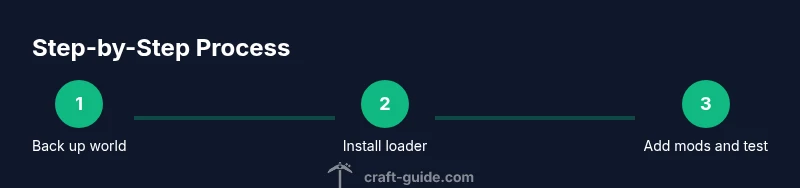
- 1
Back up your world
Create a full backup of your Minecraft save directory before making any changes. Copy the world folder to a separate location, and consider creating a zipped archive as an extra precaution. This protects you from crashes or corrupted data if mods don’t load correctly.
Tip: Keep at least two restore points: one clean backup and one pre-mod backup you can revert to quickly. - 2
Choose a mod loader (Forge or Fabric)
Select Forge if you want broad mod support and compatibility with many mods; choose Fabric for a lighter footprint and faster updates. Confirm that the loader supports your target Minecraft version and the mods you plan to use.
Tip: Read mod pages for loader requirements and dependencies; mismatches are the #1 cause of crashes. - 3
Install the mod loader
Run the loader installer and select the appropriate Minecraft installation. This creates a new profile in the launcher and the required mods folder structure. Start the game once to generate necessary files.
Tip: If the installer offers an option to install with a recommended core, enable it to minimize compatibility issues. - 4
Find and verify compatible mods
Browse reliable sources for mods that explicitly support your loader and patch version. Check dependencies and any required libraries. Note any mod conflicts with other installed mods.
Tip: Prefer mod bundles with active maintenance and clear version notes; avoid niche mods without updates. - 5
Install mods into the mods folder
Place the mod jar files (and dependencies) into the Minecraft mods directory created by the loader. Do not mix old jars with new ones in the same folder. Confirm file integrity after transfer.
Tip: Keep a list of installed mods and their versions to aid future updates or removals. - 6
Launch the game with the loader profile
Open the launcher and select the modded profile. Run a short test to ensure the world loads and that the mods appear in the game menu. If crashes occur, review the crash report for incompatible mods.
Tip: If a crash occurs, try removing the most recently added mod to isolate the culprit. - 7
Test, troubleshoot, and maintain
Play the world to observe behavior and performance. Monitor memory usage; adjust allocated RAM if needed. Keep backups after successful mod additions, and document any changes for future maintenance.
Tip: Document mod versions and loaders to streamline future updates.
People Also Ask
Can I add mods to a world in Bedrock Edition?
No, traditional Forge/Fabric mods are for Java Edition. Bedrock uses add-ons and a different modding approach.
Bedrock doesn't support Forge or Fabric; this method works on Java Edition only.
Do I need to start a new world when adding mods?
Not always. You can add mods to an existing world, but some mods alter core behavior or world generation more safely with a fresh save. Always back up first.
You generally don’t have to start over, but some mods might require it—back up first to be safe.
Which loader is easier for beginners, Forge or Fabric?
Fabric is lighter and often easier for newcomers, while Forge offers a larger mod library. Start with Fabric if you want a gentler entry, then explore Forge if you need broader compatibility.
Fabric is lighter and great for beginners; Forge has more mods but can be heavier to manage.
What should I do if Minecraft crashes after adding mods?
Check the crash report to identify conflicting mods, remove the latest addition, and revert to a backup if needed. Re-run with a smaller mod set to isolate issues.
If it crashes, read the crash log, remove the culprit mod, and try again with fewer mods.
How can I ensure mods remain compatible over time?
Keep a dedicated backup and note mod versions. Before updating, verify compatibility with the new Minecraft version and loaders. Stay within supported mod sets.
Keep backups and check compatibility before updating anything.
Are there performance considerations when modding an existing world?
Mods can increase memory usage and affect FPS. Allocate enough RAM, disable demanding mods if needed, and consider performance-focused mods to balance visuals and speed.
Mods can slow things down; tweak RAM and pick performance-friendly options.
Watch Video
The Essentials
- Back up before modding to protect your world.
- Choose Forge or Fabric based on your mod needs and version support.
- Verify mod compatibility and dependencies before installing.
- Test thoroughly and document changes for future maintenance.