Which Minecraft for Linux Mint: Java Edition vs Bedrock and Launchers
Discover the best Minecraft setup for Linux Mint, focusing on Java Edition with launchers like MultiMC/PolyMC, and compare it to Bedrock workarounds. Practical guidance on performance, mods, and Linux Mint tuning.


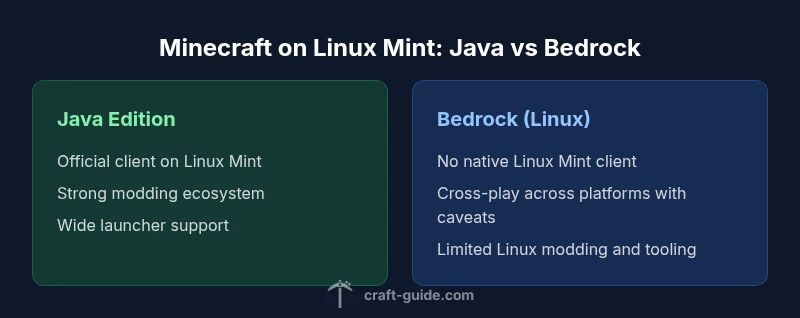
On Linux Mint, the recommended Minecraft setup is the Java Edition run through a modern launcher (MultiMC or PolyMC). Bedrock Edition has no official Linux client, so most players skip it or use workarounds. Java Edition supports wide modding, server options, and consistent updates, making it the practical default for Linux Mint users.
Why Java Edition is the default for Linux Mint
For most Linux Mint players, Java Edition remains the practical default due to broad modding support, a mature launcher ecosystem, and extensive server options. The Linux Mint environment—based on Debian/Ubuntu foundations—pairs well with the Java runtime, and popular launchers like MultiMC and PolyMC simplify managing modded profiles, Forge and Fabric loaders, and multiple Minecraft versions. The Craft Guide team notes that Java Edition’s ecosystems have grown around Linux, with documentation and community scripts that smooth setup on Mint systems. In practice, gamers upgrade their Mint installations with a stable OpenJDK (Java Development Kit) version and then point launchers to the appropriate Minecraft version. The result is predictable performance, easier backups, and robust modding options that are harder to achieve with unofficial Bedrock workarounds. For players new to Linux, this path also minimizes dependency headaches and keeps mod development accessible across updates.
Quick-start considerations for Mint users
- Ensure your Mint system is 64-bit and up to date. Java Edition relies on a modern JRE/JDK; OpenJDK 17+ is commonly recommended, with alternatives like Oracle Java available if you prefer commercial support.
- Use a dedicated launcher for mod management (MultiMC or PolyMC). These tools create isolated profiles for each Minecraft version, easing memory and mod loader configurations.
- Allocate memory thoughtfully. Start with 2–4 GB for vanilla; increase for heavy mod packs, but avoid overcommitting RAM on Systems with limited resources.
- Install graphics drivers promptly. Nvidia, AMD, and Intel can all work well on Mint with the right driver stack, which directly affects Minecraft frame times and shader performance.
- Back up saves and configs. Mint users benefit from simple snapshotting tools and versioned mod profiles to protect progress against updates or misconfigurations.
Craft Guide’s practical takeaway: Java Edition with a dedicated launcher is the most reliable Linux Mint path for stability, performance, and modding flexibility. This approach aligns with broader community usage and official guidance, which reduces compatibility friction across Mint releases and Java updates.
What this means for your setup
If you want a smooth Linux Mint Minecraft experience without fiddling with emulation or questionable workarounds, Java Edition is the recommended route. It provides the most consistent performance with mods, easier server connectivity, and a straightforward update path as new Minecraft versions release. While Bedrock offers cross-platform play, Linux Mint users will find the native Java-based workflow far more reliable and better supported by the modding community.
Comparison
| Feature | Minecraft Java Edition (Official Launcher on Linux Mint) | Minecraft Bedrock Edition (Unofficial Linux Support) |
|---|---|---|
| Official support | Yes (Java Edition on Linux Mint via official launcher and widely supported by launchers) | No (Bedrock has no official Linux client; workarounds exist but are not official) |
| Modding ecosystem | Strong (Forge, Fabric, and extensive community mods on Java) | Weak/None (Bedrock on Linux lacks native modding; compatibility limited) |
| Launcher options | MultiMC/PolyMC + Official Launcher for clean mod management | Bedrock launchers exist but rely on emulation or Windows-based approaches |
| Cross-platform play | Cross-play with Java servers and realms across Java editions | Bedrock cross-play is platform-limited and not officially supported on Linux Mint |
| Performance tuning | Runs well with proper Java allocation and graphics drivers | Performance varies; relies on non-official setups and can be unstable |
| Pricing model | One-time purchase of Java Edition (typical price range) | Bedrock requires Windows or official Windows store access; Linux options not standard |
Benefits
- Broad modding support and loader options (Forge/Fabric)
- Stable, documented setup process on Linux Mint
- Strong launcher ecosystem for profile management
- Wide server and multiplayer options with reliable updates
Negatives
- Bedrock Edition lacks native Linux Mint support
- Modding can require extra tools and manual steps
- Some mods and packs may require matching Java versions
Java Edition with a dedicated launcher is the best fit for Linux Mint
The Craft Guide team recommends Java Edition on Linux Mint for reliability, mod support, and broad server options. Bedrock workarounds exist but are not official and may introduce stability concerns.
People Also Ask
Is Minecraft Bedrock playable on Linux Mint?
Bedrock has no official Linux Mint client. Some users attempt workarounds, but these are not officially supported and can be unstable. If cross-platform play is a priority, consider Java Edition on Mint with cross-server options.
Bedrock isn’t officially supported on Linux Mint. You’ll likely want Java Edition for stability and cross-server play.
Do I need Java to run Minecraft on Linux Mint?
Yes. Minecraft Java Edition requires a Java runtime. Install OpenJDK or Oracle Java, and then use a launcher that points to the Java version you want to run. For Mint, OpenJDK 17 or newer is a common starting point.
Yes. Java is required for the Java Edition. Install a recent OpenJDK and configure your launcher accordingly.
Which launcher is best for Linux Mint?
MultiMC and PolyMC are the most popular launchers for Linux Mint due to modular profiles and easy mod management. The official launcher is fine for vanilla play but lacks the advanced modding organization these tools offer.
Most Mint players prefer MultiMC or PolyMC for modded play; they simplify version and mod management.
Can I mod Minecraft on Linux Mint?
Yes, primarily with Minecraft Java Edition. Forge and Fabric loaders enable mods, and launchers like MultiMC/PolyMC streamline installing them. Bedrock mods are limited on Linux Mint due to lack of official support.
Absolutely—modding works great with Java Edition and Forge or Fabric loaders.
How much RAM should I allocate for a modded pack?
Start with 2–4 GB for vanilla, and increase to 6–8 GB or more for heavy modpacks. Avoid allocating all available RAM; leave headroom for the OS and background processes.
Start with 2–4 GB for vanilla and scale up carefully for heavy modpacks.
Can I play with friends on Linux Mint servers?
Yes. Java Edition supports multiplayer through Minecraft servers and Realms. Ensure both sides run compatible Minecraft versions and that the server's port is accessible through your network.
Yes—you can join Java Edition servers with friends; just keep versions aligned.
The Essentials
- Choose Java Edition as the default on Linux Mint
- Use MultiMC or PolyMC to manage modded profiles
- Ensure a proper Java version and up-to-date graphics drivers
- Back up saves and profiles before major updates
- Explore Forge or Fabric to unlock modding potential