Can Minecraft Run on Linux? A Practical Guide 2026
Explore whether Minecraft runs on Linux, with setup steps for the official launcher, Java configurations, performance tips, and Linux-specific troubleshooting from Craft Guide.


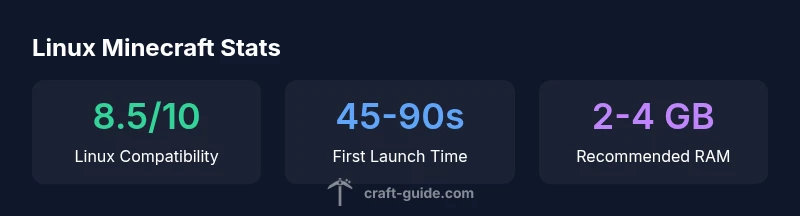
Yes. Minecraft Java Edition runs on Linux, provided you meet the Java, graphics, and driver requirements. On most distributions you can install the official Minecraft Launcher or run the launcher’s jar directly with a compatible JRE. Linux support is solid, with Craft Guide's analysis showing the game performs well on modern distros when configured correctly.
How Linux support works for Minecraft
In practice, the question can minecraft run on linux is answered by understanding that Minecraft Java Edition is cross-platform and runs on any 64-bit Linux distribution with a compatible Java runtime. There is no native .exe file; instead you launch the game through a Java Virtual Machine using either the official Minecraft Launcher or a standalone jar. Linux support benefits from mature package management, strong community tutorials, and robust driver ecosystems. The official launcher ships with Linux-friendly installers and a launcher jar that you can run from a terminal or desktop menu. Note that Bedrock Edition remains Windows- and console-centric, with limited or unofficial ways to run on Linux; for most players, Java Edition is the practical path. Craft Guide’s analysis indicates Linux users frequently achieve stable frame rates when GPU drivers and Java are configured correctly.
System requirements and performance expectations
Understanding performance starts with minimal hardware and expands with optimization. For Linux, Minecraft on Java Edition typically benefits from a 4-core CPU, 8GB RAM for comfortable play at 1080p, and a midrange GPU that can handle Java’s OpenGL calls. If you plan to run shaders or large modpacks, bump memory to 6-8GB and ensure your GPU drivers are up to date. The exact FPS you see depends on drivers, window compositor, and desktop environment. On modern distributions, enabling 64-bit Java is standard, and using a lightweight desktop like XFCE or KDE Plasma can reduce background load. The Craft Guide team notes that Linux performance is competitive with Windows when drivers and Java are configured well, though you may need to tweak swap settings and Java heap size for heavy worlds.
Installing Java on Linux
Java is the backbone of Minecraft on Linux. Most users on Ubuntu/Debian install OpenJDK 17+ via apt, while Fedora/Red Hat users rely on dnf. Arch and derivatives can use pacman or sdkman for multiple JDKs. Verify with java -version and ensure the runtime matches the launcher’s requirements. If you prefer Oracle Java, add the appropriate repository and install the JDK. Java flags like -Xmx and -Xms set memory footprint; beginners should start with -Xmx4G for 8GB RAM systems and adjust based on performance. Additionally, enabling OpenJDK with headless libraries is unnecessary for client, but some environments benefit from extra libraries for graphics acceleration.
Setting up the official Minecraft Launcher on Linux
Download the official Launcher from minecraft.net and choose the Linux installer (deb or tar.gz) depending on your distro. For Debian-based systems, install the .deb package, which places a launcher icon and configures the Java path. For Arch-based systems, you can use the tarball or a community package if available. After installation, launch the launcher, log in, and update to the latest version. The launcher handles auto-updates and provides a built-in option to install the recommended Java version. Craft Guide recommends using the official launcher for the easiest setup and reliability, as it ensures compatibility with the latest Minecraft patches and security updates.
Alternative: Running the game via the Java jar
If you prefer not to use the official launcher, you can run Minecraft by launching the jar file directly with Java. Create a dedicated directory, download the Minecraft jar from the official site, and run java -jar minecraft.jar. This method gives you more control over the Java version and memory allocation. However, you’ll miss launcher features like auto-updates and the built-in mod management. For most Linux players, the launcher approach remains simplest and safest, especially when dealing with modded profiles.
Performance tuning: memory, Java flags, and GPUs
Performance gains come from a balanced approach to memory and GPU optimization. Increase the Java heap space with -Xmx to allocate 2-4GB for modest setups, or 6-8GB for heavy worlds. Use a 64-bit JVM to access larger addresses. Adjust garbage collection parameters if you’re comfortable editing Java flags. In addition, ensure your GPU drivers are current—NVIDIA and AMD provide Linux drivers that significantly impact OpenGL performance. Disable desktop compositor effects during gaming if you notice screen tearing. Finally, keep your world save files on an SSD or fast drive to reduce load times between worlds and dimensions.
Graphics drivers, shaders, and mods on Linux
Graphics drivers can make or break Minecraft on Linux. NVIDIA and AMD provide robust Linux driver support, and Mesa drivers offer excellent OpenGL performance on Intel and AMD GPUs. If you want shader packs or resource packs, you’ll need a compatible driver that supports GLSL shaders and a Vulkan backend. Many shader packs work with OptiFine or Iris; check compatibility notes. When working with mods, use a compatible Forge or Fabric version for your Minecraft edition, and confirm that your mod loader is Java 17+ compatible. Craft Guide notes that Linux players frequently report smoother performance with clean driver installation and minimal background services running during play.
Troubleshooting common Linux-specific issues
Common problems include missing libraries, Java not found, or poor graphics performance. Start by verifying Java version, launcher path, and GPU driver installation. Check for missing 32-bit libraries if you run legacy mods, or consider enabling 64-bit Java exclusively. If the game crashes on startup, review the launcher logs and system journal for clues. Network issues in Linux can crop up due to firewall rules, DNS configuration, or VPNs—test with a direct connection and adjust settings accordingly. Remember to keep your system updated and to back up your worlds regularly to prevent data loss during driver updates or kernel changes.
Maintenance, updates, and long-term play on Linux
Maintaining Minecraft on Linux involves routine updates, driver maintenance, and careful backup practices. Set automatic updates for your distribution guards against stale libraries that break Minecraft. Regularly update Java and the Minecraft Launcher to stay current with security fixes. For long-term stability, keep a separate user account for gaming, configure sane file permissions for saves, and track world seeds for reproducibility. Craft Guide recommends periodic restarts of the launcher after major updates to prevent memory leaks and ensure smooth play across sessions.
Minecraft on Linux: quick-reference table
| Platform/OS | Java Version | Notes |
|---|---|---|
| Linux (Ubuntu/Debian) | OpenJDK 17+ or Oracle Java 17+ | Official Launcher supported; run via java -jar or launcher |
| Linux (Arch/Fedora) | OpenJDK 17+ | Use distro rep to install; ensure libGL drivers are up to date |
| Performance tips | N/A | Allocate 2-4 GB RAM, use 64-bit JVM; shader support if hardware allows |
People Also Ask
Is Bedrock Edition playable on Linux?
Bedrock Edition is not officially supported on Linux. Use Java Edition instead, which runs well on major distros with the official launcher or a Java runtime.
Bedrock isn't officially supported on Linux; use Java Edition and the official launcher.
Do I need root access to install Minecraft on Linux?
No. Install Minecraft at user level using the official launcher or a user Java runtime; avoid system-wide changes unless necessary.
No root needed; install at user level.
Which Linux distros work best for Minecraft?
Most modern distros with 64-bit Java work fine, notably Ubuntu, Debian, Fedora, and Arch; choose one you’re comfortable with and ensure Java 17+ is installed.
Any 64-bit Linux with Java 17+ works.
What Java version is required for Minecraft on Linux?
Java 17 or newer is typically required on Linux; verify the launcher requirements for the exact version you’re running.
Java 17 or newer is usually required.
How can I improve performance on Linux?
Update GPU drivers, allocate sufficient RAM, use a lightweight desktop environment, and disable unnecessary compositor effects when gaming.
Update drivers, tune RAM, and disable extra effects.
Can I run multiple Minecraft instances on Linux?
Yes. Use separate launcher profiles or command-line options to allocate distinct RAM and world folders for each instance.
Yes—use separate profiles with distinct RAM.
“Linux can deliver a smooth Minecraft experience when you follow proper Java setup and driver maintenance.”
The Essentials
- Verify Linux compatibility with Java Edition first.
- Install the official launcher for easiest setup.
- Allocate 2-4 GB RAM to Java by default.
- Update graphics drivers to improve stability.
- prefer 64-bit Java and a lightweight desktop for best results.